How to Set Up Apache Basic Authentication in Ubuntu 24.04


Apache basic authentication in Ubuntu 24.04 blocks unauthorized visitors from private folders on your website. Anyone who opens the protected address must enter a username and password before they can see the page. The login details are stored in a password file created with the htpasswd tool. The Apache rules that apply the protection live in a virtual host file in the /etc/apache2/sites-available/ folder.
You can set this up in a few minutes to keep private dashboards and admin areas away from the public. You need a server with Apache already installed and a user account with sudo rights.
Apache basic authentication on Ubuntu 24.04 is set up by installing apache2-utils with sudo apt install apache2-utils, creating a password file with sudo htpasswd -Bc /etc/apache2/.htpasswd username, and adding a Directory block with AuthType Basic and require valid-user to a virtual host file. Enable it with sudo a2ensite auth-basic.conf, then run sudo systemctl reload apache2.
Protect directories with Apache basic authentication
Basic authentication protects specific folders by requiring a valid username and password before a visitor can open any file in them. First you install the helper tools from the terminal. They include htpasswd, which creates the password file. Without them you can’t create the users.
Open a terminal on the server and run the command below. When it finishes, the tools are ready and you can move on.
sudo apt install apache2-utils
Continue below to secure a directory with a username and password.
For this walkthrough, /var/www/html/sensitive-doc is the protected directory. Anyone who tries to visit this location must provide valid credentials. The rest of the site stays open as before.
Run the command below to open a new file named basic-auth.conf in your terminal editor. If a file with that name already exists, the editor opens it instead, so check what is in it before you paste anything.
sudo nano /etc/apache2/sites-available/auth-basic.conf
Paste the content below into the file and save the changes. Look at the paths and the domain name in the block. If your site uses a different domain or document root, change them to match your server before you save.
<Directory /var/www/html/sensitive-doc>
    AuthType Basic
    AuthName "Basic Authentication"
    AuthUserFile /etc/apache2/.htpasswd
    require valid-user
</Directory>
Create accounts
Now create the user credentials for the restricted directory. Run the command below.
sudo htpasswd -Bc /etc/apache2/.htpasswd username
- Replace username with the login name you want. Use a name that is easy to recognize, such as the person's first name.
- Type a new password when prompted. The terminal shows nothing while you type, which is normal.
- Type the same password again to confirm. The tool then saves the user with an encrypted (hashed) password, not plain text.
Recreating it wipes the users that are already in it.
Create the protected directory
To protect a folder, you need the directory path, a password file for the allowed users, and a virtual host configuration that tells Apache to ask for a login. You now have all three. The directory itself and the final steps come next.
Enabling the virtual host makes the new configuration active. Apache does not read it until you reload the service. Run sudo systemctl reload apache2.service to apply the change. A reload keeps current connections alive, so you don't need a full restart. The authentication modules this setup relies on are normally enabled by default on Ubuntu's Apache package.
sudo a2ensite auth-basic.conf
sudo systemctl reload apache2
Run the command below to create a basic HTML index.html file for testing. The file gives you something to see once you are logged in.
sudo nano /var/www/html/sensitive-doc/index.html
Paste the lines below into the file. Any short text works. The point is to have a page you can recognize.
<html>
<title>My basic authentication HTML page</title>
<body>
<p style="width: 100%; font-weight: bold; font-size: 60px; text-align: center;">
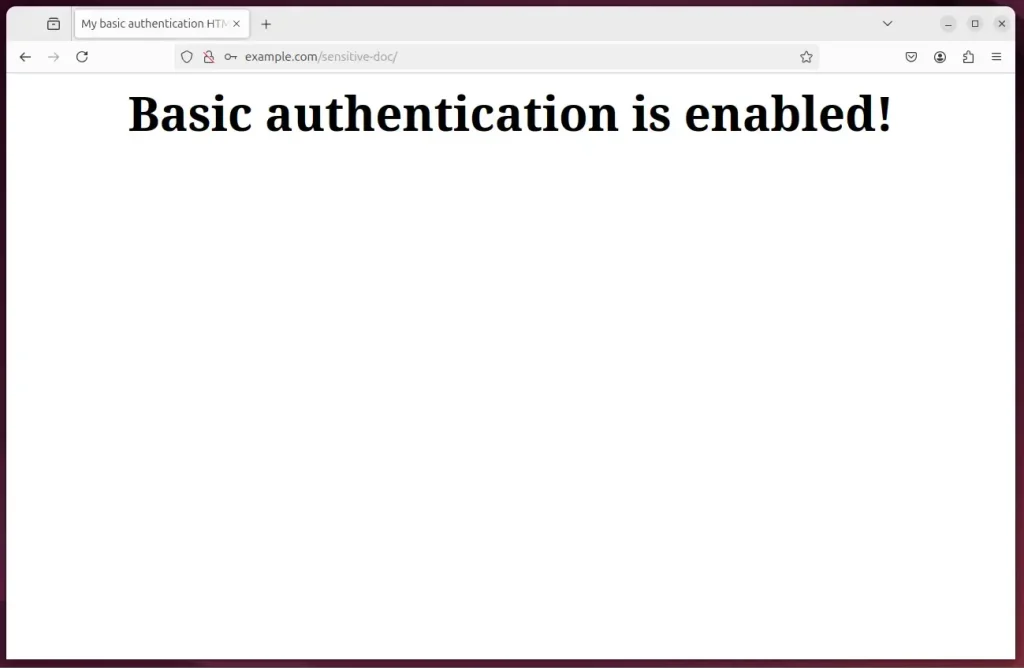
Basic authentication is enabled!
</p>
</body>
</html>
Save the file and exit the editor.
Test Apache basic authentication
Testing confirms that the password protection works before real visitors use the site. Open a web browser and go to the protected address.
http://example.com/sensitive-doc/
Replace example.com with your own domain or server IP address. The browser should show a login prompt asking for a username and password.
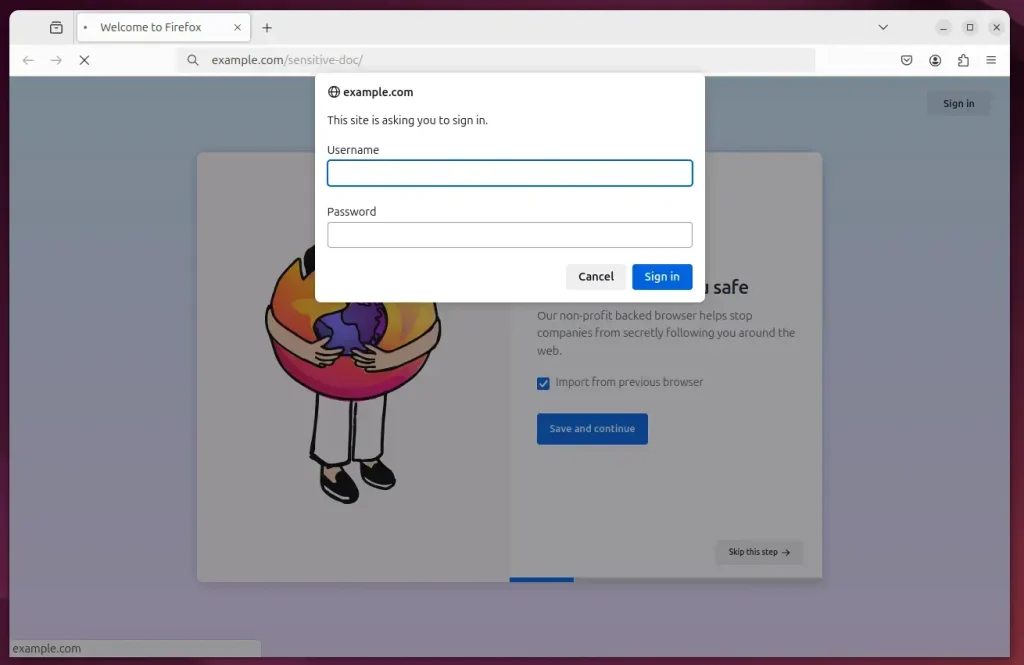
Enter the username and password you created with htpasswd. After you sign in, the browser shows your test page.
If the prompt does not appear, check these things:
- Make sure you reloaded Apache after enabling the virtual host.
- Check that the domain in the address matches the one in your virtual host file.
- Try a private browser window, since your browser may have cached an earlier response.
- If the prompt appears but your login is rejected, create the user again and type the password carefully.
- If you see an error page instead, read the Apache error log. It usually names the problem, such as a wrong path or a permissions issue.
Basic authentication sends the username and password in a form that is easy to decode. On a public site, serve the protected folder over HTTPS so the login can't be read on the network.
To undo the protection, disable the virtual host or remove the authentication rules from it, then reload Apache.
That completes the setup process.
Conclusion:
Locking down sensitive directories with a password wall stops unauthorized visitors from poking around your server.
- Enhanced Security: Basic Authentication adds a layer of protection by requiring users to authenticate with a username and password.
- SSL/TLS Implementation: Remember to set up SSL/TLS to encrypt the data exchanged, ensuring that credentials are not sent in plain text.
- Directory Protection: You can easily protect any directory by creating a virtual host configuration and an account for access.
- Test Access: Verify your setup by accessing the protected directory and ensuring the authentication prompts function as intended.
- Ongoing Management: Maintain your credentials and manage user access as needed for optimal security.
Web applications and private data stay protected with these password checks in place.
Have a question about this guide?
Answered by AI from this guide. Good questions may be added to this page — please don't include personal details.
Did this guide fix your problem?

About the Author
Richard
Tech Writer, IT Professional
Richard is a writer at Geek Rewind who turns complex IT tasks into clear, step-by-step guides. He draws on years of hands-on experience in system administration and enterprise IT operations, focusing on Windows, Linux and WordPress: the problems people actually run into, and the fixes that work. His server and WordPress guides come from systems he runs himself. Richard builds and maintains the platform behind Geek Rewind, from its Ubuntu servers and Nginx configuration to its custom WordPress plugins. Many new tutorials start with readers' questions, and he's always glad to answer them in the comments.
[…] Apache Basic Authentication is a method used to restrict access to web resources on an Apache server by requiring users to provide a username and password. […]