How to Install WordPress with WSL on Windows 11


Installing WordPress with WSL on Windows 11 lets you run a complete Linux website server directly on your PC. WSL, which stands for Windows Subsystem for Linux, is a built-in feature that puts a real Linux environment inside Windows. You can use standard server tools without a separate operating system or a dual-boot setup.
Microsoft first launched WSL in 2016. The modern WSL2 version uses a real Linux kernel, which makes database software like MySQL and web servers much faster and more reliable.
This guide builds a LEMP stack: Linux (Ubuntu), Nginx, MariaDB (in place of MySQL) and PHP. It then installs WordPress on top. It works on Windows 11 Home and Pro. You need an administrator account, an internet connection, and hardware virtualization turned on in your PC’s BIOS/UEFI. Most new PCs ship with it on. The result is a local test site, which is a good place to build and try things before you put them on a live host.
To install WordPress with WSL on Windows 11, first install Windows Subsystem for Linux by opening Command Prompt as administrator and running wsl –install, then restart your PC. Next, install an Ubuntu distribution inside WSL and set up a LEMP stack (Nginx, MariaDB and PHP) to host WordPress locally. You need virtualization turned on in your BIOS/UEFI.
Install Windows Subsystem for Linux in 🪟 Windows 11
To install Windows Subsystem for Linux in Windows 11, open Command Prompt as an administrator and run the wsl –install command. This built-in feature runs a full Linux environment on your Windows PC without a separate virtual machine. You need it before you can host WordPress locally.
On current Windows 11 builds, wsl –install turns on the required Windows features, sets WSL 2 as the default version, and also downloads Ubuntu. The steps below still show how to pick a specific distribution yourself, so you can follow along either way.
- Click Start and type Command Prompt in the search box.
- Right-click the Command Prompt app and choose Run as administrator.
- Click Yes if User Account Control asks for permission. An elevated Command Prompt window opens, and its title bar says Administrator.
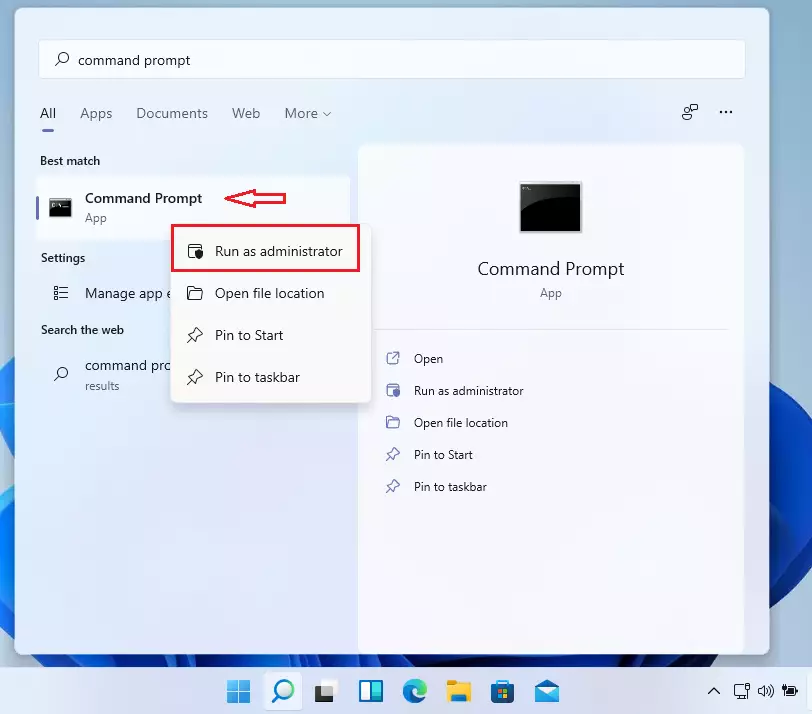
Run the commands below in the console to install Windows Subsystem for Linux (WSL). If the command only prints a list of help options, WSL is probably already installed on your PC. In that case, go on to the update and distribution steps further down.
wsl --install
Wait for WSL to finish installing. Windows downloads the components and enables the features it needs, which can take a few minutes depending on your connection. Don't close the window while the progress text is still moving.
When the install finishes, you should see a success message similar to the lines below. If you get an error about virtualization instead, turn on virtualization (often called Intel VT-x, AMD-V or SVM Mode) in your BIOS/UEFI and run the command again.
Installing: Virtual Machine Platform
Virtual Machine Platform has been installed.
Installing: Windows Subsystem for Linux
Windows Subsystem for Linux has been installed.
Downloading: WSL Kernel
Installing: WSL Kernel
WSL Kernel has been installed.
Downloading: GUI App Support
Installing: GUI App Support
GUI App Support has been installed.
Downloading: Ubuntu
The requested operation is successful. Changes will not be effective until the system is rebooted.
Restart your computer. The restart is required, because Windows finishes enabling the WSL features while it boots.
WSL should now be installed and ready to use. WSL gets updates separately from Windows, so it is worth updating it now and again later. To update, open an administrator Command Prompt again and run the commands below:
wsl --update
Install Specific Linux distro on 🪟 Windows 11
Now that WSL is installed, you can install your own Linux distribution. To see which distributions are available, run the commands below:
wsl --list --online
You should then see a table of the distributions that can be installed on WSL. Note the exact name of the one you want, because you type that name in the next step.
NAME                            FRIENDLY NAME
Ubuntu                          Ubuntu
Debian                          Debian GNU/Linux
kali-linux                      Kali Linux Rolling
Ubuntu-18.04                    Ubuntu 18.04 LTS
Ubuntu-20.04                    Ubuntu 20.04 LTS
Ubuntu-22.04                    Ubuntu 22.04 LTS
Ubuntu-24.04                    Ubuntu 24.04 LTS
openSUSE-Leap-15.6              openSUSE Leap 15.6
SUSE-Linux-Enterprise-15-SP6    SUSE Linux Enterprise 15 SP6
To install a Linux distribution from the list above, run the commands below with the distribution name. For example, to install Ubuntu 20.04, use the commands below. Newer Ubuntu releases work too and are the better choice for a new setup. Be aware that a newer release ships a newer PHP version than the 7.4 used later in this guide.
wsl --install -d ubuntu-20.04Wait for the download to finish. You should then get a message that the distribution is installed.
Downloading: Ubuntu 20.04 LTS
Installing: Ubuntu 20.04 LTS
Ubuntu 20.04 LTS has been installed.
Launching Ubuntu 20.04 LTS.
It asks you to create a Linux username and password. These are separate from your Windows account. Remember the password, because sudo asks for it every time you run an administrative command in the steps that follow. Nothing shows on screen as you type it, which is normal.
Installing, this may take a few minutes.
Please create a default UNIX user account. The username does not need to match your Windows username.
For more information visit: https://aka.ms/wslusers
Enter new UNIX username: Richard
New password:
Retype new password:
passwd: password updated successfully
Installation successful!
To run a command as administrator (user "root"), use "sudo <command>".
See "man sudo_root" for details.

Welcome to Ubuntu 20.04 LTS (GNU/Linux 4.4.0-22000-Microsoft x86_64)
If something goes wrong with WSL or the distribution, the commands below are useful for troubleshooting. They help you check which distributions are installed and which WSL version each one uses.
wsl --set-default-version 2
bcdedit /set hypervisorlaunchtype auto
Run every command from here to the end of the guide inside the Ubuntu console, not in Windows Command Prompt. First, install the Nginx HTTP Server.
Install Nginx HTTP Server
To install the Nginx HTTP Server on your Ubuntu setup inside WSL, run the sudo apt update and sudo apt install nginx commands in your terminal. Nginx is the web server. It processes visitor requests and loads your WordPress site pages in the browser.
Run the commands below in the Ubuntu console to install Nginx. If apt asks you to confirm, type Y and press Enter.
sudo apt update
sudo apt install nginx
After installing Nginx, use the commands below to stop and start the Nginx service. You also need them when you want the service to pick up a configuration change.
sudo service nginx stop
sudo service nginx start
To test whether Nginx is installed and working, open your web browser on Windows and go to the server's IP address or hostname. Inside WSL that is usually the local address shown below:
http://localhost
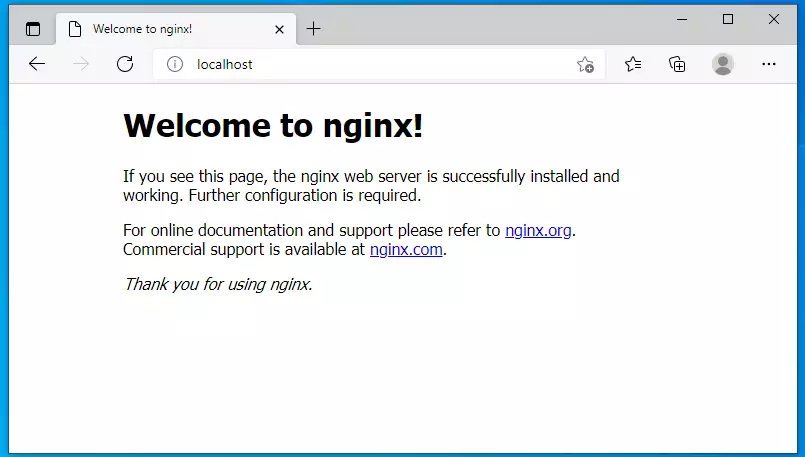
If you see the page above in your browser, Nginx works as expected. If the page doesn't load, check that the service is started. Also make sure no other program on Windows, such as IIS or Apache, is already using port 80.
Install MariaDB Server
To install MariaDB Server for your WordPress site on WSL Ubuntu, run the sudo apt install mariadb-server mariadb-client command in your terminal. MariaDB is the database management system that stores all your website posts, pages and user settings.
MariaDB is an open-source database server that is fast, secure and works well with WordPress. It is the default database server on many Linux distributions.
Run the commands below to install MariaDB:
sudo apt install mariadb-server mariadb-client
After installing MariaDB, use the commands below to stop and start the service and to enable it to start when the server boots. Keep in mind that WSL only runs while a Linux console is open or a Linux process is active. Start the services again after a Windows restart if they aren't running.
sudo service mysql stop
sudo service mysql start
Next, run the commands below to secure the database server with a root password. Do this if you were not prompted to set one during the installation.
sudo mysql_secure_installation
When the script prompts you, answer the questions as listed below. The red text is what you type. The "Y" answers remove default settings that are meant for testing only.
- Enter current password for root (enter for none): Just press the Enter
- Set root password? [Y/n] : Y
- New password: Enter password
- Re-enter new password: Repeat password
- Remove anonymous users? [Y/n] : Y
- Disallow root login remotely? [Y/n] : Y
- Remove test database and access to it? [Y/n] : Y
- Reload privilege tables now? [Y/n] : Y
To verify that MariaDB is installed and working, log in to the database console with the commands below:
sudo mysql -u root -p
Type the root password when prompted. As before, nothing shows on screen while you type.
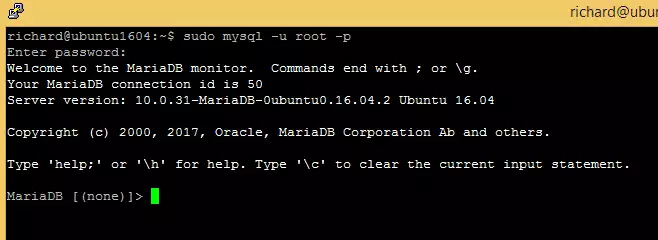
The server was installed successfully if you see a screen similar to the one below, with the MariaDB prompt waiting for input.
Install PHP and Related Modules
To install PHP and the related modules WordPress needs on WSL, run the apt install command below, which includes php-fpm, php-mysql and other necessary extensions. These packages let your server process WordPress code and connect to your MariaDB database.
sudo apt install php-fpm php-common php-mysql php-gmp php-curl php-intl php-mbstring php-xmlrpc php-gd php-xml php-cli php-zip
After installing PHP, configure a few basic settings so WordPress runs properly. These raise limits such as upload size, which are often too low by default for themes and plugins.
This tutorial used PHP 7.4. Depending on your Ubuntu release, apt may install a different PHP version. Check which version you have, and use that version number wherever 7.4 appears in the commands and file paths in this guide.
sudo nano /etc/php/7.4/fpm/php.iniBelow are good settings for most WordPress websites. Add or change them in the PHP configuration file shown in the block, then save the file.
file_uploads = On
allow_url_fopen = On
short_open_tag = On
memory_limit = 256M
cgi.fix_pathinfo = 0
upload_max_filesize = 100M
max_execution_time = 360
date.timezone = America/Chicago
That should leave PHP 7.4 installed with the basic settings WordPress needs to function. Restart the PHP service after any change to these settings so they take effect.
After setting up PHP, use the command below to stop and start the PHP 7.4 service. Use your own version number if it differs.
sudo service php7.4-fpm stop
sudo service php7.4-fpm start
Create WordPress Database
To create a WordPress database in MariaDB on WSL, log in with the sudo mysql -u root -p command and run the CREATE DATABASE SQL command. This creates the dedicated database that holds all your website content and user credentials.
Log in to the MariaDB database console with the commands below, and type the root password you set earlier when prompted:
sudo mysql -u root -p
Then, create a database called wpdb
CREATE DATABASE wpdb;Next, create a database user called wpdbuser and set a password. Replace the sample password in the command with a strong one of your own, and write it down. You enter it in the WordPress setup wizard later.
CREATE USER 'wpdbuser'@'localhost' IDENTIFIED BY 'new_password_here';
Then, grant the user full access to the database. This user can then manage that one database and nothing else on the server.
GRANT ALL ON wpdb.* TO 'wpdbuser'@'localhost' WITH GRANT OPTION;
Finally, save your changes and exit the database console.
FLUSH PRIVILEGES;
EXIT;
Download WordPress
To download WordPress on your WSL setup, use the wget command to grab the latest archive from the official site, extract the files, and move them to the /var/www/wordpress directory. Putting the files in this web root folder lets Nginx serve your site.
cd /tmp
wget https://wordpress.org/latest.tar.gz
tar -xvzf latest.tar.gz
sudo mv wordpress /var/www/wordpress
Then, run the command below to make the www-data user the owner of the WordPress directory. Nginx and PHP run as this user, so without this step WordPress can't save uploads or install plugins and themes.
sudo chown -R www-data:www-data /var/www/wordpress/
sudo chmod -R 755 /var/www/wordpress/
Configure Nginx VirtualHost
To configure an Nginx VirtualHost for your WordPress site on WSL, create a new server block configuration file inside the /etc/nginx/sites-available/ directory. This file tells the web server how to send incoming browser traffic to your local WordPress files.
Run the commands below to create a new VirtualHost file called WordPress in the /etc/nginx/sites-available/ directory. The command opens the file in a text editor in the console.
sudo nano /etc/nginx/sites-available/wordpress
Below is a solid configuration for most WordPress sites on the Nginx server. It should work for a standard install without changes. If you installed a different PHP version, change the version number in the PHP socket line to match.
Copy the content below and paste it into the file you created above.
server {
    listen 80;
    listen [::]:80;
    root /var/www/wordpress;
    index  index.php index.html index.htm;
    server_name  example.com www.example.com;

    client_max_body_size 100M;
    autoindex off;

    location / {
        try_files $uri $uri/ /index.php?$args;
    }

    location ~ \.php$ {
         include snippets/fastcgi-php.conf;
         fastcgi_pass unix:/var/run/php/php7.4-fpm.sock;
         fastcgi_param SCRIPT_FILENAME $document_root$fastcgi_script_name;
         include fastcgi_params;
    }
}
Save the file and exit the editor.
After saving the file, run the commands below to enable the new site, then restart the Nginx server. If Nginx reports a configuration error, re-open the file and check for a missing semicolon or brace, or a copy-and-paste mistake.
sudo ln -s /etc/nginx/sites-available/wordpress /etc/nginx/sites-enabled/
sudo service nginx restart
At this stage, WordPress is ready. Launch it by opening your browser and going to the server's IP address or hostname.
http://example.com
That should bring up the WordPress setup wizard. Choose your language first and continue.
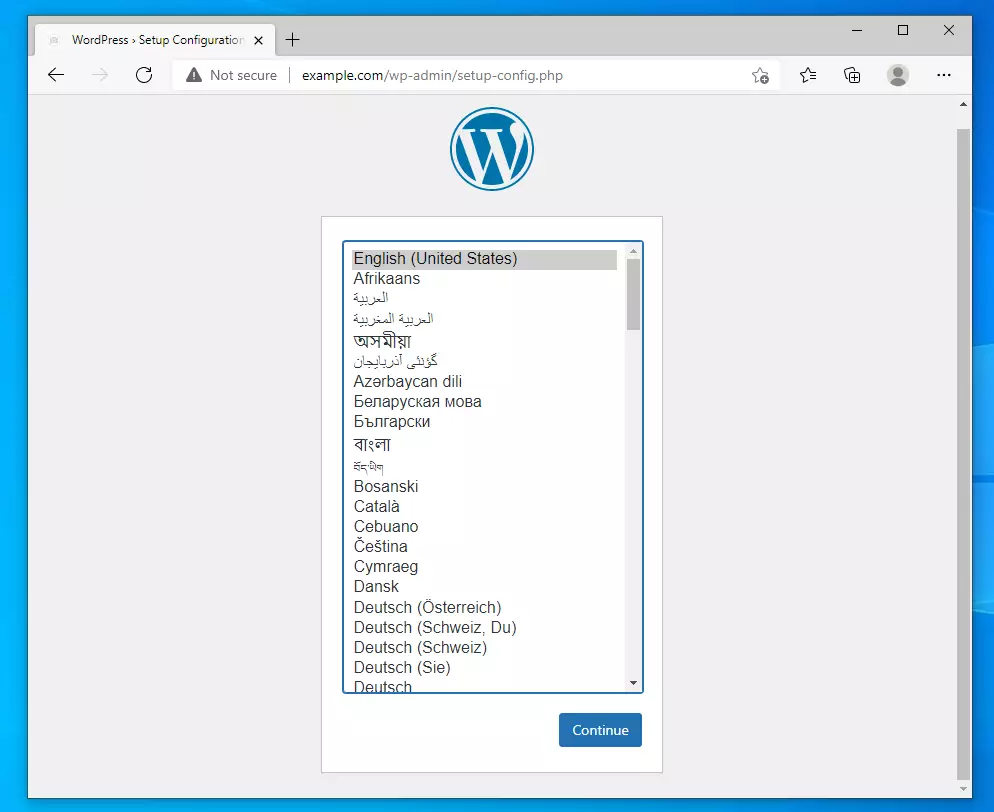
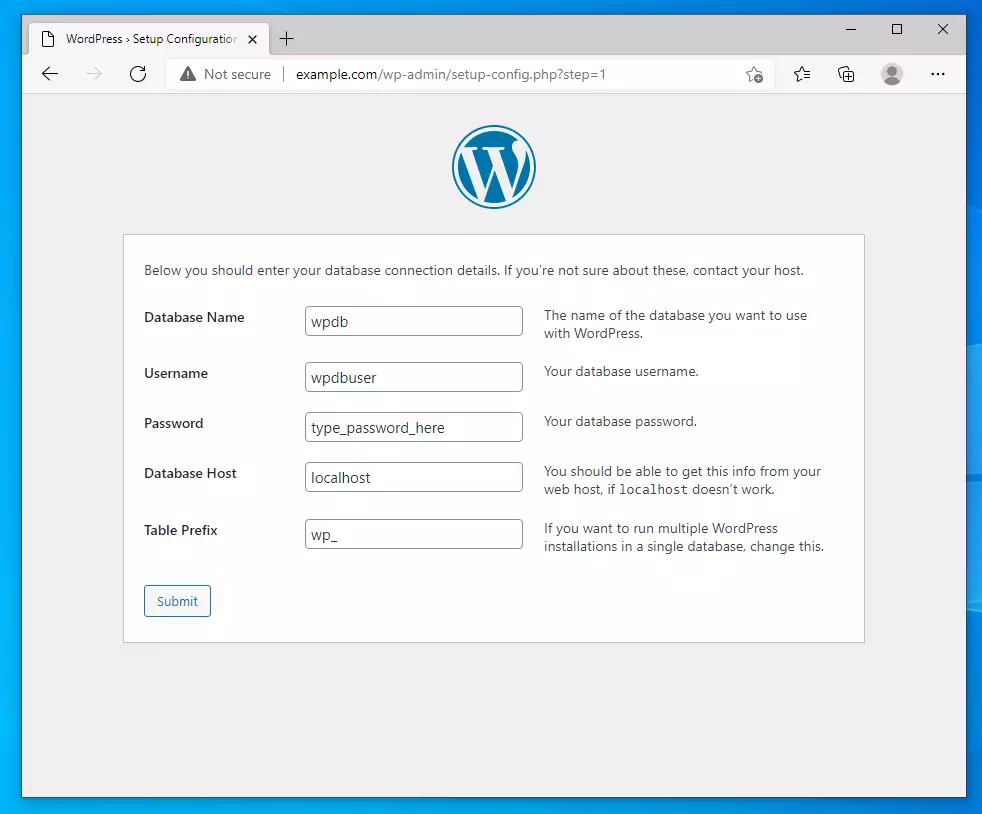
Type in the database name, the database user and the password you created earlier, then continue. The database host is normally localhost. If the wizard says it can't connect, check that MariaDB is running and that the user, password and database name match what you created.
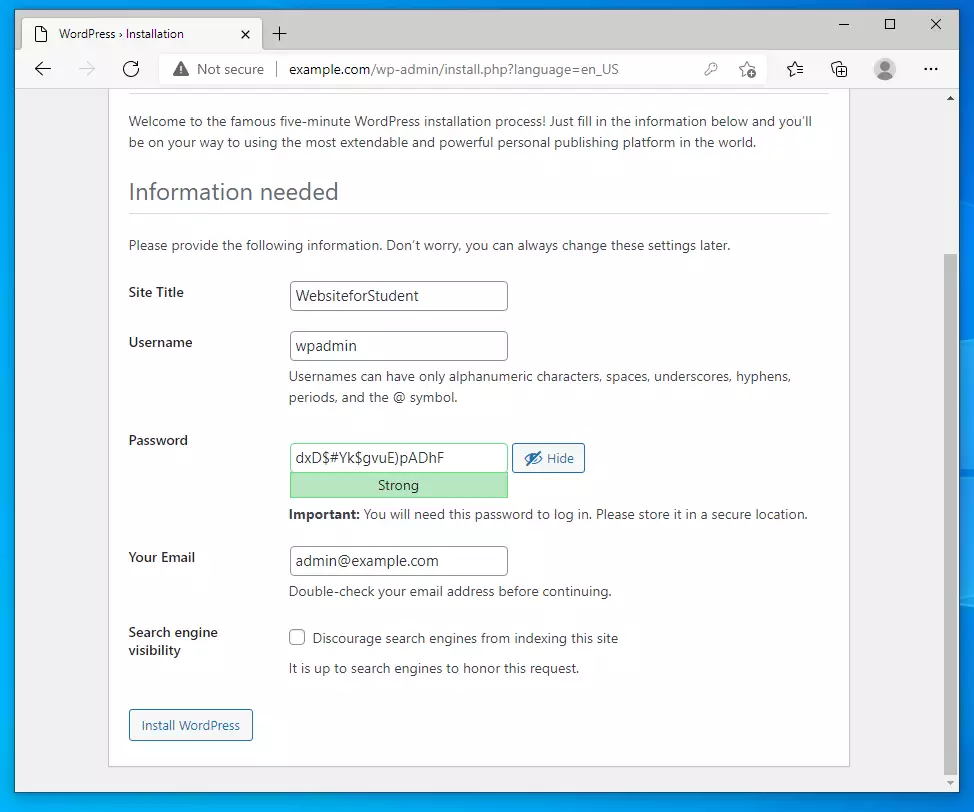
Enter a site title and create a WordPress admin account and password, then click Install WordPress. Use a strong password and an email address you can reach, since WordPress uses it for password resets.
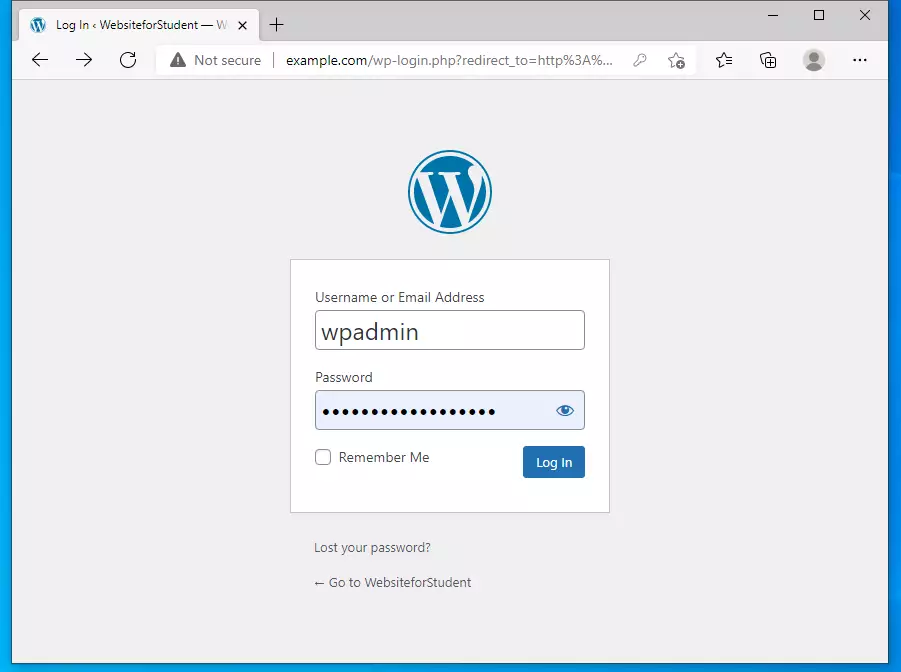
Log in with the account you just created, and you're done. You now have a working WordPress site running locally inside WSL.
That's it!
Conclusion:
This post showed you how to install WSL 2 on Windows 11, install Ubuntu, and run WordPress on a Nginx, MariaDB and PHP stack. If you find any error, please report it in the comment form below.
Have a question about this guide?
Answered by AI from this guide. Good questions may be added to this page — please don't include personal details.
Did this guide fix your problem?

About the Author
Richard
Tech Writer, IT Professional
Richard is a writer at Geek Rewind who turns complex IT tasks into clear, step-by-step guides. He draws on years of hands-on experience in system administration and enterprise IT operations, focusing on Windows, Linux and WordPress: the problems people actually run into, and the fixes that work. His server and WordPress guides come from systems he runs himself. Richard builds and maintains the platform behind Geek Rewind, from its Ubuntu servers and Nginx configuration to its custom WordPress plugins. Many new tutorials start with readers' questions, and he's always glad to answer them in the comments.
Thanks for awesome guide. I managed to install with PHP 8.0.
Also if somebody stuck with opening example.com to external site, you must edit windows host file and add these two lines to the bottom.
127.0.0.1 example.com
127.0.0.1 http://www.example.com
according to this guide
https://geekrewind.com/how-to-edit-windows-11-hosts-file/
You cannot not use example.com with IP 127.0.0.1 externally. You can only view it from the same machine.
Yes, unless you do not assign 127.0.0.1 to example.com in Windows host file.
Great, it worked!
Do not forget to edit the hosts file in windows
Hello,
I’ve followed these instructions perfection but getting an error “502 Gateway Error” when loading “example.com”. Do you have any suggestions? Tried all the obvious steps (ie., clearing cache, checking installations are correct, etc). Any thoughts on the next steps?
Hi,
WSL networking has improved since this article. However, there are some checks you need to perform after installing WordPress.
Add your domain name (example.com) in the hosts file on your Windows machine.
Read this post below to learn how to edit your Windows hosts file.
https://geekrewind.com/how-to-edit-windows-11-hosts-file/
Confirm that the PHP-FPM version is referenced correctly in the Nginx config file.
fastcgi_pass unix:/var/run/php/php7.4-fpm.sock;
If a different version of PHP is installed, ensure it’s used in the config file.
Always start services for good measures.
sudo service nginx startsudo service php7.4-fpm start
sudo service mariadb start
Hope this helps.
Thanks
Finally after 5 days of struggling and trying 5 different instructions I have WP. Only this instruction worked.
The only thing missing is what to do after rebooting the PC, how to make http://www.example.com work again
Thank you very much
I’m already a programmer :-)))))))