How to Repair or Reset WSL Ubuntu on Windows 11

WSL Ubuntu on Windows 11 lets you run Linux software directly on your PC. Broken packages or a frozen distribution can stop it from starting, and fixing it usually takes about 5 minutes. WSL stands for Windows Subsystem for Linux, a built-in Windows feature that runs Linux programs without a separate computer or a full virtual machine.
There are two ways to fix it, depending on how bad the damage is. Repair fixes the app and keeps your Linux files. Reset wipes the Ubuntu environment and gives you a fresh install. Try Repair first. Use Reset only when Repair doesn’t help and you have nothing in Ubuntu you need to keep.
Open Settings , go to Apps Installed apps, find Ubuntu, click the three dots, select Advanced options, and click Repair. This fixes broken app files without deleting your files or installed programs. If Repair doesn’t work, click Reset instead to wipe Ubuntu and start fresh.
How to Repair WSL Ubuntu
To repair WSL Ubuntu on Windows 11, open Settings , go to Apps, click Installed apps, find Ubuntu, click the three dots, select Advanced options, and click Repair. This fixes broken app files and startup errors without touching your personal Linux files or installed programs.
This method works for Ubuntu installed from the Microsoft Store, because that is the version Windows lists as an app. It repairs the Ubuntu app itself. It will not fix a problem with the WSL feature in Windows.
What happens? Windows repairs the Ubuntu app and Ubuntu should start normally again. Your home folder, your files and the programs you installed stay as they were.
Close any open Ubuntu windows first, then follow these steps:
- Open the Settings app. Click the Start menu and choose Settings, or press Windows key + I. The Settings window opens with a list of categories on the left.
- In Settings, click Apps on the left side. The Apps page opens on the right.
- Click Installed apps on the right. You now see a list of every app on the PC.
- Scroll down and find Ubuntu in the list. You can also type Ubuntu into the search box above the list. If it isn't there, your Ubuntu was probably not installed from the Microsoft Store, and the Repair button isn't available for it.
- Click the three dots next to Ubuntu, then select Advanced options. The Ubuntu settings page opens.
- On the new page, scroll down to the Reset section and click the Repair button. Be careful not to click Reset, which sits right next to it and deletes your data. A check mark appears next to the button when the repair finishes.
- Wait a little while for Windows to fix the app. When it is done, open Ubuntu from the Start menu and check that it starts. No restart of Windows is needed. If Ubuntu still won't start, move on to the reset below.
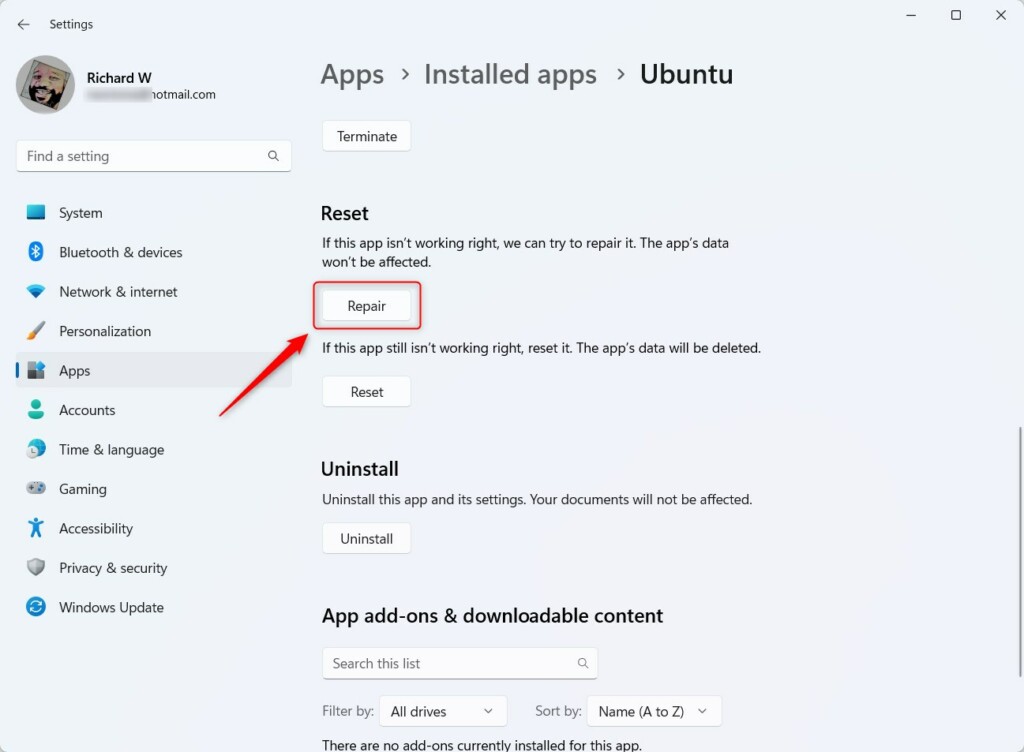
The Repair and Reset buttons sit together on the Advanced options page, so check which one you are clicking.
The Repair button fixes Ubuntu without losing your data. It is safe to run more than once, and it is always the first thing to try.
How to Reset WSL Ubuntu
This erases all data, configuration files and installed programs inside the Linux environment and returns it to a brand new state.
There is no recycle bin for it.
What happens? Everything inside Ubuntu is deleted, including your files and settings. Only do this if you have backups or don't mind losing your data. To save files first, open Ubuntu if it still starts, or open the Linux entry in the File Explorer navigation pane, and copy what you need to a normal Windows folder.
To reset Ubuntu, follow the same steps as for repairing (Settings Apps Installed apps Ubuntu Advanced options), but this time click the Reset button. Windows shows a warning that the app's data will be permanently deleted. Click Reset again to confirm. Closing any open Ubuntu windows first avoids errors.
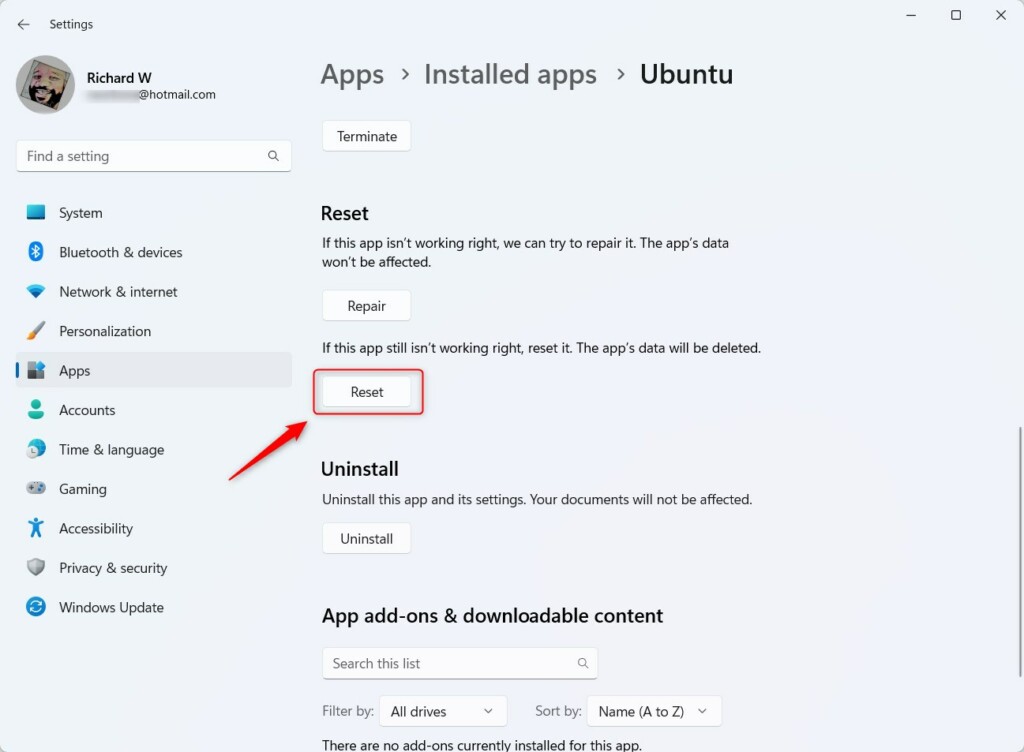
The Reset button is just below Repair on the same page, and Windows asks you to confirm before it deletes anything.
Reset deletes all data and gives you a fresh Ubuntu installation. If you get stuck on the same problem again, check that your backups are in place before trying anything else.
When the reset finishes, a check mark appears next to the button. Open Ubuntu from the Start menu to test it. It starts like a new install, so it may take a minute to set up and will ask you to create a new username and password. Check that Ubuntu now works better than before.
Alternative: Reset WSL Ubuntu Using Windows Terminal
To reset WSL Ubuntu using Windows Terminal, open the Start menu, type terminal, right-click Windows Terminal, and choose Run as administrator. Type wsl --unregister Ubuntu and press Enter to completely remove and reset the Linux distribution using the command line.
This does the same job as the Reset button, but it is useful when the Settings page won't open or the Reset button doesn't work. It deletes all data in that distribution permanently, so back up anything you need first.
- [REQUIRES ADMIN PRIVILEGES] Open Windows Terminal as admin:
- Click the Start menu and type Windows Terminal. The app appears at the top of the results.
- Right-click it and choose Run as administrator. Click Yes if Windows asks for permission. A terminal window opens with "Administrator" in the title bar.
- In the terminal window, type this command and press Enter to see all installed WSL Linux distributions. Look for the exact name of your Ubuntu entry, because the next command must match it. Ubuntu may carry a version number in its name, such as Ubuntu-22.04.
wsl --list - To reset Ubuntu, type this command and press Enter. If your distribution name from the list is different, use that name in place of Ubuntu. There is no confirmation prompt, so check the name before you press Enter.
wsl --unregister Ubuntu - This will remove Ubuntu from WSL, and you can reinstall it fresh from the Microsoft Store. In many cases, opening the Ubuntu app from the Start menu also sets up a new copy. Either way, you will be asked to create a new username and password. If you run the first command again, the distribution is gone from the list until you reinstall it.
Summary
You can fix WSL Ubuntu on Windows 11 by either repairing it, which restores the app while keeping your files, or resetting it for a clean start that deletes all data. Try Repair first, and reset only when you have a backup or nothing to lose.
Have a question about this guide?
Answered by AI from this guide. Good questions may be added to this page — please don't include personal details.
Did this guide fix your problem?

About the Author
Richard
Tech Writer, IT Professional
Richard is a writer at Geek Rewind who turns complex IT tasks into clear, step-by-step guides. He draws on years of hands-on experience in system administration and enterprise IT operations, focusing on Windows, Linux and WordPress: the problems people actually run into, and the fixes that work. His server and WordPress guides come from systems he runs himself. Richard builds and maintains the platform behind Geek Rewind, from its Ubuntu servers and Nginx configuration to its custom WordPress plugins. Many new tutorials start with readers' questions, and he's always glad to answer them in the comments.
No comments yet — be the first to share your thoughts!