How to Access Linux Files on Windows 11 Using WSL

WSL (Windows Subsystem for Linux) lets you access and edit your Linux files directly inside Windows 11 version 22H2 and later without a separate virtual machine. This feature bridges your Linux storage into File Explorer so you can open, save, and manage your Linux projects using standard Windows apps like Notepad.
The steps below cover the whole process: find the drive, mount it, browse it in File Explorer , and unmount it when you finish. They work the same on Windows 11 Home and Pro. You do not need to restart the PC at any point.
Open PowerShell as administrator, run wsl –mount \.PHYSICALDRIVE0 (replace with your drive’s DeviceID from wmic diskdrive list brief), and your Linux drive mounts into WSL and appears in File Explorer .
Steps to Mount Linux File System on 🪟 Windows 11
Step 1Open PowerShell as Administrator
⚠️ Admin privileges required
Mounting a physical drive into WSL changes how Windows hands out that disk, so the mount command refuses to run from a normal PowerShell window. You also need WSL 2 installed with at least one Linux distribution, such as Ubuntu. First, open PowerShell with administrator privileges:
- Click Start. Type PowerShell. Windows Terminal or Windows PowerShell appears in the search results.
- Right-click Windows PowerShell. Select Run as administrator. If a User Account Control prompt appears, click Yes. A PowerShell window opens with “Administrator” in the title bar.
Step 2See Your Drives
Windows Subsystem for Linux (WSL) uses the wmic diskdrive list brief command in PowerShell to show all connected hardware. Running this command generates a complete hardware inventory of your drives, displaying names and sizes so you can select the correct drive for your WSL mount Linux drive setup without guessing.
Check the size of each drive against the one you want to mount. This matters because mounting the wrong disk can take it away from Windows.
If PowerShell says the command is not recognized, your Windows 11 build probably no longer includes WMIC. It is not installed by default on version 24H2 and later. In that case, open Disk Management and note the disk number of your Linux drive. That number matches the digit at the end of the PHYSICALDRIVE name.
GET-CimInstance -query "SELECT * from Win32_DiskDrive"The terminal outputs a list matching this format:
Caption                     DeviceID            Model                   Partitions  Size

SAMSUNG MZVKW512HMJP-000H1  \.PHYSICALDRIVE0  SAMSUNG MZVKW512HMJP-000H1  3         512105932800

ST1000LM035-1RK172          \.PHYSICALDRIVE1  ST1000LM035-1RK172          1         1000202273280
Scanning the DeviceID column reveals the specific names of the physical drives. Each name ends with a number, starting at 0. Write down the full DeviceID of the drive that holds your Linux data, because you will paste it into the mount command in the next section. Your system drive is also in this list, so match on size and model, not just on position.
Step 3Mount the Linux Drive
Windows Subsystem for Linux (WSL) allows you to use the wsl --mount command in PowerShell to attach an external or internal Linux drive directly to your system. Typing this command with your specific drive path completes the WSL mount Linux drive process, making your Linux files visible inside Windows 11.
Keep these points in mind before you run it:
- Use the same administrator PowerShell window as before.
- Mount a whole physical disk, not your Windows system drive.
- While the disk is mounted in WSL, Windows File Explorer does not treat it as a normal drive.
wsl --mount <DISKPATH>For example, mounting the first drive shown above requires this syntax:
wsl --mount \.PHYSICALDRIVE0Targeting a single partition (part of the drive) requires adding --partition alongside the partition number. For instance, mounting partition 1 on the same drive uses this syntax:
wsl --mount \.PHYSICALDRIVE0 --partition 1By default, WSL attempts to mount the drive using the ext4 Linux file system. Drives utilizing a different format, like FAT, require the -t option for proper recognition:
If the command fails, check that the DeviceID is typed exactly as it appeared in the list. Also check that the file system on the drive matches what you told WSL. A wrong file system type is the most common reason a mount fails.
wsl --mount <DISKPATH> -t vfatStep 4Access Linux Files in Windows File Explorer
Windows File Explorer lets you view and open your mounted files after you finish a WSL mount Linux drive procedure. Typing \wsl$ into the address bar at the top of File Explorer opens a directory showing all installed Linux distributions, giving you full access to your data.
Open File Explorer first, for example by pressing Windows key + E.
In the address bar at the top, type:
\wsl$Your Linux distributions appear in this directory. Clicking your Linux distro (for example, Ubuntu) opens the mount folder to locate your mounted drive's files. If your distro is not listed, start it once by opening it from the Start menu, then refresh the File Explorer window.
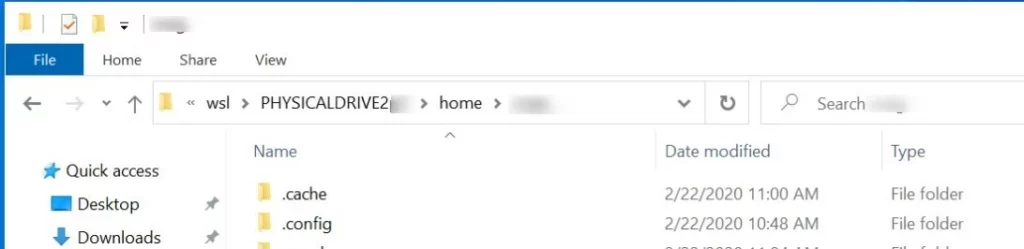
Inside the distro, look for the mnt folder and then the wsl folder. Your mounted drive or partition appears there as a folder named after the disk. Open it to see your files. You can now double-click a file to open it in a Windows app such as Notepad, edit it, and save it back to the Linux drive.
Step 5Unmount the Linux Drive (When Done)
Close any files you have open from the drive first, and close the File Explorer window that is showing it. Unmounting while a file is still open can lose unsaved changes.
wsl --unmount <DISKPATH>Example:
wsl --unmount \.PHYSICALDRIVE0Summary
- WSL lets you run Linux inside Windows 11 easily, on both Home and Pro editions.
- You can mount and open Linux drives or partitions directly in Windows via PowerShell commands. Use an administrator PowerShell window, and add the partition or file system options when the drive needs them.
- Once mounted, Linux files are available inside Windows File Explorer under
\wsl$. - Remember to unmount your drives safely when done, so Windows gets the disk back and nothing is left half-written.
Windows Subsystem for Linux (WSL) lets you complete a WSL mount Linux drive task to open, edit, and manage Linux files directly inside Windows 11 File Explorer. Using PowerShell commands connects your drives and unmounts them safely when you finish working.
How to Install WSL on Windows 11
How to Use File Explorer on Windows 11
How to Run PowerShell as Administrator
If you have questions or want to share your experience, please leave a comment below!
Have a question about this guide?
Answered by AI from this guide. Good questions may be added to this page — please don't include personal details.
Did this guide fix your problem?

About the Author
Richard
Tech Writer, IT Professional
Richard is a writer at Geek Rewind who turns complex IT tasks into clear, step-by-step guides. He draws on years of hands-on experience in system administration and enterprise IT operations, focusing on Windows, Linux and WordPress: the problems people actually run into, and the fixes that work. His server and WordPress guides come from systems he runs himself. Richard builds and maintains the platform behind Geek Rewind, from its Ubuntu servers and Nginx configuration to its custom WordPress plugins. Many new tutorials start with readers' questions, and he's always glad to answer them in the comments.
No comments yet — be the first to share your thoughts!