How to Enable Location Sharing Permission with Phone Link on Android

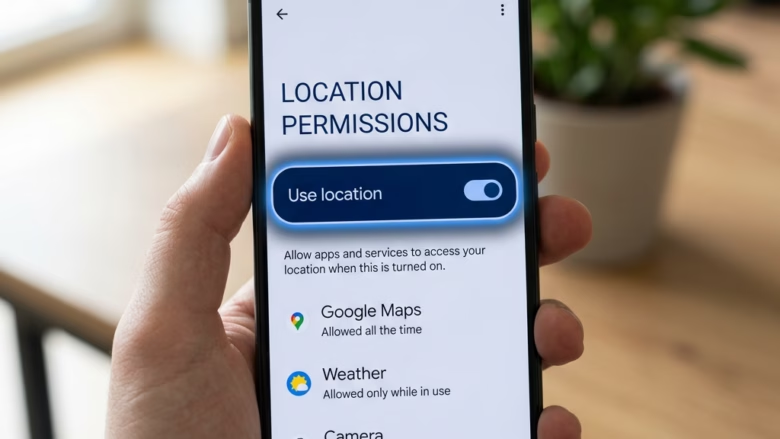
Phone Link location sharing lets a Windows 10 or 11 computer track, find, and ring your Android phone from the desktop. For this to work, the Phone Link app needs access to your phone’s precise (GPS-based) location.
Location has to be allowed in two places: the Phone Link app on your PC and the Android system settings on your phone. This tutorial covers the phone side in detail. Once access is granted, you can see your phone’s last known position from your PC screen.
Open Settings on your Android phone, tap Location, then App permissions or App location access, find Link to Windows, and choose Allow all the time or Allow only while using the app. Turn on Use precise location if available. Phone Link can now access your phone’s GPS position from your PC.
Why Does Your Phone Need to Share Its Location?
If the phone can’t report where it is, features that depend on it can stall or drop out. That is why the permission matters more than it first appears.
How to Allow Location Sharing on Your Android Device
On Android, the companion app is called Link to Windows. Giving it location permission lets it share your phone’s current position with your computer. You set this in your phone’s main Settings menu. Menu names vary by phone maker and Android version, so the labels below may differ slightly on your device.
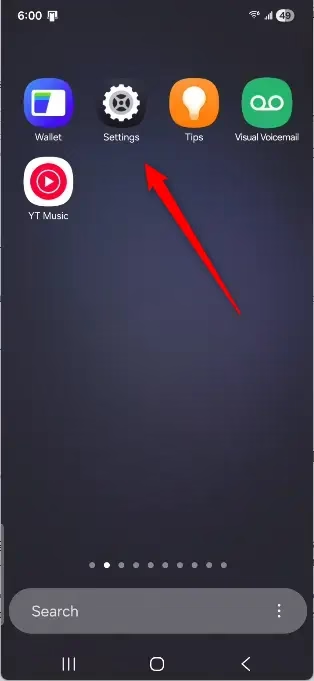
- Open the Settings app on your phone. Swipe down from the top of the screen and tap the gear icon, or find the Settings icon in your app list. You should see the main Settings list.
- If you can’t find Settings, use your phone’s search bar and type “Settings”.
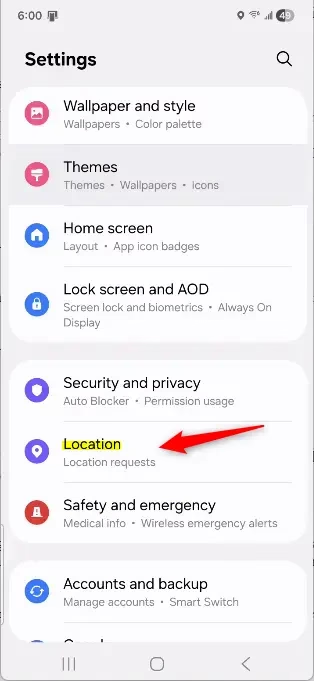
- Tap Location. It is often listed under Location, Privacy, or Security & location. Some phone makers put it elsewhere. If you don’t see it, look for words like “Location”, “Services”, or “Permissions”.
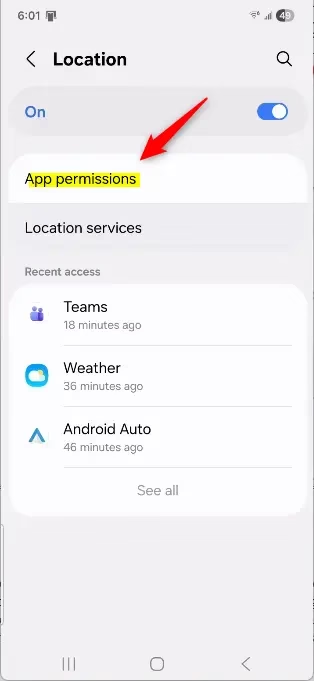
- Make sure the main Location switch at the top of the screen is on. If it is off, no app can use location, whatever its own permission says.
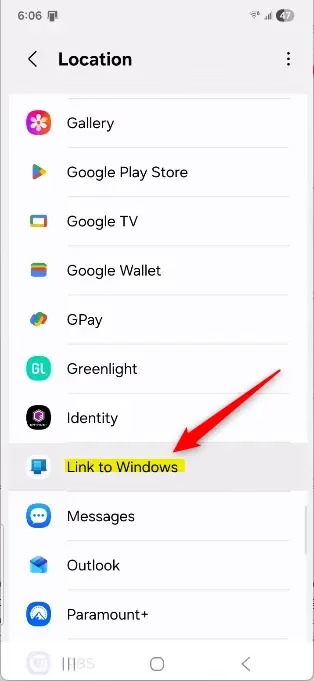
- Tap App permissions or App location access. You should see a list of apps that have asked for, or been given, access to your location.
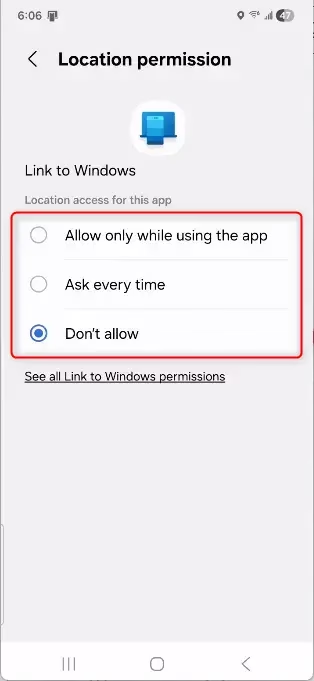
- Scroll the list and tap Link to Windows. This is the app that connects your phone to your PC. You should now see its location permission options.
- Choose a permission level. You will usually see some or all of these:
- Allow all the time: the app can use your location constantly, even in the background.
- Allow only while using the app: your location is used only while Link to Windows is open and active.
- Ask every time: your phone asks each time the app needs your location. Not every Android version offers this.
- Don’t allow: the app can’t access your location at all.
- Pick Allow all the time or Allow only while using the app. Either works with Phone Link, but Allow all the time is usually best because features keep working without interruption.
- If you see a Use precise location toggle (Android 12 and later), turn it on. Approximate location is not accurate enough for finding a phone.
- If a pop-up asks whether to allow location access, tap Allow or OK. The permission should now show your chosen level.
- If you chose Allow only while using the app, make sure Link to Windows can run in the background. Check your phone’s battery or app settings and set the app to unrestricted or not optimised. Names vary by maker. Without this, Android may stop the app and Phone Link may disconnect.
No restart is needed, though location features in Phone Link will stop working until you allow it again.
Reference:
Summary
Granting the Link to Windows app location access keeps your devices properly synchronized and linked. If location features still don't work afterwards, recheck both the permission level and the background activity setting on your phone.
Was this guide helpful?

About the Author
Richard
Tech Writer, IT Professional
Richard is a writer at Geek Rewind who turns complex IT tasks into clear, step-by-step guides. He draws on years of hands-on experience in system administration and enterprise IT operations, focusing on Windows, Linux and WordPress: the problems people actually run into, and the fixes that work. His server and WordPress guides come from systems he runs himself. Richard builds and maintains the platform behind Geek Rewind, from its Ubuntu servers and Nginx configuration to its custom WordPress plugins. Many new tutorials start with readers' questions, and he's always glad to answer them in the comments.
No comments yet — be the first to share your thoughts!