How to Hear Audio from Computer in Windows 11’s Phone Link App


Audio streaming in the Windows 11 Phone Link app lets you play sound from your phone through your computer speakers or a connected headset. Music, phone calls and app alerts come out of the PC, so you get better sound without wearing headphones.
Most Android phones running Android 14 or higher support this feature when paired with a Windows 11 computer whose Bluetooth radio supports Bluetooth Low Energy. If the option never shows up in Phone Link, the phone or the PC is usually the cause, so check the requirements below first.
Open Phone Link, click the Settings gear icon, select the Features tab, scroll to the Apps section, and choose Computer under Hear audio from. Phone audio now plays through your PC speakers or headset instead of the phone.
System Requirements and Compatibility
The audio option is reported mainly on phones running Android 14 or higher, so update the phone if you can. The PC also needs Bluetooth LE (Low Energy) for the connection to work properly.
Before you start, check your sound settings. Go to Settings System Sound. Make sure the PC is not muted and that the right speakers or headset are selected as the playback device. If the volume is at zero or the wrong device is selected, you will think the feature has failed when it has not.
How to Change Your Audio Settings
The audio setting lives inside the Phone Link app. It decides whether phone sounds play through your computer speakers or stay on the phone. In short, you open Phone Link, click the gear icon to open Settings , go to the Features tab, scroll down to the Apps section and choose where you want to hear audio. The numbered steps below walk through it.
- Open the Phone Link app. You can find it by typing Phone Link in the Start menu search. Phone Link should open on your PC.
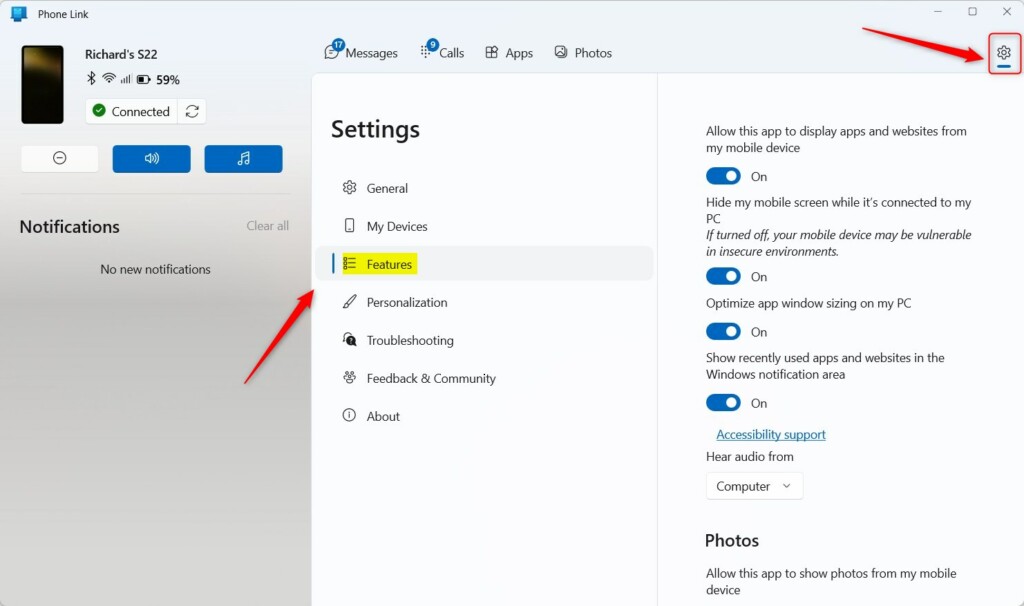
- If you have not added a phone, follow the prompts to add one. If your phone is already connected, click the Settings button (the gear icon) at the top right corner. The Settings page for Phone Link should open.
- Select the Features tab. You should now see a list of options for your connected phone.
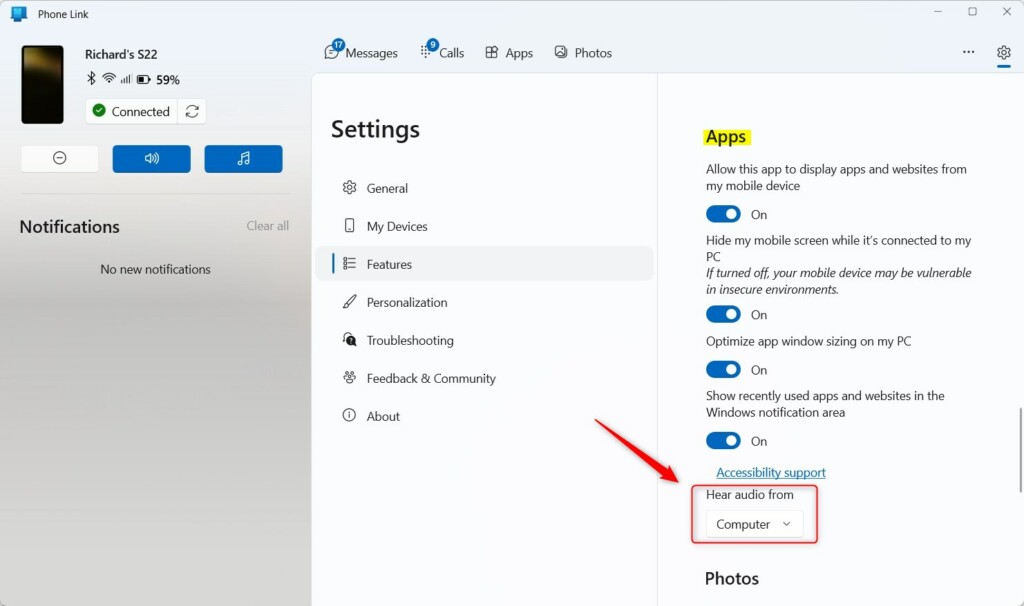
- Scroll down to the Apps section. If you cannot find it, check that the phone is still connected, because the options depend on the phone’s connection state.
- Under the Hear audio from option, select either Computer or Mobile device. Choose Computer to hear phone audio through your PC speakers or headset. Choose Mobile device to put the sound back on the phone. The change applies straight away, so you can switch back at any time.
If an option is missing or greyed out on a work or school PC, ask your IT administrator.
[ADMIN PRIVILEGES REQUIRED]Troubleshooting Audio Issues
If the audio keeps switching back to the mobile device, start with the Bluetooth connection. Try these checks in order:
- Confirm that Bluetooth is turned on, on both the PC and the phone.
- Check that the phone and PC are still paired. On the PC, look under Settings Bluetooth & devices
- Turn Bluetooth off and on again on both devices, then reopen Phone Link.
- Restart the PC and the phone if the problem remains.
- Check the Hear audio from setting again, and make sure it still says Computer.
Supported Devices
Phone Link audio features are supported on Surface Duo devices and on select models from Samsung Galaxy, HONOR, OPPO, ASUS ROG and Xiaomi. Support also depends on the version of the Link to Windows app installed on the phone, so update that app from the Google Play Store if the option is missing. If your phone is not on the list, it may not offer audio streaming even when everything else is set up correctly.
Summary
The Phone Link app connects your phone and your PC and routes phone audio to the computer. Once your hardware meets the requirements, it takes one setting to turn on, and you can reverse it just as quickly.
Did this guide fix your problem?

About the Author
Richard
Tech Writer, IT Professional
Richard is a writer at Geek Rewind who turns complex IT tasks into clear, step-by-step guides. He draws on years of hands-on experience in system administration and enterprise IT operations, focusing on Windows, Linux and WordPress: the problems people actually run into, and the fixes that work. His server and WordPress guides come from systems he runs himself. Richard builds and maintains the platform behind Geek Rewind, from its Ubuntu servers and Nginx configuration to its custom WordPress plugins. Many new tutorials start with readers' questions, and he's always glad to answer them in the comments.
No comments yet — be the first to share your thoughts!