How to Link Your iPhone to Windows 11 Using Phone Link

Phone Link is a built-in Windows 11 app that lets you send text messages, make phone calls, and view up to 2,000 of your latest camera roll photos straight from your computer. You only need a few minutes, a Bluetooth connection, and a quick QR code scan to pair your iPhone and stop picking up your device every time it buzzes.
Phone Link is part of Windows 11 and works the same on Home and Pro. You don’t need to install anything on the PC, and pairing does not require a restart. The iPhone version has fewer features than the Android version, so the limits are listed at the end of this guide.
Open the Phone Link app on your Windows 11 PC, select the iPhone option, and scan the QR code that appears with your iPhone camera to install the Link to Windows app. Your iPhone needs iOS 16 or later, Bluetooth on both devices, and the same Microsoft Account on each. Pairing takes a few minutes and does not require a restart.
System Requirements
Both machines also need Bluetooth Low Energy turned on, and you must sign into the exact same Microsoft Account on both devices to finish the setup.
Check these four items before you start. Most failed pairings come from a missed requirement, usually an old iOS version or Bluetooth switched off on one side.
- iPhone: Must be running iOS 16 or higher. To check, open Settings General About on the iPhone and look at iOS Version. If it is older than 16, update through Settings General Software Update
- PC: Windows 11 operating system. Home and Pro both work. Phone Link is already included, so you only need to open it.
- Connectivity: Bluetooth Low Energy (BLE) must be enabled on both devices. On the PC, check Settings Bluetooth & devices and make sure the Bluetooth toggle is on. If there is no Bluetooth toggle at all, the PC may have no Bluetooth adapter, and Phone Link cannot pair without one.
- Account: You must be signed into the same Microsoft Account on both your PC and the Link to Windows app. A mismatch between the two accounts is a common reason the setup stalls partway through.
How to connect your iPhone to 🪟 Windows 11
To connect your iPhone to Windows 11 using Phone Link, open the Phone Link app on your computer and select the iPhone option. If you already have a device linked, click the Settings gear icon in the top right corner, choose My Devices, and click the Add (+) button to pair your phone.
Keep the iPhone unlocked and next to the PC during setup. The steps below cover both cases: a first-time link and adding an iPhone alongside another phone.
- Open the Phone Link app on your PC. You can also click Start, type Phone Link, and press Enter. If no phone is linked yet, you should see options for Android and iPhone. In that case, skip steps 2 and 3 and go straight to step 4.
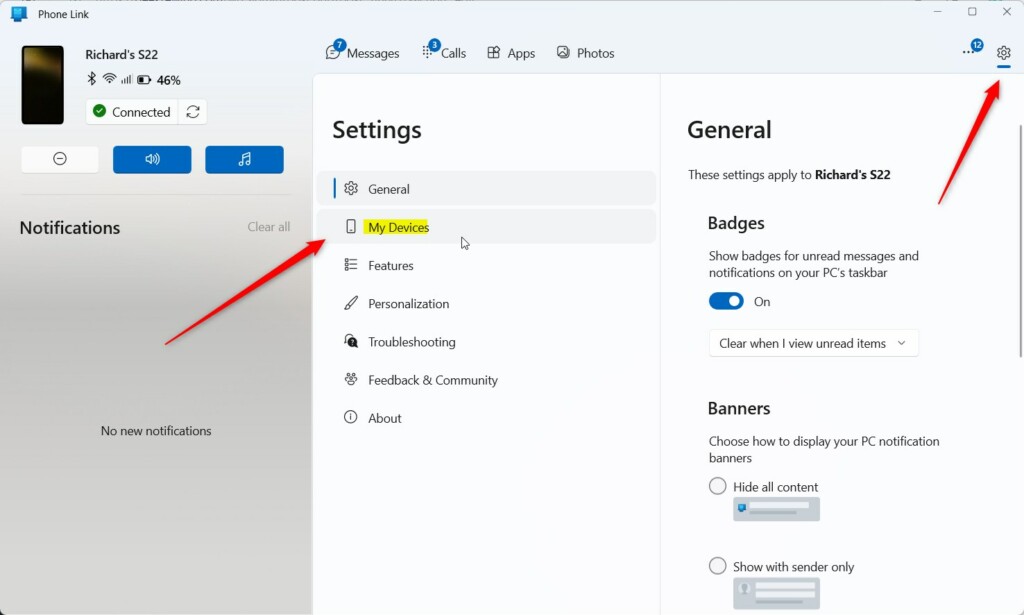
- If you have other phones linked, click the Settings gear icon in the top right corner. Select My Devices. You should see a list of the phones already linked to this PC.
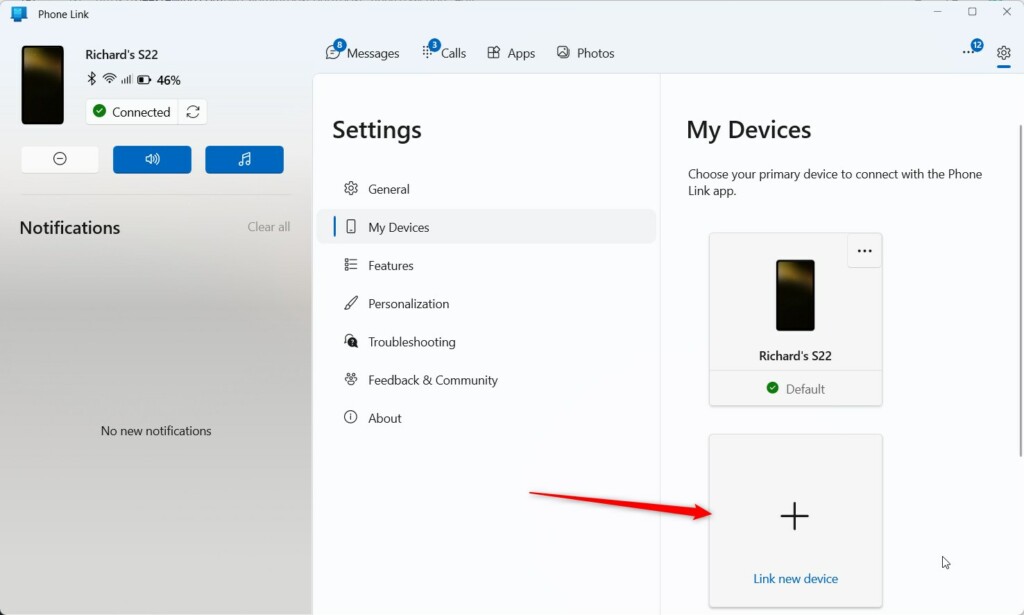
- Click the Add (+) button to start the process. A window should appear asking which type of phone you want to link.
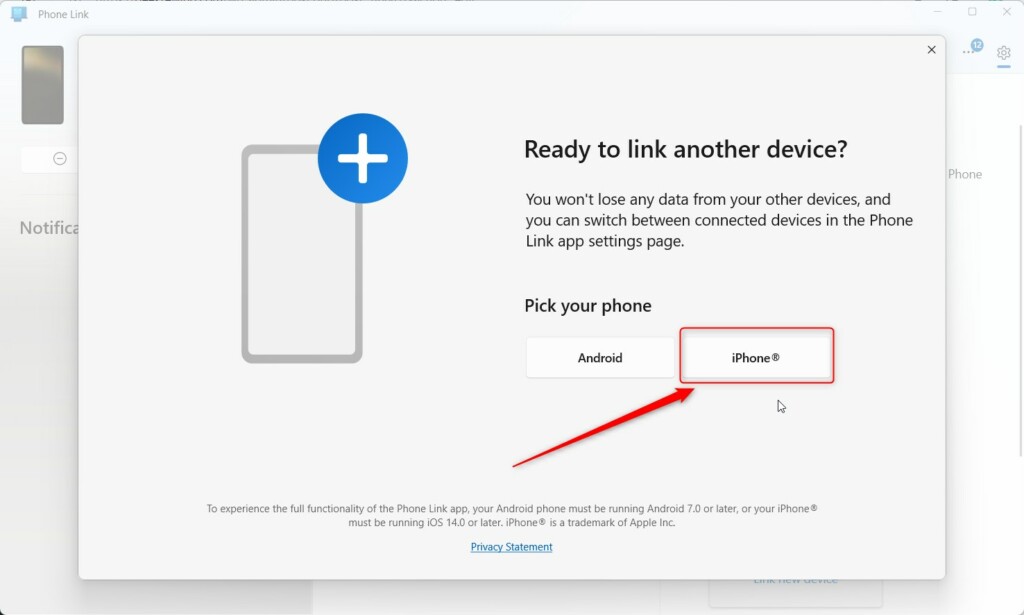
- Select the iPhone button in the window that appears. A QR code should now appear on your PC screen. Leave this window open until pairing finishes.
- Use your iPhone camera to scan the QR code shown on your PC screen. This helps you install the Link to Windows app on your phone. Hold the phone steady about a foot from the screen. When the iPhone recognizes the code, tap the prompt that appears and follow it to install the app.
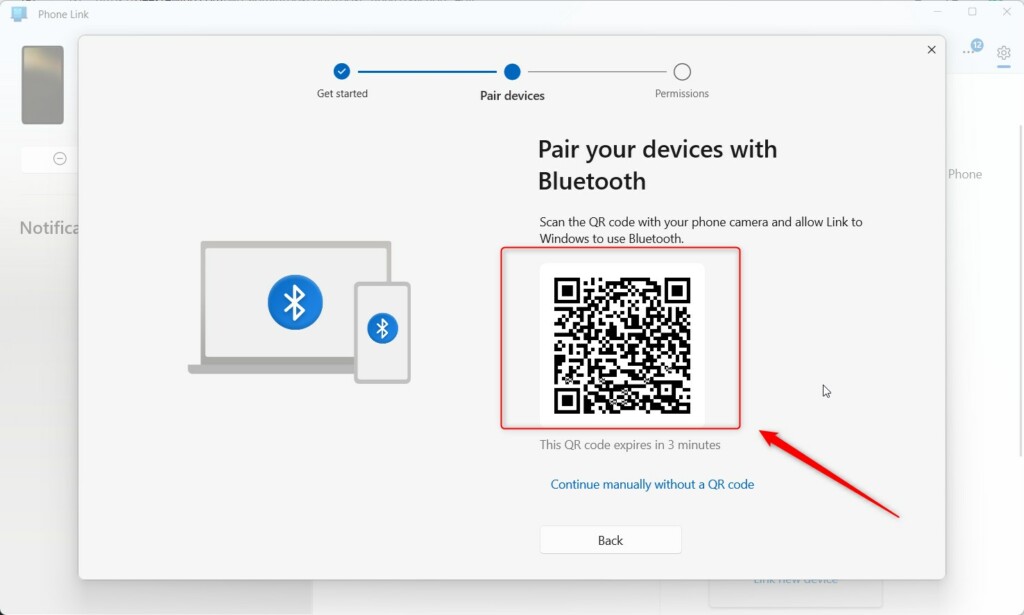
- Once the app is installed, open it and follow the steps on your screen. You must confirm permissions to allow the Phone Link app to talk to your iPhone. Make sure Bluetooth is turned on, paired, and connected for both your PC and linked phone. You may also see a Bluetooth pairing request on the iPhone, the PC, or both. Accept it on each device. When the link works, your iPhone should appear in Phone Link on the PC, with your messages and calls available.
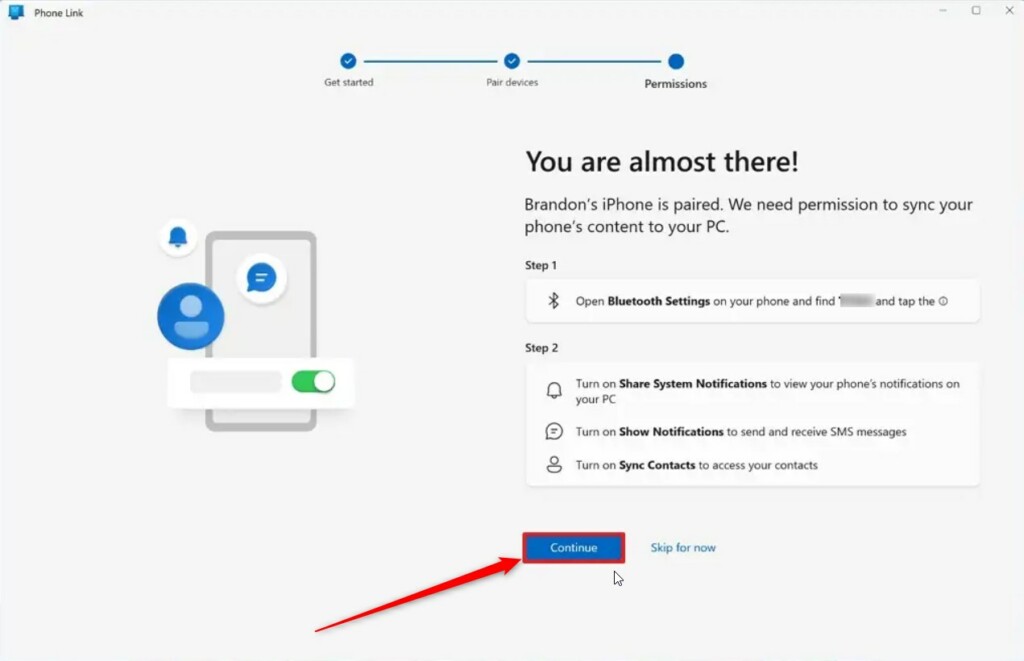
On a work or school PC, your IT team may control these settings, so ask them if pairing keeps failing.
If you want to undo the link later, open Phone Link, go to the Settings gear icon My Devices, and remove the iPhone. On the iPhone, open Settings Bluetooth, tap the info icon next to the PC, and choose Forget This Device.
Feature Limitations
Certain limitations apply to this integration. The software cannot display an entire cloud photo library or handle group iMessages. Plan on using your iPhone directly for those tasks.
Summary
Pairing the phone with the desktop expands multitasking capabilities by handling text threads, gallery images, and notification pop-ups in one workspace. Once the link is set up, you can reply to messages and check alerts from the keyboard without reaching for your phone.
Have a question about this guide?
Answered by AI from this guide. Good questions may be added to this page — please don't include personal details.
Did this guide fix your problem?

About the Author
Richard
Tech Writer, IT Professional
Richard is a writer at Geek Rewind who turns complex IT tasks into clear, step-by-step guides. He draws on years of hands-on experience in system administration and enterprise IT operations, focusing on Windows, Linux and WordPress: the problems people actually run into, and the fixes that work. His server and WordPress guides come from systems he runs himself. Richard builds and maintains the platform behind Geek Rewind, from its Ubuntu servers and Nginx configuration to its custom WordPress plugins. Many new tutorials start with readers' questions, and he's always glad to answer them in the comments.
[…] with Windows 11 build 26016 (Canary), the Phone Link settings page has been renamed to Mobile devices. Settings on this page will allow users to […]
[…] also has a Phone Link app that lets you share with your Android devices for those who do not want to add additional software […]
[…] Link app is a feature on Windows that allows you to link your phone and PC using Wi-Fi or Bluetooth and access your phone’s apps and data from […]
[…] Link app is a feature on Windows that allows you to link your phone and PC using Wi-Fi or Bluetooth and access your phone’s apps and data from your […]
[…] Link app is a feature on Windows that allows you to link your phone and PC using Wi-Fi or Bluetooth and access your phone’s apps and data from your […]
[…] Link app is a feature on Windows that allows you to link your phone and PC using Wi-Fi or Bluetooth and access your phone’s apps and data from your PC. It lets you […]
[…] Link app is a feature on Windows that allows you to link your phone and PC using Wi-Fi or Bluetooth and access your phone’s apps and data from your […]
[…] Link app is a feature on Windows that allows you to link your phone and PC using Wi-Fi or Bluetooth and access your phone’s apps and data from your PC. It lets you […]
[…] Link app is a feature on Windows that allows you to link your phone and PC using Wi-Fi or Bluetooth and access your phone’s apps and data from […]
[…] Link app is a feature on Windows that allows you to link your phone and PC using Wi-Fi or Bluetooth and access your phone’s apps and data from your PC. It lets you […]
[…] Link app is a feature on Windows that lets you link your phone and PC using Wi-Fi or Bluetooth and access your phone’s apps and data from your PC. It lets […]
[…] Link app is a feature on Windows that lets you link your phone and PC using Wi-Fi or Bluetooth and access your phone’s apps and data from your […]
[…] Link your Android phone to your PC using the Phone Link app. […]
[…] Phone Link app (soon to be renamed to Mobile devices) is a Windows feature that allows you to link your phone and PC using Wi-Fi or Bluetooth and access your phone’s apps and data from your PC. It lets you […]
[…] Phone Link app is a feature on Windows that allows you to link your phone and PC using Wi-Fi or Bluetooth and access your phone’s apps and data from your PC. It lets you browse, […]
[…] Phone Link app is a tool that lets you link your phone and PC using Wi-Fi or Bluetooth to access your phone’s apps and data right on your computer. It […]