How to Send and Receive Text Messages on Windows 11


The Phone Link app lets you send and receive text messages directly on Windows 11 without picking up your phone. It is built into Windows 11 and connects your smartphone to your PC over Bluetooth and Wi-Fi . Regular texts and picture messages show up on your desktop or laptop screen, and you reply from the PC keyboard.
You only need to pair your devices once. After that, texting while you work takes no extra setup. The connection supports both Android and iPhone devices, but some messaging features depend on the phone type. Android gives you the fullest set of features, and this guide is written mainly for Android.
Send and receive texts on Windows 11 with the Phone Link app. Open Phone Link on your PC, link your Android or iPhone by following on-screen prompts, and grant permissions on your phone. You can then view, reply to, and send SMS/MMS messages directly from your computer.
Why use Phone Link for text messages?
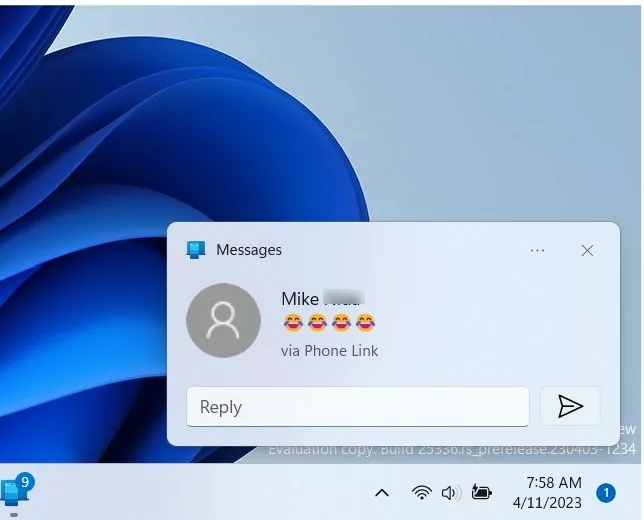
Keeping your texts on your desktop keeps your workflow uninterrupted. You do not have to check your phone every time a message arrives. Notifications appear on the PC, and you can answer from the keyboard you are already typing on. Your phone still does the actual sending and receiving, so messages go out through your normal number and carrier plan.
System Requirements and Compatibility
These features require a PC running Windows 11 and an Android device with the Link to Windows app installed. Many Samsung phones already include the app. On other Android phones you can install it from the Google Play Store.
Both devices need a connection to the same Wi-Fi network. Bluetooth also must remain enabled on both devices for a stable sync connection. If either one is off, messages may arrive late or not at all.
iPhone users can also link through Phone Link, but the feature set is smaller. Group messages and sending photos or other attachments are limited or unavailable with an iPhone. Check Microsoft’s current support notes for what your iOS version allows.
Setting Up Link to Windows
Setting up Link to Windows involves pairing your Android phone with your PC so you can send and receive text messages on Windows 11 directly from your computer screen. You need to open the Phone Link app on your computer, sign in with your Microsoft account, and scan the QR code using the companion app on your phone to finish the connection.
Have your phone nearby and unlocked before you start. The pairing only takes a few minutes. You do this once, and the link stays in place afterward.
- Open the Phone Link app on your PC. Click Start, type Phone Link, and press Enter. You should see a welcome screen that asks which type of phone you want to connect.
- Follow the on-screen instructions to sign in with your Microsoft Account. Use the same account you plan to sign in with on the phone. When sign-in finishes, Phone Link shows a QR code.
- On your Android phone, open the Link to Windows app and scan the QR code displayed on your PC screen. If the camera does not open, allow the app to use it when asked. Once the scan works, the PC shows that the phone is connecting.
- Grant the necessary permissions on your phone to allow message syncing. Tap Allow on each prompt, including the ones for contacts and messages. If you skip one, texts will not sync. When pairing completes, your phone appears in Phone Link on the PC and a Messages tab becomes available.
Managing Messages and Media
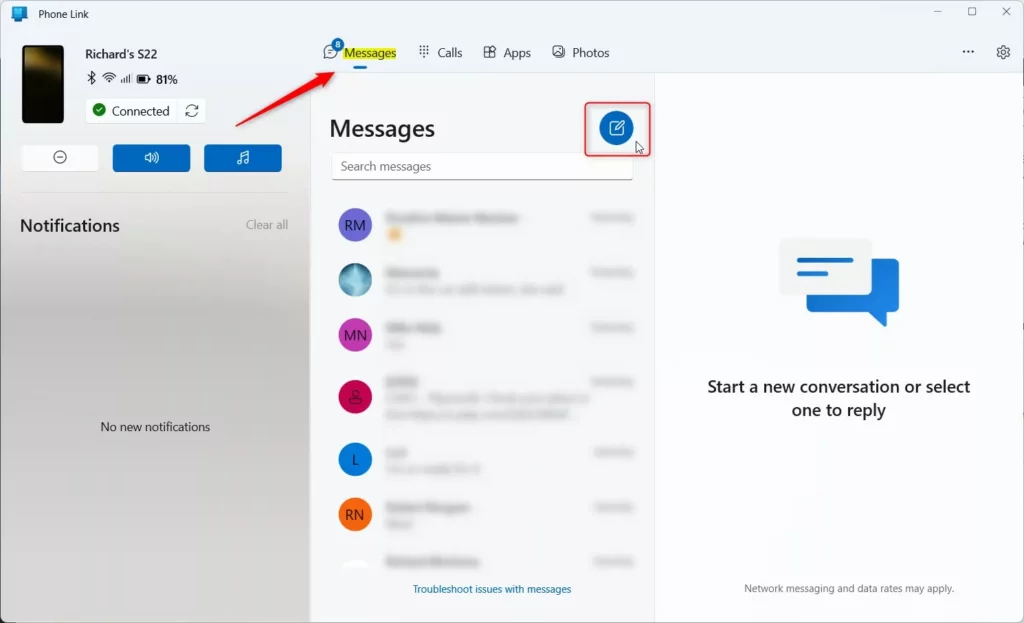
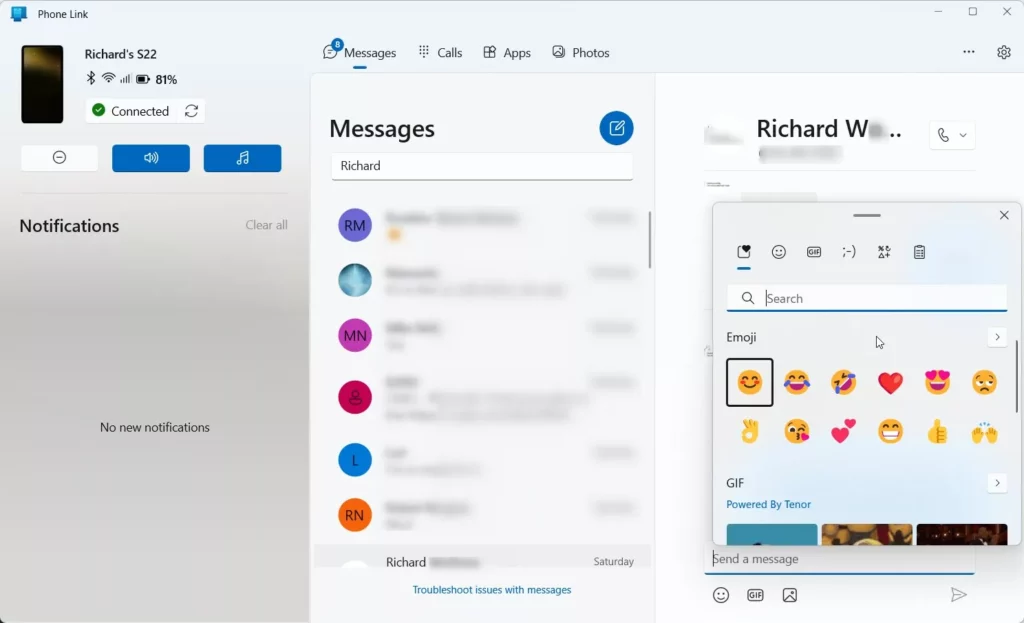
Phone Link supports MMS (Multimedia Messaging Service for pictures and group texts), meaning photos, GIFs, and emojis transfer successfully. Group messaging works directly from the desktop too. Clicking the Messages tab reveals the conversation history.
From there, pick a conversation to read it and type your reply in the box at the bottom. Press Enter to send. To start a new conversation, use the new message option or the shortcut listed later in this guide. Messages you send from the PC also appear in the messaging app on your phone, because the phone is what actually sends them.
Troubleshooting: Why are my text messages not syncing?
If your messages fail to sync, try these quick fixes. Work through them in order, because the first ones are the most common causes:
- Ensure your PC and phone are on the same Wi-Fi network. Check that the PC is not on a guest network or a different router band that isolates devices. Also confirm Bluetooth is on for both devices.
- Check that Focus Assist is not blocking notifications. On newer builds of Windows 11, such as version 24H2, Focus Assist has been replaced by Do not disturb. Open Settings System Notifications and turn it off to see if alerts return.
- Verify that your Microsoft Account is signed in on both devices. If the accounts do not match, sign out and sign back in with the same one on the PC and the phone.
- Restart the Phone Link app on your PC. Close the window fully, then open it again from the Start menu. If syncing still fails, also check that your phone has not put Link to Windows to sleep. Battery saver settings can pause it in the background.
Keyboard Shortcuts for Efficiency
Keyboard shortcuts speed up message management. They help most when you handle many conversations in a day:
- Ctrl + N: Start a new message. A blank conversation opens so you can pick a contact and type.
- Ctrl + F: Search through your messages. Type a name or a word to find an earlier conversation.
- Enter: Send your typed message. Make sure the right conversation is open first, since there is no confirmation step.
Summary
Linking a phone to Windows 11 lets users manage SMS and MMS messages, view media, and reply to contacts using the keyboard. Productivity improves as the digital life stays organized, and you spend less time switching between devices. If something stops working later, go back over the Wi-Fi, Bluetooth and account checks above before you pair again. Additional details live on the official Microsoft support page.
Was this guide helpful?

About the Author
Richard
Tech Writer, IT Professional
Richard is a writer at Geek Rewind who turns complex IT tasks into clear, step-by-step guides. He draws on years of hands-on experience in system administration and enterprise IT operations, focusing on Windows, Linux and WordPress: the problems people actually run into, and the fixes that work. His server and WordPress guides come from systems he runs himself. Richard builds and maintains the platform behind Geek Rewind, from its Ubuntu servers and Nginx configuration to its custom WordPress plugins. Many new tutorials start with readers' questions, and he's always glad to answer them in the comments.
[…] can quickly use the settings on this page to send and receive text messages, view your photos on your mobile devices, control apps on your mobile devices, and […]
[…] or off, unlink your phone from Windows, enable or disable auto startup for the phone link app, send and receive text messages from the app, add or remove Phone Link on the widgets board, turn dark mode on or off, open your phone screen […]