How to Mirror Your Phone Screen with Phone Link in Windows 11


Phone Link is the app built into Windows 11 that mirrors an Android phone screen onto your PC. It needs no cables and no extra software on the PC.
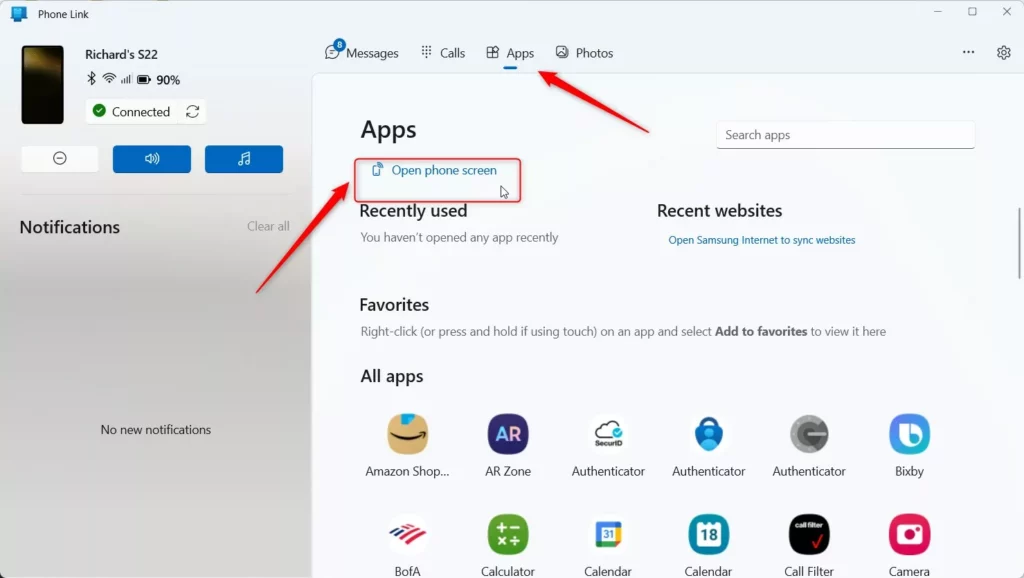
Open the Phone Link app, click Apps, and then select Open phone screen. Your phone’s display will appear in a window on your Windows 11 desktop, allowing you to control it with your mouse and keyboard.
Why mirror your phone screen?
Mirroring your screen lets you see your phone apps on a bigger display. It comes in handy for sharing photos, giving presentations, or typing messages with your PC’s mouse and keyboard. Plus, keeping your phone in your pocket lets you stay focused while you work.
Before you start, check that your phone is already linked to your PC in Phone Link. Both devices should be on the same Wi-Fi network. Screen mirroring only works on supported Android phones, so if the option never shows up, your model may not be on the list.
What happens when you are done?
Closing the window stops the connection immediately and returns your phone to normal. No data is lost in the process, and your devices remain synced.
To stop mirroring, click the X in the corner of the phone window. The window disappears, and your phone screen goes back to showing only on the phone. To start again, repeat the steps in the next section.
How to mirror your phone with Phone Link
Mirroring your phone screen on Windows 11 works best when you have a compatible Android device. Launch the Phone Link app on your computer, click the Apps button in the menu, and select Open phone screen.
- Open the Phone Link app on your computer. Phone Link shows your linked phone and its menu.
- Click the Apps button in the menu. Your phone's app list appears.
- Select Open phone screen. Phone Link connects to the phone. You may need to approve a prompt on the phone the first time.
If Open phone screen is missing or greyed out, check these things:
- Confirm the phone is still connected in Phone Link and shows as online.
- Make sure the phone and PC are on the same Wi-Fi network.
- Update both Phone Link on the PC and the Link to Windows app on the phone.
- Remember that not every Android model supports screen mirroring.
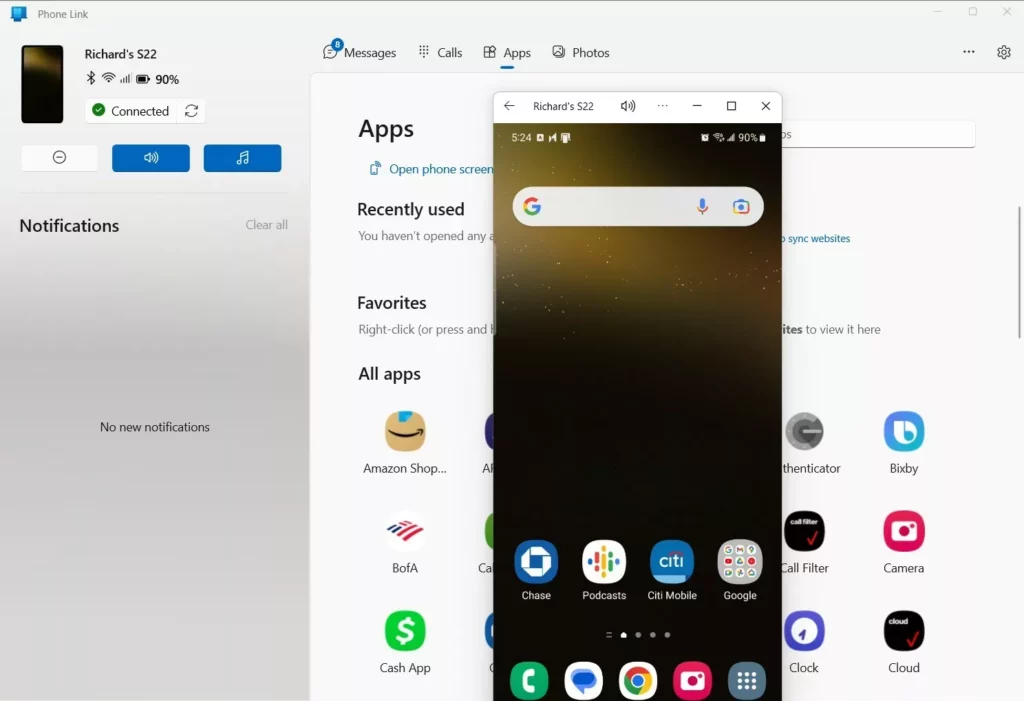
Your phone display appears inside a dedicated window on your desktop, letting you click and type as if you were holding the hardware.
Use the mouse to tap and scroll, and the keyboard to type into text fields. Mirroring works on both Windows 11 Home and Pro, and it does not need a restart.
Alternative Methods: Miracast and Wireless Display
If Phone Link fails to connect, try mirroring your phone screen in Windows 11 using the Wireless Display feature, which relies on Miracast (a wireless standard for streaming your screen).
Go to Settings Apps Optional features and search for Wireless Display. [Admin Privileges Required]
- Open Settings Apps Optional features You will see the list of features already installed.
- Look for Wireless Display in the installed list. If it is there, you can skip the install.
- If it is not there, use the button to add an optional feature. Its label differs slightly between Windows 11 builds. Search for Wireless Display, tick it and install it.
- Wait for the install to finish. Windows may ask for an administrator password if you are on a standard account.
If you ever want to remove the feature, return to the same page, find Wireless Display in the installed list and uninstall it.
Checklist: Does your PC support Miracast?
To check hardware support, open Command Prompt, type netsh wlan show drivers and press Enter. Look for 'Wireless display supported' in the results; the value needs to read 'Yes'.
The output is long, so scroll until you find that line. If it says 'No', the Wi-Fi adapter or its driver does not support Miracast. Updating the Wi-Fi and graphics drivers sometimes fixes this. If it still says 'No', Wireless Display will not work on that PC, and Phone Link is your only option.
How do I fix lag when mirroring my screen?
Performance lag usually stems from network congestion. Try these troubleshooting steps:
- Move your PC and phone closer to your Wi-Fi router. Walls and distance weaken the signal and add delay.
- Use a 5GHz Wi-Fi band instead of 2.4GHz. It is faster and usually less crowded, though its range is shorter.
- Close background apps on your phone that use high data, such as video streaming, cloud backups and large downloads.
After each change, reconnect and see whether the lag has improved. That way you know which fix worked.
Summary
Mirroring your phone screen in Windows 11 enhances daily multitasking by bringing mobile controls straight to your desktop. Phone Link is the quickest route, and Wireless Display is a solid fallback when it will not connect.
Was this guide helpful?

About the Author
Richard
Tech Writer, IT Professional
Richard is a writer at Geek Rewind who turns complex IT tasks into clear, step-by-step guides. He draws on years of hands-on experience in system administration and enterprise IT operations, focusing on Windows, Linux and WordPress: the problems people actually run into, and the fixes that work. His server and WordPress guides come from systems he runs himself. Richard builds and maintains the platform behind Geek Rewind, from its Ubuntu servers and Nginx configuration to its custom WordPress plugins. Many new tutorials start with readers' questions, and he's always glad to answer them in the comments.
[…] the app, add or remove Phone Link on the widgets board, turn dark mode on or off, open your phone screen in the app, turn show notifications for all my apps on or off, show notifications in the Phone Link […]
[…] open your phone screen using the Phone Link […]
[…] article explains how to connect your iPhone device using the Phone Link app in Windows […]
[…] messages from the app, add or remove Phone Link on the widgets board, turn dark mode on or off, open your phone screen in the app, turn show notifications for all my apps on or off, show notifications in the Phone Link feature […]