How to Access Phone Link Recent Apps from Your Windows 11

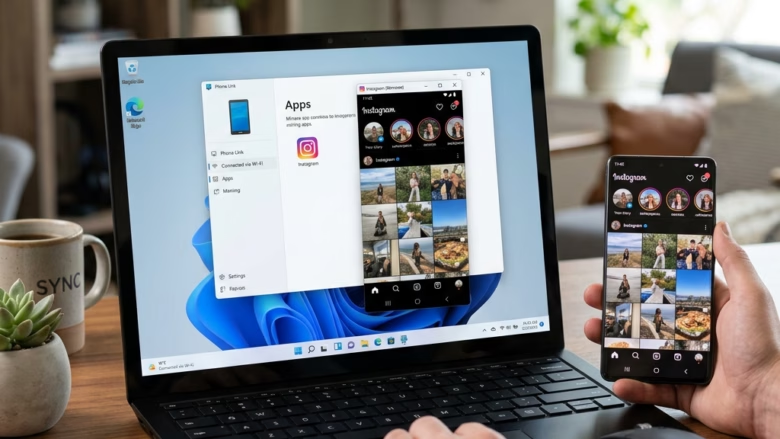
Phone Link can run your Android apps on your Windows 11 desktop. It mirrors your phone screen in a window, so you can reply to texts or check social media with your mouse and keyboard. The feature is built into Windows 11 and needs the following:
- Version 1.24052.139.0 or newer of the Phone Link app on your PC.
- Android 11 or higher on the phone.
- A supported phone, such as a Samsung or OnePlus device. App mirroring is not available on every Android phone, so if the option never shows up, an unsupported model is the most likely reason.
You also need to turn on the relevant setting on both devices before your phone apps will appear on the PC. The steps below walk through that, and through finding the recent apps list afterwards.
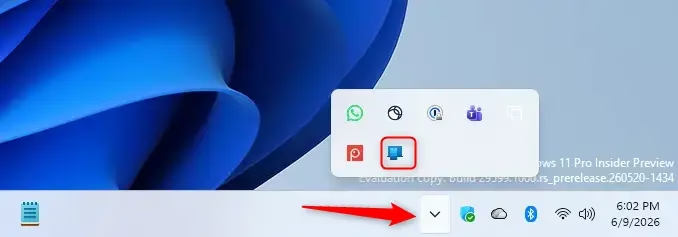
Open Phone Link on your Windows 11 PC, click the Phone Link icon in the hidden icons area (bottom right arrow in the taskbar), and select a recent Android app from the menu that appears. The app opens in its own window on your desktop.
Why Use Your Phone Apps on Your PC?
Once this works, you can handle messages, social media and other phone-only apps without picking up the phone. That means less switching between devices and fewer interruptions to whatever you are doing on the PC.
Old versions are a common reason the apps feature is missing.
How to Connect Your Phone and PC
Phone Link needs your phone and PC paired before anything else works. Pairing uses the same Microsoft account on both devices and an on-screen QR code. Here is the general flow:
- Open the Phone Link app on your Windows 11 PC.
- Open the Link to Windows app on your phone.
- Scan the QR code shown on the PC with the phone, and follow the prompts to finish syncing.
Check that you are signed in to the same Microsoft account on both devices. If the pairing fails, a mismatched account is the first thing to rule out. Keeping the phone and PC on the same Wi-Fi network while you pair also helps.
- Open Phone Link on your PC. You can find it by typing "Phone Link" into the Windows search bar.
- Open Link to Windows on your phone. You might need to scan a QR code shown on your PC. Or, you can sign in with your Microsoft account on both devices.
- Follow the on-screen instructions. The apps will guide you through the rest. You'll need to allow certain permissions on your phone.
Review each request on the phone and approve it. If you skip or deny one, the matching feature will not work. For example, without the app permission you will not see your phone apps on the PC. You can change these permissions later in your phone's app settings for Link to Windows.
How to Open Your Android Apps on Your PC
Once your devices are connected, you can open your Android apps from the taskbar. Here are a couple of ways to do it:
Using the Windows Taskbar
Recent apps from your phone show up in the Windows taskbar, so you can open a mobile app with one click. To find them, look in the hidden icons area at the bottom right of your screen, which is the small arrow next to the system tray. Select the Phone Link icon there to see a list of the apps you used last on your phone.
If you do not see the Phone Link icon, make sure the app is running. If it is still missing, check that the phone is connected and that the apps permission was granted.
- Look for the hidden icons. In the bottom right corner of your Windows taskbar, click the small upward-pointing arrow (
^). This shows hidden icons. - Find the Phone Link icon. You should see the Phone Link icon among the hidden icons. Click on it.
- Choose your app. A small menu will pop up. It shows some of your recent Android apps. You can:
- Click directly on the app you want to open.
- Right-click on the app and then choose "Open."
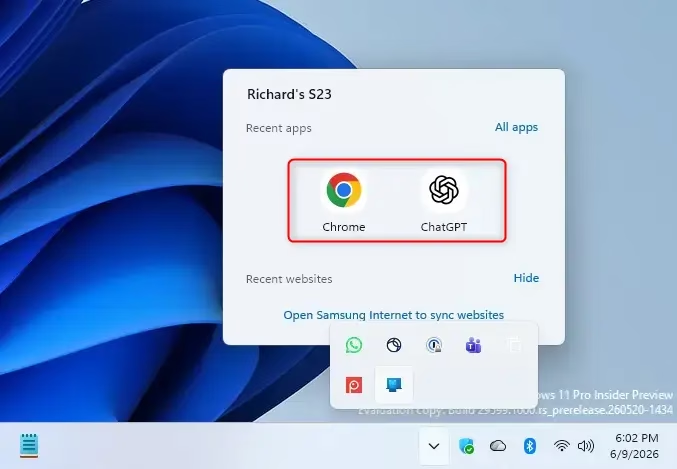
Handy Tip: The "Recent Apps" section is the quickest way back to something you were just doing on the phone. For apps you use all the time, pin them so they launch faster and you do not have to hunt through the list.
What Happens When You Open an App?
When you open a phone app from your PC, it appears in its own window. You can use it with your mouse and keyboard, and you can arrange it next to your other Windows apps. Closing that window ends the mirrored session on the PC. It does not uninstall or change anything on the phone.
Reference:
Summary
Phone Link lets you use your phone's apps on your Windows 11 PC, and you can reach your recent apps from the taskbar. If something does not appear, check three things: the Phone Link version, the phone's Android version and model support, and whether you approved the permissions during setup.
Did this guide fix your problem?

About the Author
Richard
Tech Writer, IT Professional
Richard is a writer at Geek Rewind who turns complex IT tasks into clear, step-by-step guides. He draws on years of hands-on experience in system administration and enterprise IT operations, focusing on Windows, Linux and WordPress: the problems people actually run into, and the fixes that work. His server and WordPress guides come from systems he runs himself. Richard builds and maintains the platform behind Geek Rewind, from its Ubuntu servers and Nginx configuration to its custom WordPress plugins. Many new tutorials start with readers' questions, and he's always glad to answer them in the comments.
No comments yet — be the first to share your thoughts!