How to Turn On or off Always Open Phone Link Apps in Expanded Screen on Windows 11

The Always open apps in expanded screen setting in Phone Link makes your Android apps open in a larger window by default. Phone Link is the Microsoft app that connects your phone to your PC. Without this setting, apps open in a small, phone-shaped window that can be hard to read on a desktop monitor.
With the option on, text is bigger and buttons are easier to hit with a mouse. You change the setting inside the Phone Link app on your PC. You can switch it back at any time, so nothing is permanent.
Open Phone Link on your PC, click the Settings gear icon, go to Features Apps, then check Always open apps in expanded screen. Phone Link apps now open in larger windows instead of small phone-sized boxes.
Why do this?
The default layout is built for a phone screen, so it can feel cramped on a desktop. Reading long text, filling in forms and moving through menus with a mouse are all harder in a small window. An expanded view gives you the room to type and click comfortably.
If you mostly use one or two phone apps for quick checks, the default size may be fine. If you spend real time in them, the larger window is usually worth turning on.
What happens when done?
With this setting on, your phone apps open in a larger, easier-to-read window instead of a small phone-sized box. You can type with your keyboard and read web pages or messages on your desktop without straining your eyes.
Your phone and PC are linked over Wi-Fi , so you can use your monitor and keyboard for mobile tasks. Starting with that version, you can choose how these app windows appear.
Check for updates to the app in the Microsoft Store and try again. Apps also only appear in Phone Link when your phone is connected and set up for it.
How to change your settings
The change takes a few clicks inside Phone Link on your PC. You open the app’s settings, go to Features, and find the Apps options. You can turn the view on or off whenever you like.
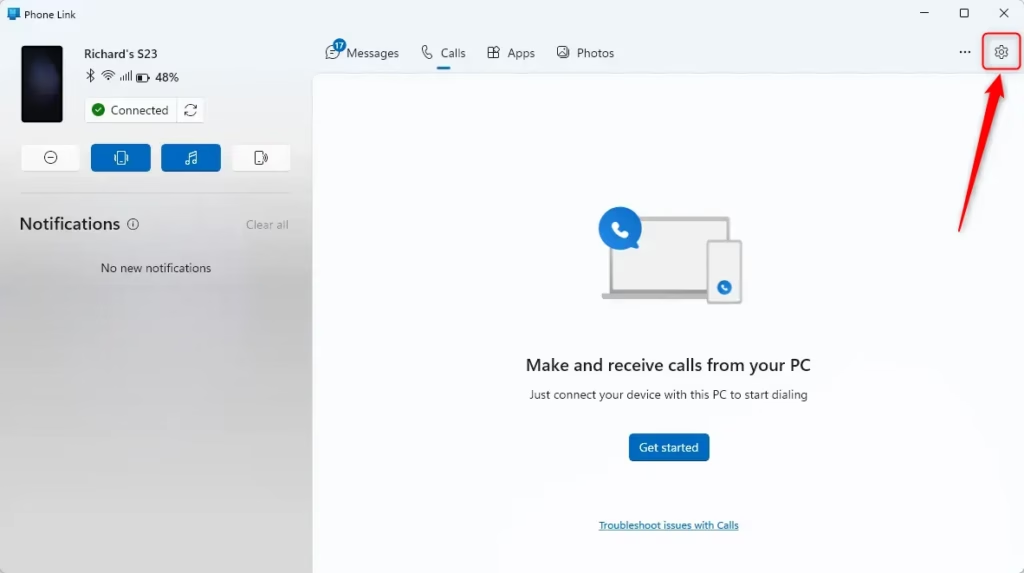
- Open the Phone Link app on your Windows 10 or 11 PC. The app window shows your connected phone.
- Click the Settings (gear) icon. The settings page opens with a list of sections in the center.
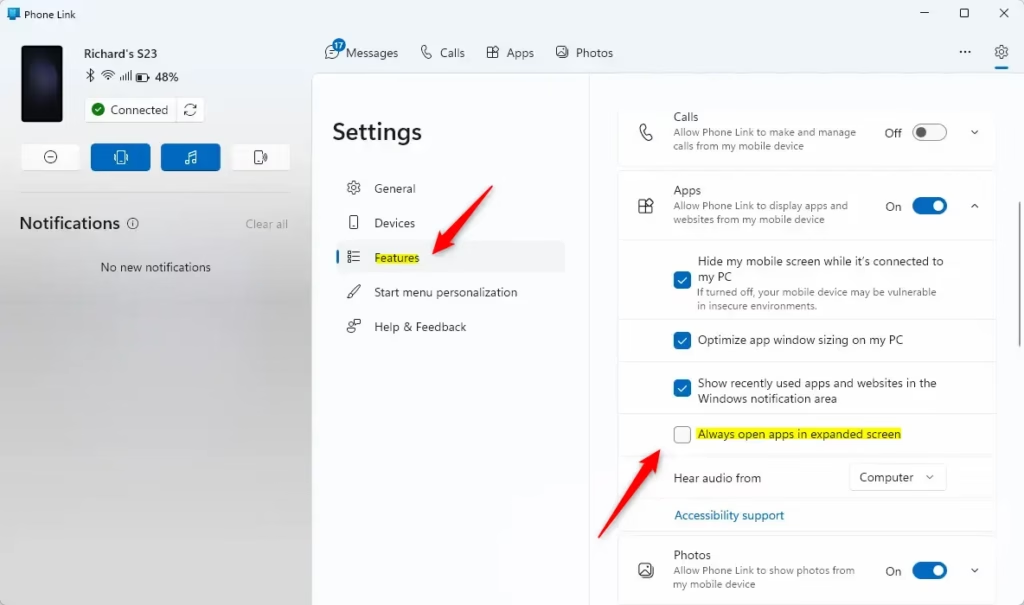
- Click Features in the center menu. The feature options appear on the right.
- On the right side, click Apps to see more options. The app-related settings expand.
- Check the box for Always open apps in expanded screen to turn it on, or uncheck it to turn it off. The setting is saved when you change it.
The next time you open a phone app from Phone Link, it should appear in the size you chose. If an app is already open, close it and launch it again to see the change. I would not expect you to need a restart, but if the app still opens small, close Phone Link completely and reopen it.
To undo the change, follow the same steps and flip the checkbox back.
Summary
Use this setting to make mobile apps feel more at home on your desktop monitor, and turn it off if you prefer the compact phone-sized window.
Have a question about this guide?
Answered by AI from this guide. Good questions may be added to this page — please don't include personal details.
Did this guide fix your problem?

About the Author
Richard
Tech Writer, IT Professional
Richard is a writer at Geek Rewind who turns complex IT tasks into clear, step-by-step guides. He draws on years of hands-on experience in system administration and enterprise IT operations, focusing on Windows, Linux and WordPress: the problems people actually run into, and the fixes that work. His server and WordPress guides come from systems he runs himself. Richard builds and maintains the platform behind Geek Rewind, from its Ubuntu servers and Nginx configuration to its custom WordPress plugins. Many new tutorials start with readers' questions, and he's always glad to answer them in the comments.
No comments yet — be the first to share your thoughts!