How to Switch Between Compact and Expanded View Using Phone Link on Windows 11

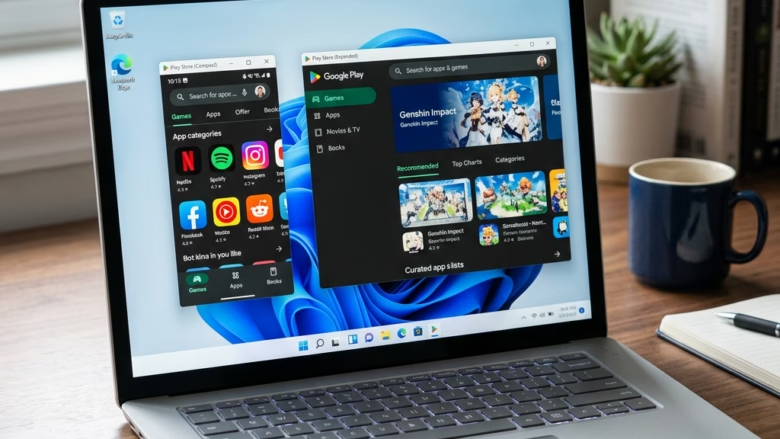
Phone Link is the app that connects your Android phone to Windows 11. It lets you switch your Android apps between a compact view and an expanded view on your PC. The compact view shows an app in a small, single-panel window. The expanded view opens a larger, multi-panel layout with more detail.
You can also change the size by dragging the edges of the Phone Link window. Use the expanded view when you want to see more information at once. Use the compact view to save screen space while you work on other tasks.
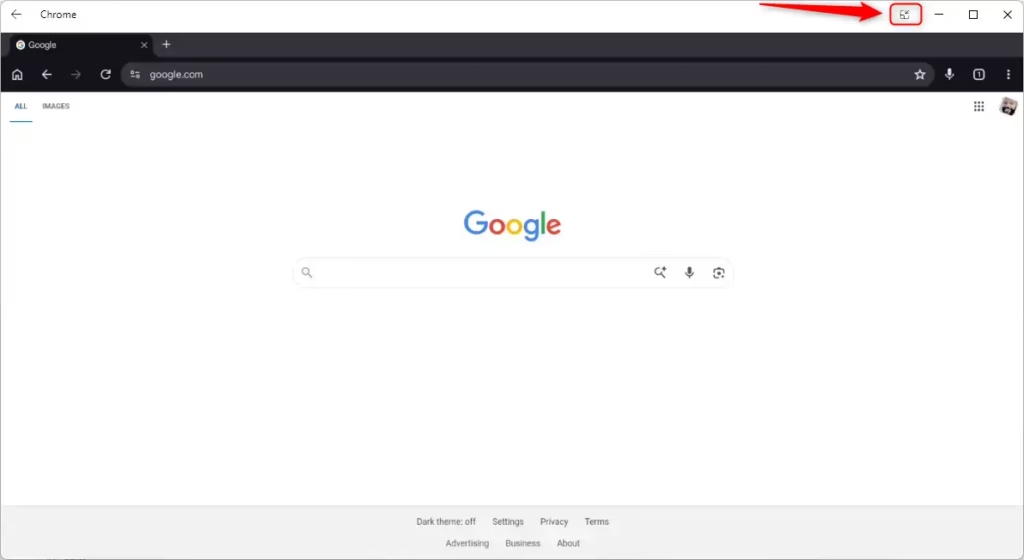
Open any Android app in Phone Link on Windows 11, then click the Expanded screen or Compact screen button at the top right of the app window. Click Switch to confirm the layout change. The app window resizes immediately to show more or less detail.
Why use this feature?
Compact view is best when the phone app is a side task, such as a chat window you want to keep an eye on. Expanded view is better for reading, shopping or anything else where you need the detail. Neither choice is permanent, so you can switch whenever the task changes.
What happens when done?
It lets you resize app windows to take up more or less of your desktop. This layout feature requires Phone Link version 1.25091 or newer on Windows 11.
First, the Phone Link app on your PC must be linked to your phone. Once it is, you can run your Android apps on the computer. This works over Wi-Fi , so you can chat, shop and play on the bigger screen.
If you don’t see the view options described below, the app is probably older than that. Phone Link is updated through the Microsoft Store, so open the Store, go to Library, and check for updates . Also make sure the phone is still connected, because the app options only appear while the link is active.
How to change the view
- While in the Phone Link app on Windows PC, open an Android app. You can find these in your Start menu , taskbar, or the Phone Link app.
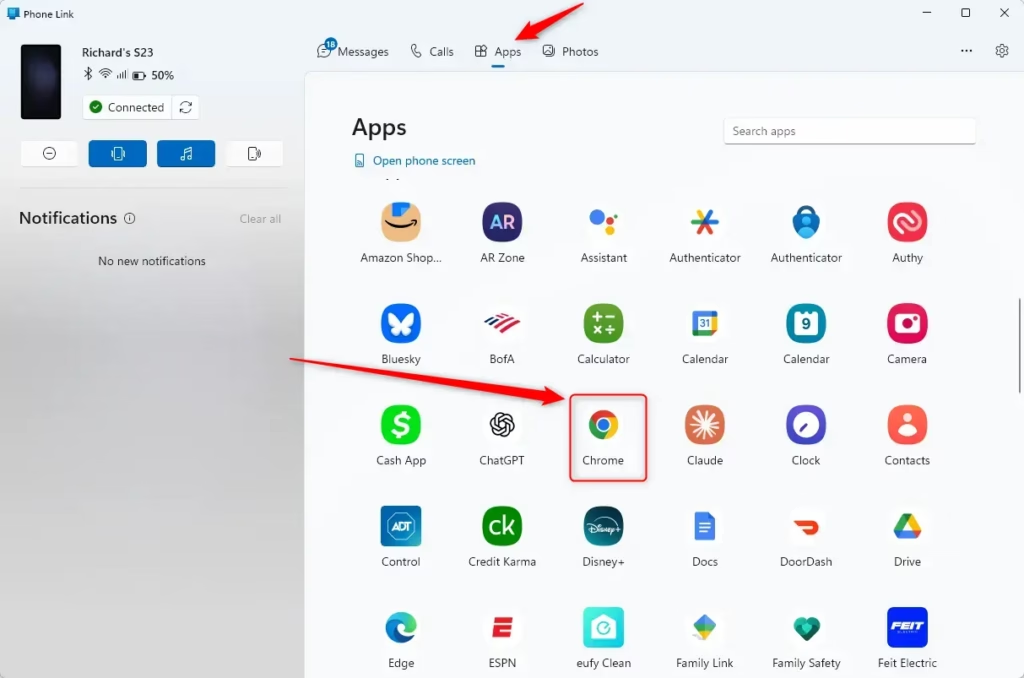
Changing the view takes a couple of clicks while an Android app is open on your Windows 11 PC. Open any phone app from the Start menu or from the main Phone Link app window. Then click the view-switching toggle near the top right corner of the app window.
The window should change to the other layout. If nothing happens, check that the app is actually open in its own window and that Phone Link is up to date.
- Look at the top of the app window.
- Click the Expanded screen button on the right side.
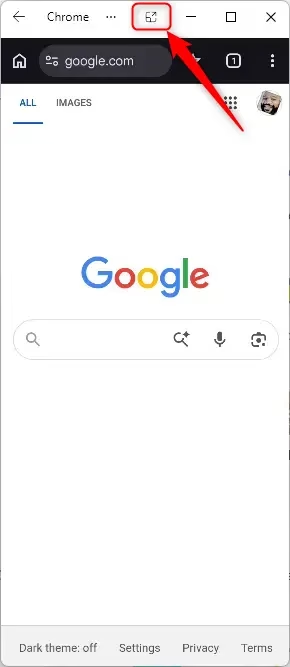
- If a box pops up, click Switch to confirm.
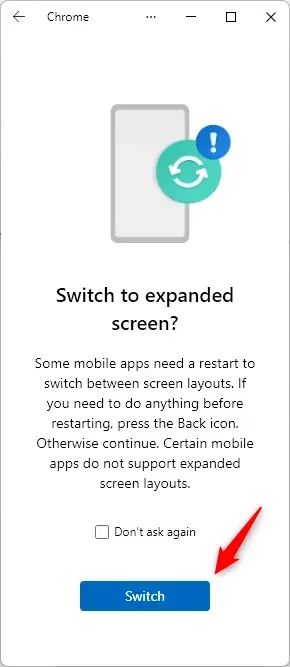
Windows may then show a confirmation box before it changes the layout. You have these options:
- Click Switch to go ahead with the change.
- Select Don’t ask again if you don’t want to see this confirmation on future view changes.
- Click the Back button to return to the previous view.
If you tick Don’t ask again, the app will switch views straight away from then on. The Back button is the quick way to undo a change you didn’t want.
To use the Compact view:
- Look at the top of the app window.
- Click the Compact screen button on the right side.
- If a box pops up, click Switch to confirm.
Summary
You can switch between a small window and a larger one for Android apps using the buttons in the app's top bar. Pick the size that suits the task: smaller for background use, larger for reading or more detailed work. These steps don't need administrator rights, so a standard user account can do them.
Have a question about this guide?
Answered by AI from this guide. Good questions may be added to this page — please don't include personal details.
Did this guide fix your problem?

About the Author
Richard
Tech Writer, IT Professional
Richard is a writer at Geek Rewind who turns complex IT tasks into clear, step-by-step guides. He draws on years of hands-on experience in system administration and enterprise IT operations, focusing on Windows, Linux and WordPress: the problems people actually run into, and the fixes that work. His server and WordPress guides come from systems he runs himself. Richard builds and maintains the platform behind Geek Rewind, from its Ubuntu servers and Nginx configuration to its custom WordPress plugins. Many new tutorials start with readers' questions, and he's always glad to answer them in the comments.
No comments yet — be the first to share your thoughts!