How to Change Phone Link App Theme in Windows 11

- 2 steps
- Needs administrator rights
The Phone Link app (a tool that connects your phone to your PC) matches your Windows 11 light or dark mode settings automatically. This built-in Windows 11 app has no separate theme switch inside its own menus, so there is nothing to hunt for in its settings pages. The theme comes from Windows.
Switching your computer appearance settings changes how the Phone Link window looks. You can flip between light and dark in the Windows Settings app, and the app colors update right away. If the app was already open and still looks the same, close it and reopen it. You don’t need to restart Windows.
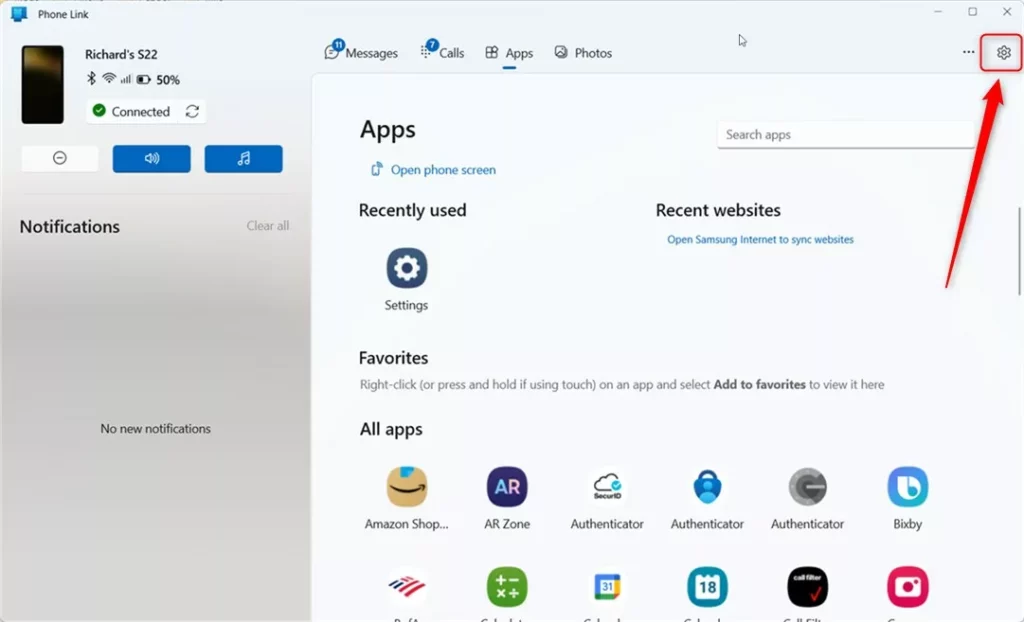
Change the Phone Link app theme by going to its Settings (gear icon) and selecting Light, Dark, or Use Windows settings. The app uses your Windows color settings unless you manually override it within the Phone Link app.
Why change your Phone Link app theme?
Changing the theme reduces eye strain during late-night work sessions in dim rooms. A dark theme is easier on the eyes in a dark room, and a light theme is usually easier to read in a bright office or near a window.
What happens when done?
This modification updates the app’s colors immediately. Depending on how you set it, it can affect only the Phone Link app rather than the entire operating system. To adjust the system-wide look, go to Settings Personalization Colors. Under Choose your mode you can pick Light, Dark or Custom. With Custom, you can set the Windows mode and the app mode separately. That means you can keep the taskbar and Start menu in one mode and have apps such as Phone Link in the other.
Steps to change your Phone Link theme
You can change the Phone Link theme without administrator rights on your PC. The same applies on Windows 11 Home and Pro. Follow the steps below and choose the color mode you want. Phone Link then matches your Windows 11 desktop appearance.
- Open the Phone Link app. You can find it by clicking the Start menu, selecting All apps, and choosing Phone Link.
- Once the app is open, click the Settings (gear) icon located at the top right corner of the window.
If the color options are greyed out or the Personalization page is limited, check whether Windows is activated. Unactivated copies of Windows restrict personalization settings. On a work PC, a policy set by your organization can also lock them. To undo the change, repeat the steps and select the previous mode.
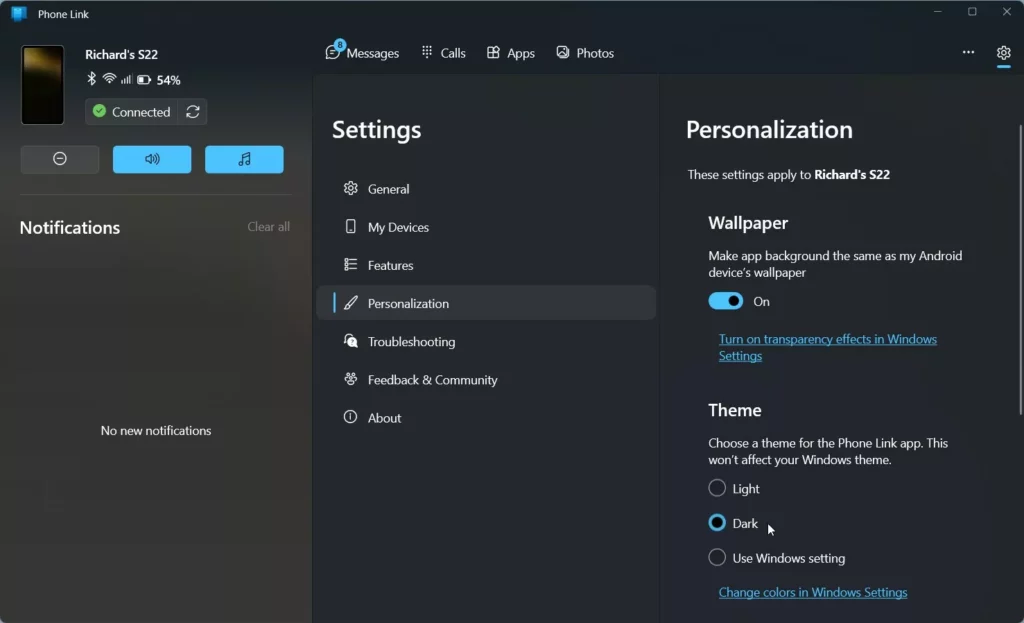
- Look for the Personalization section.
- Under the Theme menu, pick the look you prefer:
- Light: A bright white background.
- Dark: A black background that is easier on the eyes.
- Use Windows settings: The app will automatically match whatever theme your computer is currently using.
- Close the app to save your changes.
Accessibility and High Contrast
The Phone Link app supports Windows High Contrast settings (specialized display modes designed for users with visual impairments), ensuring interface elements remain readable. If a high contrast theme is turned on, it takes priority over the light and dark choice. Turn it off if you expect to see the normal light or dark colors.
Summary
Customizing the Phone Link app theme matches personal viewing preferences, whether you prefer a light or dark appearance, for a more comfortable experience. Because the change is quick to make and quick to undo, try both modes for a day and keep the one that suits you.
Have a question about this guide?
Answered by AI from this guide. Good questions may be added to this page — please don't include personal details.
Did this guide fix your problem?

About the Author
Richard
Tech Writer, IT Professional
Richard is a writer at Geek Rewind who turns complex IT tasks into clear, step-by-step guides. He draws on years of hands-on experience in system administration and enterprise IT operations, focusing on Windows, Linux and WordPress: the problems people actually run into, and the fixes that work. His server and WordPress guides come from systems he runs himself. Richard builds and maintains the platform behind Geek Rewind, from its Ubuntu servers and Nginx configuration to its custom WordPress plugins. Many new tutorials start with readers' questions, and he's always glad to answer them in the comments.
[…] Next, select the Appearance tab and click Dark under Dark mode. SelectUse system settings if the Windows theme is set to Dark mode. […]
[…] app, send and receive text messages from the app, add or remove Phone Link on the widgets board, turn dark mode on or off, open your phone screen in the app, turn show notifications for all my apps on or off, show […]