How to Turn On the Magnifier Contrast Theme in Windows 11

- 12 steps
- Needs administrator rights
- Includes a restart or sign-out
The Magnifier contrast theme in Windows 11 is a toggle on the Magnifier toolbar that cuts screen glare by switching the magnified view to a dark contrast theme. It keeps the original colors of photos, video, and charts, which a full color inversion does not.
The feature is only in Windows Insider preview builds (test versions of Windows 11 that Microsoft releases to volunteers) so far. Microsoft listed it in update KB5127936 (a Microsoft update code, also called a KB number), released on October 16, 2026, and the details may change before it reaches everyone.
If you are on a regular release build, you will not see the toggle yet. The sections below show how to check, where to look, and how to turn the theme on and off once it arrives on your PC.
The Magnifier contrast theme is not in standard Windows 11 yet. It is a toggle on the Magnifier toolbar that is only in Windows Insider preview builds, first listed in update KB5127936. Check Settings Windows Update Update history for that update, then press Windows + plus (+) to open Magnifier and find the toggle on its toolbar.
What the Magnifier Contrast Theme Does
Magnifier is the built-in Windows tool that enlarges part or all of the screen. Bright white backgrounds can strain the eyes when text is enlarged, especially in a dim room. The contrast theme toggle addresses that glare.
When you switch it on, Magnifier applies a dark contrast theme by default. Pictures, video, and charts keep their original colors. A photo of a red car stays red, and a chart legend still matches its lines.
You can pick a different contrast theme in Magnifier settings if the default does not suit you. Color inversion (which turns every colour into its opposite, like a photo negative) remains a separate option, so the two features do not replace each other.
Before You Start
Check these points first. They explain most “I can’t find it” problems.
- The toggle is in Windows Insider preview builds only. A standard Windows 11 install does not have it yet.
- A PC on a stable release should run a currently supported version of Windows 11, which is version 25H2 or 26H2 (version codes that show the year and half-year release of Windows 11). Being on a supported version does not add the toggle, because the feature is still in preview.
- The update that lists the feature is KB5127936. You can look for it in Settings Windows Update Update history.
- You do not need to edit the Registry (Windows’ internal settings database) or change a Group Policy setting (an admin control over Windows behaviour), and the steps below need no administrator rights to use Magnifier.
How to Turn On the Magnifier Contrast Theme in 🪟 Windows 11
These steps turn on the Magnifier contrast theme in Windows 11, from checking your build to choosing a different theme. Microsoft has not published the toolbar toggle’s exact label yet, so these steps describe where to find it rather than naming it.
- Press Win+I to open Settings. The Settings window opens with a list of categories on the left.
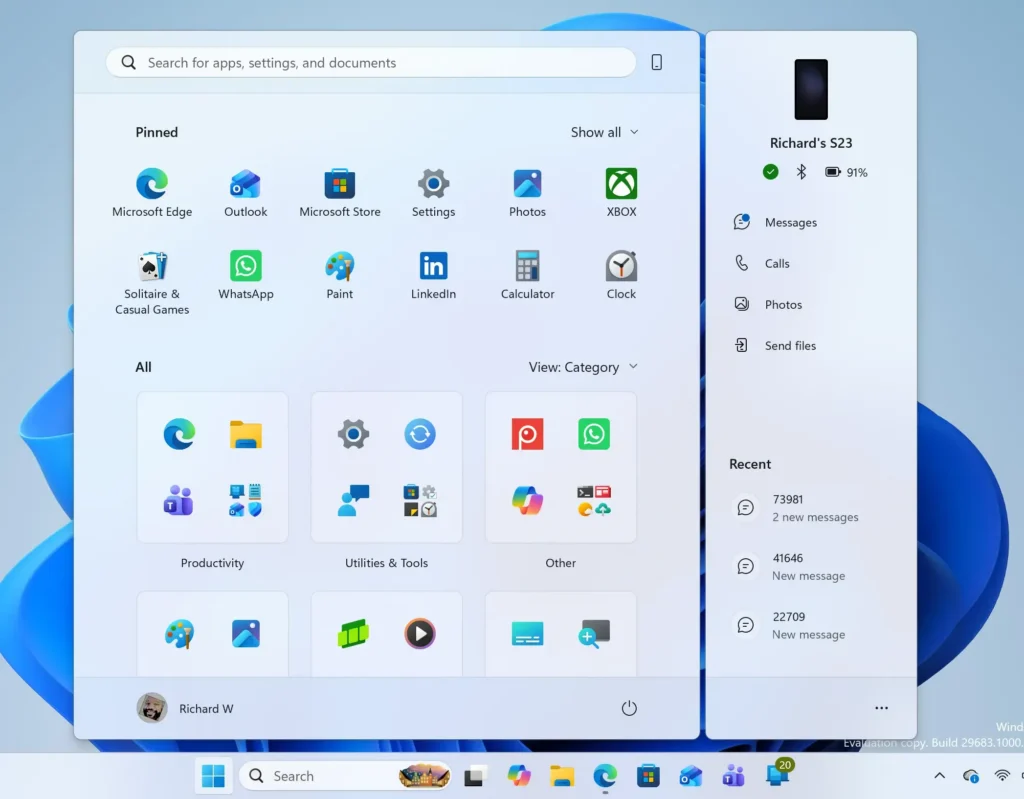
Windows 11 Start menu search panel for opening OpenSSH Client settings - Open Windows Update. Select Windows Update in the left pane, or go to Settings Windows Update.
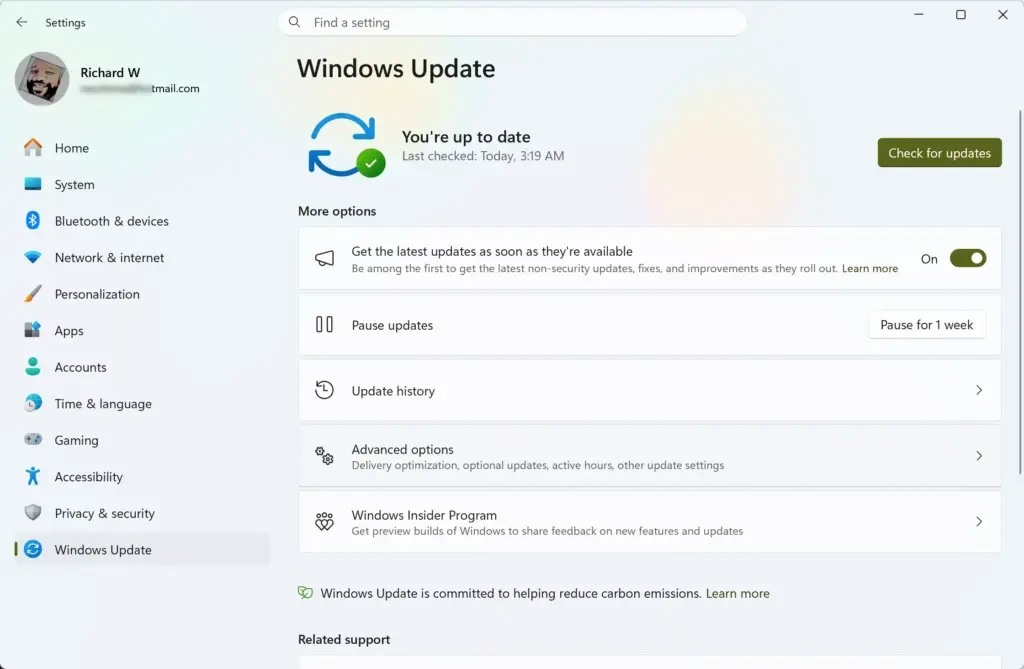
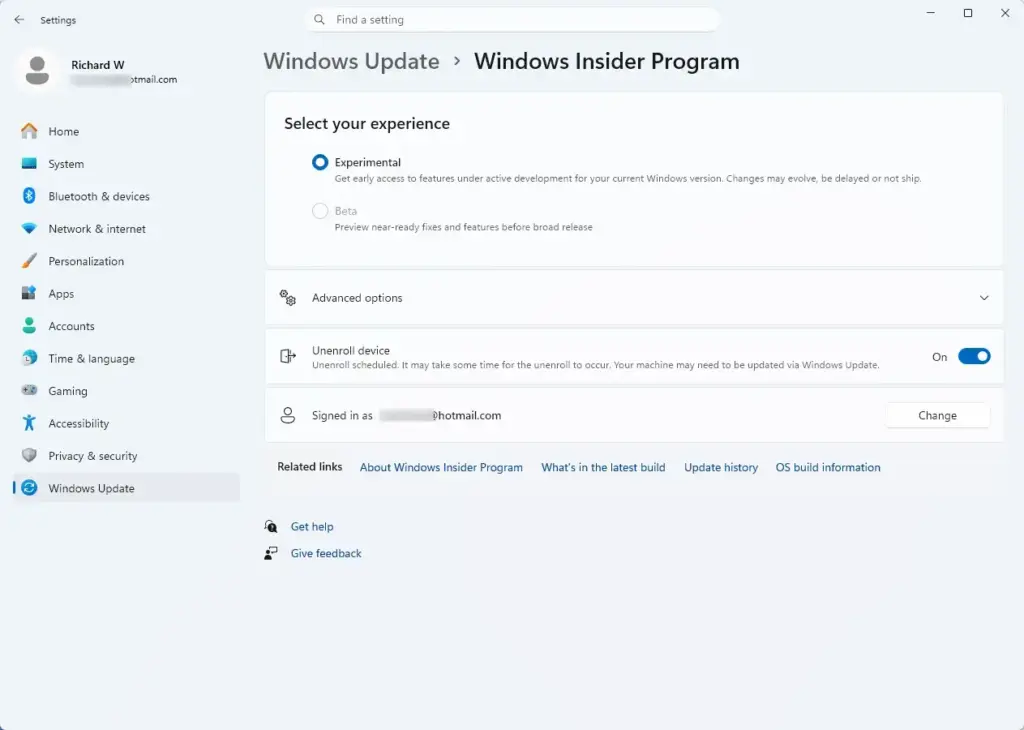
Settings › Windows Update - Check that your PC uses a Windows Insider preview build. Select Windows Insider Program on that page. If it shows your PC as enrolled in a preview channel, you are on the right track.
Settings › Windows Update › Windows Insider Program - Select Check for updates. Windows downloads any pending preview update. The one that carries this feature is KB5127936.
- Restart the PC if Windows asks. Select Restart now and wait for the sign-in screen. Save your work first.
- Confirm the update installed. Go to Settings Windows Update Update history and look for KB5127936 in the list.
- Start Magnifier. Press the Win and the plus sign (+) together. Magnifier opens and the screen zooms in.
- Find the Magnifier toolbar. It is the small bar that appears when Magnifier runs. If the bar is hidden, pointing at the magnifier icon on screen brings it back.
- Switch on the contrast theme toggle on the toolbar. The toggle’s exact label is not confirmed, so look for the control that relates to the contrast theme.
- Check the result. The magnified view turns to a dark theme, while photos, video, and charts keep their original colors.
- Open Magnifier settings if you want another theme. Go to Settings Accessibility Magnifier.
- Choose a different contrast theme there. The setting’s exact name and the list of themes are not confirmed in the information available so far.
If steps 1 to 6 are already done, start at step 7. If the toolbar shows no contrast control after step 8, read the troubleshooting section below.
What You Should See After Turning It On
With the toggle on, the part of the screen that Magnifier enlarges uses a dark background. Large white areas, such as a blank document or a web page, no longer glare at you.
Images are the part to check. A photo, a video frame, or a chart should look the way it does with the toggle off. If a photo looks like a negative, with reversed colors, you are seeing color inversion, not the contrast theme. See the comparison below.
Switching Magnifier views, such as full screen or lens, does not change how you turn the theme on or off. If you need to adjust how large the view is, the guides on changing the Magnifier zoom level and changing the Magnifier lens size cover those settings.
Contrast Theme vs Color Inversion
Both options aim to make the screen easier to read in bright conditions, but they work differently. Keeping them apart helps you choose the right one.
- Contrast themeapplies a dark contrast theme by default and keeps the original colors of photos, video, and charts. You can pick a different contrast theme in Magnifier settings.
- Color inversionreverses the colors of everything in the magnified view. Microsoft keeps it as a separate option, so turning on the contrast theme does not remove it.
If images look wrong with the contrast theme on, check that color inversion is off. The guide to inverting screen colors in Windows 11 Magnifier shows where that setting lives and how to switch it on or off.
Windows 11 also has system-wide contrast themes in Settings Accessibility Contrast themes. That is a different feature, and it changes the whole interface rather than the Magnifier view. This post does not cover it. Whether Magnifier’s theme list matches that one is still unknown.
Why the Contrast Theme Toggle Is Missing
Most of the time, the toggle is missing because the feature has not reached your PC. Work through these checks in order.
Your PC is not on a preview build
The update is not installed yet
Go to Settings Windows Update and select Check for updates. Then open Update history and look for KB5127936. If it is not listed, install pending updates and restart the PC.
Magnifier is not running
The toolbar appears only while Magnifier is on. Press Windows + plus (+) to start it. For other ways to start and stop it, read how to enable or disable Magnifier in Windows 11.
The feature is rolling out in stages
Microsoft often enables new features for some preview PCs before others. If the update is installed and Magnifier is running but you still see no toggle, the feature may not be switched on for your PC yet. Nobody has confirmed whether this applies here yet, so check back after the next preview update.
How to Turn the Contrast Theme Off
The change is reversible and does not alter your files or other settings. To go back to the normal Magnifier view, switch the same toolbar toggle off. The magnified view returns to its standard colors.
If you picked a different contrast theme in Magnifier settings, that choice is not confirmed to reset when you turn the toggle off. Open Settings Accessibility Magnifier to review it. To stop Magnifier completely, press Win+Esc.
Two other Magnifier options are worth knowing if text looks rough in the dark theme. The guide on turning smooth edges for images and text on or off in Magnifier explains the setting that controls edge smoothing, which softens jagged outlines on text and pictures.
What Is Not Confirmed Yet
Because the feature is new, this guide leaves out several details until Microsoft confirms them.
- The exact on-screen label of the toolbar toggle.
- The exact name of the theme option in Magnifier settings, and the list of themes it offers.
- Which Windows Insider channels (the groups of preview builds that receive updates at different speeds) have it, and when it will reach standard Windows 11 releases.
- Whether the layout of the toolbar or settings page will change before release.
Microsoft says the feature may change before it is released more widely. If a label on your PC differs from what this page describes, trust your screen.
What to Do Next
If the toggle does not appear after the update, check Update history for KB5127936 and watch for later preview updates, since the rollout may be staged. Once the contrast theme is on, tune the view with the guide on changing the Magnifier zoom level in Windows 11.
If you use Magnifier with more than one display, the guide on using Magnifier with separate zoom for each monitor is the closest next task.
Have a question about this guide?
Answered by AI from this guide. Good questions may be added to this page — please don't include personal details.
Did this guide fix your problem?

About the Author
Richard
Tech Writer, IT Professional
Richard is a writer at Geek Rewind who turns complex IT tasks into clear, step-by-step guides. He draws on years of hands-on experience in system administration and enterprise IT operations, focusing on Windows, Linux and WordPress: the problems people actually run into, and the fixes that work. His server and WordPress guides come from systems he runs himself. Richard builds and maintains the platform behind Geek Rewind, from its Ubuntu servers and Nginx configuration to its custom WordPress plugins. Many new tutorials start with readers' questions, and he's always glad to answer them in the comments.
No comments yet — be the first to share your thoughts!