How to Lock the Magnifier View on One Screen in Windows 11

- 10 steps
- Needs administrator rights
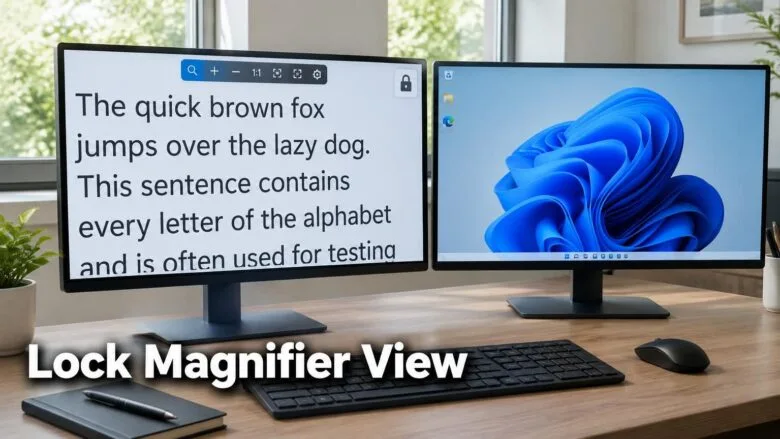
Magnifier viewport locking in Windows 11 holds the magnified view of one screen in place. To use it, put the pointer on that screen and press Ctrl + Windows key + K. Press the same keys again to release the lock.
A viewport is the part of the screen Magnifier is showing at that moment. Locking it stops that view from following you, which matters when you work across more than one screen. The feature appears only in Windows Insider preview builds (early test versions of Windows) for now. Microsoft first described it in build 26220.9739 from the Beta Channel of the Windows Insider Program (a test version of Windows), and it may change before it reaches the stable release.
Press Ctrl+Win+K with your pointer on the screen you want to hold, and the magnified view on that screen stays in place instead of following the pointer. Press the same keys again to release it. The feature exists only in Windows Insider preview builds, starting with build 26220.9739, so stable Windows 11 does not have it yet.
What Magnifier viewport locking does
Magnifier enlarges part of your display so text and images are easier to read. Normally the magnified view moves as you move the pointer, so it follows you around. Viewport locking changes that for one screen: the view on the screen where your pointer sits stays where it is until you release the lock.
Three shortcuts control the feature:
- Ctrl + Windows key + K locks the magnified view of the screen your pointer is on. Press it again to release that lock.
- Windows key + Esc releases all locks at once.
- Ctrl + Alt + P is an alternative lock shortcut. [Verification Required: the place to switch to this shortcut is not stated in the source]
What you need before you start
You need a Windows 11 PC running a Windows Insider preview build that includes the feature. Microsoft announced it in Beta build 26220.9739. On a stable Windows 11 release, the shortcut does nothing and the setting is not there.
You also need Magnifier running, because the lock only affects a magnified view. If you have not turned Magnifier on before, read how to enable or disable Magnifier in Windows 11 first. No administrator rights are needed for any step below.
How to lock the Magnifier view on one screen
Follow these steps to lock the view on one screen, release it, or change the shortcut. The steps run from checking your build to undoing the lock.
- Press Win+I to open Settings. The Settings window opens.

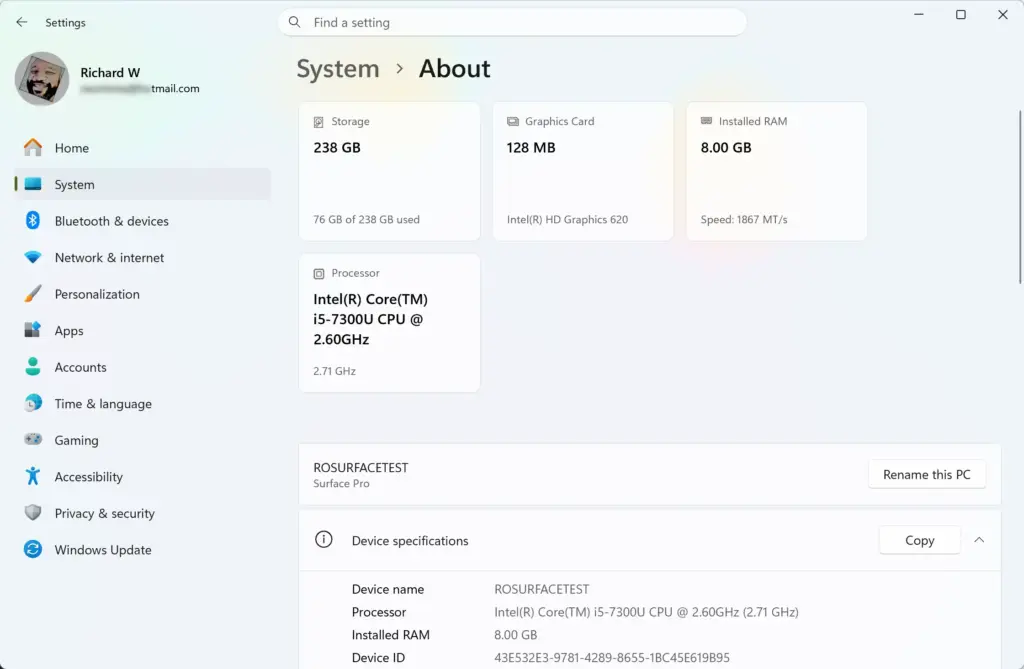
Start Menu - Go to System About. Scroll to Windows specifications and read the OS build line. The lock feature was announced in Beta build 26220.9739, so your build should be that one or a later preview build. If you are on a stable release, the feature is not available yet.
Settings › System › About - Go to Accessibility Magnifier in Settings. Select Accessibility in the left pane, then select Magnifier. This is the page where Microsoft places the Magnifier options, including the lock feature.
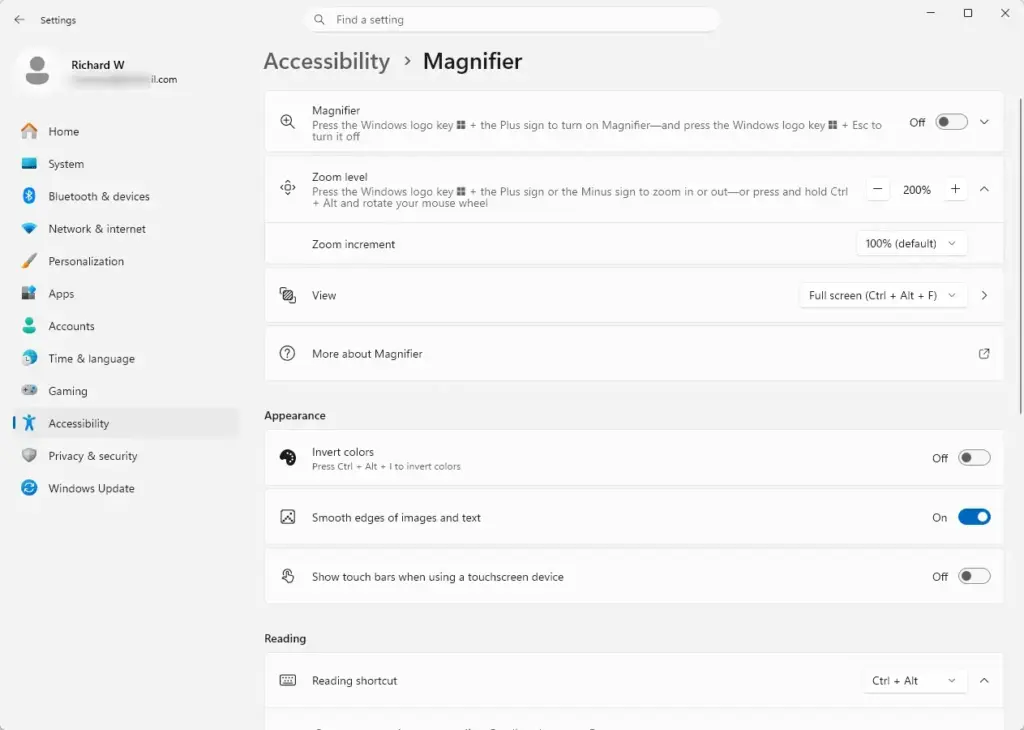
Settings › Accessibility › Magnifier - Turn Magnifier on. Use the Magnifier toggle at the top of the page, or press Windows key + Plus (+). The screen zooms in. If the zoom is too strong or too weak, see how to change the Magnifier zoom level in Windows 11.
- Move the pointer onto the screen you want to hold. The lock applies to the screen under the pointer, so this step decides which screen is affected.
- Press Ctrl+Win+K. The magnified view on that screen stays in place instead of following the pointer. Your other screens are not part of this lock.
- Press Ctrl+Win+K again to release the lock. Keep the pointer on the same screen when you do this. The magnified view on that screen follows the pointer again.
- Press Win+Esc to release all locks at once. Use this when several screens are locked and you want to reset them in one step. Magnifier has used this shortcut for other purposes in earlier versions of Windows. If Magnifier closes instead of releasing the locks in your build, turn it back on with Windows key + Plus (+). Then release each lock with the lock shortcut.
- Change the lock shortcut if Ctrl+Win+K clashes with something. Microsoft lets you switch it to Ctrl + Alt + P. Look for the lock shortcut option on the Accessibility Magnifier page. I cannot confirm the exact label or position of that option in your build, because preview builds change often.
- Test the new shortcut. Move the pointer to a screen and press Ctrl + Alt + P. The view locks the same way as before. Press it again to release the lock.
If the shortcut does nothing
Most failures come from one of five causes. Work through them in this order.
Your build does not include the feature
Check your OS build (the Windows version number) under Settings System About. If you are on a stable release, viewport locking is not there yet. The shortcut will not work, and no setting will appear on the Magnifier page. The only fix is to be on a preview build that includes the feature.
Magnifier is not running
The lock holds a magnified view, so there has to be one. Press Windows key + Plus (+) to start Magnifier, then try the lock shortcut again. If you use the lens view, see how to change the Magnifier lens size in Windows 11.
The pointer is on the wrong screen
The shortcut acts on the screen where the pointer sits. If the wrong screen locked, press the shortcut again with the pointer still on that screen to release it. Then move the pointer to the right screen and lock again. If several screens are locked and you want a clean start, press Windows key + Esc.
You changed the shortcut
If you switched to Ctrl + Alt + P, the original Ctrl + Windows key + K may no longer work. Use the shortcut you picked, or go back to the Accessibility Magnifier page and change it back.
The preview build changed the feature
Microsoft can move, rename or remove preview features before a stable release. If the page looks different from the steps above, trust what you see on screen. The shortcuts are the most likely part to stay the same, but that is not guaranteed.
How to undo the lock
You can reverse the lock at any time without changing a setting. Move the pointer to the locked screen and press the lock shortcut again. To clear every lock together, press Windows key + Esc.
If you changed the lock shortcut and want the original back, return to Settings Accessibility Magnifier and select Ctrl + Windows key + K again. To stop using Magnifier entirely, follow the steps in how to enable or disable Magnifier in Windows 11.
Other Magnifier settings that pair well with a locked view
A locked view works best when the rest of Magnifier is set up for the way you read. Two settings are worth checking after you lock a screen. Colour contrast can make small text clearer. inverting screen colors in Windows 11 Magnifier shows how to switch that on. If you want Magnifier to read text aloud as you move through it, changing Magnifier reading keys in Windows 11 explains the key options.
What to do next
Because viewport locking is in preview, check Microsoft’s release notes for Beta build 26220.9739 after each Insider update to see whether the shortcuts or the setting location have changed. When a stable Windows 11 release adds the feature, the shortcuts and the Accessibility Magnifier page are where to look first. Until then, you can keep using the lock on a preview build and release it whenever you need the view to follow the pointer again.
Have a question about this guide?
Answered by AI from this guide. Good questions may be added to this page — please don't include personal details.
Did this guide fix your problem?

About the Author
Richard
Tech Writer, IT Professional
Richard is a writer at Geek Rewind who turns complex IT tasks into clear, step-by-step guides. He draws on years of hands-on experience in system administration and enterprise IT operations, focusing on Windows, Linux and WordPress: the problems people actually run into, and the fixes that work. His server and WordPress guides come from systems he runs himself. Richard builds and maintains the platform behind Geek Rewind, from its Ubuntu servers and Nginx configuration to its custom WordPress plugins. Many new tutorials start with readers' questions, and he's always glad to answer them in the comments.
No comments yet — be the first to share your thoughts!