What the Device Locked Screen Means After Remote Lock In Windows 11

- 7 steps
- Includes a restart or sign-out
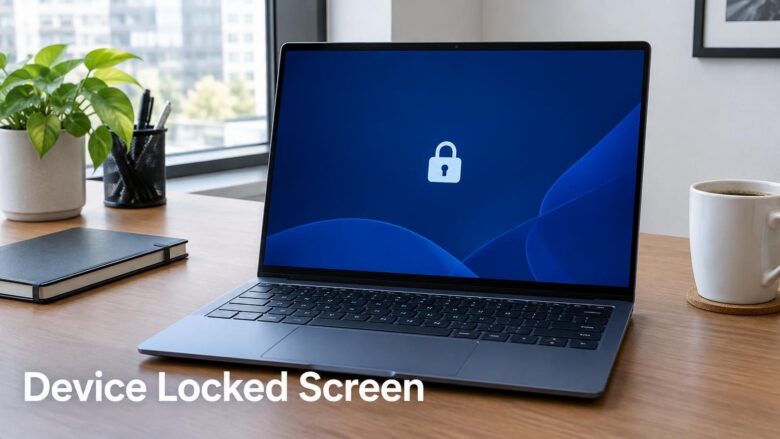
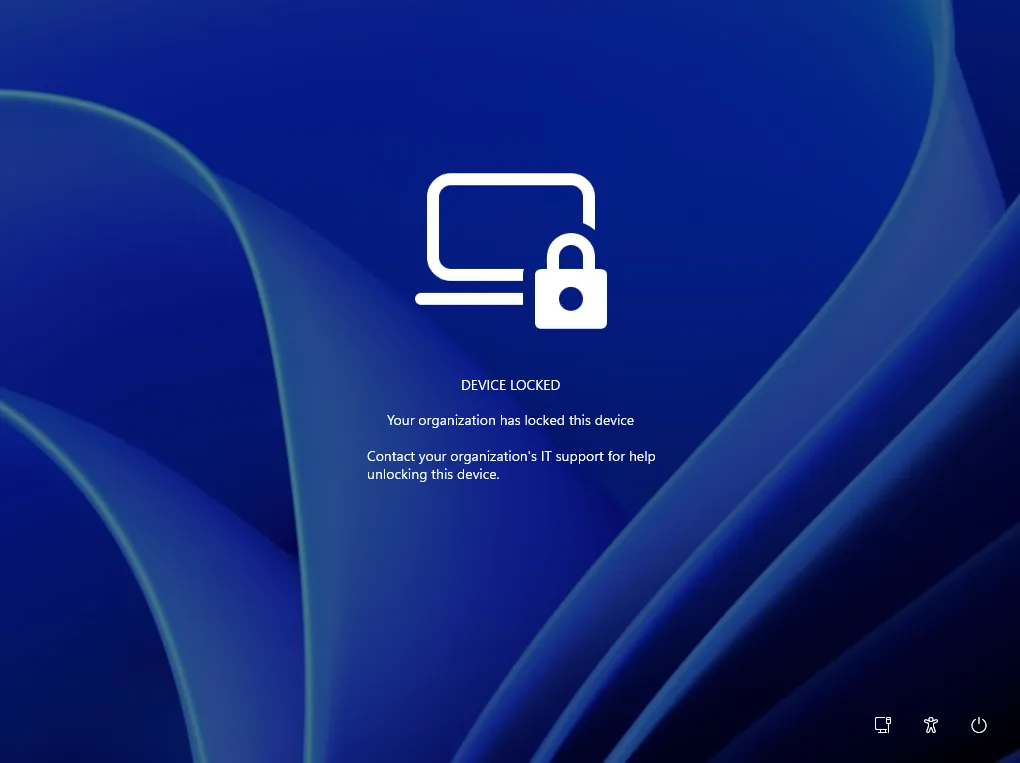
The Device Locked screen in Windows 11 appears when an IT admin applies Remote Lock to your PC from Microsoft Intune (Microsoft’s cloud service for managing company devices). The screen means the device is locked on purpose, and only an admin can lift the lock from a distance. The feature is in Windows Insider preview builds (test versions of Windows 11 that Microsoft shares with its Insider program), including Experimental Build 26340.10013, released November 16, 2026.
If you are looking at this screen now, the quickest fix is to contact the person who manages your device. Nothing on the PC itself removes the lock.
The Device Locked screen in Windows 11 means an IT admin has applied Remote Lock to your PC through Microsoft Intune, the cloud service for managing company devices. Only that admin can lift it. Nothing on the PC removes it, so contact the person who manages your device and give them the device name.
What the Device Locked screen means
Remote Lock lets IT lock a lost, stolen, or compromised Windows device without wiping it. A wipe erases the device and removes its data. A lock leaves everything on the disk and blocks access to Windows until an admin releases it.
When the lock arrives, Windows does three things:
- It signs out all sessions on the device.
- It hides the sign-in options.
- It shows the Device Locked screen.
The missing sign-in options are not a bug. Windows removes them so nobody can try a password, PIN, or other method on a device that IT has flagged as lost, stolen, or compromised.
Where Remote Lock is available
For now, Remote Lock works only on Windows Insider preview builds. The build named in Microsoft’s release notes is Experimental Build 26340.10013. Microsoft has not said when the feature will reach regular Windows 11 releases.
The behavior can change before it ships. Menu names, wording on the screen, and what an admin can configure may all differ in the final version. This article covers only what Microsoft has published so far. Details that are still unconfirmed are listed near the end.
For the original announcement, see Microsoft’s release notes for Build 26340.10013.
Device Locked screen vs the regular lock screen
The Device Locked screen is not the lock screen you see every day. The regular lock screen shows the time, a background, and optionally widgets before you sign in. You customize it in Settings Personalization Lock screen.
The Device Locked screen replaces the usual route to the desktop. Because only an admin can lift Remote Lock, no setting in Settings Personalization Lock screen removes it. Changing your background or widgets has no effect on it.
What to do when you see the Device Locked screen
Ask your IT admin to lift the lock remotely. Nothing on the PC can clear it, so this is the only route. There is little you can do on the PC itself. Your part is to contact IT and tell them the screen is still showing.
- Confirm the screen says Device Locked. The sign-in options are hidden, so you will not see a password or PIN box. That is expected after Remote Lock.
- Leave the device as it is. Repeated restarts or attempts to sign in do not lift the lock, because only an admin can do that remotely.
- Contact your IT admin from another device or phone. Explain that your PC shows the Device Locked screen. If you do not know who manages your PC, ask whoever issued it, such as your employer or school.
- Give the admin the device name. Use the name IT knows, for example COMPUTER-NAME. Also say when you last used the PC and whether you still have it with you.
- Wait for the admin to lift the lock. This step requires an Intune administrator, and you cannot do it yourself.
- Sign in again once the lock is lifted. Windows signed out all sessions when the lock arrived, so expect to start a fresh sign-in.
- Check your open work. Signing out closes the apps in each session, so any document you had not saved may be gone. Reopen your apps and look for recovered files.
Sometimes the screen stays after the admin says the lock is lifted. In that case, ask them to confirm they released the lock command in Intune for that exact device. Microsoft has not published a troubleshooting path for this yet, so the admin is your best next contact.
Why you cannot lift the lock yourself
The design is intentional. A thief, or someone who found a lost laptop, should not be able to clear the lock by restarting or by trying credentials. So the control sits with the admin, outside the device.
That has a practical consequence for the legitimate owner. If your PC gets locked by mistake, you cannot fix it from the screen. Treat it as a request to IT, not a Windows fault.
Microsoft’s notes do not say what happens when you restart a locked PC, or whether the screen shows a message or contact details from your organization. Do not count on either. If you see extra information on the screen, follow it. If you do not, contact IT directly.
What this means for your data
Remote Lock does not wipe the device. Your files, apps, and settings stay where they are. When the admin lifts the lock, the PC is as you left it, apart from the signed-out sessions.
That is why IT might choose Remote Lock first. A lost laptop that turns up under a desk should be recoverable, and a wipe cannot be undone. Whether your organization later moves to a wipe is a separate decision. Remote Lock does not make that decision for them.
Remote Lock controls who can use Windows on the PC, meaning sign-in access. Microsoft’s notes do not describe it as encrypting anything, and disk protection is a different feature. If you want to know whether your PC encrypts its drive, read how to verify device encryption support in Windows 11. Then see how to enable device encryption in Windows 11 if it is off.
For IT admins: what is known so far
If you run Intune, here is what Microsoft has confirmed so far. Remote Lock is an Intune action. An admin with the right Intune permissions can lock a lost, stolen, or compromised Windows device without wiping it. Windows then signs out all sessions, hides the sign-in options, and shows the Device Locked screen.
Only an admin can lift the lock remotely. Microsoft’s release notes do not give the exact menu path in Intune, the permission name, or the steps to release the lock, so this article does not guess them. Use Microsoft’s current Intune documentation when it covers the feature, and expect the steps to change while it is in preview.
Remote Lock compared with other lock features
Windows 11 has several features with “lock” or “find” in the name. They solve different problems, and mixing them up leads to wasted time.
- Remote Lock: an admin locks the whole device through Intune. You see the Device Locked screen.
- Find My Device: locates a device and is aimed at personal accounts. If the location does not update, see what to do when Windows 11 Find My Device location tracking refuses to update.
- BitLocker drive lock: locks a single drive so it needs a password or key to open. See how to lock a BitLocker drive in Windows 11.
- The regular lock screen: appears when you press Win+L or when the PC sleeps. You sign in normally.
What is not confirmed yet
Because the feature is in preview, several details are unknown. Microsoft’s notes do not confirm these, and this article does not fill them in:
- The exact wording and layout of the Device Locked screen on every build.
- Whether the screen can show a message or contact details from your organization.
- What happens to the lock when you restart the PC.
- Which Windows 11 editions and management setups support it when it ships.
- The date it reaches non-Insider releases.
If you manage devices, check Microsoft’s documentation for these before you rely on Remote Lock in a real incident.
What to do next
If you run an Insider build and have not seen the Device Locked screen, nothing is wrong. It appears only after an admin applies Remote Lock to your device. If your PC is not managed through Intune, Remote Lock does not apply to it. In that case, whether to enable device encryption on a PC with a TPM chip (a TPM chip is a security chip built into the PC’s hardware) is the better protection question to look at next. Watch the Windows Insider release notes for later builds, since Microsoft may change how this screen behaves.
Frequently asked questions
How to lock your 🪟 Windows 11 PC remotely?
You cannot lock your own Windows 11 PC remotely with the method in this guide. Remote Lock is an action IT admins take through Microsoft Intune, and it works only on Windows Insider preview builds for now. Only an admin can lift the lock. If you need a remote lock on a managed PC, contact whoever manages it.
How do I enable lock screen?
The lock screen is on by default. It appears when you press Win+L or when the PC sleeps. To change its background or widgets, open Settings Personalization Lock screen. This guide does not cover turning the lock screen on or off, so check Microsoft's current Windows 11 support pages for that.
How to turn off fn lock 🪟 Windows 11?
This guide does not cover Fn Lock, so these steps are general. On many laptops, Fn Lock is switched with a key on the keyboard, often Fn plus Esc. Look for a lock icon on the key row. If you cannot find one, check the keyboard or laptop maker's manual or software.
Still have a question?
Answered by AI from this guide. Good questions may be added to this page — please don't include personal details.
Did this guide fix your problem?

About the Author
Richard
Tech Writer, IT Professional
Richard is a writer at Geek Rewind who turns complex IT tasks into clear, step-by-step guides. He draws on years of hands-on experience in system administration and enterprise IT operations, focusing on Windows, Linux and WordPress: the problems people actually run into, and the fixes that work. His server and WordPress guides come from systems he runs himself. Richard builds and maintains the platform behind Geek Rewind, from its Ubuntu servers and Nginx configuration to its custom WordPress plugins. Many new tutorials start with readers' questions, and he's always glad to answer them in the comments.
No comments yet — be the first to share your thoughts!