What to Do When Windows 11 Find My Device Location Tracking Refuses to Update

- 35 steps
- Includes a restart or sign-out
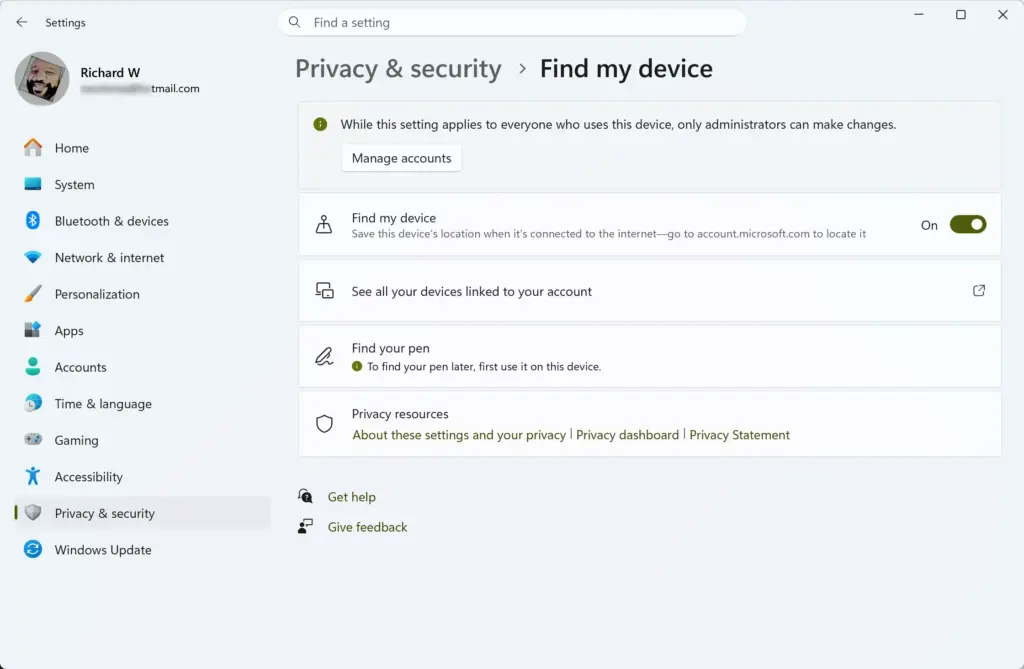
Find My Device records the last known position of your laptop or tablet using GPS, nearby Wi-Fi networks, and cell towers. You can then see that position on the device page of your Microsoft account. When tracking breaks, the map keeps showing an old location and never updates.
Most of the time you can fix this in a few minutes from the Settings app. The usual causes are a location switch that is off, a missing permission, stale cached location data, a VPN, or an account or clock problem. The steps below go from the quickest checks to the less obvious ones.
When Windows 11 find my device location tracking refuses to update, fix it by restarting location services in your settings. Open the Settings app, go to Privacy & security, and click Location. Turn off the Location service switch, wait ten seconds, and turn it back on to refresh the tracking map.
How 🪟 Windows 11 Location Services Actually Work
Windows 11 works out where your computer is by combining several sources: GPS hardware if the device has it, nearby Wi-Fi networks, and your internet connection’s IP address. Most laptops have no GPS chip. In that case Windows matches the Wi-Fi routers around you against an online database to estimate your position.
Find My Device needs three things to work: a working internet connection, the right permissions, and location services switched on. If any one of them fails, your PC cannot report its position to Microsoft and the map stays frozen at the last good update. Checking each of the three usually shows you where the problem is.
Two other requirements are easy to miss. Find My Device only works when you sign in to Windows with a Microsoft account, not a local account. It also does not work on devices managed by a work or school account.
Step-by-Step Fixes When Location Tracking Won’t Update
Work through the fixes below in order and test after each one. After each change, give the PC a minute or two online, then check the device page in your Microsoft account to see whether the location has refreshed. If it has, you can stop there.
1Turn Location Services On and Off Again
Turning location services off and on again resets the connection between Windows and your network and location hardware. It clears most temporary glitches that leave tracking stuck. It takes about a minute and you can undo it at any time by switching the setting back.
- Click the Start button and open Settings.
- Select Privacy & security from the list on the left. The privacy options appear on the right.
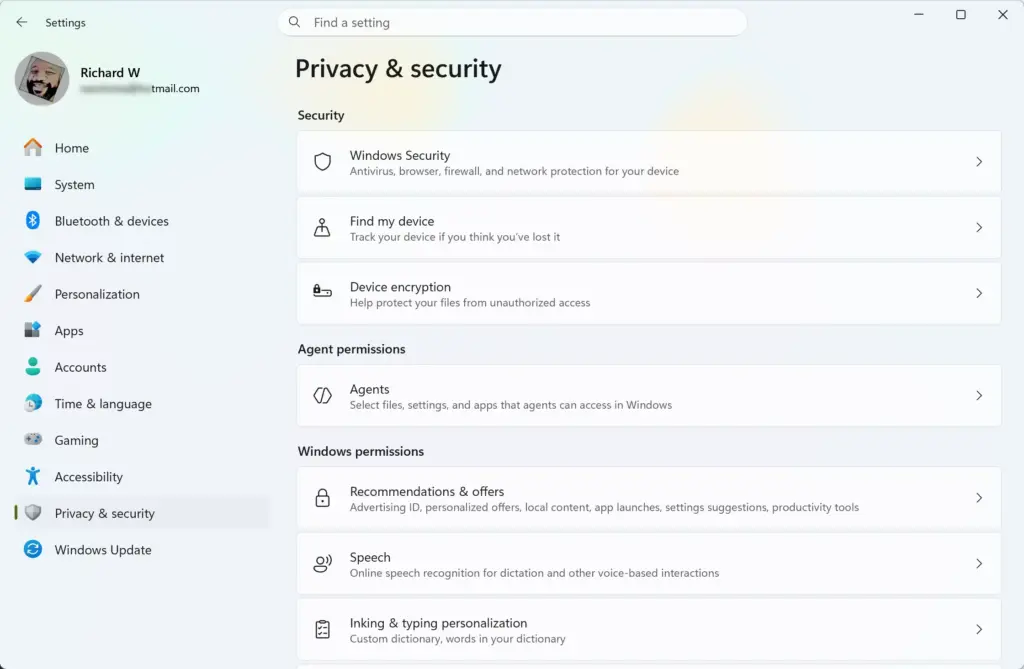
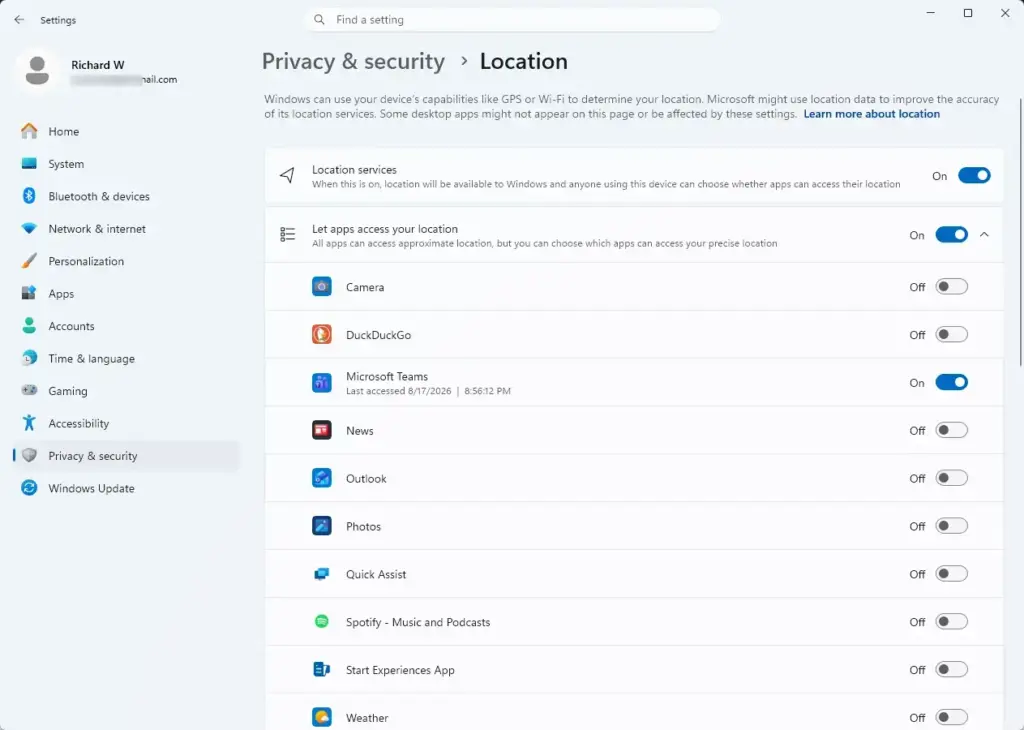
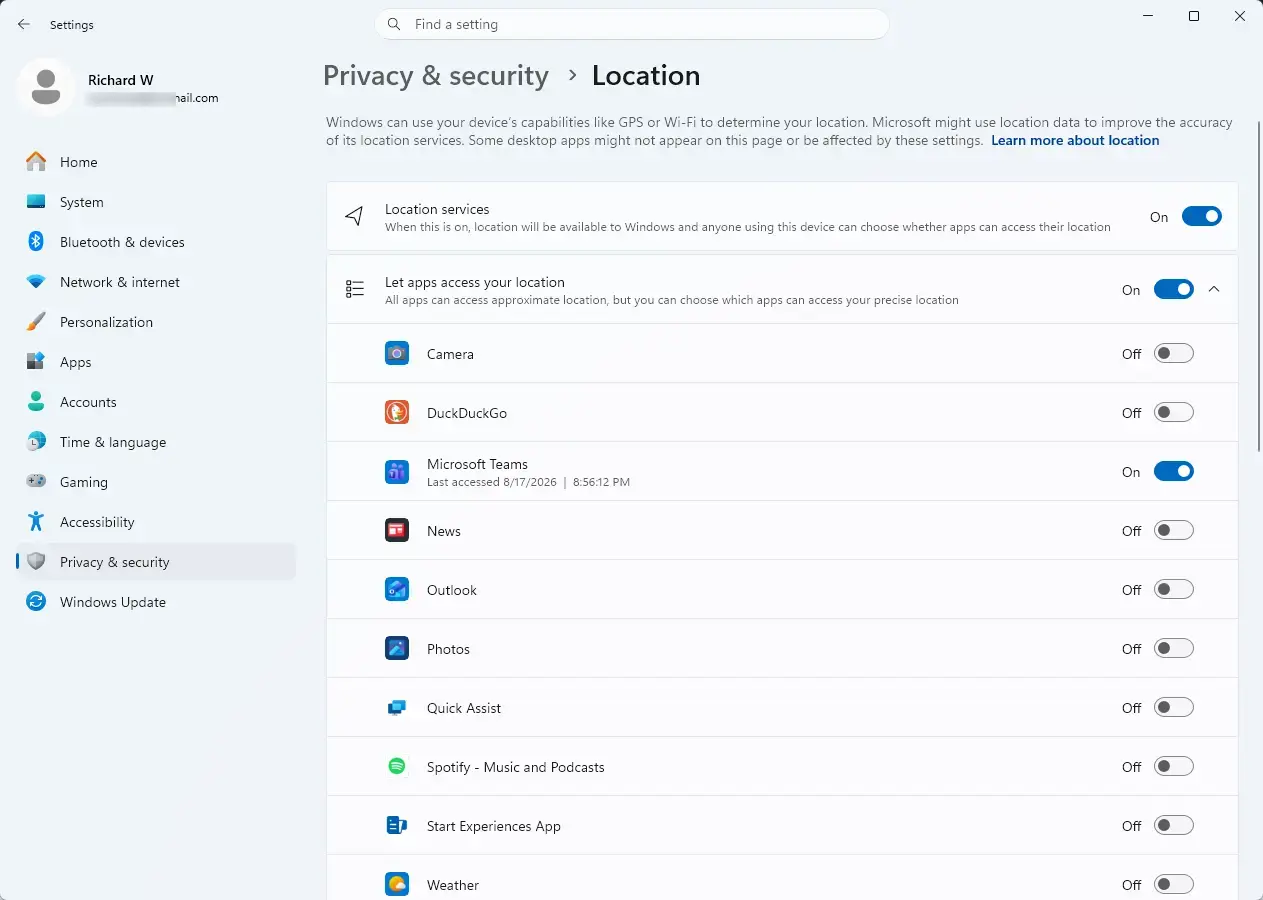
- Click Location. The page shows the main location switches and a list of apps.
- Find the Location services switch and turn it off. The switch should now read Off.
- Wait about ten seconds.
- Turn Location services back on. The switch should read On again.
If the Location services switch is greyed out, your PC is probably managed by an organization that controls it through policy. In that case you need to ask your administrator. Find My Device will not work on that PC anyway.
2Clear Your Location History
Windows keeps a short history of your recent locations on the device. If that data gets corrupted, location updates can stall. Clearing it removes the stored history from this PC only. It does not affect your settings, and the history builds up again as you use the PC.
- Click Start and open Settings.

- Go to Settings Privacy & security Location.
- Scroll down to the Location history section.
- Click the Clear button next to “Clear location history on this device.”
You may see a check mark appear next to the button once the history is cleared. Restart the PC afterwards so Windows starts collecting location data fresh.
3Verify Permissions for Find My Device
Turning on location globally is not enough. Individual apps and system features have their own permissions. If the Find My Device permission is off, the feature will not update your location even though everything else looks fine.
- Open Settings.
- Go to Privacy & security Location.
- Make sure the Let apps access your location switch is on. If it is off, the per-app switches below it are greyed out and cannot be changed.
- Scroll through the list of apps and make sure the toggle next to Find My Device or related system services is on, if it appears in the list.
- Go back to Privacy & security and open Find my device. Make sure its switch is on too. If the page says the feature is unavailable, you are probably signed in with a local or work account.
4Set a Default Location
If Windows cannot work out your position from Wi-Fi or network data, you can give it a default location to fall back on. You set it by typing an address into the Maps app. It is only a fallback and is not as precise as a live reading, but it can get location reporting started again.
- Open Settings and click Privacy & security.
- Select Location.
- Scroll down to the Default location section.
- Click the Set default button. The Windows Maps app opens.
- Type your current address or city into Maps and confirm it.
Type an address you actually are at, or your home or office address. Update it later if you move, since a wrong default will show a wrong position when Windows has nothing better.
5Check Your Internet Connection and VPNs
A VPN sends your traffic out through a server in another city or country. Location services then see the server’s address instead of yours, and the position they report can be wrong or can jump around. Taking the VPN out of the picture and refreshing your network connection gives Windows a clean read of where you are.
- Disconnect from any VPN software you are running. If you use a VPN app, close it or switch it off completely, not just minimize it.
- Disconnect from your Wi-Fi network and reconnect, or unplug your Ethernet cable and plug it back in.
- If the problem continues, restart your router or modem. Unplug it for about 30 seconds, then plug it back in and wait for it to come fully online.
- Open a web browser and load a normal webpage to confirm your internet connection works.
Unique Solutions: What Competitors Miss
Most guides stop at the location switches. If those are correct and tracking still fails, the cause is often elsewhere in Windows, in your account or your system clock. The next two fixes cover those.
Checking Microsoft Account Sync and Permissions
If Windows cannot sign in to your Microsoft account properly, it cannot upload your location to Microsoft’s servers. The PC may know where it is, but the device page never gets the update. Checking your account status shows whether this is the problem.
- Open Settings.
- Click Accounts on the left.
- Select Your info. Make sure you are signed in with the correct Microsoft account. If you see a warning that you need to sign in again, follow the prompt and sign in.
- Go back to Accounts and click Windows backup. Check that your settings are syncing and that there are no error messages.
- On another phone or computer, sign in to your Microsoft account in a web browser and open your device list. Check that this PC is listed and shows as connected.
If the PC is missing from the list, or shows a sign-in error, sign out of the account on the PC, restart, and sign in again.
Windows Time and Date Synchronization Errors
Windows uses secure connections to talk to Microsoft’s servers, and those connections check the time. If your clock or time zone is wrong, even by a few minutes, the secure connection can be rejected in the background. Location updates then fail without any visible error.
- Open Settings.
- Click Time & language on the left.
- Select Date & time.
- Turn on Set time automatically.
- Turn on Set time zone automatically. This option depends on location services being on, so if it is greyed out, go back and check the location switches first.
- If the time is still wrong, click the Sync now button next to the “Synchronize your clock” line to match your PC to the internet time servers.
Once the clock is correct, location updates often resume within a few minutes.
Summary
When Find My Device location tracking will not update, the fix is usually one of the basics: location services switched back on, cached location history cleared, the Find My Device permission enabled, a default location set, the VPN turned off, a healthy Microsoft account sync, or a correct system clock.
Once you have fixed it, check the device page in your Microsoft account to confirm the location has refreshed. Keeping these settings correct means your PC stays trackable if you ever lose it. For more on Windows privacy settings and device security, see the other guides on the site.
Frequently asked questions
Why does 🪟 Windows 11 keep failing to update?
Windows 11 fails to update when your internet connection drops, your system clock is wrong, or Windows Update services are stuck. Restart your PC first. If it persists, open Settings System Troubleshoot Other troubleshooters and run Windows Update Troubleshooter to clear blocked updates and restart the service.
Why can't I update my location?
Your location won't update if location services are off, background location permissions are disabled for the app, or your internet connection is unstable. Open Settings Privacy & security Location, turn on location services, then enable "Allow apps to access your location." Restart the app to refresh the location.
What is the longest a Windows Update can take?
Windows Update typically takes 20 minutes to 2 hours depending on your internet speed and how many updates are pending. Major version upgrades can take 3–4 hours. Don't shut down during the update. If it takes longer than 4 hours, restart and check Settings Update & Security Windows Update for errors.
How to enable location access in 🪟 Windows 11?
Open Settings Privacy & security Location. Turn on the Location toggle at the top. Scroll down and enable "Allow apps to access your location." Then open Settings Apps Permissions Location and toggle on each app that needs location access. Restart those apps to apply the changes.
Still have a question?
Answered by AI from this guide. Good questions may be added to this page — please don't include personal details.
Did this guide fix your problem?

About the Author
Richard
Tech Writer, IT Professional
Richard is a writer at Geek Rewind who turns complex IT tasks into clear, step-by-step guides. He draws on years of hands-on experience in system administration and enterprise IT operations, focusing on Windows, Linux and WordPress: the problems people actually run into, and the fixes that work. His server and WordPress guides come from systems he runs himself. Richard builds and maintains the platform behind Geek Rewind, from its Ubuntu servers and Nginx configuration to its custom WordPress plugins. Many new tutorials start with readers' questions, and he's always glad to answer them in the comments.
No comments yet — be the first to share your thoughts!