What to Do When Windows 11 Location Tracking Reports the Wrong Geographic Area

- 22 steps
- Includes a restart or sign-out
Location tracking in Windows 11 estimates where your PC is by combining nearby Wi-Fi networks, your internet connection details, and GPS data if your device has a GPS receiver. Apps and browsers use that estimate to show local weather, maps, and search results.
The wrong geographic area usually comes from outdated Wi-Fi router records, an IP address registered to a different city, or blocked permissions. Any of these can make Windows 11 place you miles from where you actually are, sometimes hundreds of miles.
The fix is to check your location permissions, clear cached location data, set a default location, and then deal with browser and network causes. The sections below go through these in order, starting with the quickest checks.
Windows 11 estimates your location using Wi-Fi networks, your IP address, and GPS data. Wrong locations usually come from outdated Wi-Fi router records in Microsoft’s database, an IP address registered elsewhere, or blocked location permissions. Fix it by opening Settings Privacy & security Location, turning on Location services and app access, clearing your location history, and checking your browser’s location settings.
How 🪟 Windows 11 Tracks Your Location
Windows 11 works out your position from several sources. It uses nearby wireless networks, Bluetooth signals, and your internet connection, and on some devices a GPS receiver. When it gets the area wrong, one of these sources is usually stale or misleading.
Nearby wireless networks. Your PC reads the names and hardware addresses of Wi-Fi routers around you. Microsoft keeps a large database that links those addresses to map coordinates. If your router is new, secondhand, or was recently moved to a new home, the database may still list your old address. This is one of the most common reasons for a wrong location.
Your internet connection. Websites and apps see the numeric (IP) address your internet service provider assigns you. Providers often route traffic through large regional hubs, so a website may think you are in a bigger city nearby rather than in your own neighborhood. A desktop on a wired connection has no Wi-Fi to work with, so it leans on this even more.
Permissions and settings. If privacy settings block location access, or an app has no permission to see your position, Windows falls back on generic defaults. An app that cannot read your location may show a default or a guess instead.
The sections below go through each of these, starting with permissions because they are the easiest to check.
Checking and Managing Core Location Settings
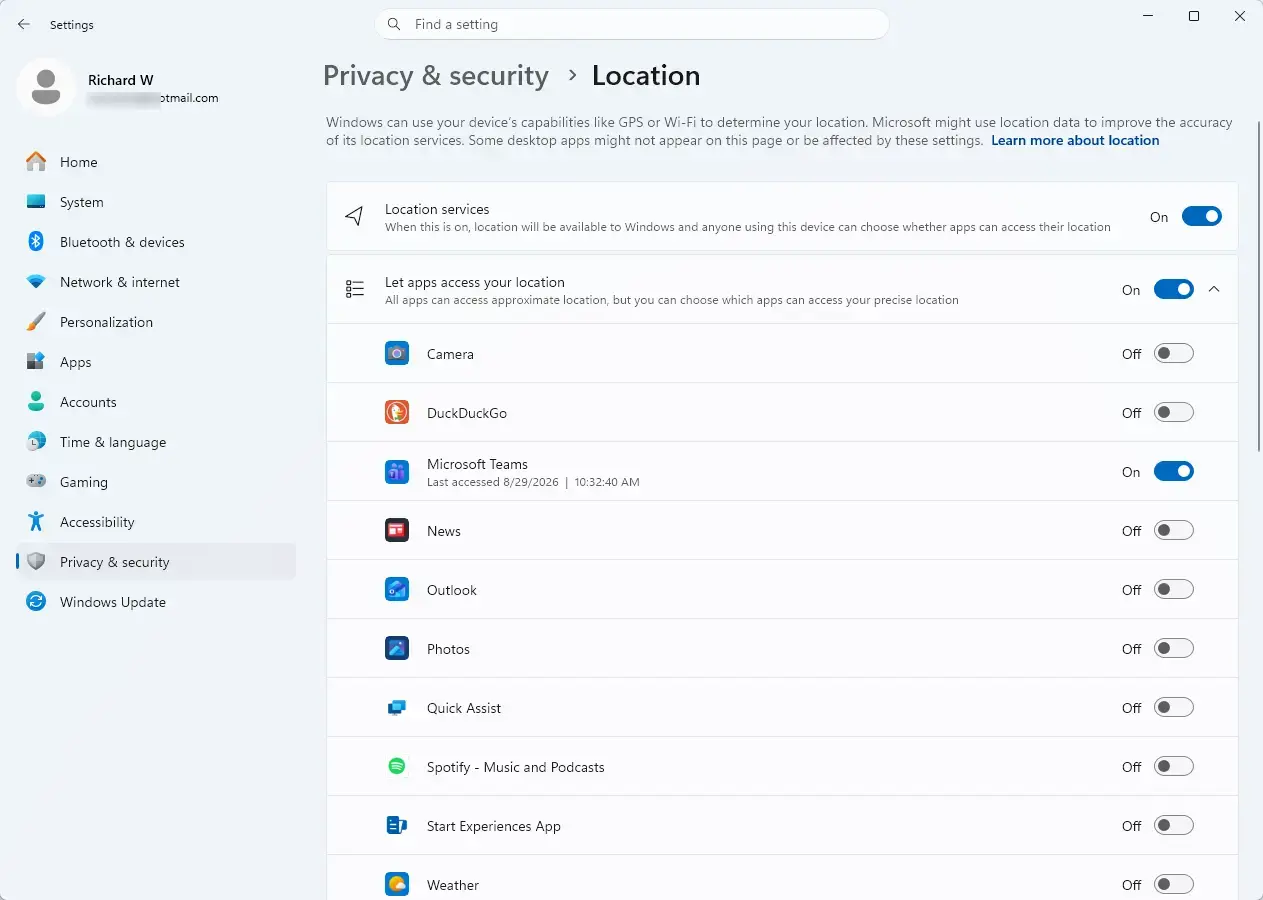
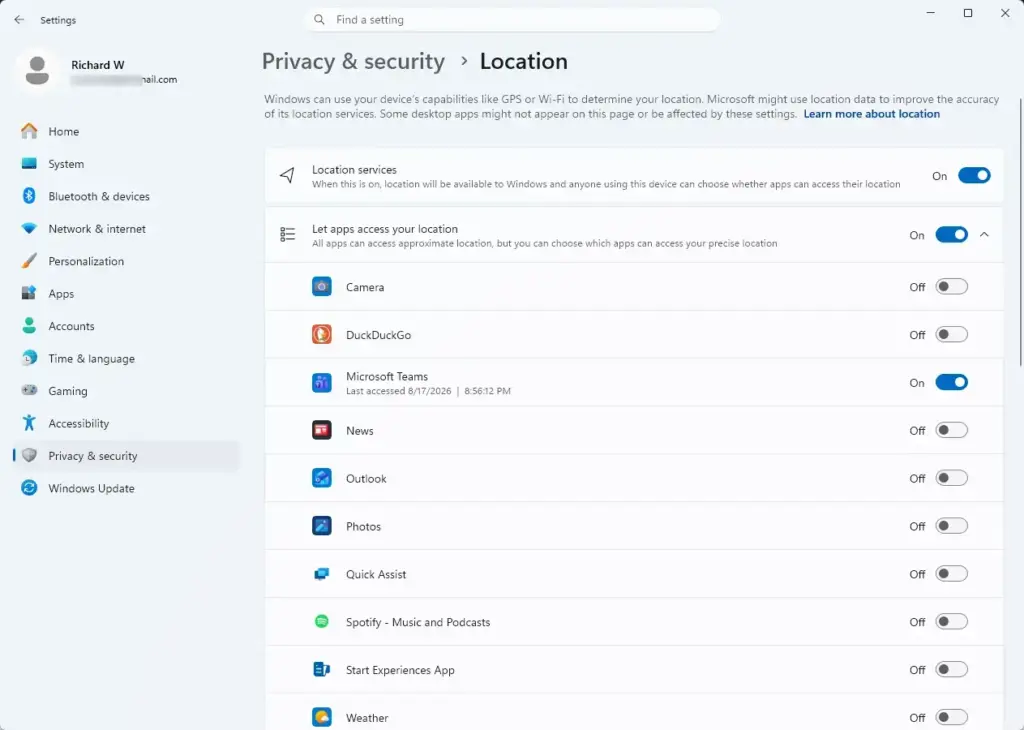
Start with the permissions, because a switched-off setting is the simplest cause and takes a minute to check. The main Location services switch controls whether Windows can find your position at all. Individual apps then have their own switches.
Follow these steps to check your core location settings:
- Click the Start button and open the Settings app.
- Select Privacy & security from the left-hand menu.
- Under App permissions, click Location. You should see the location page with a list of switches.
- Make sure the main Location services toggle is set to On. If it was off, the list of apps below it will be greyed out until you turn it on.
- Check that Let apps access your location is On.
- Scroll down the app list and check that apps such as Maps, Weather, and your web browser are set to On.
- If your browser or another classic desktop program is not listed, make sure the desktop apps switch near the bottom of the page is also On.
Changes to these switches take effect straight away, and no restart is needed. To undo any of them, flip the toggle back.
Clearing Stuck Location History
Windows keeps a short history of where your device has been, and apps can read it. If that data is stale, old coordinates can keep showing up. Clearing it forces Windows to look for fresh signals.
Here is how to clear your location history:
- Open the Settings app from the Start menu.
- Go to Privacy & security and click Location.
- Scroll down to the Location history section.💡If you can't find Location history or its Clear button
Microsoft has removed the Clear location history button from Windows 11, so the Location history section and its Clear button are no longer there. There is no direct replacement for clearing it, so don't keep searching Settings for it. Instead:
- Confirm Location services is On, as described above.
- Set your default location in the next section.
- Restart your PC and check Maps or Weather again.
If the area is still wrong, the router and IP address causes covered below still apply.
- Click the Clear button next to Clear location history. A check mark may appear next to the button once it has finished.
This only clears history stored on your own device. It does not change your permissions or the Wi-Fi database. If you cannot find this section on your build of Windows 11, skip to the restart below.
Once you clear the history, restart your computer. When Windows boots back up, open a map or weather app and check whether it now detects your area correctly.
Give the app a few seconds to get a fix. If it still shows the wrong area, continue with the default location in the next section.
Setting a Default Location in 🪟 Windows 11
A default location is a fallback address you type in yourself. Windows and apps use it when automatic detection fails or cannot be trusted. It is most useful on a desktop PC or a wired connection, where there is no Wi-Fi to give Windows a good fix.
Follow these steps to set a default location:
- Open the Settings app and select Privacy & security.
- Click Location.
- Scroll down to the Default location section.
- Click the Set default button. The Windows Maps app should open.
- Follow the on-screen prompts in Maps to enter your correct address and save it as your default location.
The default location is separate from your region setting. If you also see the wrong country or currency, check Time & language and then Language & region in Settings.
Fixing Location Issues in Microsoft Edge and Web Browsers
Browsers have their own location rules on top of the Windows settings. A website must be allowed by Windows and by the browser, and each site can also have its own saved choice. Even with Windows set up correctly, a browser can still hand a site the wrong place. Microsoft Edge is covered here, and other browsers have a similar site permissions page.
To check location settings in Microsoft Edge:
- Open Microsoft Edge.
- Click the three dots in the top-right corner and select Settings.
- Click Cookies and site permissions in the left menu.
- Scroll down and click Location.
- Make sure the Ask before accessing toggle is On. It is usually labeled as recommended.
- Look at the Block and Allow lists further down. If a site you trust is under Block, remove it so Edge asks again next time.
If a specific website still shows the wrong location, click the padlock or site-information icon at the left of the address bar, or the small location icon if one appears. Reset the location permission for that site and reload the page. When the site asks again, choose to allow it.
Keep in mind that many sites guess your location from your IP address and never ask the browser at all. Those sites will not change when you adjust these settings. The sections below cover that case.
Advanced Troubleshooting: The Wi-Fi Router Database Issue
Microsoft and other companies keep records that link Wi-Fi router hardware addresses to places. Those records do not update the moment you move. Since Windows 11 uses nearby routers to guess your position, an out-of-date record keeps pointing to the wrong place.
This often happens in three situations. You moved your router to a new home, you brought a used router into your house, or your internet service provider changed the numeric address attached to your connection. In the first two cases the router’s hardware address stays linked to the old address in global databases. These databases can take several weeks or months to update on their own.
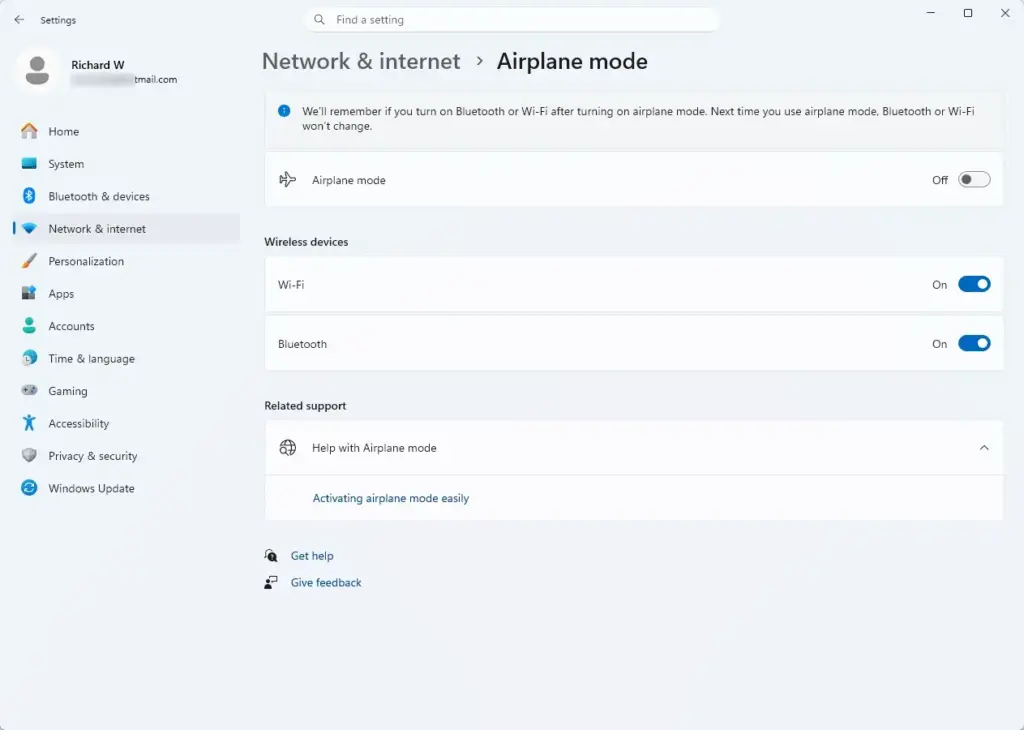
You cannot edit the global Wi-Fi location database yourself, but you can confirm that it is the cause. Connect your computer to a mobile hotspot or a different Wi-Fi network and check your location again in Maps or Weather. If the location corrects itself right away on the hotspot, your home router’s database entry is out of date.
In that case, wait for the databases to catch up. Meanwhile, setting a default location (covered earlier) gives apps a correct fallback. Leaving Location services on while connected to your home network also helps the data update over time.
Expert Tip: Using IP Geolocation Override Tools
Sometimes the cause is your IP address rather than your PC. Websites that judge your position by IP address will show whatever area your provider registered, no matter what your Windows settings say. Override tools can help here, but they only change what websites see, not the Windows location service.
If your provider routes your traffic through a data center in a different part of the state, websites will assume you are there. A few things can help:
- Allow the site to use your browser’s location when it asks. That gives it real coordinates instead of an IP-based guess.
- Enter your town or postal code manually on sites that offer it, such as weather and news sites. Many remember the choice.
- Use a browser extension or a browser feature that lets you set location coordinates for specific sites. Check what any extension does with your data before you install it.
- If you use a VPN, turn it off or choose a server near you. A VPN makes websites see the VPN server’s location, which is often far away.
If you ever contact your internet provider about this, ask whether your IP address is registered to your actual area. They may be able to tell you, though they often cannot change it.
Summary
Fixing a wrong location in Windows 11 usually comes down to three things. Turn on the core permissions, clear stuck location history, and deal with outdated Wi-Fi or IP data. Check your browser permissions too, and set a default location as a fallback. Work through them in that order and your PC should report the right area again.
Frequently asked questions
Why does Windows think I live in tucson, az when I live in scottsdale, az?
Windows often guesses from your internet connection's IP address, and providers sometimes register that address to a data center or regional hub in another city, such as Tucson. Outdated Wi-Fi records can also cause it. To correct it, turn on location access in Settings Privacy & security Location, then set your Scottsdale address as the default location.
My computer shows me in dallas, how do I reset to my current location?
Windows keeps using the default location you set earlier, even after you move. Open Settings Privacy & security Location and turn on Location services. Then select Set default under Default location and choose your current city on the map. Windows will use it from then on.
How to update the location zip code that pops up on my computer?
The zip code comes from the location set for the Weather widget, not from a single system setting. Open Widgets, select the weather card's menu, and choose the location option. Type your new zip code in the search box and select it. The widget will update to that area.
Why does widget in win 11 use my wrong location for the weather?
The Weather widget uses the location Windows has on file. If that location is wrong or location services are off, the forecast will be wrong too. Turn on location access in Settings Privacy & security Location. Then open Widgets and set the weather location to your city or zip code manually.
Is the Clear location history button still in Windows 11?
Asked by a reader
No. Microsoft has removed the Clear location history button from Windows 11, so you won't find it under Settings > Privacy & security > Location. There is no direct replacement for clearing location history. You can still fix a wrong location by checking that Location services is on, setting your default location, and restarting your PC. If the area stays wrong, the router and IP address sections of this guide explain the other likely causes.
Still have a question?
Answered by AI from this guide. Good questions may be added to this page — please don't include personal details.
Did this guide fix your problem?

About the Author
Richard
Tech Writer, IT Professional
Richard is a writer at Geek Rewind who turns complex IT tasks into clear, step-by-step guides. He draws on years of hands-on experience in system administration and enterprise IT operations, focusing on Windows, Linux and WordPress: the problems people actually run into, and the fixes that work. His server and WordPress guides come from systems he runs himself. Richard builds and maintains the platform behind Geek Rewind, from its Ubuntu servers and Nginx configuration to its custom WordPress plugins. Many new tutorials start with readers' questions, and he's always glad to answer them in the comments.
No comments yet — be the first to share your thoughts!