Check Your BIOS Version with Msinfo32 in Windows 11


Msinfo32 is the command that opens System Information, the Windows 11 app that lists your BIOS version alongside the rest of your hardware details. The BIOS (basic input/output system) is the firmware stored on your motherboard that starts the PC before Windows loads. Newer PCs use its successor, UEFI (Unified Extensible Firmware Interface, the modern startup software that replaced BIOS), but Windows still labels the entry “BIOS”.
For a “msinfo32 bios” check, press Win+R, type msinfo32, press Enter, and read the BIOS Version/Date line on the System Summary page. The line shows the firmware maker, the version number and the release date. It takes under a minute, and no administrator rights are needed.
To check your BIOS version with msinfo32, press Win+R, type msinfo32, and press Enter. System Information opens on the System Summary page. Scroll to the BIOS Version/Date row in the right pane. The Value column shows the firmware vendor, version number and release date. No administrator rights are needed, and the check takes under a minute.
What msinfo32 Shows About Your BIOS
System Information reads the details your PC’s firmware reports about itself. Several lines on the first page relate to the BIOS, and you need to know which is which before you compare anything against a manufacturer’s website.
- BIOS Version/Date shows the firmware vendor, the version string and the release date in one line.
- SMBIOS Version (System Management BIOS, the standard that describes your hardware to Windows) shows the version of that data format. It is not the BIOS version, so do not confuse the two.
- BIOS Mode shows UEFI or Legacy (the older startup method), which is how the PC starts Windows.
- SecureBoot State shows whether Secure Boot, a UEFI feature that blocks untrusted software during startup, is On, Off or Unsupported.
- System Manufacturer and System Model tell you which brand and model to search for when you look for firmware updates.
How to Check Your BIOS Version with Msinfo32
These steps open System Information and find your BIOS version. They work the same on Windows 11 Home and Pro, and none of them needs administrator privileges.
- Press Win+R. The Run dialog opens in the lower-left corner of the screen.

Run dialog - Type
msinfo32in the Open box. Use lowercase or uppercase; Windows accepts both. - Press Enter. The System Information window opens. It can take a few seconds to fill in on a slower PC.
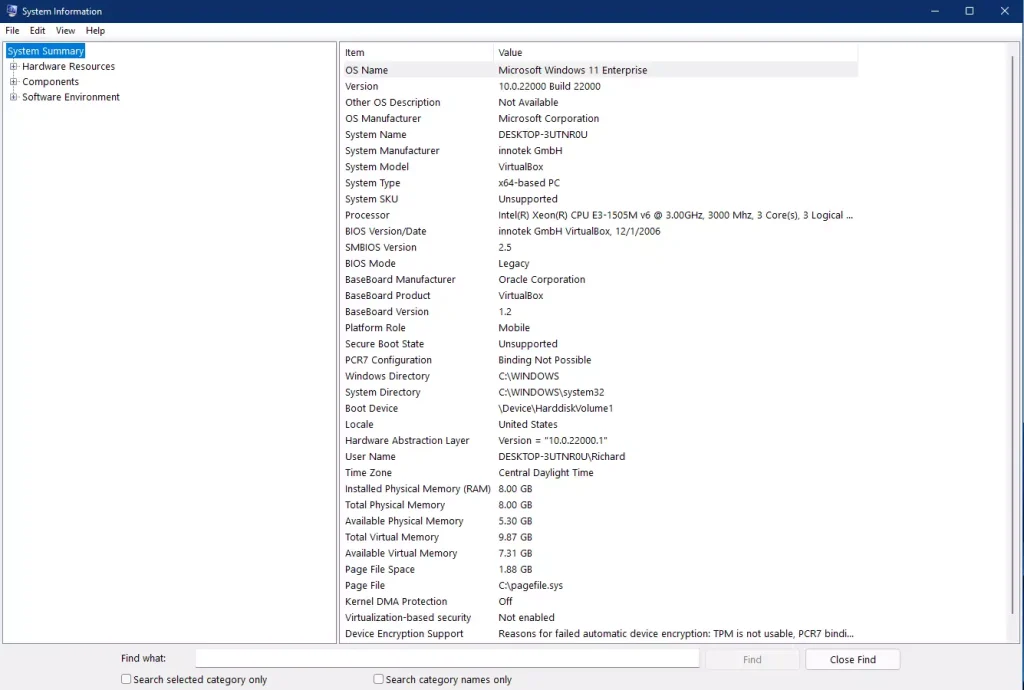
system information windows 11 summary - Select System Summary in the left pane. It is normally selected already, and the right pane shows a two-column table headed Item and Value.
- Scroll the right pane to BIOS Version/Date. It sits a little below System Type and Processor.
- Read the Value column for that row. A typical entry looks like
American Megatrends Inc. 1.40, 12/12/2022, with the vendor first, then the version, then the date.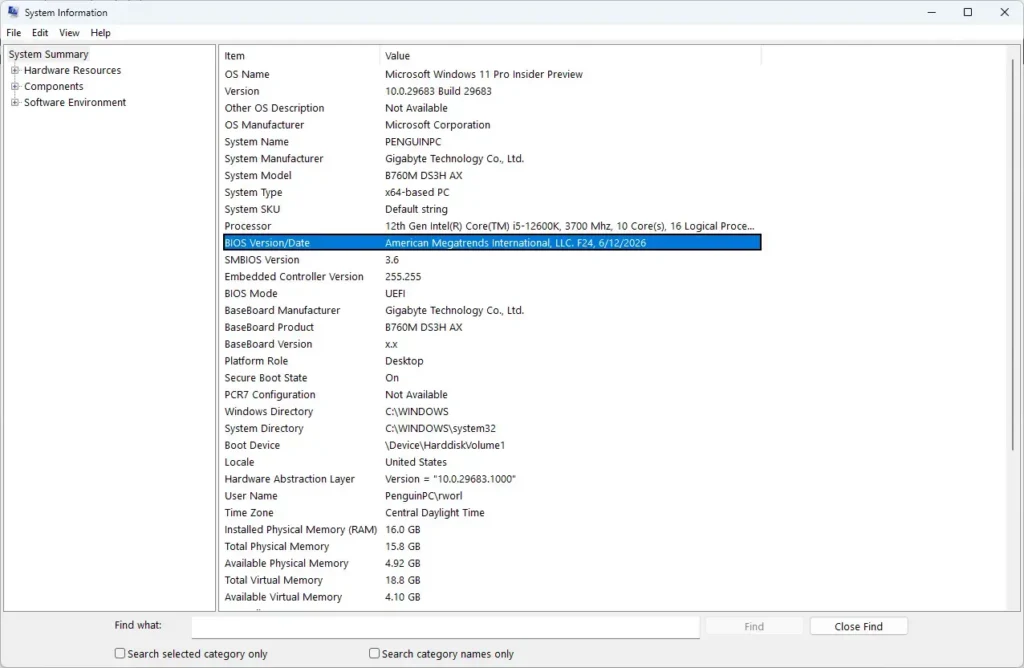
- Check BIOS Mode in the row just below. It shows UEFI on any PC that meets the Windows 11 requirements.
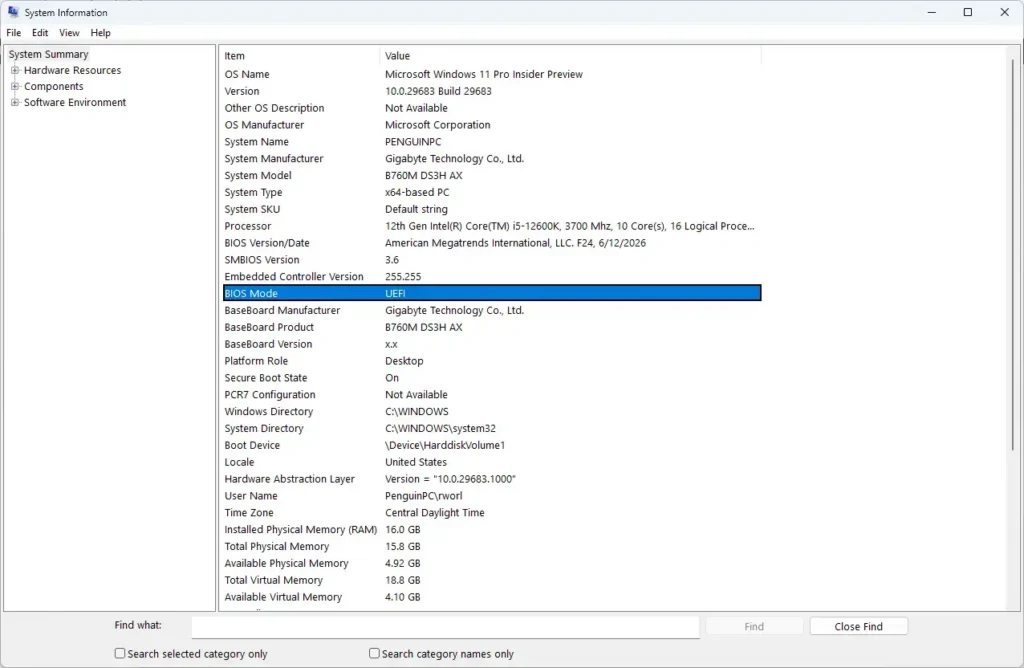
- Note the System Manufacturer and System Model rows above it. You need both to find the right firmware download later.
- Select File Export if you want a saved copy. A save dialog opens.
- Type a file name, such as
msinfo32, and select Save. Windows writes a plain text file you can open in Notepad or send to support staff. - Close the window by selecting the X in the top-right corner. Nothing on your PC has changed, because System Information only reads data.
If the window opens but the right pane shows an error instead of a table, go to the “Can’t Collect Information Error” section below.
How to Read the BIOS Version/Date Line
The line packs three facts into one string. Knowing how to split it saves time when you compare it with a manufacturer’s download page.
Vendor, Version and Date
The first part is the firmware vendor, such as American Megatrends Inc., Insyde Corp. or Phoenix Technologies. This is the company that wrote the firmware, and it is often not the brand on the PC's lid. The version follows, and the release date comes last.
The firmware itself supplies the date, and many manufacturers write it as month/day/year. A date like 03/04/2023 can therefore mean 4 March or 3 April, depending on the maker. Check the manufacturer's download page to see how it writes dates.
Why the Version Looks Different on the Manufacturer's Site
Laptop and desktop makers often rename their BIOS releases. Msinfo32 may show an internal string such as F.40 or 1.40, while the download page calls the same release "BIOS Update 1.40" or lists only a date. Match on the version number inside the string, and use the date as a second check.
BIOS Mode and Secure Boot State
If BIOS Mode reads Legacy, the PC starts Windows in the older compatibility mode. That affects whether the PC meets the Windows 11 requirements, so note it before you change any firmware settings.
If SecureBoot State reads Off, the PC supports the feature but it is switched off in firmware settings. Unsupported means the firmware does not offer it at all.
Other Ways to Open System Information
The Run dialog is the quickest route, but it is not the only one. Use whichever suits the situation, since all of them open the same app.
From the Start Menu
Select Start, type System Information and select the System Information result. The app opens on System Summary. Pin it from the right-click menu if you open it often.
From Command Prompt or Terminal
Open Command Prompt or Windows Terminal, type msinfo32 and press Enter. The same window opens.
To write the whole report to a text file without opening the window, run the following command. Replace the file name if you want it saved somewhere else.
msinfo32 /report "%USERPROFILE%\Desktop\sysinfo.txt"The command can take a minute to finish because it gathers every category. Open the text file afterwards and search it for "BIOS Version/Date".
Using the Find Box
System Information is long, and the BIOS line is hard to spot on a small screen. Press Ctrl + F with the window selected to open the Find what box at the bottom. Type BIOS and select Find. The table jumps to the first matching row, and selecting Find again moves to the next match.
Select Close Find when you are done, to clear the box.
Check the BIOS Version in PowerShell as a Cross-Check
PowerShell reads the same firmware data, which makes it a useful second opinion if the System Information value looks wrong. Open Windows Terminal or PowerShell and run the command below.
Get-CimInstance -ClassName Win32_BIOS | Select-Object Manufacturer, SMBIOSBIOSVersion, ReleaseDateThe output lists the firmware vendor, the version string and the release date in separate columns. The values should match what System Information shows.
If This Doesn't Work: Common Msinfo32 Problems
Can't Collect Information Error
System Information relies on Windows Management Instrumentation (WMI), a built-in service that gathers hardware data. If WMI is stopped or damaged, the right pane shows a "Can't Collect Information" message instead of the table.
Restart the PC first, because a stuck service often recovers at startup. If the message returns, restart the service. This step requires administrator privileges.
- Press Windows + R, type
services.mscand press Enter. The Services window opens. - Find Windows Management Instrumentation in the list.
- Right-click it and choose Restart. Approve the prompt if one appears.
- Open System Information again with
msinfo32. The table should now fill in.
If the error persists after a restart of the service, the cause lies in WMI itself and not in the BIOS. No single fix works on every PC, so check the Windows Management Instrumentation entry in Services for its status before you try anything more drastic.
The BIOS Version Belongs to a Virtual Machine
On a virtual machine, BIOS Version/Date shows the firmware that the hypervisor (the software running the virtual machine) presents to the guest. It is not your physical PC's firmware. Run msinfo32 on the host machine to see the real BIOS.
The Value Is Blank or Generic
Some custom-built and older PCs report a placeholder such as "To be filled by O.E.M." in the System Manufacturer or System Model rows. The BIOS line itself is usually still accurate. In that case, read the motherboard's brand and model from the board or its documentation, and search for the BIOS update by board name.
The Date Looks Too Old
An old date does not mean something is broken. Many PCs never receive a firmware update, and the date reflects the last release your manufacturer issued. Compare it with the manufacturer's support page before deciding anything.
Compare Your Version with the Latest Release
Once you have the version and model, open the manufacturer's support page for that exact model and find the BIOS or firmware section. If the listed version is newer than yours, read the release notes to see what it fixes.
A power cut or forced shutdown during the update can leave the PC unable to start. On a laptop, plug in the charger first, and follow the manufacturer's own instructions exactly.
Skip the update if your PC works without problems and the notes do not mention an issue you have. Firmware updates are not routine maintenance.
What to Do Next
After a BIOS update and restart, run msinfo32 again. The BIOS Version/Date line should show the new version, which confirms the update installed. If the PC needs a firmware setting changed, such as turning on Secure Boot, open Settings System Recovery. Select Restart now next to Advanced startup, then choose Troubleshoot Advanced options UEFI Firmware Settings
Have a question about this guide?
Answered by AI from this guide. Good questions may be added to this page — please don't include personal details.
Did this guide fix your problem?

About the Author
Richard
Tech Writer, IT Professional
Richard is a writer at Geek Rewind who turns complex IT tasks into clear, step-by-step guides. He draws on years of hands-on experience in system administration and enterprise IT operations, focusing on Windows, Linux and WordPress: the problems people actually run into, and the fixes that work. His server and WordPress guides come from systems he runs himself. Richard builds and maintains the platform behind Geek Rewind, from its Ubuntu servers and Nginx configuration to its custom WordPress plugins. Many new tutorials start with readers' questions, and he's always glad to answer them in the comments.
No comments yet — be the first to share your thoughts!