How to Check TPM Version on Windows 11 Easily

- 14 steps
- Needs administrator rights
A Trusted Platform Module (TPM) version check on Windows 11 confirms whether your computer meets one of the core security requirements for the operating system. The TPM is a hardware security chip, or a firmware version of one, tied to your PC’s motherboard. It stores encryption keys and helps protect you against malware and tampering.
Windows 11 requires TPM version 2.0 to install and to keep receiving security updates. A quick check tells you whether your system is ready or whether you need to change a firmware setting or replace a part. It takes about a minute with any of the methods below.
Open TPM Management by typing tpm.msc into the Start menu search and selecting the result. The TPM version will be displayed in the window that opens. Alternatively, check Device Security in the Windows Security app.
What is TPM?
Think of TPM as a tiny lockbox inside your computer. It holds security keys that protect things like your passwords, your sign-in credentials and your disk encryption keys (BitLocker and Device Encryption use it). Because the keys stay inside the chip, malware and attackers have a much harder time getting at them.
How to Check Your TPM Version in 🪟 Windows 11
Here are 4 easy ways to see which TPM version your PC has. All of them work on both Windows 11 Home and Pro, and none of them changes anything on your system. They only read information, so you can try more than one to double-check the result.
1Use the Windows Security App
- Click the Start menu (the Windows icon on the taskbar). The Start menu opens with a search box at the top.
- Type Windows Security in the search box and click the app when it appears. The Windows Security window opens.
- In the Windows Security window, click Device security in the left-hand list. The main pane now shows items such as Core isolation and Security processor.
- Under Security processor, click Security processor details. A page opens with information about your TPM chip.
- Look for Specification version. This is your TPM version. For Windows 11 it should start with 2.0, for example “2.0, 0, 1.16”. The numbers after it are internal revision details and do not matter for this check.

In short, the path is Start Windows Security Device security Security processor Security processor details. This is the method I use first, because it shows the exact specification version your computer reports and also the manufacturer name and firmware version.

If the Specification version reads 2.0, your TPM meets the Windows 11 requirement. If it reads 1.2, the chip is too old for Windows 11. Some boards can be upgraded with a TPM 2.0 module or a firmware update, so check your motherboard or PC maker’s support page before buying anything.

If you do not see a Security processor section under Device security, Windows cannot find a usable TPM. The page may say “Standard hardware security not supported”. In most cases the TPM is switched off in the BIOS/UEFI. On many PCs it is listed as Intel PTT, AMD fTPM or simply “Security Device Support”. Look for it in your firmware settings, switch it on, and then check again. You can reverse this later by switching it back off.
2Use the TPM Management Console
- Open the Start menu and type
tpm.msc. The search results show a matching entry. - Click Trusted Platform Module (TPM) Management in the results. Windows may ask for permission to continue. Click Yes if it does.
- Read the window that opens. It shows information about your TPM, including the version. Look for Specification Version under TPM Manufacturer Information. The Status box at the top should say that the TPM is ready for use.
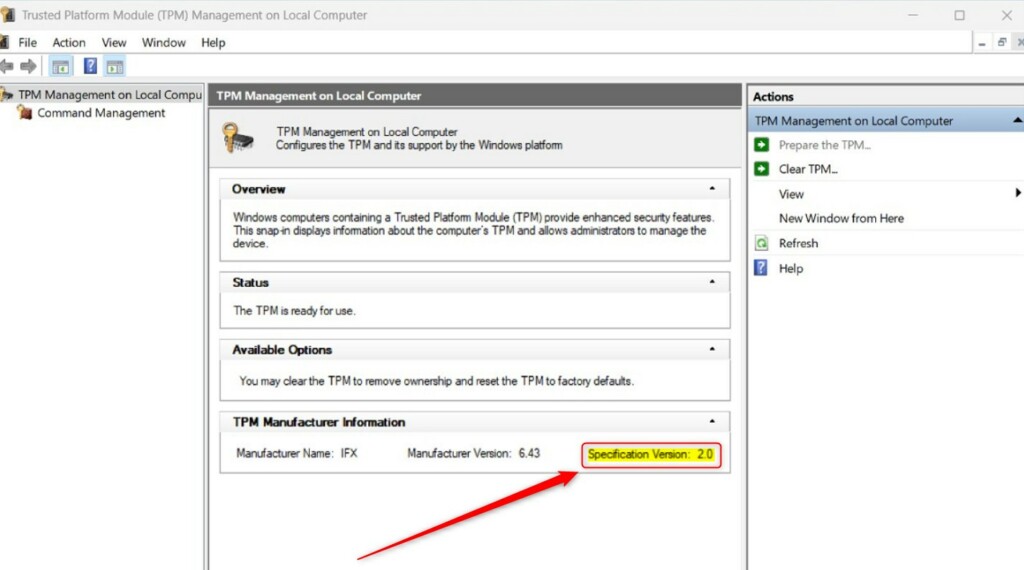
This console is the quickest way to see both the version and the TPM’s state in one place. If the window says “Compatible TPM cannot be found”, the TPM is either missing or turned off in the BIOS/UEFI. Close the window when you are done. You do not need to save anything.
3Use Device Manager
- Open the Start menu, type Device Manager, and open it. The Device Manager window shows a list of hardware categories.
- In Device Manager, find Security devices and click the arrow next to it to expand it. The devices in that category appear below it.
- Check the list. You should see Trusted Platform Module 2.0 or another version number listed. If the entry says 2.0, you meet the requirement. If it says 1.2, the chip is too old for Windows 11.
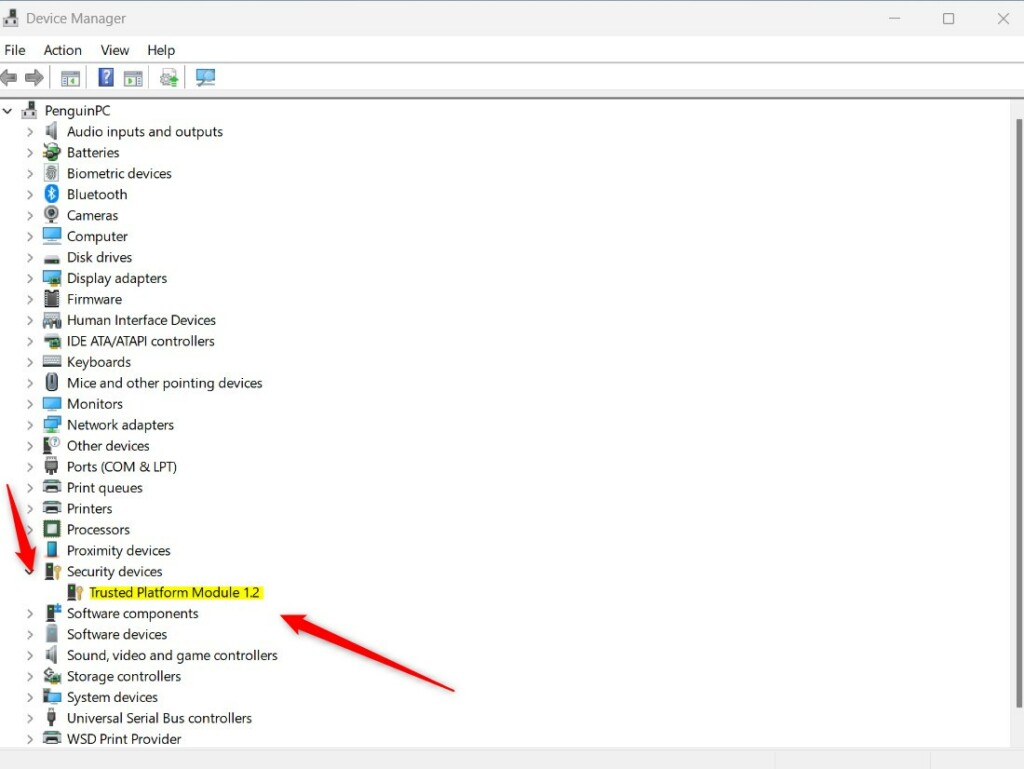
If there is no Security devices category at all, Windows is not detecting a TPM. The usual cause is that it is disabled in the BIOS/UEFI, though very old or custom-built PCs may not have one. Device Manager only tells you the version and whether the device is present. For more detail, use the Windows Security app or the TPM Management console above.
4Use PowerShell or Command Prompt
- Right-click the Start menu and select Terminal (called Windows Terminal on early Windows 11 builds). If you see Terminal (Admin), choose that one, because some TPM queries need administrator rights. [Requires admin privileges]
- Choose either the PowerShell or Command Prompt tab. If only one tab is open, click the down arrow next to the plus sign at the top of the window and pick the other one.
- Type the following command and press Enter:Code
tpmtool getdeviceinformation
The information shown will include the TPM version. Look for the specification version in the output. For Windows 11 it should start with 2.0. If you get an “access denied” message, close the window and reopen Terminal as administrator. If the output is empty or reports no TPM, the chip is missing or turned off in the BIOS/UEFI.
Why Knowing Your TPM Version Matters
- Make sure your PC meets Windows 11 requirements before you try to install or upgrade, so you do not hit a blocked setup halfway through.
- Fix problems with your TPM chip more easily, because you know whether the chip is missing, disabled or simply an older version.
- Keep your computer secure with the right TPM version, since features like BitLocker and Windows Hello depend on a working TPM.
If you want to learn how to fix TPM problems, check out this guide: How to Run TPM Troubleshooter in Windows 11.
Summary
Finding your TPM version on Windows 11 is simple and important for keeping your computer secure. You can use the Windows Security app, the TPM Management console, Device Manager, or a quick command in PowerShell or Command Prompt. If every method reports TPM 2.0, you meet that requirement. If none of them finds a TPM, check the BIOS/UEFI first, because the chip is often just switched off.
Have a question about this guide?
Answered by AI from this guide. Good questions may be added to this page — please don't include personal details.
Did this guide fix your problem?

About the Author
Richard
Tech Writer, IT Professional
Richard is a writer at Geek Rewind who turns complex IT tasks into clear, step-by-step guides. He draws on years of hands-on experience in system administration and enterprise IT operations, focusing on Windows, Linux and WordPress: the problems people actually run into, and the fixes that work. His server and WordPress guides come from systems he runs himself. Richard builds and maintains the platform behind Geek Rewind, from its Ubuntu servers and Nginx configuration to its custom WordPress plugins. Many new tutorials start with readers' questions, and he's always glad to answer them in the comments.
No comments yet — be the first to share your thoughts!