Turn On BitLocker Without a TPM Chip in Windows 11

- 27 steps
- Needs administrator rights
- Group Policy needs Windows 11 Pro, Enterprise or Education
- Includes a restart or sign-out
BitLocker can encrypt the system drive of a Windows 11 PC that has no TPM, but only if you allow a password or USB startup key in its place. A TPM (Trusted Platform Module) is a chip that stores encryption keys. The quickest route is to change one startup policy in the Local Group Policy Editor, then turn on BitLocker from Control Panel.
This works on Windows 11 Pro, Enterprise and Education. Windows 11 Home has no Local Group Policy Editor and no BitLocker Drive Encryption page in Control Panel, so it cannot follow these steps. The sections below show how to check your PC first, then the full process, then what to do when an error appears.
BitLocker works on a Windows 11 PC without a TPM chip, but only if you allow a password or USB startup key in its place. Open the Local Group Policy Editor (gpedit.msc) to change the startup policy, then turn on BitLocker from Control Panel. This works on Windows 11 Pro, Enterprise and Education.
Before You Start
Two checks save time. First, confirm the PC really has no usable TPM. Second, confirm your edition of Windows 11 includes the tools you need. Both take under a minute.
Check Whether Your PC Has a TPM
Many PCs that report “no TPM” have one that is switched off in the firmware. If yours is on, you can skip the workaround and use the normal method.
- Press Win+R, type tpm.msc, and press Enter.

Run dialog - Read the message in the TPM Management on Local Computer window. If it says a compatible TPM cannot be found, Windows sees no TPM.
You can also open Settings Privacy & security Windows Security Device security. If a Security processor section is listed, the PC has a TPM. If the section is missing, it does not.
Before you give up on the chip, open your PC’s UEFI (firmware) settings and look for a TPM option. Intel calls it PTT (Platform Trust Technology) and AMD calls it fTPM (firmware TPM), though the names vary by manufacturer. If you find one and turn it on, Windows 11 can use it. For problems with a TPM that is present but misbehaving, see how to use the TPM troubleshooter in Windows 11.
Check Your 🪟 Windows 11 Edition
Open Settings System About and read the Edition line under Windows specifications. Pro, Enterprise and Education include BitLocker Drive Encryption and the Local Group Policy Editor. Home does not.
Home does offer Device encryption in Settings, but that feature depends on hardware support, including a TPM. It does not give you a password option. To encrypt a TPM-less PC, upgrade to Pro first.
What Changes Without a TPM
With a TPM, Windows 11 can start the PC and release the encryption key on its own, after the chip confirms that the boot files have not been altered. Without the chip, BitLocker has nothing to hold the key. You supply it yourself at every startup.
You get two choices. A password is typed on a screen before Windows loads. A USB startup key is a flash drive holding the key file, and it must be plugged in each time the PC starts.
Both options encrypt the drive. What you lose is the boot file check that a TPM performs. Pick a long, unique password. Keep the USB drive out of the bag you carry the PC in. If someone holds both the PC and the key, the encryption does not help.
Turn On BitLocker Without a TPM Chip in 🪟 Windows 11
These steps allow BitLocker without a TPM on the system drive, then turn it on with a startup password. Steps 2 through 8 need an administrator account.
The exact Group Policy location for the startup setting is not confirmed in this article’s reference material. [Verification Required: Group Policy path for the startup setting should be confirmed against Microsoft’s current documentation before publishing] Check the setting name against Microsoft’s current documentation before you rely on it.
- Save your work. The process ends with a restart, and encryption begins after it.
- Open the Local Group Policy Editor. Press Win+R, type gpedit.msc, and press Enter. This step requires administrator privileges. If Windows says it cannot find gpedit.msc, you are on Home, which cannot continue. Approve the User Account Control prompt if one appears.
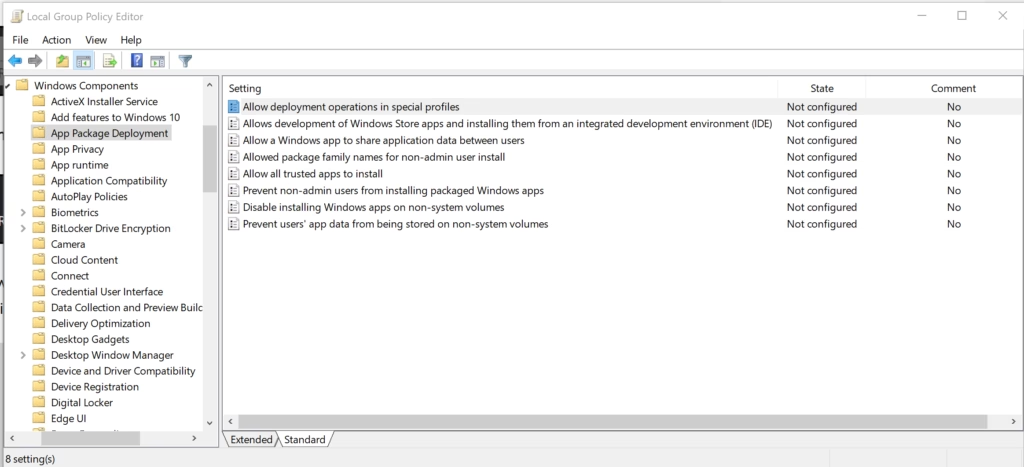
Group Policy Editor - Go to the BitLocker startup policy: Go to Computer Configuration Administrative Templates Windows Components BitLocker Drive Encryption Operating System Drives. Find the policy named Require additional authentication at startup under Operating System Drives, and open it.
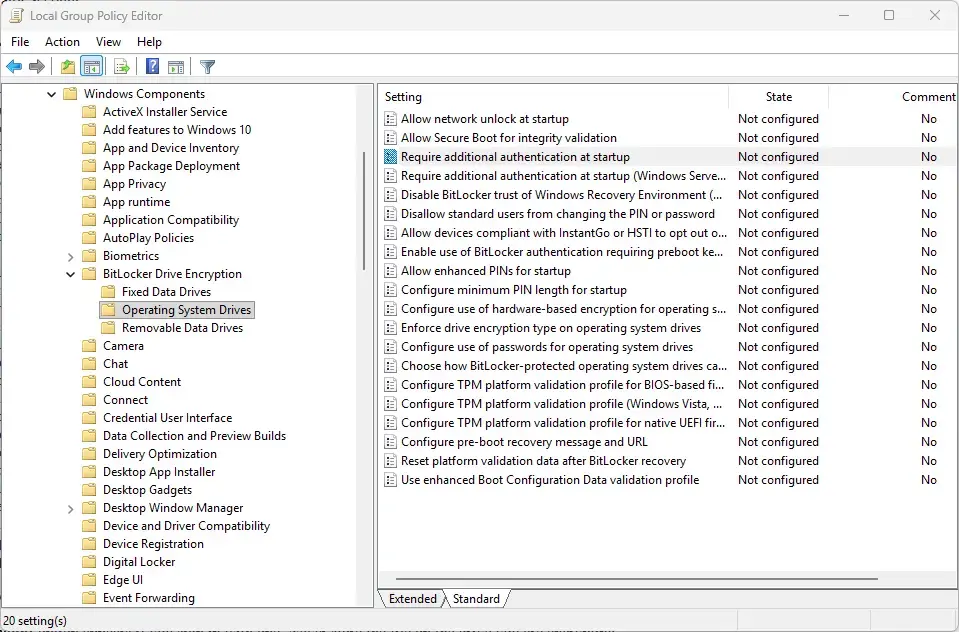
- Set the policy to Enabled. Select Enabled. The window also offers Not Configured and Disabled.
- Allow BitLocker without a compatible TPM: Go to Computer Configuration Administrative Templates Windows Components BitLocker Drive Encryption Operating System Drives. Tick the option in the policy window that permits BitLocker on a PC with no compatible TPM. Leave the other startup options at their defaults unless you have a reason to change them.
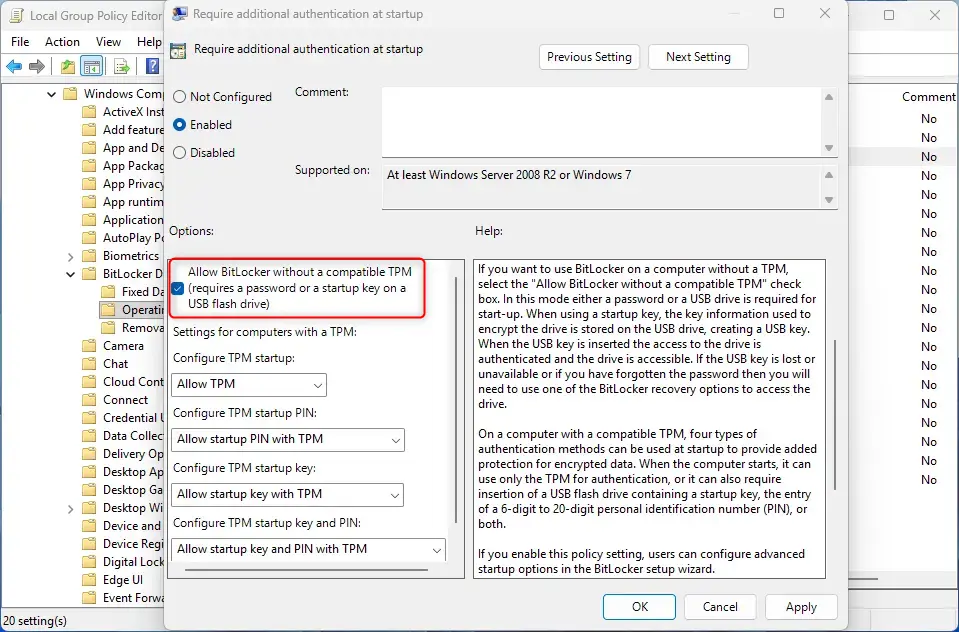
BitLocker - Select Apply, then OK. The policy window closes and the setting now shows as Enabled in the list.
- Open Command Prompt as administrator. Select Search on the taskbar, type cmd, right-click Command Prompt, and choose Run as administrator. This step requires administrator privileges.
- Run gpupdate /force. This command applies Group Policy changes now. Type
gpupdate /force, then press Enter. Windows reapplies policy and prints that the Computer Policy update has completed successfully. Then close the window. - Open Control Panel. Select Search on the taskbar, type Control Panel, and press Enter.
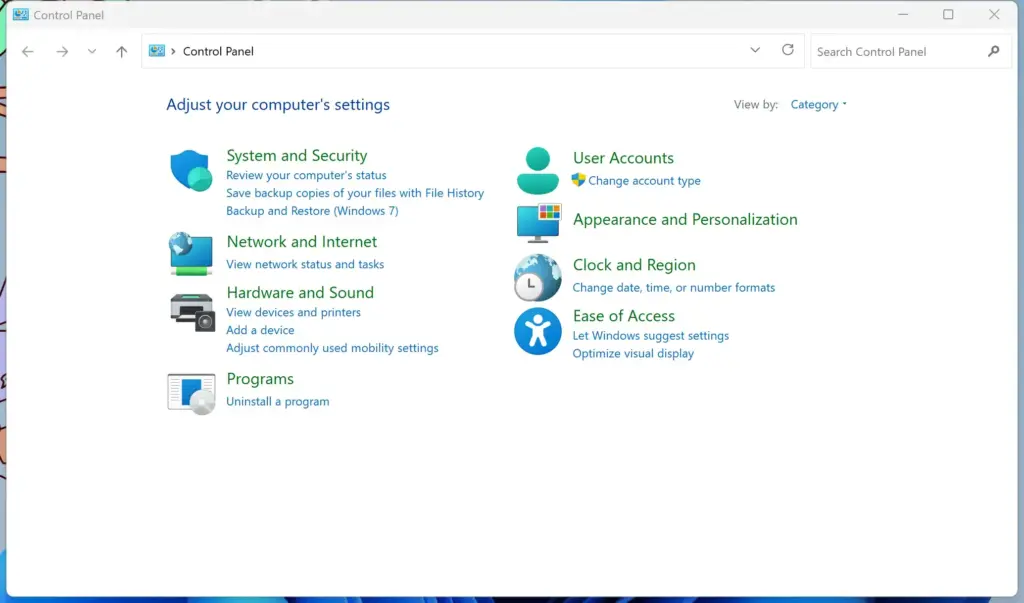
Control Panel - Open BitLocker Drive Encryption. Go to System and Security BitLocker Drive Encryption. The page lists your drives with their BitLocker status. If you need other routes to this page, see how to open BitLocker settings in Windows 11.
- Select Turn on BitLocker. The link sits next to your Windows drive, usually C:. A short check runs, then the setup wizard opens. If you see an error about the TPM here, go to the troubleshooting section below.
- Choose Enter a password. The wizard shows the startup options screen. These steps use Enter a password. Choose Insert a USB flash drive instead if you prefer a startup key.
- Type the password twice, then select Next. Use a long phrase you can remember. The password is requested every time the PC starts, so a typo you cannot reproduce can lock you out.
- Back up the recovery key. The wizard asks how to back up your recovery key, the 48-digit number that opens the drive if the password fails. Choose Save to a file, Save to a USB flash drive or Print the recovery key. A Save to your Microsoft account option appears if you sign in with one. Never store the file on the drive you are encrypting.
- Select Next. The button becomes available after you complete a backup choice.
- Choose how much of the drive to encrypt. Pick Encrypt used disk space only for a new PC or a fresh install. It is faster. Pick Encrypt entire drive for a PC you have used for a while, because old deleted data can still sit in unused space. Select Next.
- Choose the encryption mode. Select New encryption mode for a drive that stays in this PC. Select Compatible mode for a drive you may move to an older Windows version. Select Next.
- Tick Run BitLocker system check. The check confirms that Windows can read the password at startup before it encrypts anything. Leave it ticked on the first run.
- Select Continue. A prompt tells you to restart the PC. Remove any USB drives you do not need first.
- Select Restart now. If you chose a USB startup key, leave the drive plugged in.
- Enter your password at the BitLocker screen. A blue or black screen appears before Windows loads and asks for the password. Type it and press Enter. Windows then starts as usual.
- Check the encryption status. Return to System and Security BitLocker Drive Encryption. The C: drive shows BitLocker on and a percentage while encryption runs in the background. You can keep using the PC during this time.
If Something Goes Wrong
The Wizard Says the Device Cannot Use a Trusted Platform Module
This message means the policy is not in effect. The wizard reads the policy only when it opens, so it misses a change made while it was already running. Close the wizard, run gpupdate /force again in an administrator Command Prompt, and restart the PC. Open the policy again and check that it shows Enabled and that the option for a missing TPM is ticked.
BitLocker Drive Encryption Is Missing in Control Panel
The page is absent on Windows 11 Home. Check Settings System About. If the edition reads Home, upgrade to Pro. On Pro, search for BitLocker in the Start menu to see whether the entry is listed under another name.
The Password Is Not Accepted at Startup
Check Caps Lock first. The password screen may use a different keyboard layout from the one inside Windows, so characters like @ or # can move. Type the password in a text box in Windows before you set it, to see how it behaves. If the password still fails, press Esc at the BitLocker screen and enter the 48-digit recovery key you saved.
The System Check Fails After Restart
If the PC restarts and BitLocker never begins, the startup check could not read the password or key. Sign in to Windows, return to BitLocker Drive Encryption, and run the wizard again. If you use a USB startup key, plug it in before restarting and keep it connected until Windows loads.
Encrypt Other Drives Without the Same Workaround
The TPM policy applies to the drive Windows starts from. Secondary internal drives, external drives and USB drives do not need a TPM. You can protect those with a password through the normal BitLocker page. See how to turn on BitLocker to protect a data drive in Windows 11 for that process.
If you also want a PIN or a startup key on a PC that does have a TPM, there is a separate policy for that. It is covered in enabling a PIN or USB key at startup for the OS drive. The standard operating system drive process on TPM hardware is in how to turn on BitLocker for your Windows 11 operating system drive.
Check or Manage BitLocker from PowerShell
You can read the encryption state without opening Control Panel. In an administrator Windows Terminal window, the manage-bde -status command lists each drive, its encryption percentage and its protection method. After a successful setup, the C: drive shows a password protector. Other BitLocker tasks, such as adding a protector or suspending protection, are covered in managing BitLocker with PowerShell in Windows 11.
How to Turn BitLocker Off
Turning BitLocker off decrypts the drive, which takes time on a large drive but does not delete files. Keep the PC powered and plugged in until it finishes.
- Open Control Panel System and Security BitLocker Drive Encryption.
- Select Turn off BitLocker next to the C: drive.
- Select Turn off BitLocker again when Windows asks you to confirm. The page then shows decryption progress, and the drive returns to BitLocker off when it completes.
To remove the policy change, reopen the Local Group Policy Editor and set the startup policy back to Not Configured. Existing encryption does not change, but the wizard will again refuse to run on a PC with no TPM.
What to Do Next
Store the recovery key in a second place, such as a printed copy kept away from the PC, and test it once. If you move to a PC that has a TPM later, see setting BitLocker to start your Windows 11 PC automatically. For a TPM that behaves oddly or holds old keys, how to clear and reset TPM in Windows 11 covers what to do before you reuse it.
Have a question about this guide?
Answered by AI from this guide. Good questions may be added to this page — please don't include personal details.
Did this guide fix your problem?

About the Author
Richard
Tech Writer, IT Professional
Richard is a writer at Geek Rewind who turns complex IT tasks into clear, step-by-step guides. He draws on years of hands-on experience in system administration and enterprise IT operations, focusing on Windows, Linux and WordPress: the problems people actually run into, and the fixes that work. His server and WordPress guides come from systems he runs himself. Richard builds and maintains the platform behind Geek Rewind, from its Ubuntu servers and Nginx configuration to its custom WordPress plugins. Many new tutorials start with readers' questions, and he's always glad to answer them in the comments.
No comments yet — be the first to share your thoughts!