How to Use TPM Troubleshooter in Windows 11

The TPM Troubleshooter is a built-in tool in Windows 11 that checks your computer’s security chip and tries to fix common errors. You run it from the Windows Security app, and it works on both Home and Pro editions.
Open Windows Security, click Device security, then Security processor details, and click Security processor troubleshooting. Click Run to scan your TPM chip and automatically fix detected errors. Restart if prompted.
What is TPM?
TPM, which stands for Trusted Platform Module, is a security chip built into your computer that keeps passwords and encryption keys safe. On some PCs it is a separate chip. On others it is part of the processor firmware, and the PC maker may call it Intel PTT or AMD fTPM. Windows Security includes a dedicated troubleshooting tool for it, so you do not need to install anything.
A working TPM chip is crucial for features like Windows Hello and BitLocker. When this security hardware malfunctions, those features break down. You may be asked for a BitLocker recovery key, or Windows Hello sign-in may stop working.
How to Run the TPM Troubleshooter in 🪟 Windows 11
The troubleshooter sits several layers deep in Windows Security, so it is easy to miss. Follow these steps to open and run it:
Step 1Open the Windows Security app
- Click the Start menu (the Windows icon at the bottom left).
- Type
Windows Securityin the search box. - Click the Windows Security app when it appears in the results. The Windows Security window opens on its Home page, with a set of status icons for your protection areas.

Step 2Go to Device Security
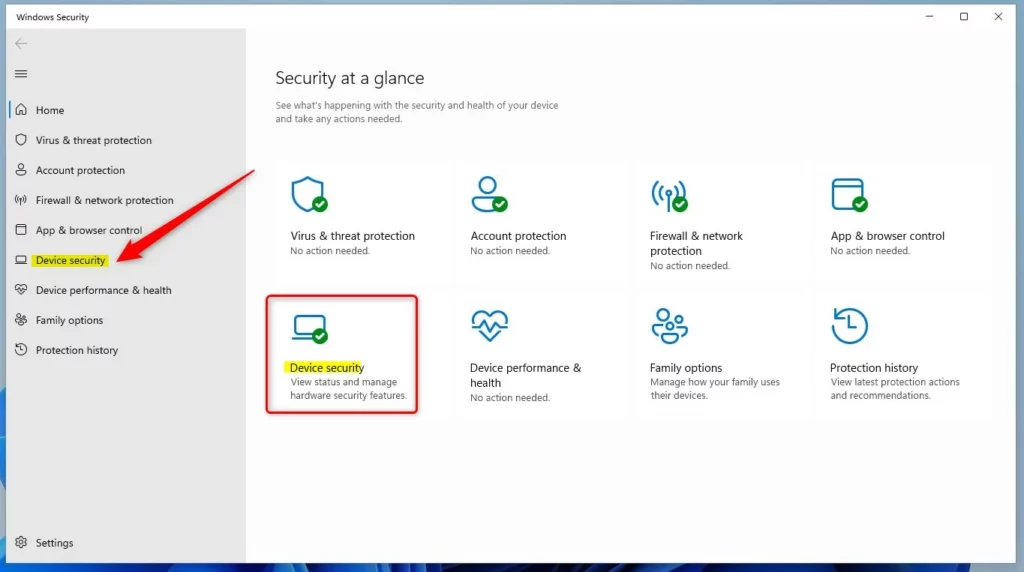
- In the Windows Security app, click Device security on the left menu, or on the main page. The Device security page opens and lists sections such as Core isolation, Security processor and Secure boot.
If there is no Security processor section, Windows cannot see a TPM. It is usually turned off in the UEFI/BIOS settings, or the PC does not have one. The troubleshooter will not appear until the TPM is enabled.
Step 3Open Security Processor Details
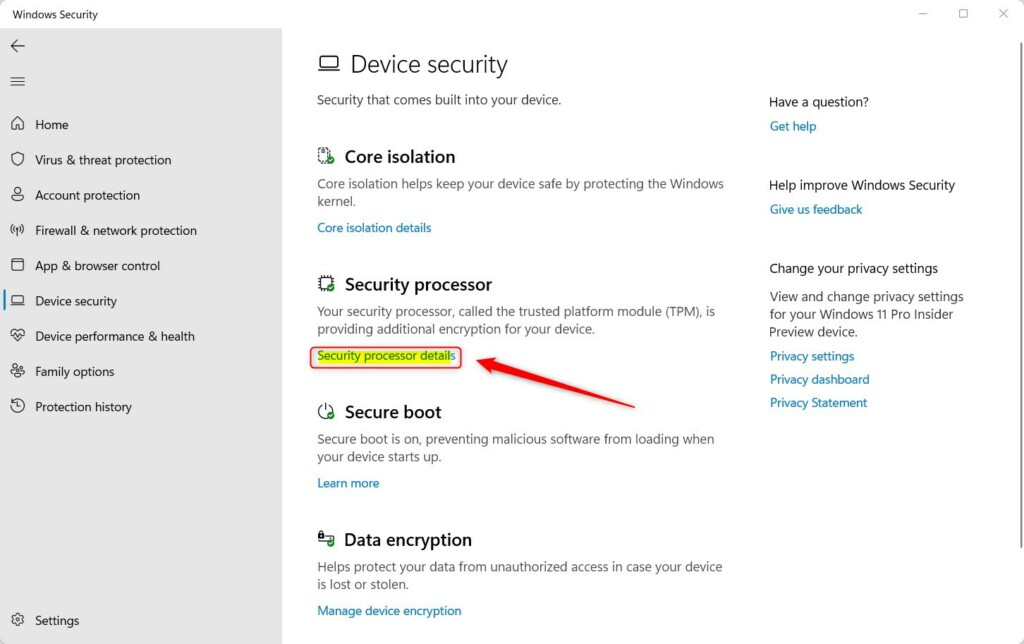
- Under the Security processor section, click Security processor details. You should now see information about your chip, such as the manufacturer, the version and its status.
Step 4Open the TPM Troubleshooter
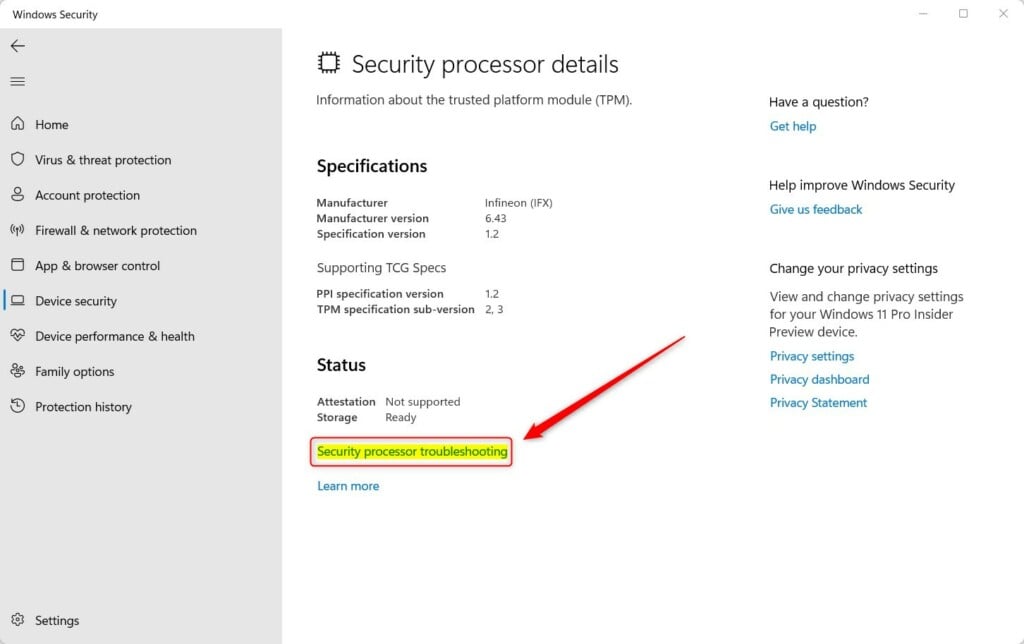
- On the Security processor details page, click Security processor troubleshooting. This page shows the current state of the TPM and the troubleshooting options.
Step 5Run the Troubleshooter
- Under TPM Troubleshooter, click the Run button.
- Wait while the troubleshooter checks your TPM and tries to fix any problems it finds. Do not shut down or restart the PC until it finishes.
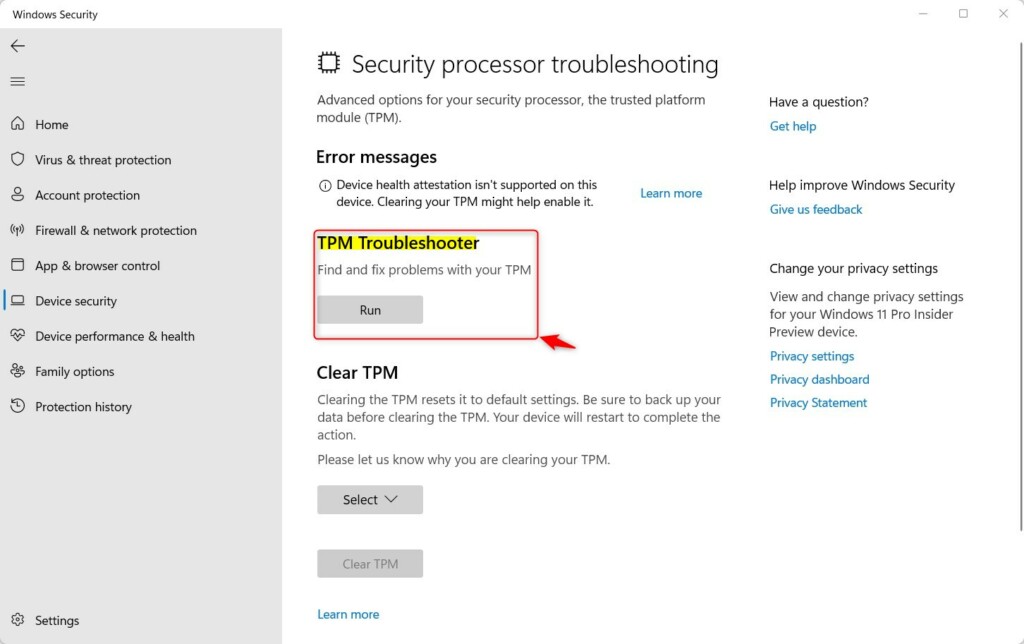
Click Run to start the scan. The tool scans the security chip and attempts to fix any detected errors automatically. When it finishes, it reports either that no problem was found or what it found and what it suggests you do.
The scan can point out problems that need your attention, such as outdated firmware or configuration errors. If it tells you to restart, do that before you run it again. Some fixes only take effect after a reboot.
Common TPM Issues You Might See
Several common hardware problems show up on Windows 11 PCs. They usually come down to outdated firmware, a disabled module, or a communication error. Here is what each message means and what to try:
- Your TPM needs a firmware update. Check Windows Update first, then the support page of your PC or motherboard maker for a firmware or BIOS update.
- TPM is turned off and needs attention. It is usually disabled in the UEFI/BIOS settings and has to be switched back on there.
- TPM storage isn't available, and you might need to clear TPM. See the clearing section below, and back up first.
- Device health attestation isn't available or supported. The chip or its current setup cannot provide this feature. Update the firmware and run the troubleshooter again.
- Your TPM doesn't work well with your current system firmware. Updating the PC's UEFI/BIOS is the usual fix.
- Some TPM logs are missing. Restart your computer, then run the troubleshooter again.
- There is a general TPM problem. Restart your device and try again.
What to Do If the Troubleshooter Can't Fix the Problem
Do it only when the built-in diagnostics fail to resolve the underlying problem. The Security processor troubleshooting page may offer a clear option, and the PC will restart to finish the job. Back up important files beforehand because this operation erases stored cryptographic keys.
Before you clear, make sure you have your BitLocker recovery key saved somewhere other than this PC. If BitLocker is on, you may be asked for that key at the next start. Expect to set up Windows Hello again too, because its sign-in data is tied to the TPM.
🔒 Admin Privileges Required: Clearing TPM requires administrator access to your computer.
A clear cannot be undone.
More Help
For detailed help and official information, visit the Microsoft support page on Security Processor Troubleshooting.
Summary
- The TPM Troubleshooter in Windows 11 helps you find and fix problems with your computer's security chip.
- Using the Windows Security app, you can run this tool in a few clicks without technical skills.
- If problems remain, clearing the TPM (after backing up your data and your BitLocker recovery key) can help reset it.
- Always keep your system updated and check the official Microsoft support if you need more help.
Windows Security includes this troubleshooting tool, so anyone can diagnose basic hardware faults without advanced technical skills. Errors that keep coming back often need a full TPM reset, but only after you have saved your vital files and recovery keys.
Have a question about this guide?
Answered by AI from this guide. Good questions may be added to this page — please don't include personal details.
Did this guide fix your problem?

About the Author
Richard
Tech Writer, IT Professional
Richard is a writer at Geek Rewind who turns complex IT tasks into clear, step-by-step guides. He draws on years of hands-on experience in system administration and enterprise IT operations, focusing on Windows, Linux and WordPress: the problems people actually run into, and the fixes that work. His server and WordPress guides come from systems he runs himself. Richard builds and maintains the platform behind Geek Rewind, from its Ubuntu servers and Nginx configuration to its custom WordPress plugins. Many new tutorials start with readers' questions, and he's always glad to answer them in the comments.
No comments yet — be the first to share your thoughts!