How to Clear and Reset TPM in Windows 11


This guide explains what the Trusted Platform Module (TPM) is and shows three ways to clear and reset it on a Windows 11 PC: the Windows Security app, PowerShell, and the TPM Management Console. All three work on Windows 11 Home and Pro, and each one needs an administrator account.
Clear TPM using the Windows Security app by navigating to Device security, then Security processor details, and finally clicking Clear TPM. Alternatively, use PowerShell with the Clear-TPM command or the TPM Management Console (tpm.msc). Back up your data before proceeding.
What is TPM?
The Trusted Platform Module (TPM) is a dedicated security chip on your computer’s motherboard. On some newer PCs it is built into the processor firmware instead, and Windows treats it the same way. It stores sensitive data such as encryption keys and keeps them away from software that could steal them. Windows 11 requires TPM 2.0, so almost every PC that runs it has one.
Clearing the TPM resets the chip to its factory state and removes the keys stored in it. This often fixes startup and security failures such as error code 0x8007007f. These problems usually appear when Windows 11 cannot properly access or use the TPM, for example after a motherboard or firmware change, or when the stored keys no longer match.
Clearing the module erases the security data tied to it, including your Windows Hello PIN. If the drive is encrypted with BitLocker, also make sure you have your BitLocker recovery key. Without the TPM, Windows may ask for that key at the next startup. You cannot undo a clear. Windows sets the TPM up again after the restart, but the old keys are gone for good.
How to Reset TPM Using Windows Security App
The Windows Security app is the easiest route because it explains each option on screen. Sign in with an administrator account first. A standard account can open the pages but cannot clear the TPM.
Open the Windows Security app:
- Click the Start menu (the Windows icon on the taskbar ).
- Type Windows Security in the search box.
- Click the Windows Security app in the results. The Windows Security window opens.
- Click Device security in the left menu, or click its icon on the main page. You should now see the device security overview, with sections such as Core isolation and Security processor.
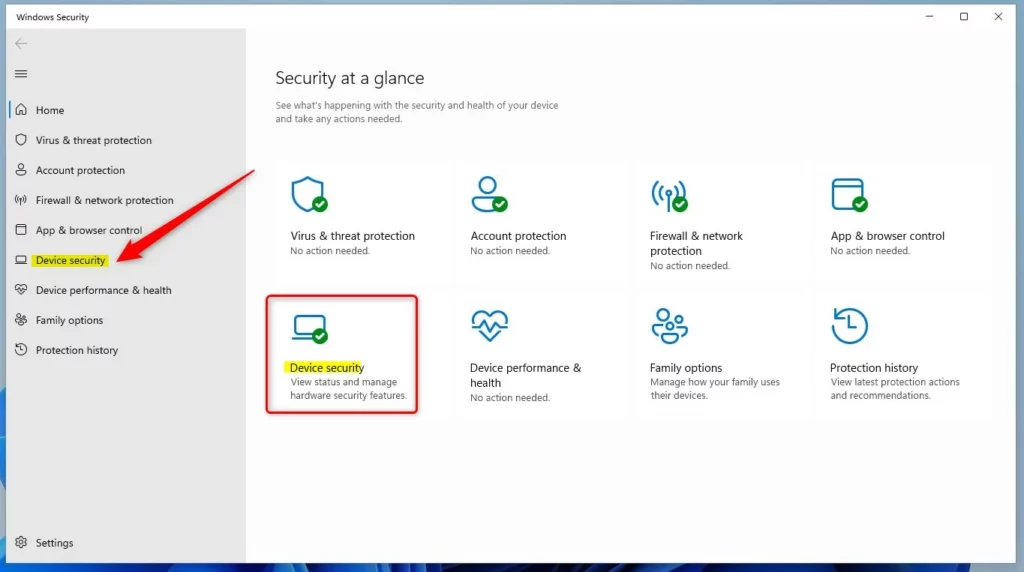
If you do not see a Security processor section, Windows cannot find a working TPM. In that case the TPM is probably turned off in your UEFI/BIOS settings, and you need to enable it there before you can clear it.
- Click Security processor details under the Security processor section. A page opens showing the manufacturer, version and status of your TPM.
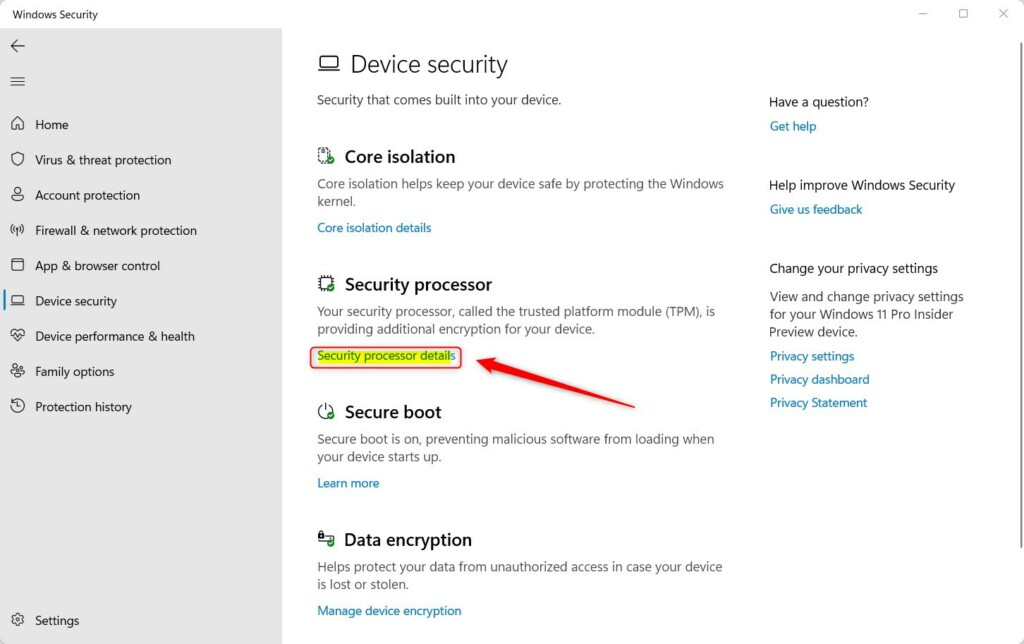
Check that the specification version reads 2.0. This is also where Windows reports any status message about the chip.
- Click Security processor troubleshooting. The troubleshooting page opens with the reset options.
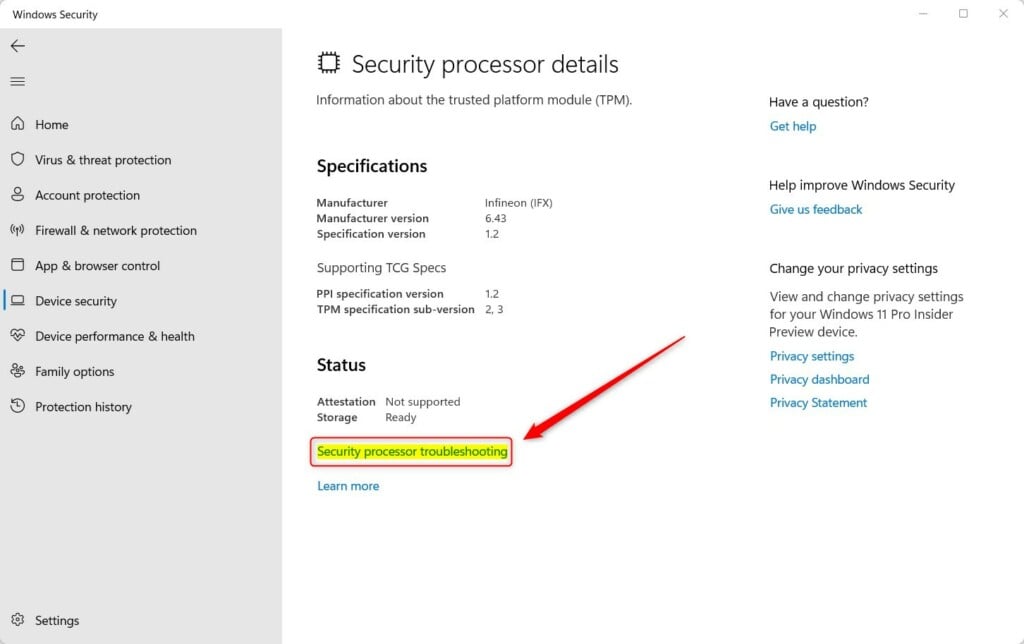
This page also shows any TPM error message Windows has detected. The list in the last section of this guide covers those messages.
- Under the Clear TPM section, choose a reason from the Choose a reason drop-down. The reason is only a label for the troubleshooting tool, so pick the one closest to your problem.
- Click the Clear TPM button, then confirm when Windows asks.
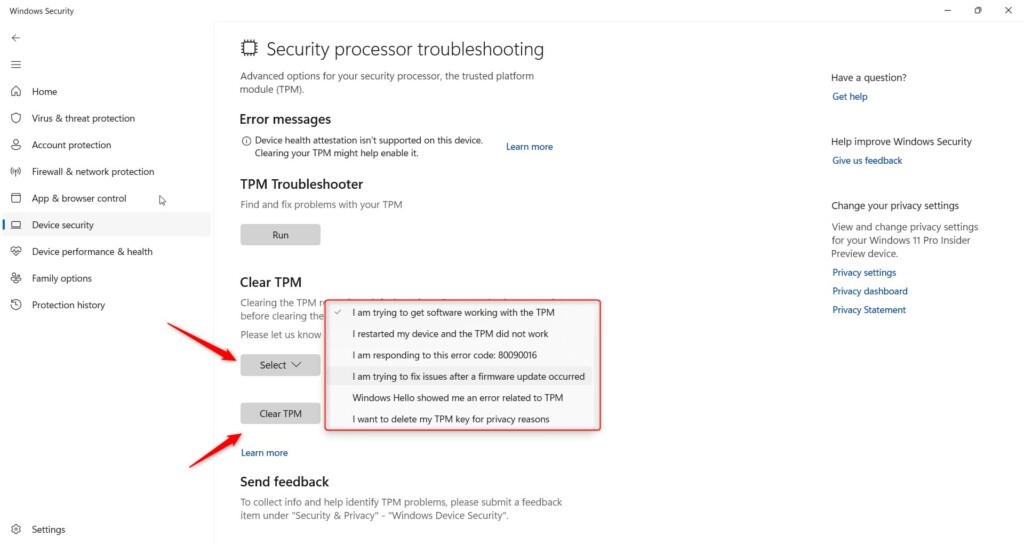
If the button is greyed out, you are probably not signed in as an administrator. Sign out, sign in with an admin account, and try again.
Your PC will restart, and the module will revert to factory defaults. Save and close your work first, because the restart starts as soon as you confirm.
Go to Settings Accounts Sign-in options to add your Windows Hello PIN. If BitLocker asks for a recovery key, enter the one you saved earlier.
How to Reset TPM Using PowerShell
PowerShell is quicker if you are comfortable with a command line, and it is the method to use if you manage several PCs or the Windows Security page will not open.
Open PowerShell:
- Click Start and type PowerShell.
- Right-click Windows PowerShell in the results and choose Run as administrator. ⚠️ Requires admin privileges
- Click Yes if User Account Control asks for permission. A PowerShell window with "Administrator" in the title bar opens.
- Type the command shown below and press Enter:
Clear-TPMThe command is Clear-Tpm. If PowerShell reports that access is denied, the window was not opened as administrator. Close it and start again from step 1. Your PC will restart and wipe the module automatically, so save your work before you press Enter.
How to Reset TPM Using TPM Management Console
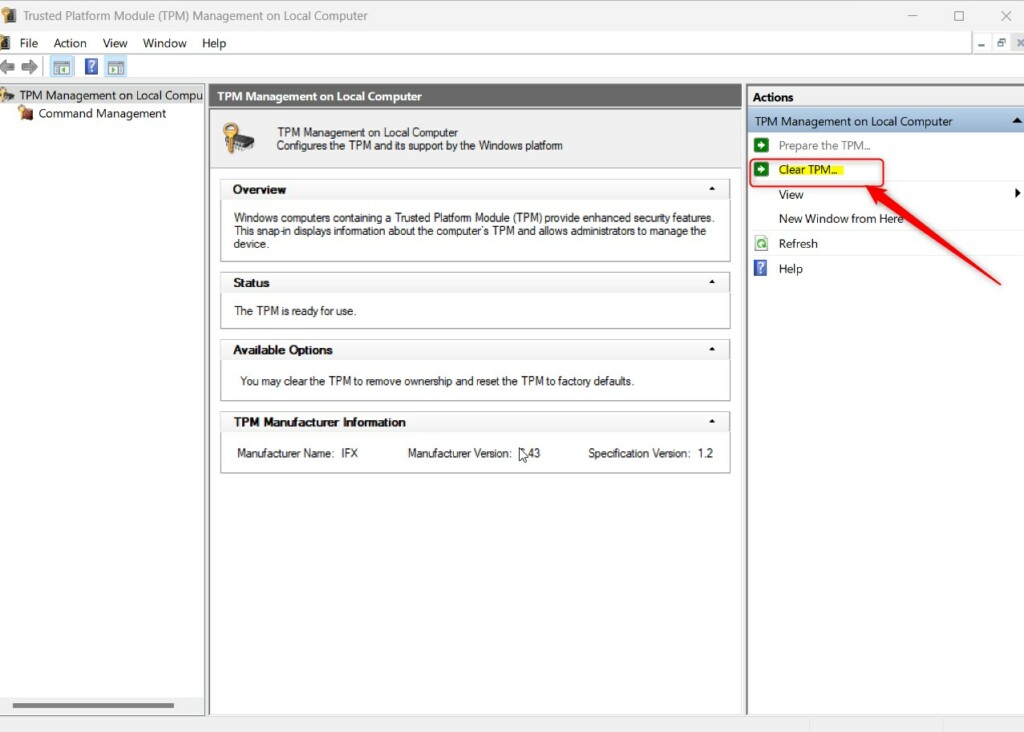
The TPM Management Console (tpm.msc) is a built-in utility for hardware administration. It shows the TPM status and lets you clear it from one window.
- Click the Start menu, type tpm.msc or Trusted Platform Module (TPM) Management, then open it. ⚠️ Requires admin privileges You can also press the Windows Key + R, type tpm.msc, and press Enter to launch the console.
- Check the Status box in the middle of the window. It should say the TPM is ready for use. If it says a compatible TPM cannot be found, the chip is disabled in UEFI/BIOS or missing.
- Click Clear TPM in the Actions pane at the top right of the window.
- Click Restart when the confirmation dialog appears. The PC restarts to complete the clear.
During the reboot, the firmware may ask you to confirm the reset by pressing a physical key on the keyboard, often F12 or F10. This is a safety check that proves a person is at the machine. Read the message on screen and press the key it names.
Hardware initialization completes automatically after the reboot finishes. When you reach the sign-in screen, set up your PIN again as described earlier.
Common TPM Problem Messages
Windows shows specific messages on the Security processor troubleshooting page when the TPM has a problem. These are the ones you may see:
- A firmware update is needed for your TPM.
- TPM is disabled and needs your attention.
- TPM storage is not available. Please clear your TPM.
- Device health attestation isn't available. Please clear your TPM.
- Device health attestation isn't supported on this device.
- Your TPM isn't compatible with your firmware and may not work properly.
- TPM measured boot log is missing. Try restarting your device.
- There is a problem with your TPM. Try restarting your device.
Some of these only need a restart or a firmware update, so try that first. Messages that say "Please clear your TPM" are the ones where a clear is the intended fix. Clearing the module also resolves many BitLocker encryption stalls and motherboard compatibility warnings. If a message returns after a clear, check your PC maker's support page for a UEFI/BIOS or TPM firmware update.
Summary
- TPM is a security chip that can sometimes cause issues on your PC.
- You can clear and reset TPM using the Windows Security app, PowerShell, or TPM Management Console.
- Always back up your important data, and your BitLocker recovery key if you use BitLocker, before clearing TPM. Otherwise you can lose information such as your PIN.
- Resetting TPM can fix many TPM-related errors and problems.
- For more help, see the official Microsoft page on Security Processor Troubleshooting.
Keeping the security processor in good shape keeps system encryption stable and helps prevent unexpected boot loops. Clear it only when you have a real error to fix, and always back up first.
Have a question about this guide?
Answered by AI from this guide. Good questions may be added to this page — please don't include personal details.
Did this guide fix your problem?

About the Author
Richard
Tech Writer, IT Professional
Richard is a writer at Geek Rewind who turns complex IT tasks into clear, step-by-step guides. He draws on years of hands-on experience in system administration and enterprise IT operations, focusing on Windows, Linux and WordPress: the problems people actually run into, and the fixes that work. His server and WordPress guides come from systems he runs himself. Richard builds and maintains the platform behind Geek Rewind, from its Ubuntu servers and Nginx configuration to its custom WordPress plugins. Many new tutorials start with readers' questions, and he's always glad to answer them in the comments.
No comments yet — be the first to share your thoughts!