Enhance Windows 11 Security with System Guard


System Guard in Windows 11 blocks hidden malware from infecting your computer’s startup code before the operating system boots. This built-in security feature checks core system startup files every time you turn on your machine.
Standard antivirus software cannot reach threats hidden deep inside firmware, because that code runs before Windows and before your security tools load. System Guard stops this malicious code right away to keep your files safe from serious attacks.
This guide shows two ways to turn it on. The first is the normal switch in the Windows Security app. The second is the Registry Editor, for when that switch is missing or greyed out.
Windows 11 firmware security is turned on with the Firmware protection switch in Windows Security. Open Windows Security, go to Device security, then click Core isolation details and set Firmware protection to On. Restart if prompted. If the switch is missing or greyed out, use Registry Editor under the SystemGuard key instead. You need an administrator account.
Enable Firmware Security in Windows
Windows 11 firmware security settings protect your computer’s startup process from unauthorized changes. You turn them on through the core isolation features in the Windows Security app. This stops malicious software from taking over your system before Windows even starts up.
If your PC does not support it, the Firmware protection option may not appear at all, or it may appear but refuse to turn on. You need an administrator account to change it. The steps are the same on Home and Pro.
- Open the Windows Security app. You can find it by searching for it in the Start menu . The Windows Security home page opens with a row of protection areas.
- Go to Device security. The page lists the hardware-based protections available on your PC.
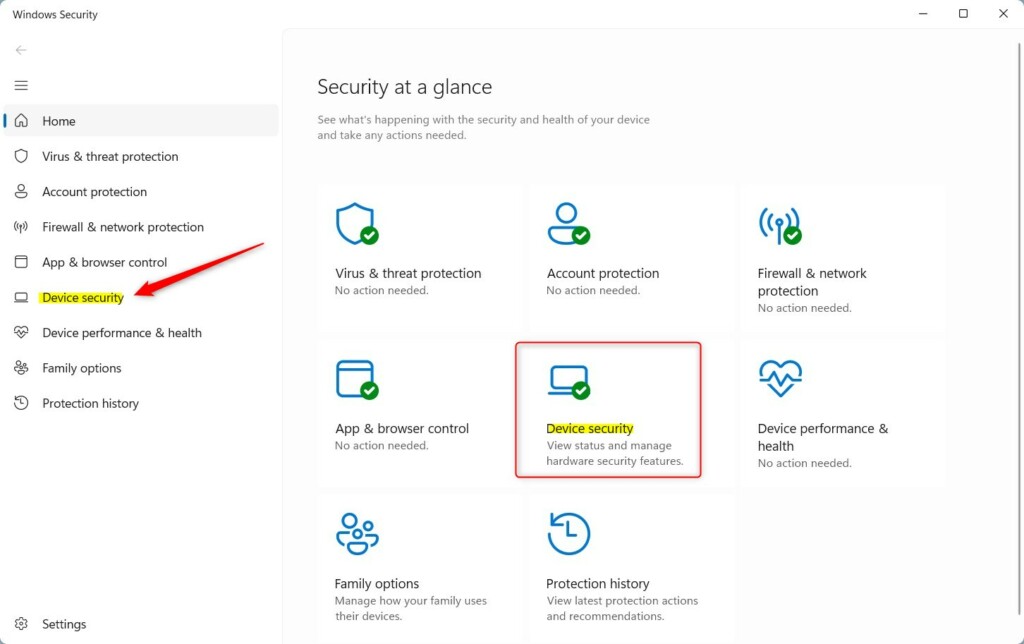
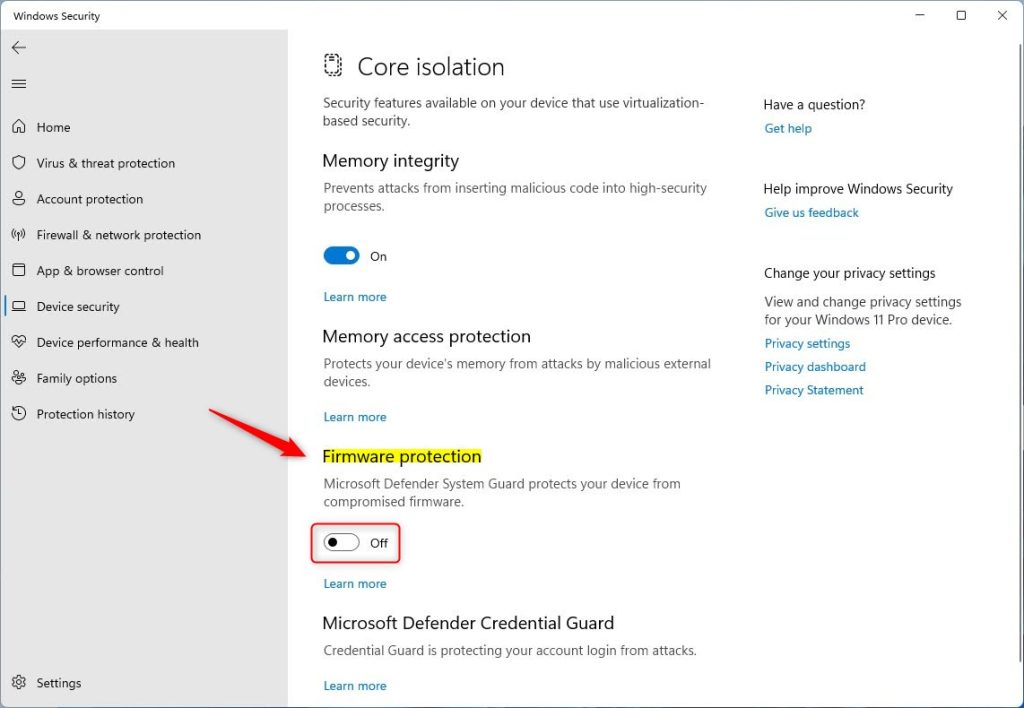
- Under Core isolation, click the Core isolation details link. If you don't see a Core isolation section, your hardware or current configuration does not expose it, and the registry method further down may be your only option.
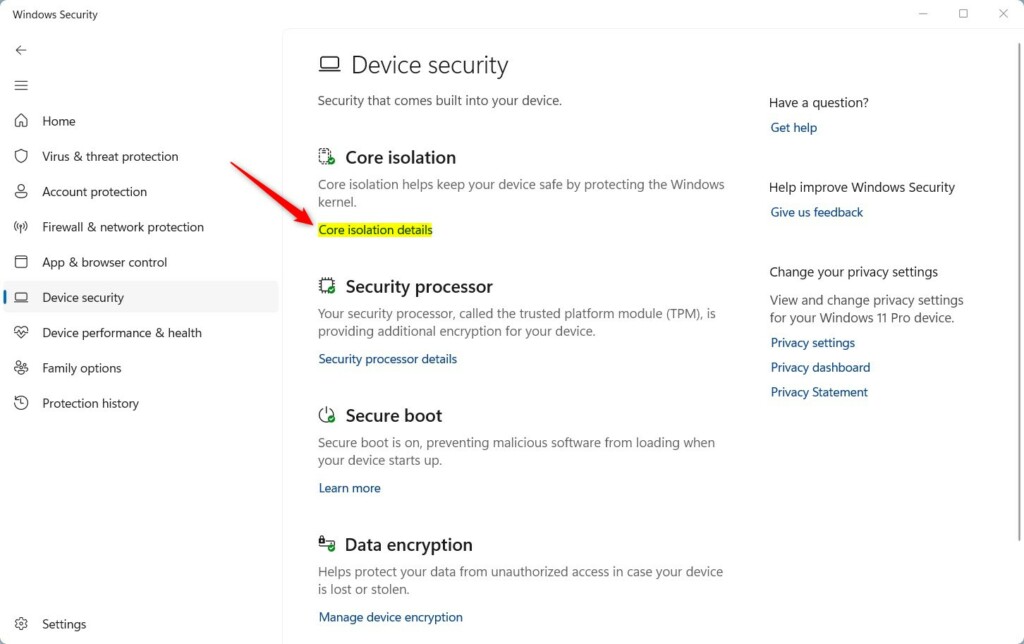
- Toggle the Firmware protection switch to On. Approve the User Account Control prompt if one appears. The switch should now read On. Restart the PC if Windows asks you to. To undo the change later, come back here and set the switch to Off.
On a work or school PC, an administrator may have set that policy. On a personal PC, a leftover policy or a previous tweak is the more likely cause. Adjusting the registry overrides this block. Back up the registry or create a restore point before you change anything, and only do this on a PC you are allowed to manage.
[Admin Privileges Required]Open Registry Editor and navigate to this path:
HKEY_LOCAL_MACHINE\SYSTEM\CurrentControlSet\Control\DeviceGuard\Scenarios\SystemGuard
- Select the key shown above, then look at the values in the right pane.
- Double-click the Managed DWORD value and change it from 1 to 0. Click OK.
- Restart the PC afterward. The change does not take effect until you do.
After the restart, go back to the Windows Security app and check whether the Firmware protection switch can now be changed. To undo this, set Managed back to 1 and restart again.
Enable Firmware Protection via Registry
You can still turn on Windows 11 firmware security with the Registry Editor (a tool for changing advanced system settings) if the normal switch is missing from the Windows Security app. This forces the PC to use the same startup protections even when the standard menu options are greyed out or unavailable. Registry Editor works on Home and Pro, but you must be signed in as an administrator.
Keep in mind that the registry only sets the option. If your hardware does not support firmware protection, the setting will not make the protection work.
Head to this folder path in the Registry Editor:
Computer\HKEY_LOCAL_MACHINE\SYSTEM\CurrentControlSet\Control\DeviceGuard\Scenarios\SystemGuard
If the last key in the path does not exist, right-click its parent key, select New, then Key, and give it the missing name.
- Right-click in the empty space of the right pane, select New, then DWORD (32-bit) Value. A new value appears with its name ready to edit. If an Enabled value already exists, skip to the double-click step.
- Name this new value Enabled, then press Enter.
- Double-click Enabled and set the value to 1 to turn it on, or 0 to turn it off. Click OK. The value should now show the number you entered in the Data column.
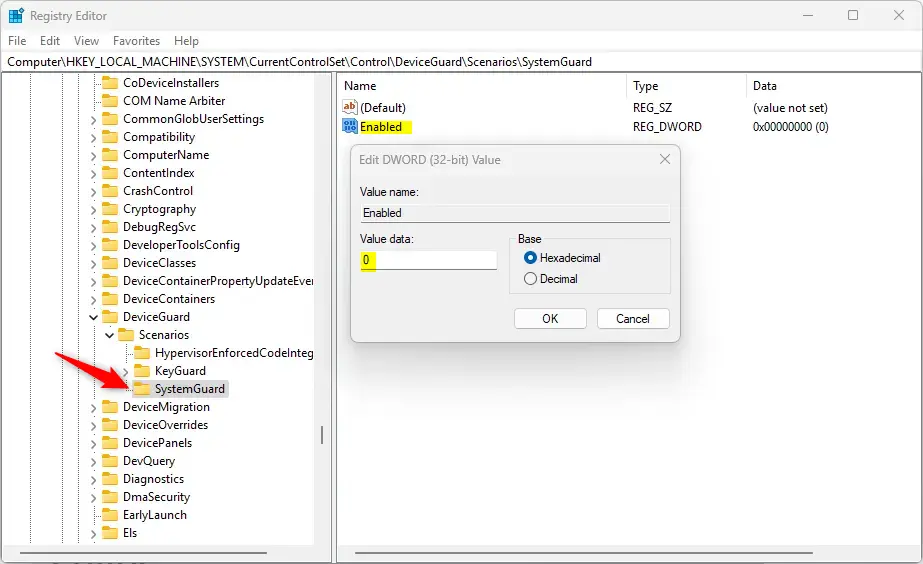
Restart the computer to apply changes. Until you restart, the old setting stays in force. Afterward, open Windows Security Device security Core isolation details and check the state of the Firmware protection switch. To roll back, set Enabled to 0 and restart again.
For more technical details, visit Microsoft.
Summary
Activating firmware protection locks down a Windows 11 PC against sophisticated rootkits. Hardware-based security checks during startup protect the system against advanced malware that standard tools miss. Together with a current antivirus and regular Windows updates, these steps help keep every startup in a clean, trusted state.
Try the Windows Security switch first. Use the registry only if that switch is missing or greyed out, and restart after any change.
Have a question about this guide?
Answered by AI from this guide. Good questions may be added to this page — please don't include personal details.
Did this guide fix your problem?

About the Author
Richard
Tech Writer, IT Professional
Richard is a writer at Geek Rewind who turns complex IT tasks into clear, step-by-step guides. He draws on years of hands-on experience in system administration and enterprise IT operations, focusing on Windows, Linux and WordPress: the problems people actually run into, and the fixes that work. His server and WordPress guides come from systems he runs himself. Richard builds and maintains the platform behind Geek Rewind, from its Ubuntu servers and Nginx configuration to its custom WordPress plugins. Many new tutorials start with readers' questions, and he's always glad to answer them in the comments.
No comments yet — be the first to share your thoughts!