How to Enable or Disable Enhanced Security and Performance for Batch and CMD Files in Windows 11

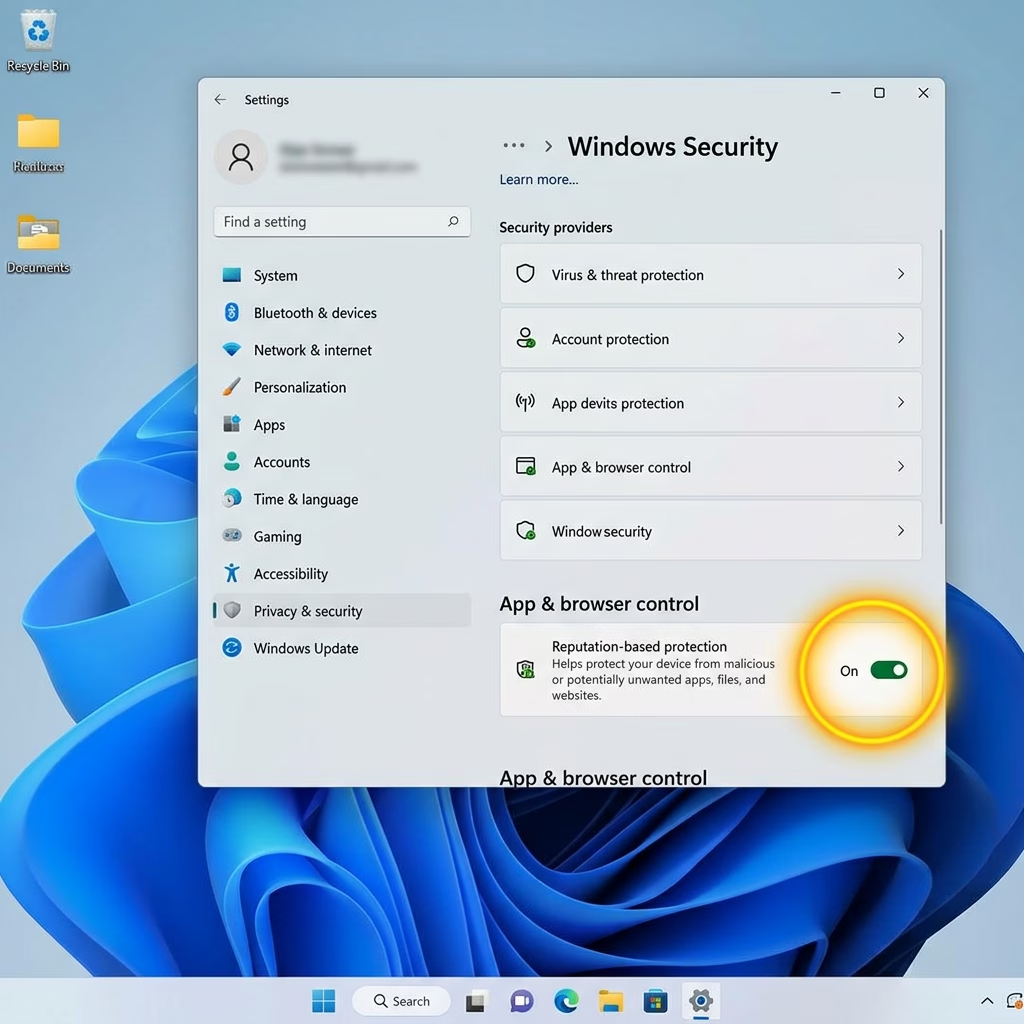
This tutorial shows you how to turn on or off enhanced security and performance for batch and CMD files in Windows 11. The setting works the same on Windows 11 Home and Pro, because it is a registry value and not a Group Policy setting.
To enable enhanced security and performance for batch files, add the LockBatchFilesWhenInUse DWORD value to 🗝️HKEY_LOCAL_MACHINE\
Why Would You Want to Do This?
Locking batch files while they are in use adds a security boost to your Windows 11 PC. It helps stop anyone from changing a script, by accident or on purpose, while the batch file is running. Locking batch files prevents harmful code from altering active scripts, which keeps your system safer.
Without the lock, a running batch file is just a file on disk. Anything with write access to it could edit it mid-run, and the command processor would pick up the changed lines. With the lock on, that window is closed.
Enabling enhanced security and performance for batch files also changes how signatures are checked. In this mode, Windows needs only a single file signature check per file. Without it, Windows checks the signature of each command inside a batch file individually. The single check speeds up batch file processing and increases safety. You will notice it most with long scripts or scripts that run many commands.
Policy authors can enable this mode by using the LockBatchFilesWhenInUse application manifest control, as documented in the Application Control for Business manifest schema.
What You Need
You must be signed in to an administrator account to turn this setting on or off. It changes how scripts run for the whole PC, and the value is stored in a part of the registry that standard users cannot edit. If you try without admin rights, you will get an access denied or permission error.
How to Enable or Disable This Feature
The setting is controlled by one registry value. Before you change it, it is a good idea to create a restore point or back up the registry, so you can undo the change if something goes wrong. Follow these steps:
- Sign in with an administrator account. [ADMIN PRIVILEGES REQUIRED]
- Add the following value to the Windows registry:
- Registry Key:
HKEY_LOCAL_MACHINE\Software\Microsoft\Command Processor - Value name:
LockBatchFilesWhenInUse - Type:
DWORD - Data: Set to
0(disabled) or1(enabled)
- Registry Key:
- Close the Registry Editor if you used it, and open a new Command Prompt window before you test a batch file.
The LockBatchFilesWhenInUse feature in Windows 11 manages security and performance for batch and CMD files. You turn it on or off by changing a setting in the Windows registry, and you need administrator rights to do it. Add a value named LockBatchFilesWhenInUse to the HKEY_LOCAL_MACHINE\SOFTWARE\Microsoft\Command Processor key. Set it to 0 to turn LockBatchFilesWhenInUse off, or to 1 to turn it on.
The change normally applies to batch files that start after you make it. Scripts that are already running keep their current behavior. If you do not see the new behavior, restart the PC and test again. If you do not see the option at all, make sure you are running an up-to-date build of Windows 11, as older builds may not support this setting.
To undo the change, set the value back to its previous data (0 for disabled, 1 for enabled), or restore the registry backup you made.
Enable:
reg add "HKEY_LOCAL_MACHINE\SOFTWARE\Microsoft\Command Processor" /v LockBatchFilesWhenInUse /t REG_DWORD /d 1 /f
Disable:
Windows 11 improves security and speed for batch and CMD files by preventing changes during execution. This prevents file tampering and also speeds up file loading. This protection feature, available in Windows 11, helps ensure file integrity.
Was this guide helpful?

About the Author
Richard
Tech Writer, IT Professional
Richard is a writer at Geek Rewind who turns complex IT tasks into clear, step-by-step guides. He draws on years of hands-on experience in system administration and enterprise IT operations, focusing on Windows, Linux and WordPress: the problems people actually run into, and the fixes that work. His server and WordPress guides come from systems he runs himself. Richard builds and maintains the platform behind Geek Rewind, from its Ubuntu servers and Nginx configuration to its custom WordPress plugins. Many new tutorials start with readers' questions, and he's always glad to answer them in the comments.




No comments yet — be the first to share your thoughts!