How to Add or Remove Pinned Section on Start Menu in Windows 11

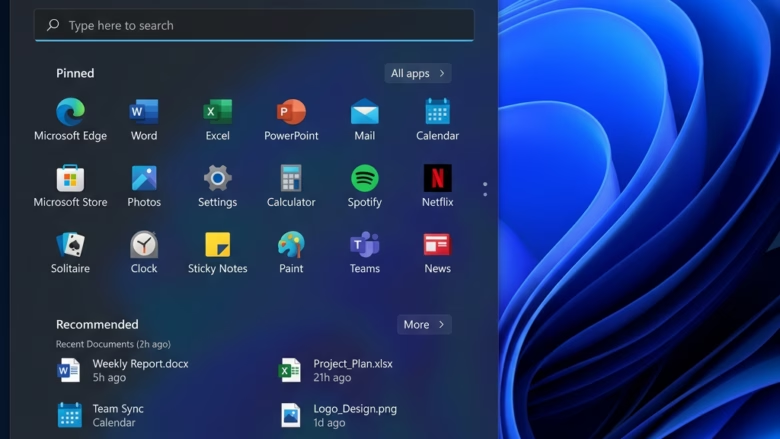
The Pinned section is the block of app icons at the top of the Windows 11 Start menu . It holds the apps you chose to keep within reach, so you can launch them without searching or opening the full app list. On the standard Start menu size you normally see 12 pinned apps. If you expand the view, you can see up to 18.
Not everyone wants that block taking up space. Windows 11 updates starting with build 26300.8553 let you hide the Pinned section. The area it occupied is then used to show more recommended items. If you rely on a short list of apps, keep it. If you mostly use search or the Recommended list, hiding it gives you a cleaner menu.
Before you start, keep these points in mind:
- Build number matters. The option to hide the Pinned section only exists in build 26300.8553 or later. If you have an older build, you won’t see it. Check your build on the About page in Settings, then run Windows Update if you are behind.
- Rollouts can be gradual. Microsoft often enables new Start menu options in stages, so a machine on the right build may not show the option right away.
- It’s easy to undo. Turning the section on or off takes just a few clicks in your taskbar settings, and you can reverse it the same way at any time. No restart should be needed, but if the Start menu doesn’t update, sign out and back in.
The steps below show where to find the setting and how to switch the Pinned section on or off.
Open Settings Personalization Start and toggle Pinned On or Off. To remove the Pinned section, turn the toggle Off; turn it On to add it back. The change takes effect immediately without restarting your computer.
Option 1Add or Remove Pinned Section using Settings
Managing your windows 11 pinned section takes only a few clicks inside the main settings app. You can turn this area on or off by going to the personalization menu and changing your layout preferences. This hides or shows your app grid instantly without needing to restart your computer.- Open Settings. You can do this by pressing the Win+I on your keyboard.
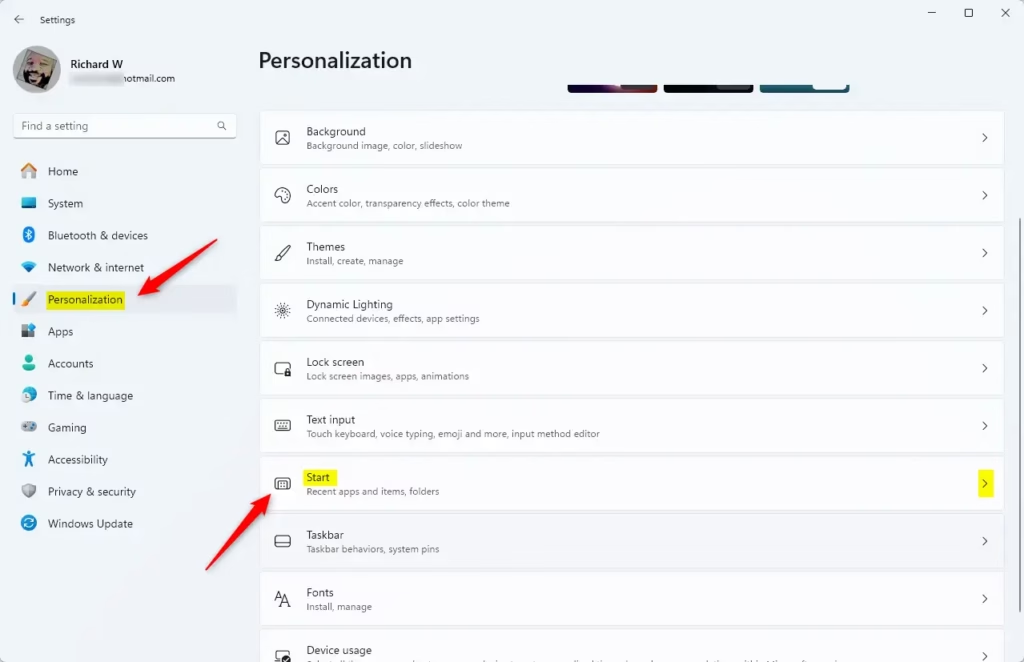
- On the left side, click Personalization. Then, on the right side, click Start.
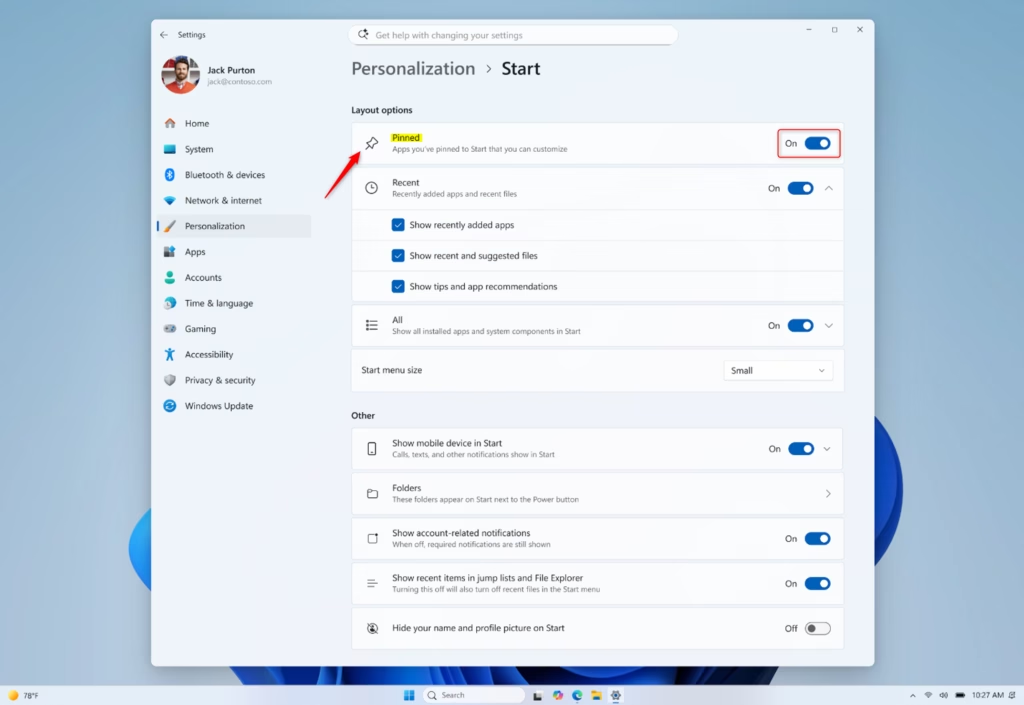
- Look for Layout options. You will see a toggle for Pinned.
- Turn the toggle On to add the Pinned section. Turn it Off to remove it (this is the default).
- You can now close the Settings window.
Option 2Add or Remove Pinned Section using Registry Editor
Making a quick change to a specific registry key updates your Start menu right away. Be careful while editing the registry because mistakes can cause system problems.
What happens when done? Your Start menu will either show or hide the Pinned apps section based on the change you make.
Backing up your registry before making changes prevents potential data loss. This guide focuses on the visual way to modify registry settings.
- Open the Registry Editor. You can do this by searching for regedit in the Windows search bar and clicking on the result.
- Admin Privileges Required: You may need to click “Yes” on a User Account Control (UAC) prompt to open Registry Editor.
- Navigate to the following key in the Registry Editor:
HKEY_CURRENT_USER\Software\Microsoft\Windows\CurrentVersion\Explorer\Advanced - In the right-hand pane, find a DWORD value named Start_UseCustomLayout.
- To Add Pinned Section: Double-click on Start_UseCustomLayout. Set the Value data to 1. Click OK.
- To Remove Pinned Section: Double-click on Start_UseCustomLayout. Set the Value data to 0. Click OK.
- Close the Registry Editor.
- You may need to restart your computer or sign out and back in for the changes to take effect.
Reference:
Summary
Controlling the Pinned apps section on your Windows 11 Start menu relies on two primary methods: the user-friendly Settings app and the more advanced Registry Editor.
Have a question about this guide?
Answered by AI from this guide. Good questions may be added to this page — please don't include personal details.
Did this guide fix your problem?

About the Author
Richard
Tech Writer, IT Professional
Richard is a writer at Geek Rewind who turns complex IT tasks into clear, step-by-step guides. He draws on years of hands-on experience in system administration and enterprise IT operations, focusing on Windows, Linux and WordPress: the problems people actually run into, and the fixes that work. His server and WordPress guides come from systems he runs himself. Richard builds and maintains the platform behind Geek Rewind, from its Ubuntu servers and Nginx configuration to its custom WordPress plugins. Many new tutorials start with readers' questions, and he's always glad to answer them in the comments.
No comments yet — be the first to share your thoughts!