How to See Your Security Providers in Windows 11

- 4 steps
- Needs administrator rights
Security providers in Windows 11 are the antivirus, firewall, and web protection programs that keep your PC safe from threats. Microsoft Defender is built into every Windows 11 system and runs by default. You can also install third-party security apps from companies like McAfee or Norton, and those apps can take over some or all of the job.
Checking your active security provider takes a few clicks in the Windows Security app. Review this list when you want to confirm that your antivirus is running, or when you are not sure which program is in charge after installing or removing security software. You do not need administrator rights to view the list, and the steps are the same on Windows 11 Home and Pro.
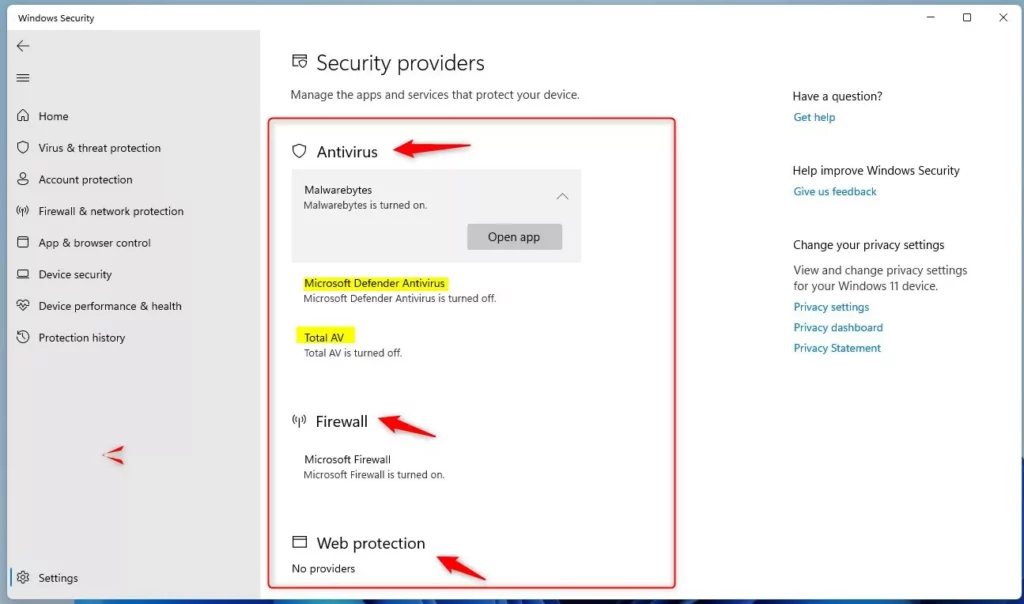
Open the Windows Security app from the Start menu, click the Settings icon at the bottom left, then click Manage providers. The page displays your active antivirus, firewall, and web protection providers, and shows whether each is on or off.
What Are Security Providers?
Security providers are the programs that manage your antivirus, firewall, and web protection. They work in the background to stop malicious files and unauthorized network access. Microsoft Defender handles all three automatically if you have no other security app installed.
- Antivirus — scans for and stops viruses and malware.
- Firewall — blocks unauthorized access to your computer over the network.
- Web Protection — helps keep you safe while browsing the internet by warning you about dangerous sites and downloads.
If you don’t have a third-party antivirus program (one you installed yourself), Microsoft Defender protects you automatically. When you install a third-party antivirus, it normally registers itself with Windows, and Windows Security then lists it as the antivirus provider. Defender’s real-time protection usually steps aside so the two programs don’t conflict. If you uninstall the third-party app, Defender should take over again. Check the list afterward to confirm.
How to Check Your Security Providers in 🪟 Windows 11
To view your Windows 11 security providers, open the Windows Security app from the Start menu, click the Settings icon, and then click Manage providers. The screen that opens lists the antivirus, firewall, and web protection tools registered on your computer, so you know exactly what is protecting your system.
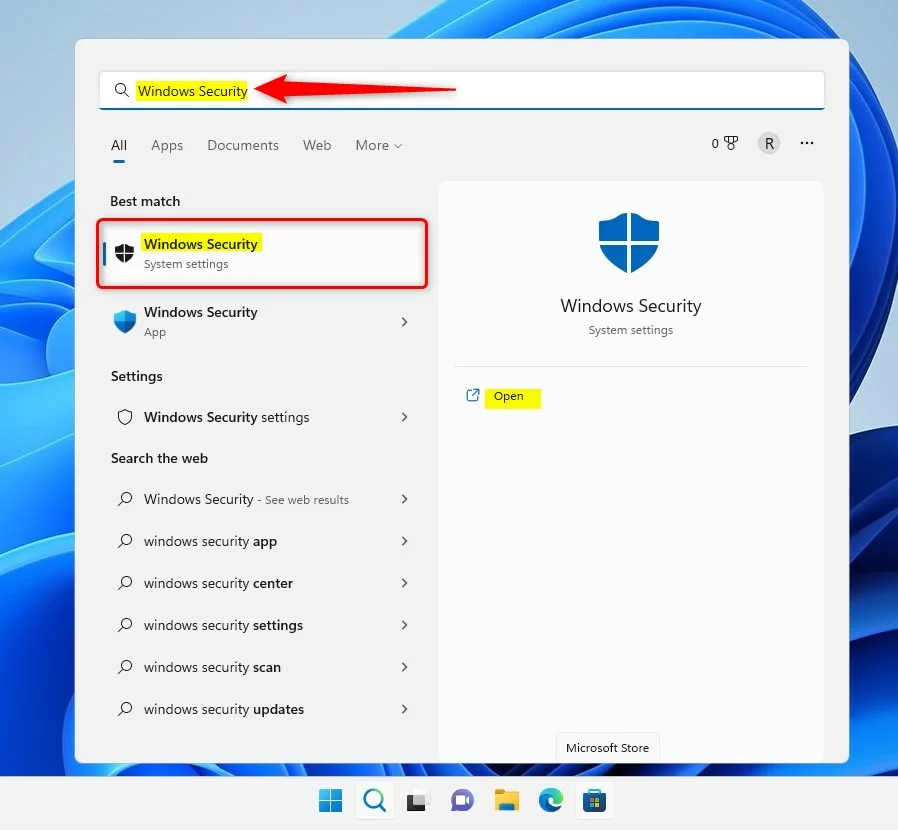
- Open the Windows Security app. Click the Start menu (the Windows icon on the taskbar), then type Windows Security in the search box.
When Windows Security appears in the results, click it. The app opens on a home page called Security at a glance, with tiles for each protection area.
If you prefer the Settings app, you can also go to Settings Privacy & security > Windows Security and click Open Windows Security.
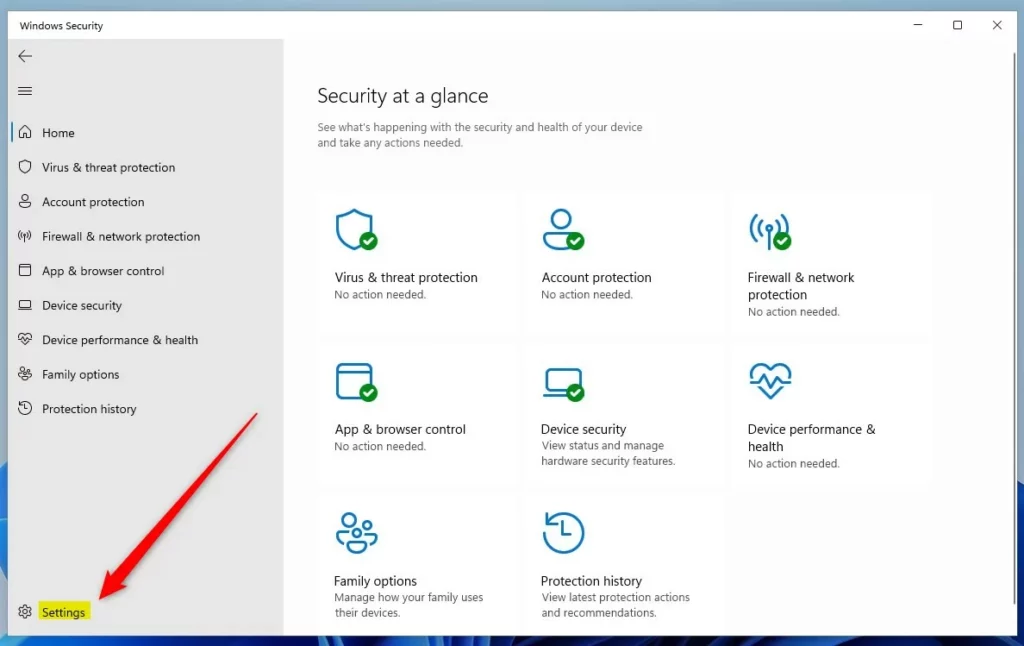
- Click the Settings icon (a gear) at the bottom left of the Windows Security window, below the navigation icons on the left side. The Settings page opens.
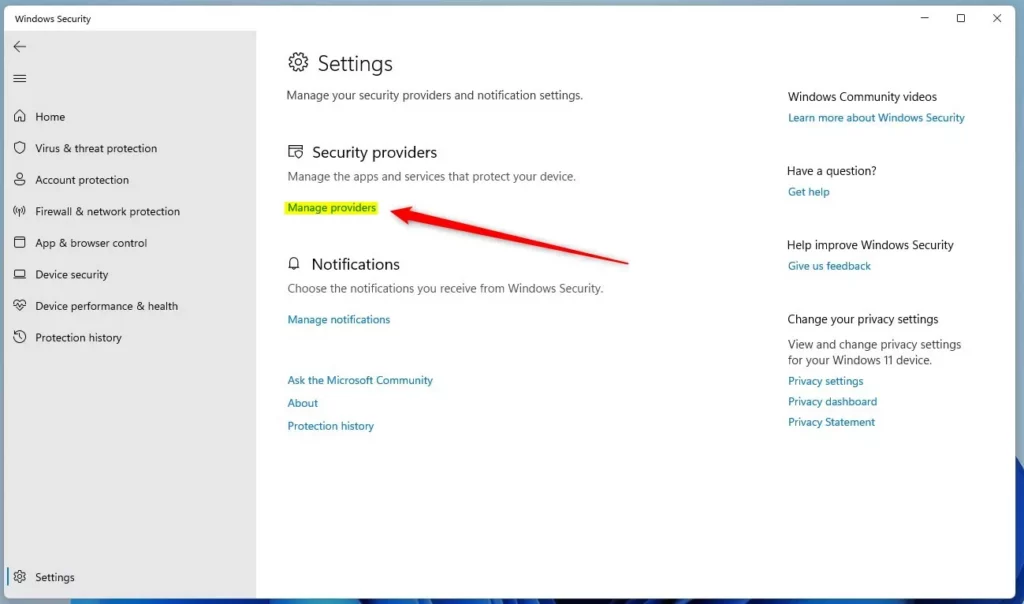
- On the Settings page, find the Security providers section and click the Manage providers link.
You can also reach the same link from the Virus & threat protection page, where a Security providers section sits near the top. Use whichever route is quicker for you.
- Read the Security providers page. It shows the provider for each of these categories:
- Antivirus
- Firewall
- Web Protection
Each entry also shows whether that provider is on or off. If a category shows a provider that is off, or says nothing is protecting you, fix that first. Open the provider’s own app, or the matching page in Windows Security, and turn protection back on.
If you open this page on a work or school PC, some options may be missing or locked. That is normal, because the organization’s administrator can manage the security settings on that device.
Summary
- The Security Providers page in Windows Security shows which programs are protecting your PC.
- To open it, start the Windows Security app, click Settings, then Manage providers.
- You’ll see your antivirus, firewall, and web protection providers listed.
- By default, Microsoft Defender covers all three if you don’t have other security software installed.
Windows 11 security providers keep your PC safe by running the essential defenses: antivirus, firewall, and web protection. You can check your active security programs anytime through the Windows Security app settings. Use the list to confirm that Microsoft Defender or your preferred third-party software is on and protecting your system.
Have a question about this guide?
Answered by AI from this guide. Good questions may be added to this page — please don't include personal details.
Did this guide fix your problem?

About the Author
Richard
Tech Writer, IT Professional
Richard is a writer at Geek Rewind who turns complex IT tasks into clear, step-by-step guides. He draws on years of hands-on experience in system administration and enterprise IT operations, focusing on Windows, Linux and WordPress: the problems people actually run into, and the fixes that work. His server and WordPress guides come from systems he runs himself. Richard builds and maintains the platform behind Geek Rewind, from its Ubuntu servers and Nginx configuration to its custom WordPress plugins. Many new tutorials start with readers' questions, and he's always glad to answer them in the comments.
No comments yet — be the first to share your thoughts!