How to Check Microsoft Defender Updates in Windows 11

Microsoft Defender updates are small security files, usually called security intelligence or definitions. They teach the built-in antivirus how to spot the newest malware and online threats. Windows 11 installs them automatically in the background, usually several times a day, through Windows Update . You can also check for them by hand at any time.
Open the Windows Security app to see your current protection version and the date of the last update. You can also force an immediate update if your PC has been offline or asleep for a while. The steps are the same on Windows 11 Home and Pro.
Open Windows Security, go to Virus & threat protection, click Protection updates, and then click Check for updates . This ensures your system has the latest security intelligence to protect against current threats. Windows 11 usually updates automatically, but manual checks provide immediate peace of mind.
How to Check for Microsoft Defender Updates
Step 1Open the Windows Security App
- Click the Start button, the Windows icon in the bottom-left corner of the screen (or in the center of the taskbar , depending on your alignment setting).
- Type ‘Windows Security’ and press Enter. The Windows Security window opens with a list of protection areas on the left and a status summary on the right.
Read our Windows Security app guide for more details on managing this utility.
If another antivirus product is installed, Microsoft Defender Antivirus usually turns itself off. In that case the update options below may be missing or limited, and updates come from the other product instead.
Step 2Go to Virus & Threat Protection
- In the Windows Security window, select Virus & threat protection. You can pick it from the left-hand menu or from the tile on the home screen.
- Wait for the page to load. You should see sections such as Current threats and Virus & threat protection settings, along with the result of your last scan.
This page also shows when the last scan ran. That is handy if you only want a quick look at your protection status.
Step 3Open Protection Updates
- Scroll down slightly on the Virus & threat protection page until you reach the section called Virus & threat protection updates.
- Click the Protection updates link. A new page opens showing your security intelligence details.
If the link is missing or greyed out, your PC may be managed by an organization, or another antivirus may be active. Check with your IT administrator in the first case.
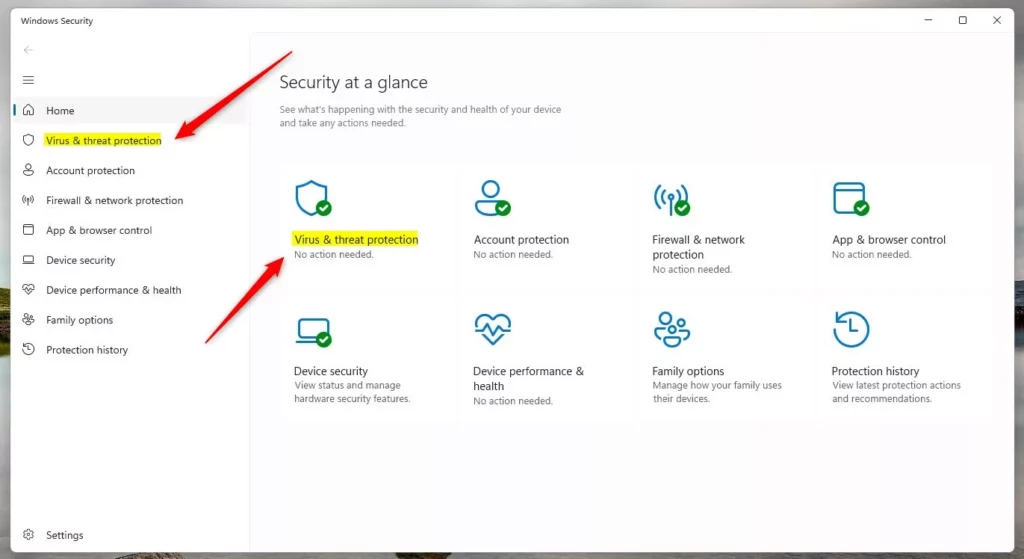
Windows Security app - Virus & threat protection screen
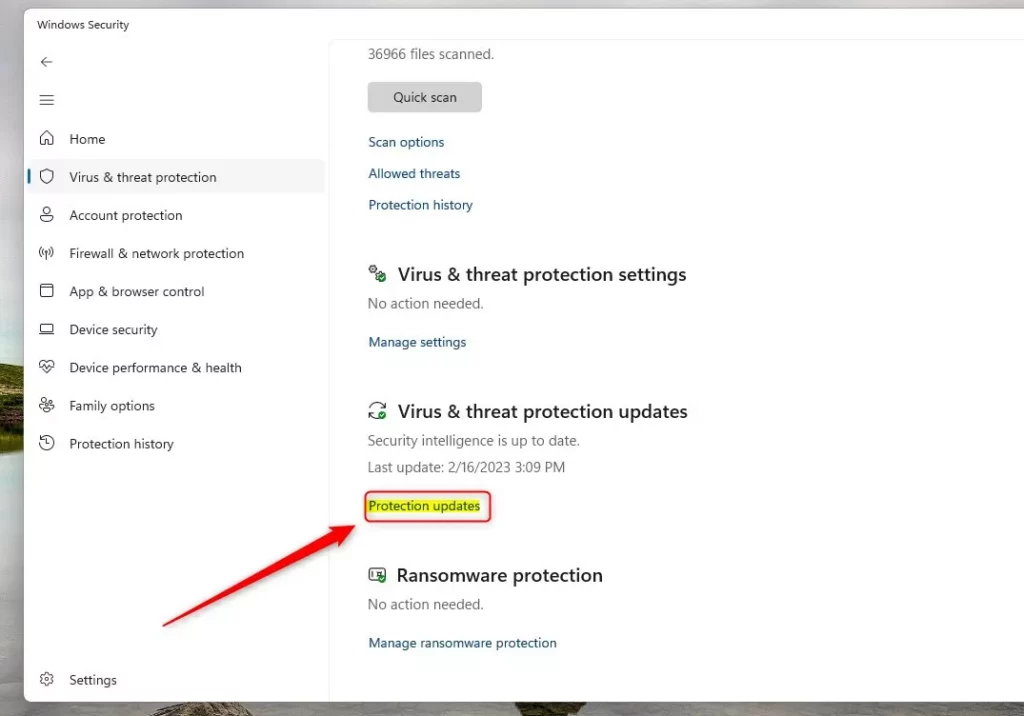
Click the 'Protection updates' link
Step 4Check for Updates
The Protection updates page shows the current security intelligence version number next to the date and time of the last update. Use these two details to judge how fresh your protection is. If the date is more than a day or two old on a PC that is regularly online, run a manual check.
- Look at the Version and Last update entries and note them.
- Click the Check for updates button. The PC searches for and downloads the newest security update if one is available.
- Wait a few seconds. The page should refresh with a new version number and a current date and time. If you are already up to date, the values stay the same.
You do not need to restart the PC after a definition update. If the check fails, confirm that you are connected to the internet and try again. You can also run Windows Update from Settings to see whether something is blocking updates.

Click 'Check for updates' to get the latest security intelligence
Why Should You Keep Microsoft Defender Updated?
Microsoft Defender updates in Windows 11 matter because they deliver the latest threat definitions your antivirus needs to recognize and block brand-new malware variants. New threats appear every day, and an antivirus with old definitions can miss them.
Installing these updates regularly keeps your system protected against emerging security risks. That helps keep your personal files and private data safe from theft or damage.
What happens during an update? The system receives the latest defenses against current threats, preserving private data and files from theft. The update runs quietly in the background, so you can keep working. It does not normally need a restart.
Manual checks remain available whenever you need to verify the newest protection. They are most useful after a PC has been off for several days, before you scan a suspicious file, or when you suspect an infection.
Summary
Checking these updates keeps the PC guarded against fresh online threats. Open Windows Security, go to Protection updates, confirm the last update date, and click Check for updates whenever it looks out of date.
Have a question about this guide?
Answered by AI from this guide. Good questions may be added to this page — please don't include personal details.
Did this guide fix your problem?

About the Author
Richard
Tech Writer, IT Professional
Richard is a writer at Geek Rewind who turns complex IT tasks into clear, step-by-step guides. He draws on years of hands-on experience in system administration and enterprise IT operations, focusing on Windows, Linux and WordPress: the problems people actually run into, and the fixes that work. His server and WordPress guides come from systems he runs himself. Richard builds and maintains the platform behind Geek Rewind, from its Ubuntu servers and Nginx configuration to its custom WordPress plugins. Many new tutorials start with readers' questions, and he's always glad to answer them in the comments.
No comments yet — be the first to share your thoughts!