How to Optimize Microsoft Defender CPU Usage in Windows 11


High Microsoft Defender CPU usage in Windows 11 can slow your PC down during heavy tasks like gaming or video editing. Microsoft Defender is the built-in security tool that checks your system for viruses and malware.
Background scans can take up more than 50% of your processor power on some machines. The default scan limit is 50, but short spikes above that are common. You can lower the limit so your apps stay responsive while the PC stays protected. This guide covers three ways to do it and how to undo each one.
Adjust Microsoft Defender’s CPU usage by opening PowerShell as administrator and using the `Set-MpPreference -ScanAvgCPULoadFactor ` command. Alternatively, for Pro/Enterprise editions, use the Local Group Policy Editor under Windows Components.
What is Microsoft Defender Antivirus?
Microsoft Defender Antivirus provides built-in threat protection for Windows 11 by scanning files in real time. It also runs scheduled and on-demand scans in the background.
The CPU limit applies to those scans. It is not a switch that turns protection off, and it does not stop Defender from checking files as you open them. Capping the limit prevents slowdowns during intensive tasks. The trade-off is that a tighter cap makes scans take longer to finish.
Why Would You Want to Change This?
Limiting resource consumption keeps the desktop responsive while security checks run in the background. You can keep working, gaming or editing video while a deep scan runs, without the fans spinning up or the mouse lagging.
How to Change CPU Usage During Scans
There are three ways to change how much processor power Defender uses during a scan:
- PowerShell works on every edition of Windows 11, including Home. It is the fastest option.
- Local Group Policy Editor works on Windows 11 Pro, Enterprise and Education only.
- Registry Editor works on every edition. Use it on Home if you prefer not to use PowerShell.
Pick one method. You do not need to combine them. All three need an administrator account.
1Using PowerShell (Easy for Everyone)
You can lower Microsoft Defender CPU usage quickly by running a short command in PowerShell. This sets a strict limit on how much processor power antivirus scans can use in the background.
- Open PowerShell as Administrator Click here to learn how to open PowerShell. Or press the Windows key + S, type PowerShell, right-click the result, and select Run as administrator. [ADMIN REQUIRED] If a User Account Control prompt appears, click Yes. You should see a PowerShell window with "Administrator" in the title bar.
- Check your current CPU limit. Copy and paste the command below, then press Enter.
Get-MpPreference | select ScanAvgCPULoadFactor- Read the output. It shows the active limit, which is typically 50 on a PC where you have never changed it.
- Set a new CPU limit. Run the command below, replacing <percentage> with a whole number between 0 and 100. Be aware that 0 does not mean "use no CPU". It tells Defender to turn off scan throttling, which removes the cap entirely. For a real limit, use a value above 0.
Set-MpPreference -ScanAvgCPULoadFactor <percentage>For example, to limit the antivirus engine to a maximum of 30 percent, run:
Set-MpPreference -ScanAvgCPULoadFactor 30- Run the check command from step 2 again. The output should now show your new value.
- Restart your computer so the new setting is applied cleanly. The limit takes effect on scans that start after the change.
To undo this, run the set command again with 50, the default value.
2Using Local Group Policy Editor (For 🪟 Windows 11 Pro or Enterprise)
You can reduce Microsoft Defender CPU usage on Windows 11 Pro and Enterprise by changing a policy in the Local Group Policy Editor. This built-in tool puts a hard cap on processor power for background scans. If you run Windows 11 Home, this editor is not installed, so use the PowerShell or Registry method instead.
- Press the Windows key + R, type
gpedit.msc, and press Enter. [ADMIN REQUIRED] The Local Group Policy Editor window opens. - In the left pane, go to this location:
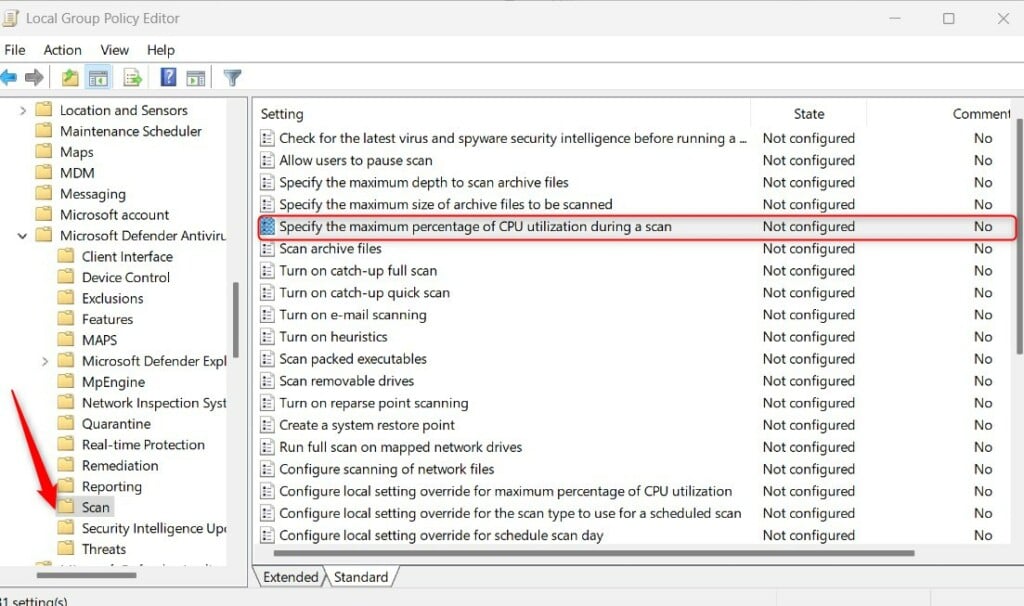
Computer Configuration → Administrative Templates → Windows Components → Microsoft Defender Antivirus → Scan
- Click the Scan folder in the left pane. A list of scan policies appears on the right.
- Double-click Specify the maximum percentage of CPU utilization during a scan. A settings window opens.
- Select Enabled. The percentage field becomes active.
- Type a whole number from 0 to 100 in the percentage field. Remember that 0 turns off throttling instead of limiting it, so choose a value above 0 if you want a cap.
- Click Apply, then click OK. The policy now shows as Enabled in the list.
- Restart your computer to apply the configuration.
To undo this, open the same policy again and select Not Configured. Click Apply and OK, then restart.
3Using Windows Registry Editor (If Group Policy Editor is not available)
You can limit Microsoft Defender CPU usage with the Registry Editor if you use Windows 11 Home and do not have the Group Policy Editor. This method sets the same limit by hand. Back up the registry first (see the note after these steps).
- Press the Windows key + R, type
regedit, and press Enter. [ADMIN REQUIRED] Click Yes on the User Account Control prompt. The Registry Editor opens. - In the left pane, go to this location:
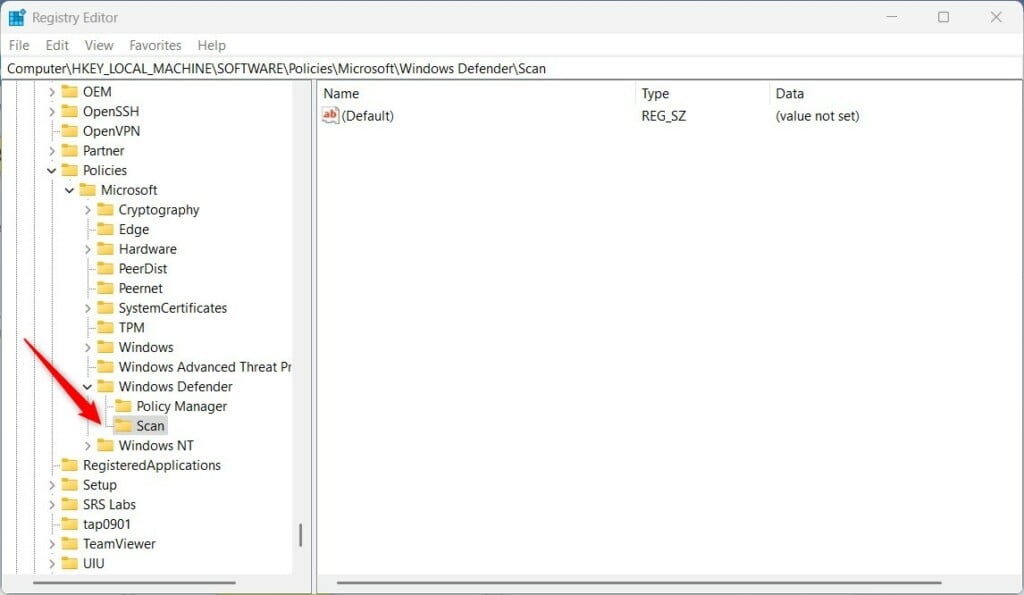
HKEY_LOCAL_MACHINE\SOFTWARE\Policies\Microsoft\Windows Defender\Scan- Check whether a Scan key already exists under that location. If it does, skip to step 4. If it does not, right-click the parent key from the path above, select New Key, and name the new key Scan. This creates a container for the scan settings.
- Click the Scan key to select it. Right-click an empty space in the right pane and select New DWORD (32-bit) Value. Name the new entry AvgCPULoadFactor.
- Double-click AvgCPULoadFactor. In the window that opens, select Decimal under Base. Type a number from 0 to 100 in the Value data box. For example, 25 limits background scans to a quarter of total processing power, instead of the default of 50. As with the other methods, 0 turns throttling off.
- Click OK and close the Registry Editor window.
- Restart your computer so the setting is picked up.
To undo this, open the Registry Editor again and set AvgCPULoadFactor back to 50. You can also right-click the entry and select Delete to remove your custom limit.
Important Note: Always back up the registry before making changes. In Registry Editor, click File Export, choose a location, and save the file. If something goes wrong, double-click the saved file to restore it. Incorrect entries can destabilize the operating system.
What Happens When You Lower CPU Usage?
After the change, the system should feel more responsive during active scans, and intensive applications should run more smoothly. The only trade-off is that full system checks take longer to complete. If you still see high CPU use, open Task Manager and check which process is responsible. The scan limit only affects Defender scans.
Summary
Managing Microsoft Defender CPU usage stops background antivirus scans from slowing down your computer. Any of the three methods above gives you direct control over the processor limit, and your system stays protected.
Choose the method that fits your edition and comfort level: PowerShell for speed, Group Policy on Pro and Enterprise, or the Registry on Home. Throttling keeps the desktop fast during security scans, but it extends scan times a little.
Restart after any change so the new value is applied cleanly.
For deeper technical details, see the official documentation at Configure scanning options for Microsoft Defender.
If you have questions or other performance tweaks that worked for you, share them in the comments below. Other Windows 11 users often find these tips useful.
Have a question about this guide?
Answered by AI from this guide. Good questions may be added to this page — please don't include personal details.
Did this guide fix your problem?

About the Author
Richard
Tech Writer, IT Professional
Richard is a writer at Geek Rewind who turns complex IT tasks into clear, step-by-step guides. He draws on years of hands-on experience in system administration and enterprise IT operations, focusing on Windows, Linux and WordPress: the problems people actually run into, and the fixes that work. His server and WordPress guides come from systems he runs himself. Richard builds and maintains the platform behind Geek Rewind, from its Ubuntu servers and Nginx configuration to its custom WordPress plugins. Many new tutorials start with readers' questions, and he's always glad to answer them in the comments.
No comments yet — be the first to share your thoughts!