How to Check for App Updates Using Windows Update in Windows 11

Windows 11 is adding one place to manage app updates, so you no longer have to open each app or store to see what is out of date. This guide shows how Windows Update handles the process and how to check for app updates by hand.
Open Settings, go to Apps, then click App updates to see pending app updates in Windows 11. Click Check for updates to scan for new versions. Pending updates download and install automatically in the background without requiring your approval.
What’s New?
Windows 11 is building a single hub for software maintenance. The aim is to make background upkeep less disruptive. Apps that support the feature report to Windows, and Windows tracks their updates alongside the rest of the system.
Available app updates appear in one menu. To find it, go to Settings Apps App updates If you don’t see App updates under Apps, the feature probably hasn’t reached your PC yet. See the availability section below.
How Does This Work?
The operating system lets individual programs signal when a newer build exists. Windows then downloads and installs the update in the background, usually while the PC is idle. That keeps software current without much effort from you. Here is how the pieces fit together:
- Apps ask the system for updates.
- The system checks for updates and installs them when you’re not using your computer.
- Apps still get their updates from their regular sources. Windows coordinates the process but does not replace those sources.
- Apps tell the system how the updates are going. You can see this progress in Settings.
Who Can Use This?
Microsoft is rolling this capability out gradually, so it will not show up on every PC at once. If you are enrolled in the Windows Insider program on the Dev or Beta channels, you might already see it. On a regular, non-Insider build, the App updates page may be missing for now. Check back after later Windows updates.
Tools like this change hidden settings, so treat them as experimental. Create a restore point first. If something misbehaves, you can usually turn the feature off with the same tool.
How to Check for App Updates in 🪟 Windows 11
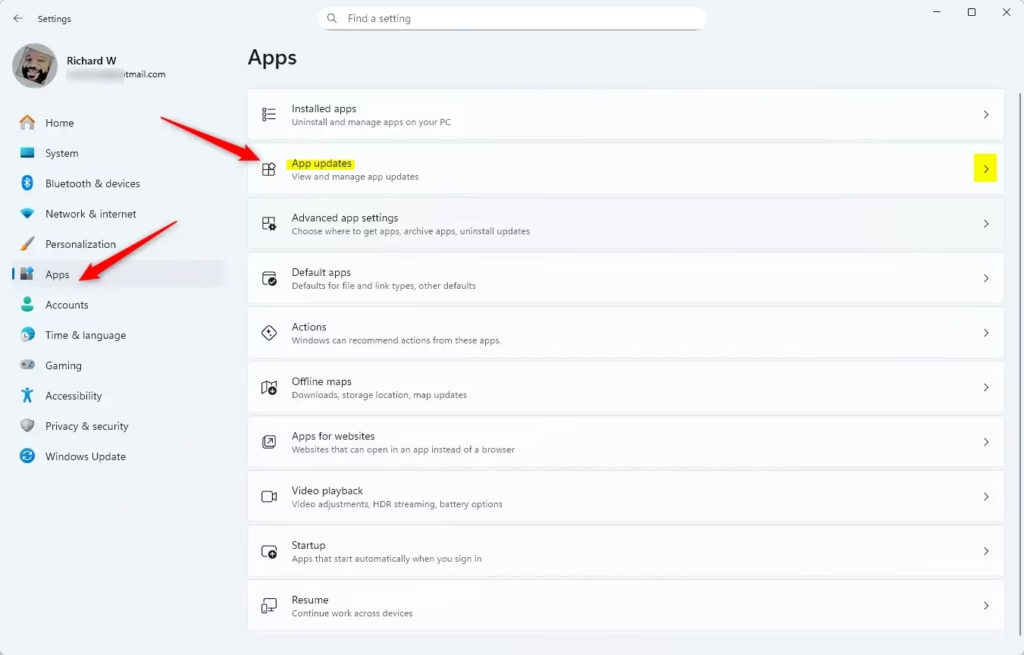
- Open Settings. Press
Win + Ion your keyboard to open it fast. The Settings window should appear with a list of categories on the left. - In the left menu, click Apps. The right side now shows app-related options.
- On the right side, click App updates. The full path is Settings Apps App updates This page shows what is waiting for you.
If App updates isn't in the list, your build doesn't have the feature yet. See the availability section above.
- Click the Check for updates button to see if your apps need updates. Windows scans for new versions and lists any it finds.
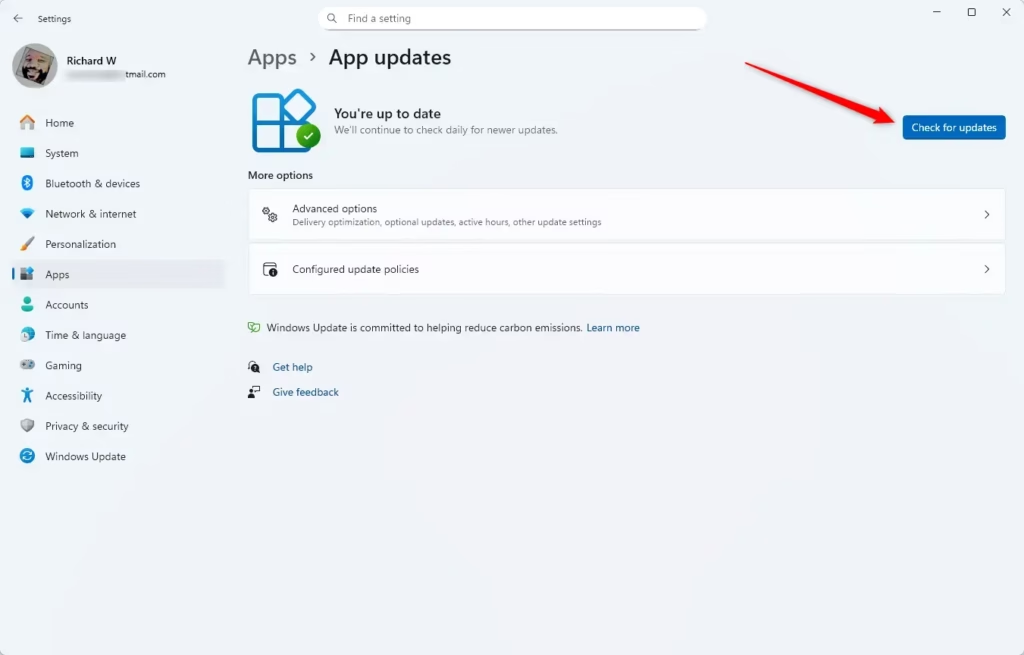
You don't need to approve each one. If an app is open while its update is ready, the install may have to wait until you close the app. You can come back to this page at any time to see progress or run another check.
Summary
Putting software maintenance in the main Settings app removes much of the old guesswork about which app updates where. Microsoft plans to extend support to a wider catalog of programs over time. You can reach the page again at any time through Settings Apps App updates
- Simpler Updates: Windows is making app updates smoother and easier.
- One Place to Check: You can find app updates in Settings Apps App updates
- Better Communication: Apps talk to Windows to tell you about updates.
- More Apps Soon: More apps will use this feature over time.
- Early Access: Advanced users can try new update features early with special tools.
Keeping apps current gets you fixes and new features as soon as developers release them. For example, recent updates to the Photos app added AI-powered editing tools, and you only get those once the update is installed.
Have a question about this guide?
Answered by AI from this guide. Good questions may be added to this page — please don't include personal details.
Did this guide fix your problem?

About the Author
Richard
Tech Writer, IT Professional
Richard is a writer at Geek Rewind who turns complex IT tasks into clear, step-by-step guides. He draws on years of hands-on experience in system administration and enterprise IT operations, focusing on Windows, Linux and WordPress: the problems people actually run into, and the fixes that work. His server and WordPress guides come from systems he runs himself. Richard builds and maintains the platform behind Geek Rewind, from its Ubuntu servers and Nginx configuration to its custom WordPress plugins. Many new tutorials start with readers' questions, and he's always glad to answer them in the comments.
No comments yet — be the first to share your thoughts!