Discover Hidden Features in Windows 11 Using ViVeTool

- 6 steps
- Needs administrator rights
- Includes a restart or sign-out
ViVeTool is a free command-line utility that lets you turn on experimental features hidden inside Windows 11, often months before Microsoft releases them to the public. You run a command with a specific feature ID number in a terminal window, and the matching upcoming change is switched on early.
GeekRewind.com shows you how to download this tool from GitHub and use it safely on your PC. These features are unfinished, so some may be buggy or disappear without notice. Before you start, it’s worth creating a restore point or making a backup, so you can roll back if something misbehaves.
ViVeTool is a free command-line utility that turns on experimental Windows 11 features hidden in system files. Download the latest ZIP file from the ViVeTool GitHub page, extract it to your Desktop or Documents, then open Command Prompt (Admin), paste the path to ViVeTool.exe, and run commands like “📁C:\
What is ViVeTool?
ViVeTool is a small program that turns hidden Windows 11 settings on or off. These settings are already part of the system files, but Microsoft keeps them switched off while it tests them. ViVeTool lets you flip them on yourself so you can try new features before they’re officially released.
How to Download and Use ViVeTool
- Download ViVeTool: Go to the ViVeTool GitHub page and download the latest version. Pick the ZIP file from the list of release files. You should now have a ZIP file in your Downloads folder.
- Extract the files: After downloading, unzip the file. Right-click the ZIP file and choose Extract All, then follow the prompts. If you’re not sure how, check this guide on how to unzip files in Windows 11. You should end up with a regular folder that contains ViVeTool.exe and a few other files. Don’t run the tool from inside the ZIP file, as it won’t work properly.
- Move the folder: Put the extracted ViVeTool folder somewhere easy to find, like your Desktop or Documents. A short path makes the commands easier to handle. To remove the tool later, just delete this folder.
- Copy the tool’s path: Open the ViVeTool folder and find ViVeTool.exe. Hold Shift and right-click it, then choose Copy as path. If you only see a shortened right-click menu, the Shift key brings up the full classic menu. In Windows 11 you can also select the file and press Ctrl+Shift+C. Nothing visible happens, but the full path to the file is now on your clipboard.
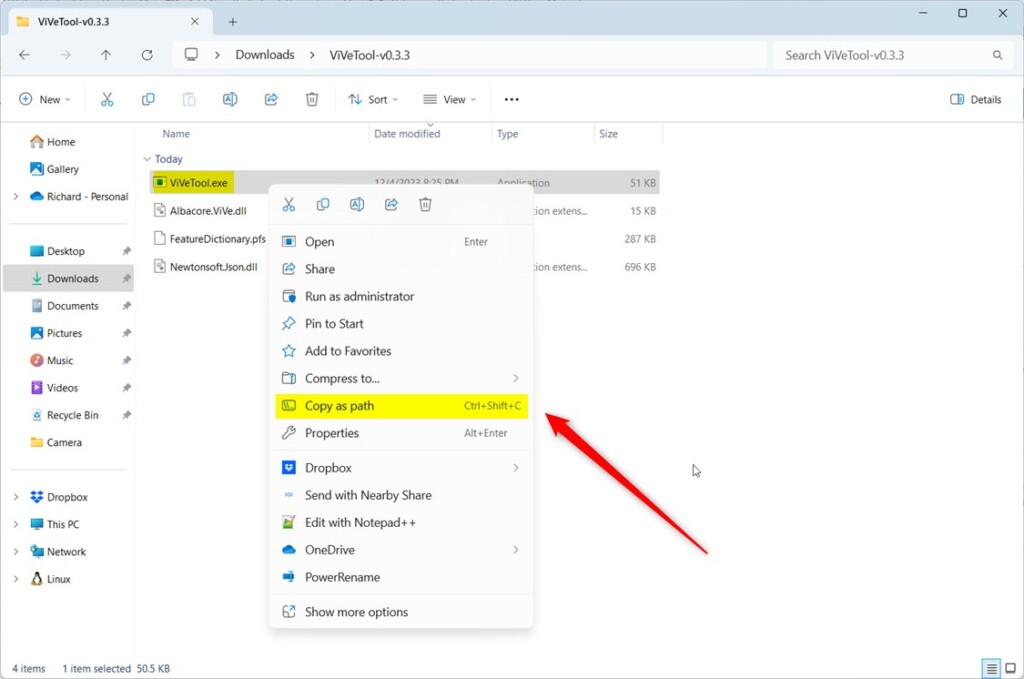
Right-click ViVeTool.exe and select Copy as path To download and use ViVeTool on Windows 11, you need to grab the latest release from GitHub, extract the downloaded ZIP folder to a convenient location like your Desktop, and copy the folder path so you can run commands in Command Prompt or Windows Terminal.
- Open Command Prompt (Admin): %📂%SC0%% Press Win+X and select Windows Terminal (Admin) or Command Prompt (Admin). Click Yes if User Account Control asks for permission. This gives the window administrator rights, which ViVeTool needs to make system changes. If you want, you can also open Windows Terminal and switch to the Command Prompt tab. The window title or tab should mention Administrator. If it doesn’t, close it and try again, because the commands will fail without admin rights.
- Paste the path and enter commands: In the Command Prompt window, right-click to paste the path you copied earlier. Ctrl+V also works in Windows Terminal. Then add commands to turn features on or off, as shown in the next section. The path comes with quotation marks around it, which is fine in Command Prompt. If you use a PowerShell tab instead, type & and a space before the pasted path, or switch to a Command Prompt tab.
Commands to Use
ViVeTool commands for Windows 11 rely on Command Prompt or Windows Terminal to turn hidden features on and off using specific feature IDs. You use the /enable command followed by the feature ID to turn a feature on, or the /disable command to turn it back off.
Run each command from the admin window you opened earlier, after the pasted path to ViVeTool.exe. A confirmation message from the tool means the change was saved. It doesn’t take effect until you restart.
To enable a hidden feature, use this command: "C:\FullPathToViVeTool.exe" /enable /id:<feature ID>
To disable a hidden feature, use this command. This is also how you undo a change if a feature causes problems:
"C:\FullPathToViVeTool.exe" /disable /id:<feature ID>
Replace <feature ID> with the actual number for the feature you want to change. Use the same ID you used to enable it, then restart your PC.
ViVeTool allows you to turn on or turn off many Windows 11 features at once. You enter several feature IDs in a single command and separate each ID with a comma. For instance, to activate three separate features, you would list their IDs like this: 12345678,98765432,11223344. These are example numbers only. Leave out the spaces between IDs so the tool reads them as one list. This speeds up experimenting with new Windows 11 features, but change only a few at a time so you can tell which one caused a problem.
The command for several features at once looks like this: "C:\Users\GenericUser\Downloads\ViVeTool\ViVeTool.exe" /enable /id:42880174,44281626,45393399
Find Feature IDs
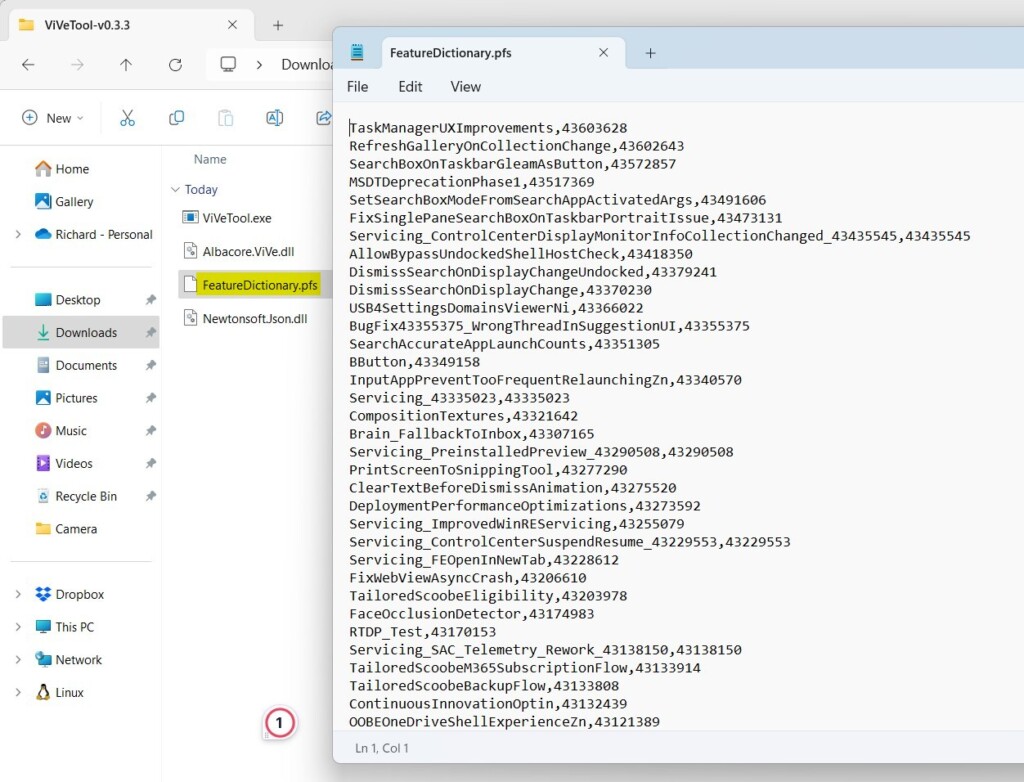
Inside the folder you extracted, look for a file named FeatureDictionary.pfs. Open it with Notepad to see a list of feature IDs you can enable or disable. It’s a data file, so it may look messy in Notepad. If it’s hard to read, community lists of feature IDs, which are often shared by Windows Insider testers, are another place to look.
Feature IDs are tied to specific Windows builds. An ID that works on one build may do nothing on another, and a feature may already be switched on for you. If a command seems to have no effect, check which Windows 11 version you have.
Final Step: Restart Your PC
After running the commands, restart your computer. Save your work and close your apps first. When the system starts again, it applies the changes you made, and the new feature should appear in Windows. If it doesn’t, the ID may not match your Windows build, or the feature may need a newer update.

Summary
ViVeTool offers a straightforward way to access and test hidden Windows 11 features early, making it a great tool for users who like to explore new options before everyone else. Treat the features as experiments: change a few at a time, keep a note of the IDs you enable, and keep the disable command handy so you can undo any of them.
Have a question about this guide?
Answered by AI from this guide. Good questions may be added to this page — please don't include personal details.
Did this guide fix your problem?

About the Author
Richard
Tech Writer, IT Professional
Richard is a writer at Geek Rewind who turns complex IT tasks into clear, step-by-step guides. He draws on years of hands-on experience in system administration and enterprise IT operations, focusing on Windows, Linux and WordPress: the problems people actually run into, and the fixes that work. His server and WordPress guides come from systems he runs himself. Richard builds and maintains the platform behind Geek Rewind, from its Ubuntu servers and Nginx configuration to its custom WordPress plugins. Many new tutorials start with readers' questions, and he's always glad to answer them in the comments.
[…] you want to try it now: You can enable the feature early using a tool called ViVeTool, but that’s for advanced users […]
[…] 1. Download the latest version of ViVeTool. […]