How to Enable Hidden Education Themes in Windows 11


- 3 ways to do it
- Needs administrator rights
- Includes a restart or sign-out
Hidden education themes in Windows 11 are visual packages built into school-issued PCs. They include exclusive wallpapers and color schemes. You can turn on these built-in sets, including the popular Earth theme with its planetary imagery, with a quick change in the Registry Editor (a tool for changing low-level system settings).
Turning on these extra desktop designs gives your PC a fresh look using official Microsoft art assets that do not normally appear in the standard Settings app. The change is small and easy to reverse. You need an administrator account for all the methods below, and the registry method works on Home, Pro, Enterprise and Education.
Enable hidden education themes by editing the registry. Open regedit, navigate to 🗝️HKEY_LOCAL_MACHINE\
Why use these themes?
Education themes give your desktop a professional look. These options differ from the standard Windows choices. They give you a different way to customize your computer and show you the look used on classroom devices.
What happens when you are done?
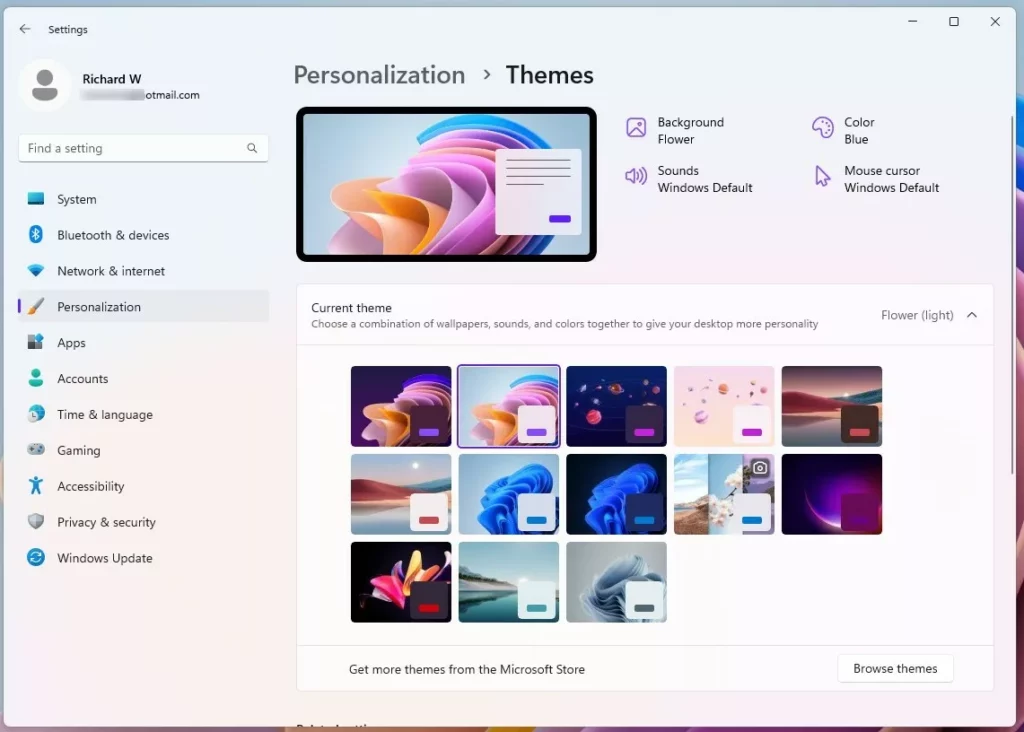
When you finish the steps and restart your PC, the new theme options appear in your personalization settings. To find them, open Settings Personalization Themes. Select an education theme like any other theme to apply its wallpaper and color accents.
If you do not see the new themes, restart the PC again and check that the value you created is spelled exactly as shown in the steps. A typo in the key or value name is the most common reason nothing changes. To undo the change later, set the value back to 0 or delete the value in the Registry Editor, then restart. Your other themes are not affected.
Method 1Using the Registry Editor (Most Common)
You can enable education themes in Windows 11 by editing a hidden registry key on your computer. This method uses the Registry Editor, a database that stores low-level settings for the operating system. It turns on the special school wallpapers and color schemes that Microsoft hides by default.
Before you start, sign in with an administrator account. Registry changes can cause problems if you edit the wrong entry, so you may want to back up first. In the Registry Editor, choose File Export, pick a location, and save a copy. You can double-click that file later to restore the settings.
- Press Win+R, type
regedit, and hit Enter. If a User Account Control prompt asks whether to allow the app to make changes, click Yes. The Registry Editor opens, with a folder tree on the left and values on the right. - Navigate to:
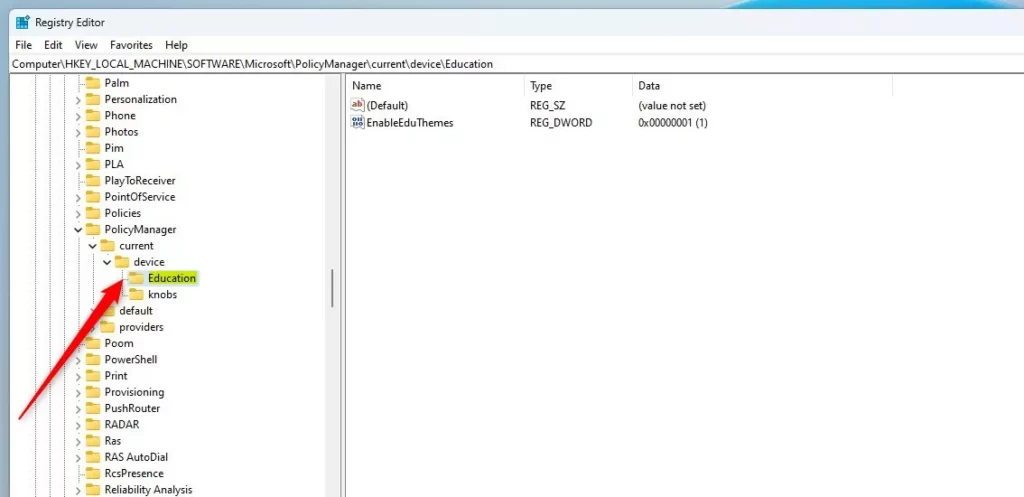
HKEY_LOCAL_MACHINE\SOFTWARE\Microsoft\PolicyManager\current\device\Education. Expand each folder in the left pane by clicking the arrow beside it. You can also paste the path into the address bar at the top of the editor and press Enter. - If the Education folder is missing, right-click device, select New Key, and name it
Education. A new folder appears under device. Click it so it is selected before you go on. On many PCs this key does not exist yet, so a missing folder is normal. - Right-click in the empty space of the right pane and select New DWORD (32-bit) Value. A new entry appears in the right pane with its name ready to edit.
- Name it
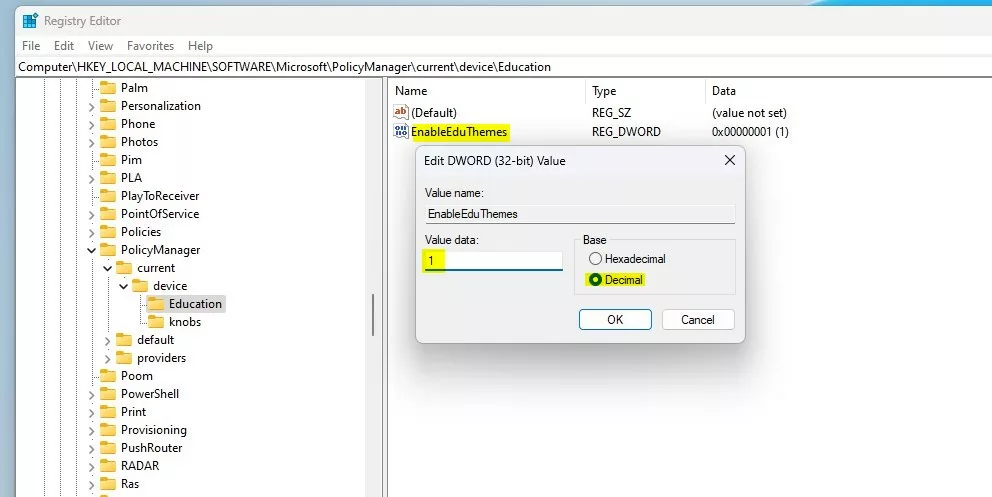
EnableEduThemes. Type the name exactly as shown and press Enter. Registry names must match precisely, or Windows ignores them. - Double-click
EnableEduThemesand set the Value data to1. Then click OK. The value now shows the data you entered in the right pane. Close the Registry Editor and restart your PC.
Method 2Using PowerShell for IT Admins
IT administrators can enable these themes using PowerShell (a command-line shell for running system commands). This process requires administrator privileges to make system-level changes. Open PowerShell as an administrator by right-clicking the Start button and choosing Terminal (Admin) or Windows PowerShell (Admin), depending on your build. Then run the command shown below. This method is useful when you need to apply the change to several PCs with a script instead of editing the registry by hand.
As with the registry method, restart the PC afterward so the themes show up in Settings Personalization Themes. If you get an access error, the window is not running as administrator, so close it and reopen it with elevated rights.
New-Item -Path "HKLM:\\SOFTWARE\\Microsoft\\PolicyManager\\current\\device\\Education" -Force
Set-ItemProperty -Path "HKLM:\\SOFTWARE\\Microsoft\\PolicyManager\\current\\device\\Education" -Name "EnableEduThemes" -Value 1
Method 3OMA-URI for Enterprise Deployment
IT administrators managing multiple machines can deploy these settings through Microsoft Intune using OMA-URI (a way to send a setting to enrolled devices by its path). This works only on devices that are enrolled in Intune. In a custom configuration profile, add a new setting and use the following values:
- NameEnable Education Themes
- OMA-URI
./Device/Vendor/MSFT/Policy/Config/Education/EnableEduThemes - Data TypeInteger
- Value1
Summary
Several methods exist to enable hidden education themes on your Windows 11 computer, including the Registry Editor, PowerShell and Intune. For a single home PC, the Registry Editor is the simplest choice. PowerShell suits scripted changes, and Intune suits managed fleets. Whichever method you use, restart the PC and then check Settings Personalization Themes. To go back to normal, set the value to 0 or remove it.
Frequently asked questions
How to find out what the 🪟 Windows 11 background picture is?
Windows does not show the file name in Settings. Your current wallpaper is saved as a copy in your AppData folder. Type 📂%appdata% into the File Explorer address bar, then open Microsoft, then Windows, then Themes. Copy the file named TranscodedWallpaper to your desktop and add .jpg to its name. Photos will open it as a picture.
Is there a god mode in 🪟 Windows 11?
Yes. God Mode is a folder that lists hundreds of Control Panel and Settings options in one window. Create a new folder on your desktop and rename it to GodMode.{ED7BA470-8E54-465E-825C-99712043E01C}. Windows fills it with links to settings. To remove it, delete the folder. Nothing else on your PC changes.
How do I turn on or off Windows features?
Search the Start menu for Turn Windows features on or off and open it. A list of optional parts of Windows appears. Turning off a feature can break apps, so clear only boxes you recognize. Check a box to turn a feature on, or clear it to turn the feature off. Select OK, then restart if Windows asks.
How to set apps to run in background in 🪟 Windows 11?
Open Settings, select Apps, then select Installed apps. Click the three dots beside an app and choose Advanced options. Under Background apps permissions, open the Let this app run in background menu and pick Never. The app will stop running when you close it, so it may miss notifications.
Still have a question?
Answered by AI from this guide. Good questions may be added to this page — please don't include personal details.
Did this guide fix your problem?

About the Author
Richard
Tech Writer, IT Professional
Richard is a writer at Geek Rewind who turns complex IT tasks into clear, step-by-step guides. He draws on years of hands-on experience in system administration and enterprise IT operations, focusing on Windows, Linux and WordPress: the problems people actually run into, and the fixes that work. His server and WordPress guides come from systems he runs himself. Richard builds and maintains the platform behind Geek Rewind, from its Ubuntu servers and Nginx configuration to its custom WordPress plugins. Many new tutorials start with readers' questions, and he's always glad to answer them in the comments.
No comments yet — be the first to share your thoughts!