How to Start Voice Typing in Windows 11

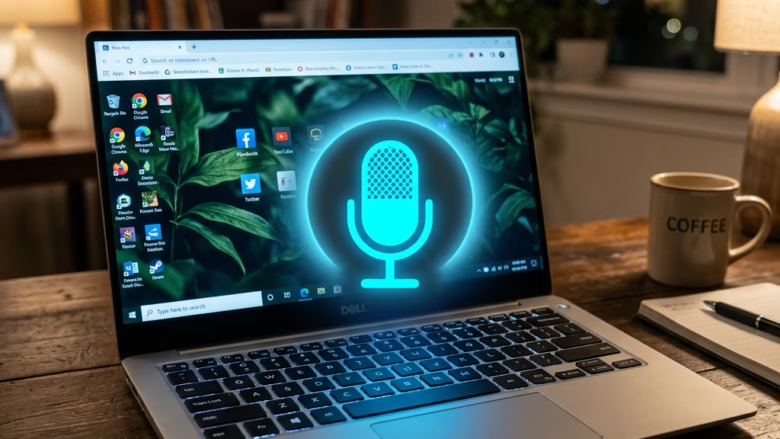
Voice typing in Windows 11 turns spoken words into on-screen text in almost any app or document. It works like a live scribe, so you can write messages and emails without a physical keyboard.
The quickest way to start is to press the Win and the H key together. A small microphone bar opens and you can start talking right away.
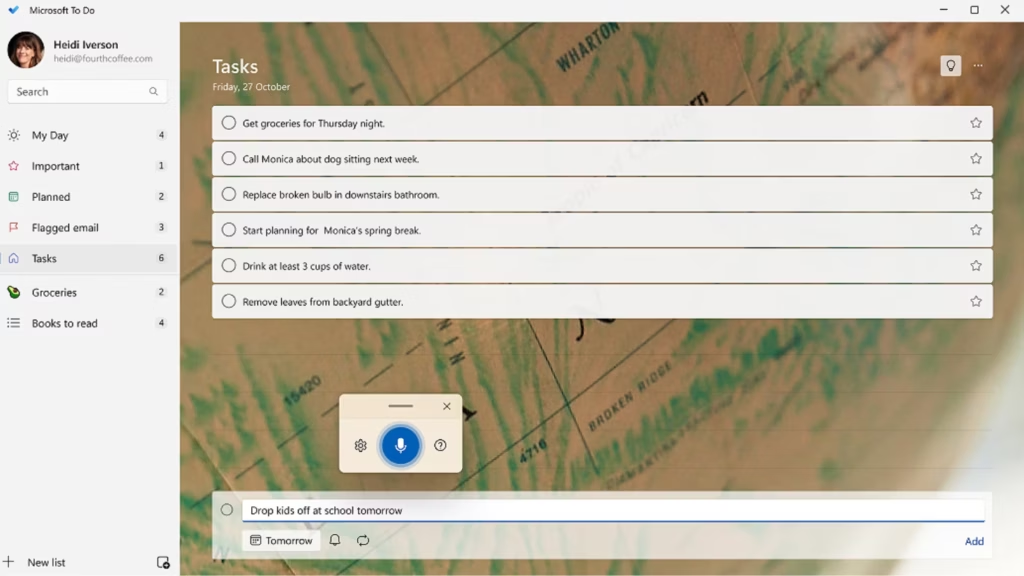
Press Win+H to open the voice typing bar, then speak into your microphone. The “Listening…” message confirms the system is ready. Your words appear at the cursor in any text field, email or document.
What You Need
Check them before you start, because a missing one is the most common reason it fails.
- An Internet Connection: Windows sends your speech to an online speech recognition service and gets text back. If you are offline, voice typing cannot turn your words into text. A slow or unstable connection shows up as long delays or missing words.
- A Working Microphone: Your computer has to hear you. The microphone can be built in, such as a laptop mic, or external, such as a USB headset. Plug it in and test it before you dictate. If Windows cannot hear it, check that the correct input device is selected and that microphone access is allowed for apps in your privacy settings.
- Your Cursor in a Text Box: Voice typing needs to know where to put your words. Click inside any place where you can type, such as a document, email, search bar or chat window. If no text field is active, nothing will appear.
How to Turn On Voice Typing
Turning on voice typing takes one keyboard shortcut. It works in any text box, document or email field on the system, whenever you want to dictate instead of type.
- Click inside the text box where you want your words to appear.
- Press the Win and the H key at the same time. You do not need to hold them down. A quick press of both is enough.
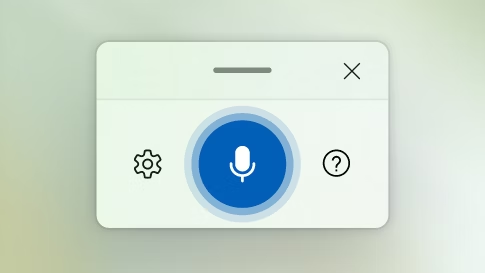
- Look at the top of the screen. The voice typing bar should appear with a microphone icon.
Windows 11 gives you more than one way to launch voice typing. The shortcut is the fastest, and the touch keyboard is the alternative.
Using a Keyboard Shortcut
The Win is the one on a standard keyboard with a window logo on it. Pressing it together with H opens the Voice Typing window, and this is the fastest way to start dictating.
If nothing happens, click into the text box again and retry. Some apps and password fields do not accept dictation, so test in a simple place like Notepad first.
Learn this shortcut and use it often. You will reach voice typing within a second, and it saves a lot of time over a working day.
Using the Touch Keyboard Button
If you use a touchscreen or prefer an on-screen keyboard, you can start voice typing from the touch keyboard instead. It has a built-in microphone key.
- Right-click an empty spot on the taskbar, the bar along the bottom of the screen.
- Choose the touch keyboard option from the menu. On current builds of Windows 11, right-clicking shows Taskbar settings. Open it, expand Taskbar corner icons and turn on Touch keyboard. Older builds may show a Show touch keyboard button entry right in the right-click menu. On tablets and 2-in-1 devices the icon often appears on its own.
- Click the keyboard icon in the lower-right corner of the taskbar. The touch keyboard opens.
- Tap the Microphone button on the touch keyboard. The Voice Typing bar opens.
To remove the keyboard icon later, switch the same setting back off.
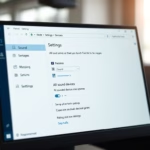
When voice typing starts, a small overlay appears near the top of the display. It shows a microphone icon and the word "Listening...". That message means the system is ready for speech. Wait for it before you speak. If you start too early, the first words of your sentence can be dropped.
Understanding the "Listening..." Message
The "Listening..." message confirms that the microphone is active and capturing speech. If you see it, you can talk normally and the text will appear at your cursor.
If the bar never shows "Listening...", check your microphone connection and your internet connection first.
Reference:
Summary
Windows 11 voice typing lets you speak text instead of typing it. You need an internet connection, a working microphone and an active cursor in a text field. Press Windows key + H, wait for "Listening...", then start talking.
Was this guide helpful?

About the Author
Richard
Tech Writer, IT Professional
Richard is a writer at Geek Rewind who turns complex IT tasks into clear, step-by-step guides. He draws on years of hands-on experience in system administration and enterprise IT operations, focusing on Windows, Linux and WordPress: the problems people actually run into, and the fixes that work. His server and WordPress guides come from systems he runs himself. Richard builds and maintains the platform behind Geek Rewind, from its Ubuntu servers and Nginx configuration to its custom WordPress plugins. Many new tutorials start with readers' questions, and he's always glad to answer them in the comments.


No comments yet — be the first to share your thoughts!