How to Filter Feature Flags in Windows Insider Settings

The Windows Insider Program settings page in Windows 11 can now filter feature flags by enablement state, which is whether each flag is turned on or off. A feature flag is a switch that turns a specific feature on or off inside a build. The filter narrows the list to the flags in the state you pick. Microsoft announced the change with the Windows Insider builds released on 23 October 2026.
The quickest route is to open Settings Windows Update Windows Insider Program, find the feature flags list, and use the filter for enablement state. This feature is available only in Windows Insider preview builds so far. Microsoft may change it before it reaches the regular release.
To filter feature flags by enablement state, open Settings, select Windows Update, then Windows Insider Program, and use the filter for enablement state in the feature flags list. Choose enabled or disabled to narrow the list to flags in that state. The filter only changes what is shown and does not switch any flag on or off. It needs a recent Insider preview build.
What the feature flag filter does
Insider builds often ship with new features that are switched on for some devices and off for others. Feature flags are the individual switches behind this. A long list of flags is hard to scan, especially when you want to know which ones are active on your PC.
Enablement state means whether a flag is currently turned on or off. Filtering by enablement state narrows the list to the flags in the state you choose, so you do not scroll through every entry.
The filter changes what the list shows. By itself, it does not switch any flag on or off.
Before you start
Check three things first, because the filter does not appear on every PC.
- Your PC must be signed up to the Windows Insider Program. The setting lives on the Windows Insider Program page, which is built for Insider devices.
- Your PC must run a preview build that includes the feature. Microsoft listed it in the notes for the 23 October 2026 builds. An older Insider build does not have it.
- Do not expect it on a regular release. Microsoft has not said when, or whether, the filter will reach regular releases of Windows 11.
To confirm which build you run, press Win+R, type winver, and press Enter. The About Windows window shows the version and build number. Compare the build number with the one named in Microsoft’s announcement for the 23 October 2026 builds.
Insider builds also expire, so an old build can be the cause. If yours is old, check the Windows 11 Insider build expiration date before you troubleshoot anything else.
How to filter feature flags in Windows Insider settings
Follow these numbered steps to filter feature flags by enablement state. Microsoft has not published the exact on-screen label of the filter control. Where a step depends on that label, the step says so. Insider builds change often, so the layout may differ slightly on your PC.
- Open Settings . Press Win+I, or right-click Start and choose Settings. The Settings window opens.

- Select Windows Update . It is in the left pane. The right pane shows update status and options.

Settings › Windows Update - Select Windows Insider Program. It is listed under More options on the Windows Update page. The Windows Insider Program page opens. Your enrolled channel appears here if your PC is enrolled.
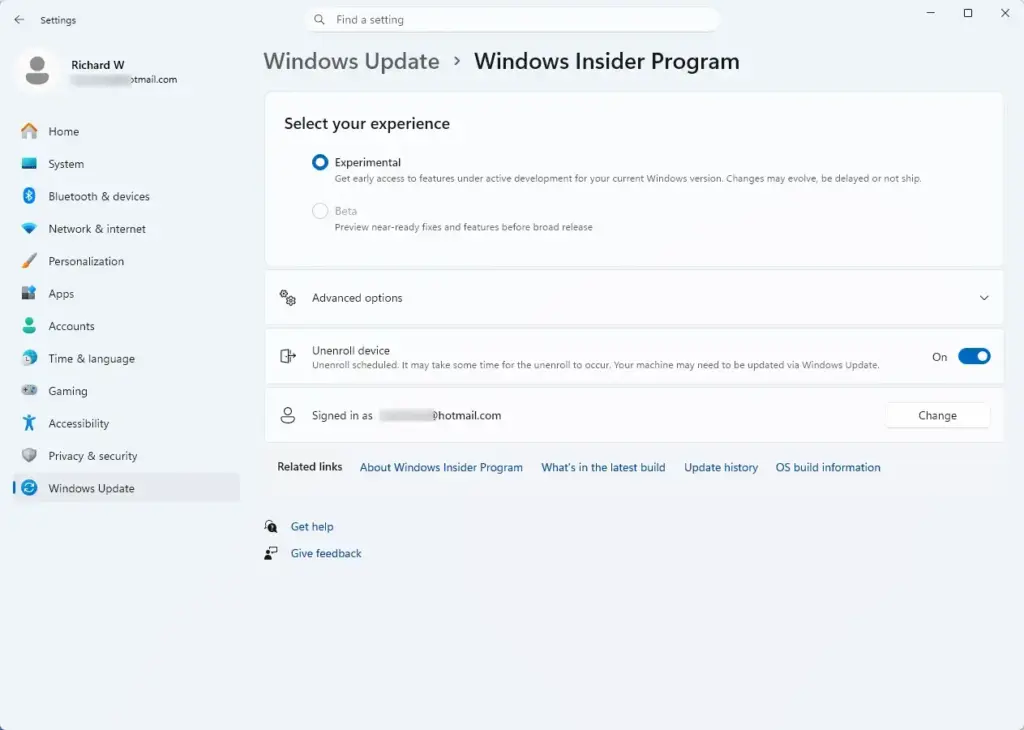
Settings › Windows Update › Windows Insider Program - Find the feature flags list. Scroll through the page until you reach the feature flags. If you see no feature flags anywhere on the page, your build likely does not include the feature. Go to the troubleshooting section below.
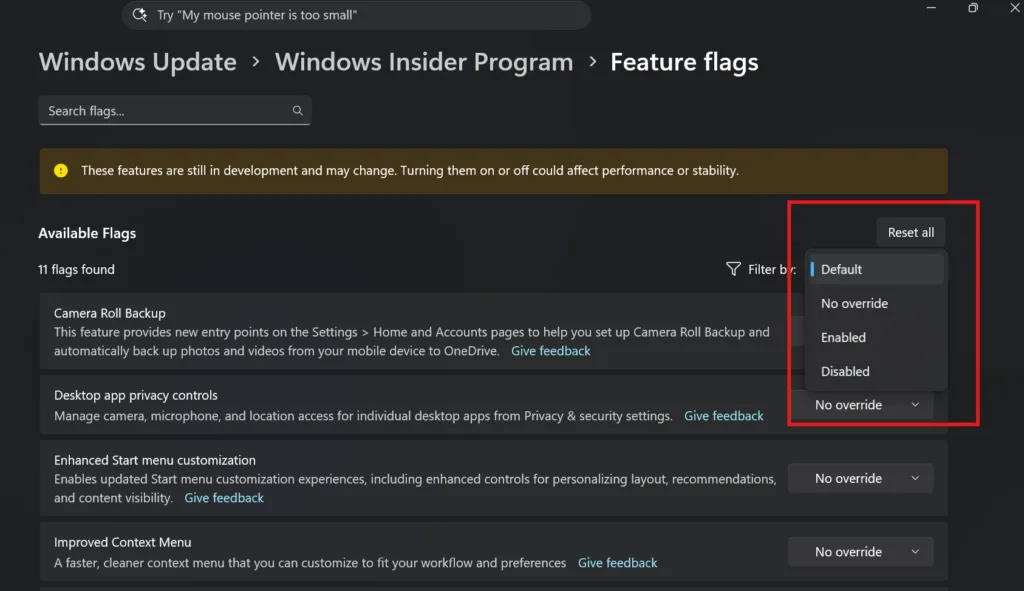
- Open the filter for enablement state. Look for a filter control near the list. Select it to open its options. The options should let you narrow the list by whether flags are enabled or not.
- Choose the enablement state you want to see. The list updates to show only the flags in that state. If the list becomes empty, no flags match that state on your build.
- Review the filtered list. Scroll through it to see which flags match. This is the point of the filter: you see the flags you care about without wading through the rest.
- Clear the filter when you finish. Reopen the filter control and select the option that shows every flag, if the page offers one. Closing Settings may also reset the view, but Microsoft has not confirmed that.
If you don’t see the filter
A missing filter has a small number of likely causes. Work through them in this order.
Your PC is not on an Insider preview build
On a regular Windows 11 release, the Windows Insider Program page may exist, but the filter does not. There is no workaround on a regular release, and you should not edit the registry to force it. No registry setting for this feature has been published.
Your build is older than the 23 October 2026 release
Microsoft added the filter in the builds announced on 23 October 2026. If your build predates them, open Windows Update and select Check for updates. Install any pending Insider build, restart when asked, and return to the Windows Insider Program page.
If you want to compare component versions as well, you can check the Windows Feature Experience Pack version in Windows 11. The Windows Feature Experience Pack is a package that delivers many Settings page changes.
Your PC is on the right build, but the filter is still missing
Microsoft’s announcement does not describe how the feature is delivered. Insider features often reach devices in stages, so two PCs on the same build can look different. Wait for the next Insider build, and check again after you restart.
If a fresh Windows Update check and a restart change nothing, Microsoft’s announcement does not list any other causes. Do not follow guides that claim a specific registry key or setting forces the filter on. Treat any such claim as unverified.
Is it safe to use the filter?
It does not add, remove or change a flag on its own. Changing a flag is a separate action, and Microsoft has not described how to do it for this feature. On an Insider build, treat any flag change as experimental and avoid it on a PC you rely on for work.
Preview builds can behave unpredictably. If you use an Insider build for testing, keep it on a spare PC or a virtual machine.
How to undo the change or leave the Insider Program
The filter itself needs no undo. Reopen the filter control and choose the option that shows all flags.
If you want to stop receiving preview builds altogether, follow the guide to stop getting Insider preview builds on a Windows 11 PC. Once you leave, your PC returns to regular releases, and the feature flag filter is no longer part of your build.
If you only want to hold back updates for a short time, you can enable or disable the Pause updates feature in Windows 11. That keeps your PC on its current build without leaving the program.
What to do next
Because the filter exists only in Insider preview builds, watch Microsoft's Windows Insider blog for later builds. The company may rename, move or change the feature before it reaches the regular release. If you want a PC on a fixed version rather than a preview build, read how to specify a target feature update version in Windows 11.
Have a question about this guide?
Answered by AI from this guide. Good questions may be added to this page — please don't include personal details.
Did this guide fix your problem?

About the Author
Richard
Tech Writer, IT Professional
Richard is a writer at Geek Rewind who turns complex IT tasks into clear, step-by-step guides. He draws on years of hands-on experience in system administration and enterprise IT operations, focusing on Windows, Linux and WordPress: the problems people actually run into, and the fixes that work. His server and WordPress guides come from systems he runs himself. Richard builds and maintains the platform behind Geek Rewind, from its Ubuntu servers and Nginx configuration to its custom WordPress plugins. Many new tutorials start with readers' questions, and he's always glad to answer them in the comments.
No comments yet — be the first to share your thoughts!