How to Stop Getting Insider Preview Builds on Windows 11 PC

- 8 steps
- Needs administrator rights
Stepping away from experimental operating system updates brings your PC back to a stable state.
Open Settings with Win+I, click Windows Update, then Windows Insider Program, and turn on Stop getting preview builds. Beta and Release Preview users stop receiving previews when the next major Windows release arrives. Canary and Dev Channel users need a clean install of Windows 11 to exit right away.
What is Windows Insider Program?
Microsoft calls this testing phase flighting (early testing of software updates). Running these test versions and sending feedback helps Microsoft make Windows better. Once you registered for the Windows Insider Program, you can run preview builds on as many devices as you want.
Preview builds can be less stable than the regular release. Drivers, apps and features can break between builds. That is the usual reason people leave the program, and the steps below cover how to do it.
Why Stop Getting Preview Builds?
Windows Insiders play a key role in shaping Windows’ future. Leaving the program stops preview builds on your device. Unenrolling your device stops the preview builds while still allowing you to receive email updates from Microsoft.
Unenrolling a device does not by itself roll it back to a release version. Depending on your channel, you either stay on the current build until the next major release, or you reinstall Windows. The next section explains which applies to you.
Important Information
Your next steps depend on which update channel your PC uses. Beta or Release Preview Channel users can stop previews when the next major Windows release arrives, by turning on Stop getting preview builds. If you are on the Canary Channel or Dev Channel, you will need to perform a clean install (erasing your current drive to reinstall a fresh copy of the operating system) to exit right away.
What happens depends on which channel you use:
- If you use Beta Channel or Release Preview Channel: You can stop getting preview builds when the next major Windows 11 update comes out.
- If you use Canary Channel or Dev Channel: You need to do a clean install of Windows 11 to stop immediately.
There are two ways out for Canary and Dev users:
- Clean installReinstall Windows 11 using the Windows 11 Media Creation Tool or an ISO file (a disk image of the installer). This removes the preview build straight away.
- Switch channels firstIf your current build allows it, move the PC to the Beta Channel or Release Preview Channel in the Windows Insider Program settings, then unenroll as described for those channels. Not every build offers this switch. If the option is missing or greyed out, the clean install is your way out.
Back up before a clean install. A clean install erases the drive, so nothing on it survives. Before you start, do the following:
- Copy your documents, pictures, downloads and any other files you want to keep to an external drive or cloud storage.
- Write down the apps you have installed, so you can reinstall them afterward. Also note any license keys or sign-in details you will need.
- Check that the backup opens correctly before you continue.
After the clean install, Windows 11 comes back as a regular release build. Do not sign up for the Insider Program again, or preview builds will start arriving once more. If the PC was activated before, Windows normally reactivates itself once you are online.
Option 1Use Settings
This method suits Beta Channel and Release Preview Channel users. It needs an administrator account.
- Open Settings by pressing
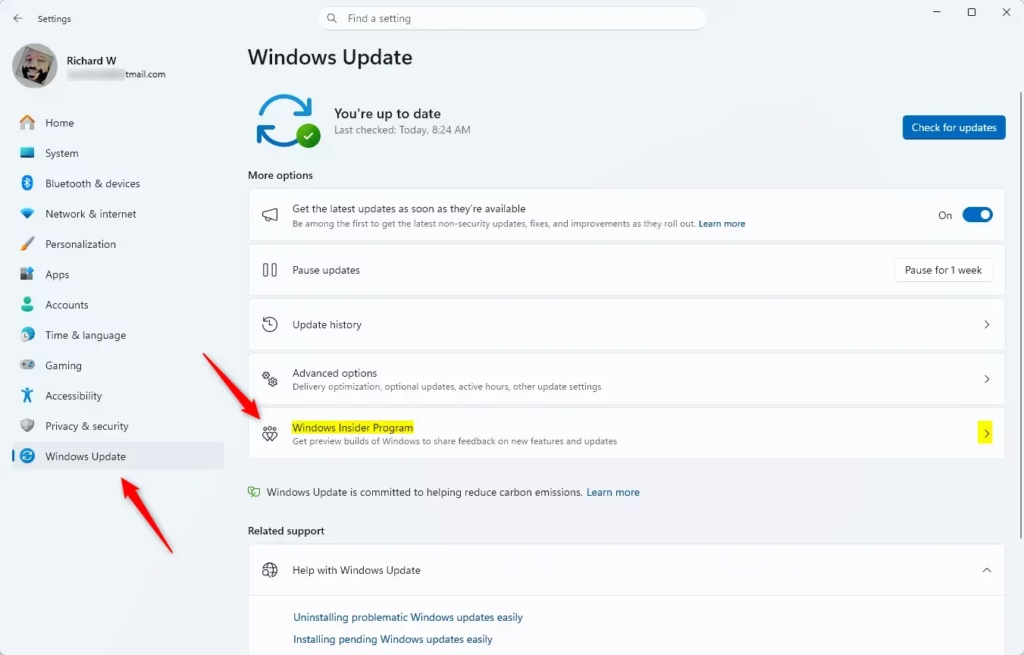
Win+I. The Settings window should appear. - Click Windows Update on the left side.
- Click Windows Insider Program on the right side. You should see your current Insider settings.
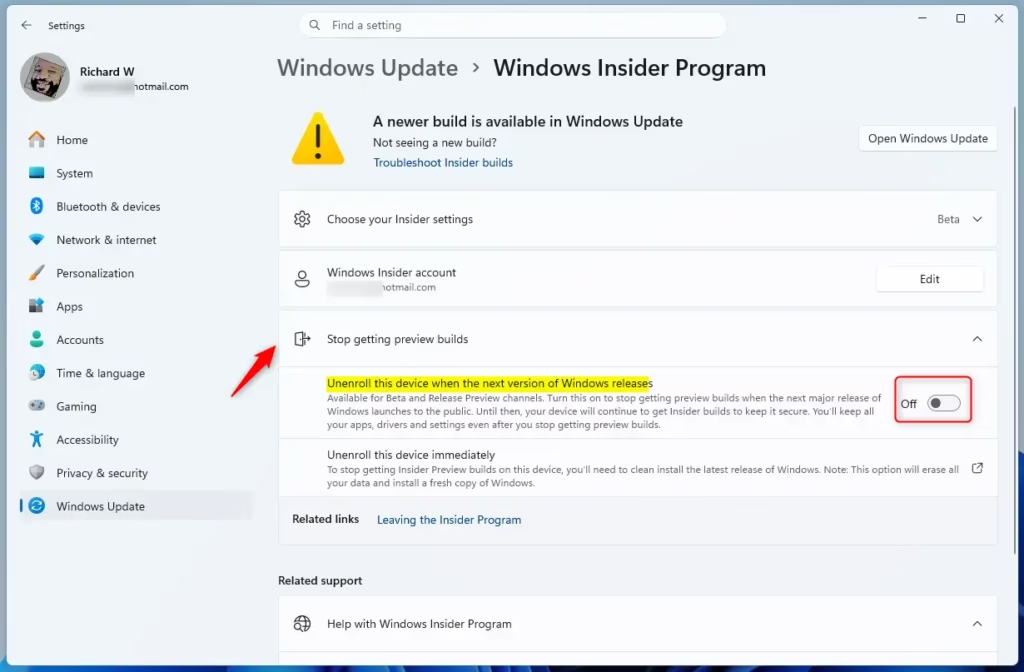
- Turn On the Stop getting preview builds toggle to stop getting preview builds, or turn it Off to keep getting them. Look for Unenroll device if your version of Windows shows it.
- You can close Settings when done.
Turning the toggle on does not remove your current build. Your PC keeps getting previews until the next major Windows 11 release arrives, and then it stops. If you change your mind before that, turn the toggle Off to stay in the program.
Option 2Use Registry Editor ⚙️
This does the same job as the toggle in Settings, so the channel rules above still apply. Canary and Dev users who want to leave right away still need the clean install.
To enable stopping preview builds:
reg add "HKEY_LOCAL_MACHINE\SOFTWARE\Microsoft\WindowsSelfHost\UI\Selection" /v StopFlighting /t REG_DWORD /d 1 /f
To turn OFF stopping preview builds (this is the default):
reg add "HKEY_LOCAL_MACHINE\SOFTWARE\Microsoft\WindowsSelfHost\UI\Selection" /v StopFlighting /t REG_DWORD /d 0 /f
Summary
Stopping Insider Preview Builds means no longer getting early test versions of Windows 11. Channel usage dictates whether unenrollment happens through Settings or requires a complete Windows 11 reinstallation. If you are on Canary or Dev, switch to Beta or Release Preview if your build allows it, or back up your files and do a clean install with the Media Creation Tool or an ISO.
Have a question about this guide?
Answered by AI from this guide. Good questions may be added to this page — please don't include personal details.
Did this guide fix your problem?

About the Author
Richard
Tech Writer, IT Professional
Richard is a writer at Geek Rewind who turns complex IT tasks into clear, step-by-step guides. He draws on years of hands-on experience in system administration and enterprise IT operations, focusing on Windows, Linux and WordPress: the problems people actually run into, and the fixes that work. His server and WordPress guides come from systems he runs himself. Richard builds and maintains the platform behind Geek Rewind, from its Ubuntu servers and Nginx configuration to its custom WordPress plugins. Many new tutorials start with readers' questions, and he's always glad to answer them in the comments.
No comments yet — be the first to share your thoughts!