How to Install .NET 3.5 on Windows 11

.NET Framework 3.5 is a software package required to run older games and programs on Windows 11. Many legacy apps will not open or work properly without this specific version installed on your PC.
Windows 11 comes with .NET 3.5 already built in, but the system keeps it turned off by default. Turn it on using the built-in “Turn Windows features on or off” menu without downloading extra files from the internet.
Install .NET 3.5 by searching for “Turn Windows features on or off,” checking the “.NET Framework 3.5” box, and clicking OK. Windows will download and install the necessary files. This enables support for older applications on your system.
Why does 🪟 Windows 11 prompt me to install .NET 3.5?
Windows 11 detects when an application requires specific libraries that are not currently enabled. Since .NET 3.5 is an optional feature, the system prompts you to download it so the legacy application can access the necessary code to run correctly.
Is .NET 3.5 safe to install on modern 🪟 Windows 11 versions?
Yes, it’s safe. It’s an official Microsoft component designed to coexist with newer versions like .NET 8. It doesn’t replace newer versions; it adds the required support for older software.
Method 1Install Using Windows Features
.NET Framework 3.5 Windows 11 installation via the built-in Windows Features menu is the quickest way to add the software without downloading extra files. Open the Start menu , type turn windows features on or off, click the matching settings result, and check the box next to .NET Framework 3.5 (includes .NET 2.0 and 3.0) to install it right away.
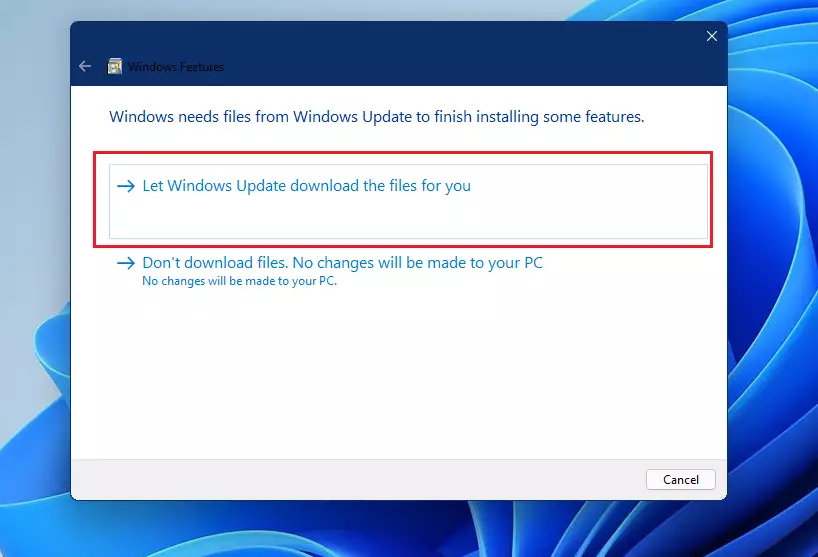
- Click the Start button and type “Turn Windows features on or off.”
- Click the matching result.
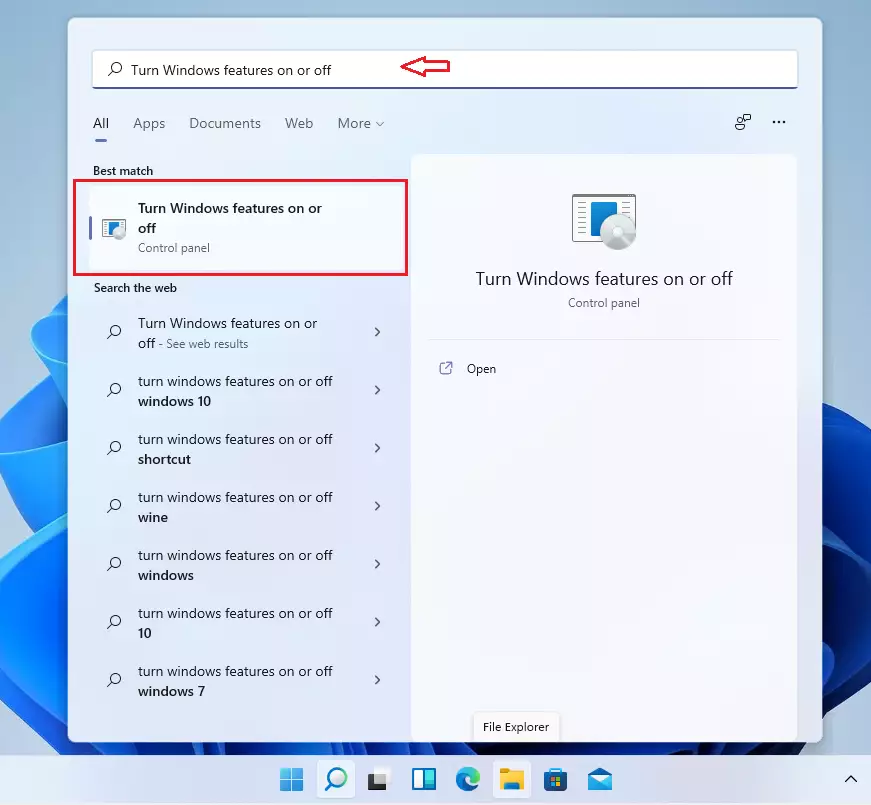
- Check the box for “.NET Framework 3.5 (includes .NET 2.0 and 3.0).”
- Click OK.
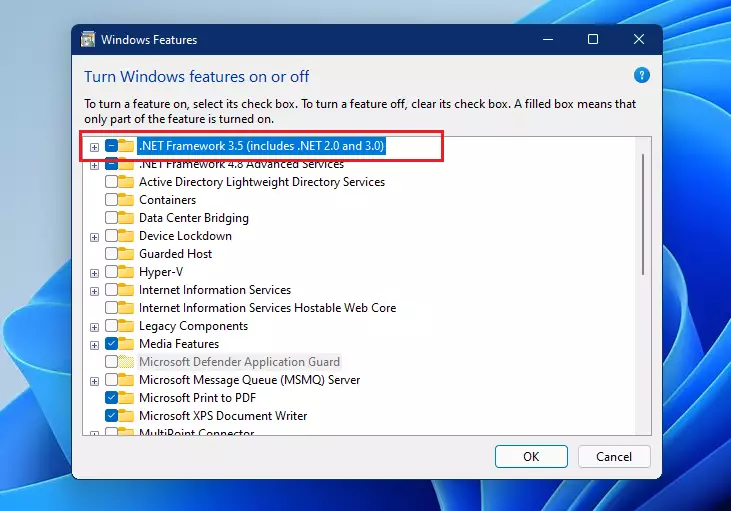
- Select “Let Windows Update download the files for you.”
- Wait for the process to finish.
Installing .NET 3.5 on Windows 11 adds legacy support for older applications. When you install it, Windows downloads the necessary files and registers them in your system folders.
Troubleshooting Common Errors (0x800F081F)
If you encounter error 0x800F081F, it means Windows can't find the necessary files. This often happens if your Windows 11 build (like 26H1 or Build 28000) is preventing access to Windows Update. Consider using the offline installation method below.
Method 2Use Command Prompt (Admin Required)
.NET Framework 3.5 Windows 11 installation using Command Prompt lets you bypass the standard settings menu by running a quick deployment tool command. Right-click the Command Prompt result in your Start menu, choose run as administrator, and run the specific DISM command to pull the required files directly from Windows Update.
- Search for "Command Prompt" in the Start menu.
- Right-click and select "Run as administrator."

- Run this command:
Dism /online /Enable-Feature /FeatureName:"NetFx3"Why: This forces the installation using DISM (Deployment Image Servicing and Management), a tool for managing Windows images. What happens: Your system attempts to fetch the feature directly from Microsoft servers.
Method 3Offline Installation (Admin Required)
.NET Framework 3.5 Windows 11 offline installation lets you set up the framework without an active internet connection by using your original installation media. Mount your Windows 11 ISO file, check which drive letter it uses, and run an administrative Command Prompt command pointing to the sources\sxs folder to finish the setup.
If you have no internet, use your Windows 11 installation media (ISO).
- Mount your Windows 11 ISO file.
- Open Command Prompt as administrator.
- Run the following command, replacing D: with your drive letter:
Dism /online /enable-feature /featurename:NetFX3 /Source:<drive letter>:\sources\sxs /LimitAccessWhy: This method installs from local files when Windows Update won't connect. What happens: Your system pulls the required files from the mounted ISO instead of the internet.
Summary
.NET 3.5 is essential for legacy apps on Windows 11. Use the Windows Features menu for a quick setup, or use DISM commands if you encounter errors like 0x800F081F. Always ensure you have admin rights before running commands.
```Was this guide helpful?

About the Author
Richard
Tech Writer, IT Professional
Richard is a writer at Geek Rewind who turns complex IT tasks into clear, step-by-step guides. He draws on years of hands-on experience in system administration and enterprise IT operations, focusing on Windows, Linux and WordPress: the problems people actually run into, and the fixes that work. His server and WordPress guides come from systems he runs himself. Richard builds and maintains the platform behind Geek Rewind, from its Ubuntu servers and Nginx configuration to its custom WordPress plugins. Many new tutorials start with readers' questions, and he's always glad to answer them in the comments.



all arenot working on my side,, always giving me errors
including attempting to download the standalone version from microsoft and running it as administrator..
downthere what i receive from powershell as an example,, other ways were not much luckier
PS C:\Windows\system32> Enable-WindowsOptionalFeature -Online -FeatureName “NetFx3”
Enable-WindowsOptionalFeature : Enable-WindowsOptionalFeature failed. Error code =
0x8000ffff
At line:1 char:1
+ Enable-WindowsOptionalFeature -Online -FeatureName “NetFx3”
+ ~~~~~~~~~~~~~~~~~~~~~~~~~~~~~~~~~~~~~~~~~~~~~~~~~~~~~~~~~~~
+ CategoryInfo : NotSpecified: (:) [Enable-WindowsOptionalFeature], COMExcept
ion
+ FullyQualifiedErrorId : Microsoft.Dism.Commands.EnableWindowsOptionalFeatureCommand
The complications in this procedure need an IT guy to run. I don’t have a clue what to do next. I have a $3,500 computer to run games on and make recipes in a second document drive. Can’t do either in the D RECIPES file as it is not responding. If Windows does not have a service pack it in it with the Windows Up date within it this a complete joke as a Windows 11. When do your customers complete IT corrections. I wish I had never complete and loaded Windows 11.
I can’t get any of them to work either.