How to Check When Windows Update Was Last Checked in Windows 11

The “Last checked” time tells you whether your PC has recently reached Microsoft’s update servers to look for security patches. Windows 11 runs these checks in the background on its own, usually several times a day. You can see the exact timestamp in the Settings app in under a minute. The steps below work the same on Windows 11 Home and Pro.
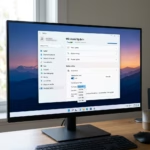
Open Settings by pressing Win+I, then click Windows Update in the left sidebar and scroll down to view your update history listed by date and time, or click the System page to see the Last checked timestamp near the top.
Option 1Check the Settings Home Page
- Press Win+I to open Settings.
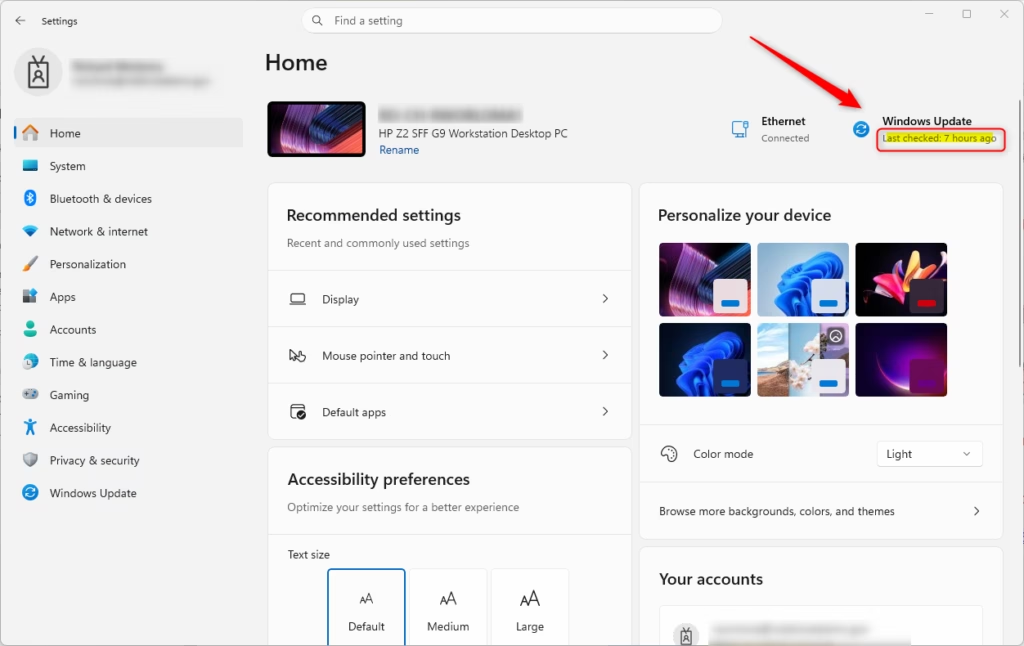
- Click Home at the top of the left-hand menu. You should see a page with several tiles, including one for Windows Update .
- Find the Windows Update tile and read the line that says Last checked, followed by a time such as “x minutes ago” or a date. Open Settings Home page
If the Home page has no Windows Update tile, use the third method below. That page always shows the status.
Option 2Check the System Page
- Press Win+I to open Settings.
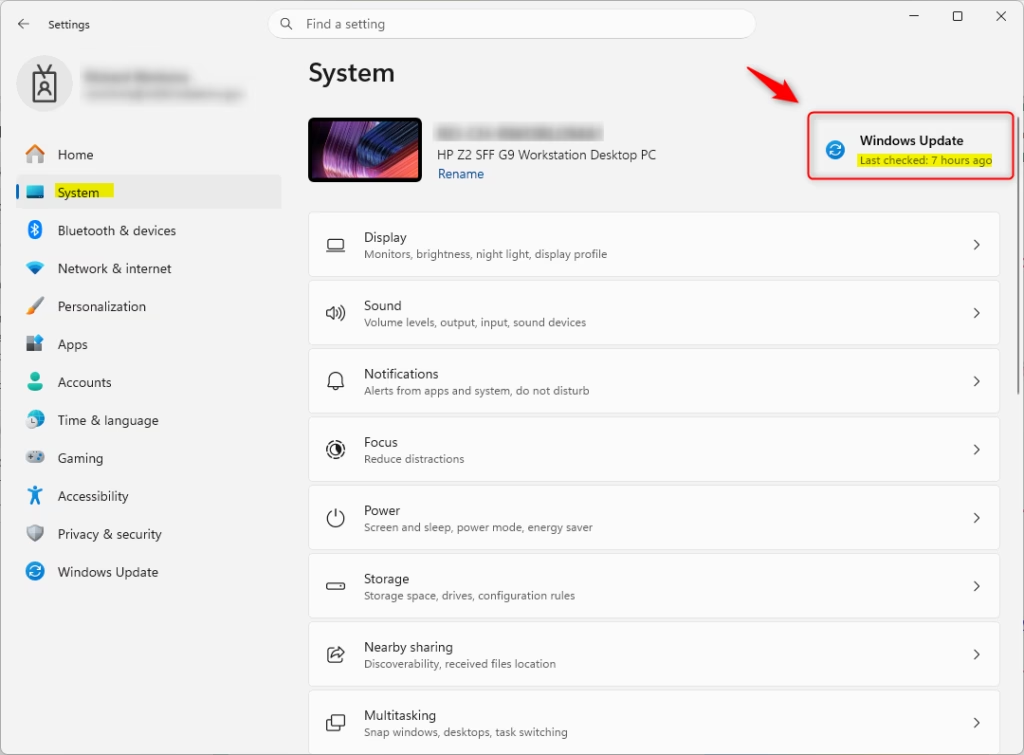
- Click System on the left side of the screen. The System page opens on the right.
- Look at the top of the page for the Last checked information. Open Settings System page
Which cards appear at the top of the System page depends on your Windows 11 version and build. If you don’t see the timestamp, it isn’t a fault. Use the Windows Update page instead.
Option 3Check the Windows Update Page
- Press Win+I to open Settings.
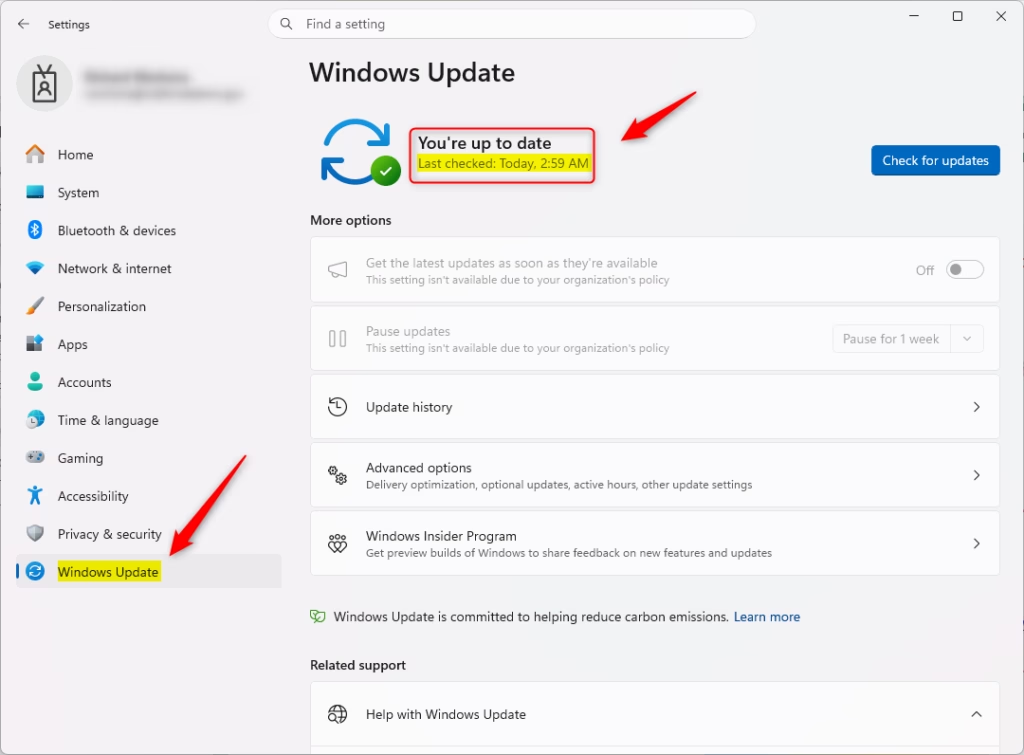
- Click Windows Update in the sidebar on the left. It is usually the last item in the list.
- Read the Last checked status near the top of the page, under the main update status message. Open Settings Windows Update page
To force a fresh check, click Check for updates on this page. Windows contacts the update servers right away, and the Last checked time changes to “Today” with the current time once the scan finishes.
First, make sure the PC is online. Second, see whether updates are paused: the page shows a Resume updates button if they are. Third, if the PC belongs to a work or school network, remember that your organization’s policies can control when it checks.
Option 4Check Using a Command
It reads the date from your update records and prints it in the terminal. You do not need administrator rights for this.
- Right-click the Start button and select Terminal. A terminal window opens, and in Windows 11 it uses PowerShell by default.
- Check the tab title. The command is a Windows PowerShell command, so if the tab says Command Prompt, click the down arrow in the tab bar and open a Windows PowerShell tab instead.
- Copy the command
powershell "(New-Object -Com 'Microsoft.Update.AutoUpdate').Results.LastSearchSuccessDate.ToLocalTime()", paste it into the window, and press Enter. - Read the output. The terminal shows the exact date and time of the last update check.
If the command returns nothing or an error, make sure you pasted the whole line and are in a PowerShell window. You can always fall back to the Settings method.
Summary
Keeping Windows updated protects your hardware and data. Checking the last scan time takes only seconds, either in the Settings app or in Terminal. If the time looks too old, run Check for updates yourself and install whatever it finds.
How can I view Windows Update logs?
Open Settings (Win+I), go to System Troubleshoot Other troubleshooters, then click Run next to Windows Update. You can also check C:\Windows\Logs\WindowsUpdate for detailed log files, or use Event Viewer to search Windows Update events in the System log.
Why does 🪟 Windows 11 checking for updates take so long?
Windows 11 may take time checking for updates if it's scanning a large number of installed programs, your internet connection is slow, or Microsoft's servers are busy. The process typically completes within a few minutes. Restart your PC if it gets stuck.
How to find Update history?
Open Settings (Win+I) and click Windows Update on the left sidebar. Scroll down to see your update history listed by date and time. Each entry shows the update name, version number, and installation status.
Is 🪟 Windows 11 26H2 out?
Windows 11 version 26H2 is available as an optional update. Open Settings Windows Update and click Check for updates. If 26H2 appears as available, select it to install. It may take time to download depending on your internet speed.
Was this guide helpful?

About the Author
Richard
Tech Writer, IT Professional
Richard is a writer at Geek Rewind who turns complex IT tasks into clear, step-by-step guides. He draws on years of hands-on experience in system administration and enterprise IT operations, focusing on Windows, Linux and WordPress: the problems people actually run into, and the fixes that work. His server and WordPress guides come from systems he runs himself. Richard builds and maintains the platform behind Geek Rewind, from its Ubuntu servers and Nginx configuration to its custom WordPress plugins. Many new tutorials start with readers' questions, and he's always glad to answer them in the comments.


No comments yet — be the first to share your thoughts!