Get the Latest Windows 11 Preview Build

- 17 steps
- Needs administrator rights
- Includes a restart or sign-out
To update to the latest build of Windows 11 Preview, enrol your PC in the Windows Insider Program under Settings Windows Update Windows Insider Program. Then pick a channel and run Check for updates. The Windows Insider Program is Microsoft’s free early-access program. It delivers unfinished builds of Windows 11 before they reach the public.
The whole process takes one restart to join and a second restart to install the first preview build. A PC that already runs Windows 11 and has a Microsoft account is all you need.
The steps below cover the channels, the one privacy setting that must be on, and what to do when the Get started button is greyed out.
To update to the latest build of Windows 11 Preview, open Settings, go to Windows Update, and select Windows Insider Program. Enrol your PC with a Microsoft account, pick a channel such as Release Preview or Beta Channel, then select Check for updates. Turn on Send optional diagnostic data under Privacy & security first, or enrolment will not complete.
Before You Start
Preview builds are unfinished software. They can crash, break apps or drivers, and change how Windows behaves without warning. Install them on a spare PC, or in a virtual machine (a program that runs a separate copy of Windows inside your own) if you can.
What You Need
- Windows 11 that is already activated and running. The Windows Insider Program is built into Windows 11 Home and Pro, so no edition upgrade is needed.
- A Microsoft account. A local account cannot join the program. You link the Microsoft account during enrolment.
- An administrator account. Sign in with one before you start, because enrolling changes settings for the whole PC.
- Optional diagnostic data turned on. This is extra usage and error information that Windows sends to Microsoft. Insider builds require it, and the steps below turn it on.
- Free disk space and a backup. A preview build downloads like a feature update. Back up your files first, because going back to a stable release can mean a clean install (a fresh copy of Windows that wipes your files and apps).
Choose a Channel
A channel is the track of builds (numbered versions of Windows) your PC receives. Windows shows four of them when you enrol. Pick the one that matches how much instability you accept.
- Canary ChannelThe earliest and roughest builds. They include large changes to how Windows is built, and some of that work never reaches the public.
- Dev ChannelEarly builds of features that are still being shaped. Bugs are likely.
- Beta ChannelBuilds that are more reliable and closer to what Microsoft plans to release.
- Release PreviewThe most stable option. It previews the next public update and its fixes shortly before release.
How to Update to the Latest Build of 🪟 Windows 11 Preview
These steps enrol your PC in the Windows Insider Program and install the newest preview build for your chosen channel. Follow them in order. Administrator rights are needed for the enrolment steps.
- Select Privacy & security. It is in the left pane. This setting must be checked before you can join.

- Select Diagnostics & feedback. It sits under the Windows permissions list on the right. The page lists your diagnostic data options.
- Turn on Send optional diagnostic data. Expand the section if needed and switch the toggle to On. If it is already on, leave it as it is. Insider builds do not install without it.
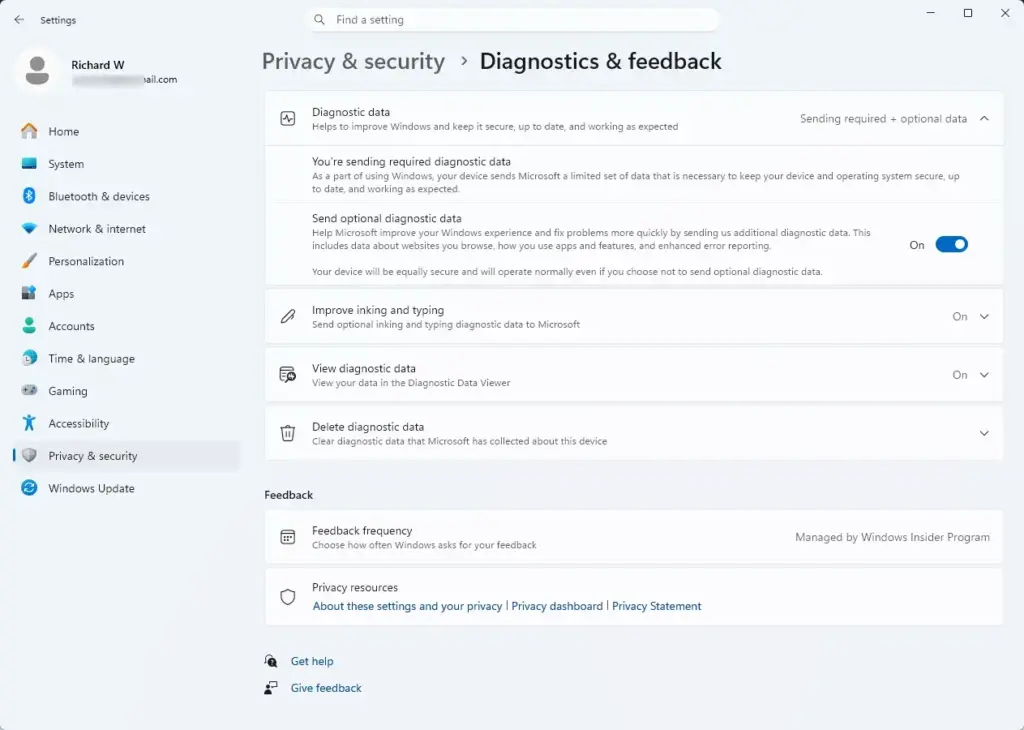
Settings › Privacy › Diagnostics - Select Windows Update. It is in the left pane of Settings. The page shows your update status and the Check for updates button.
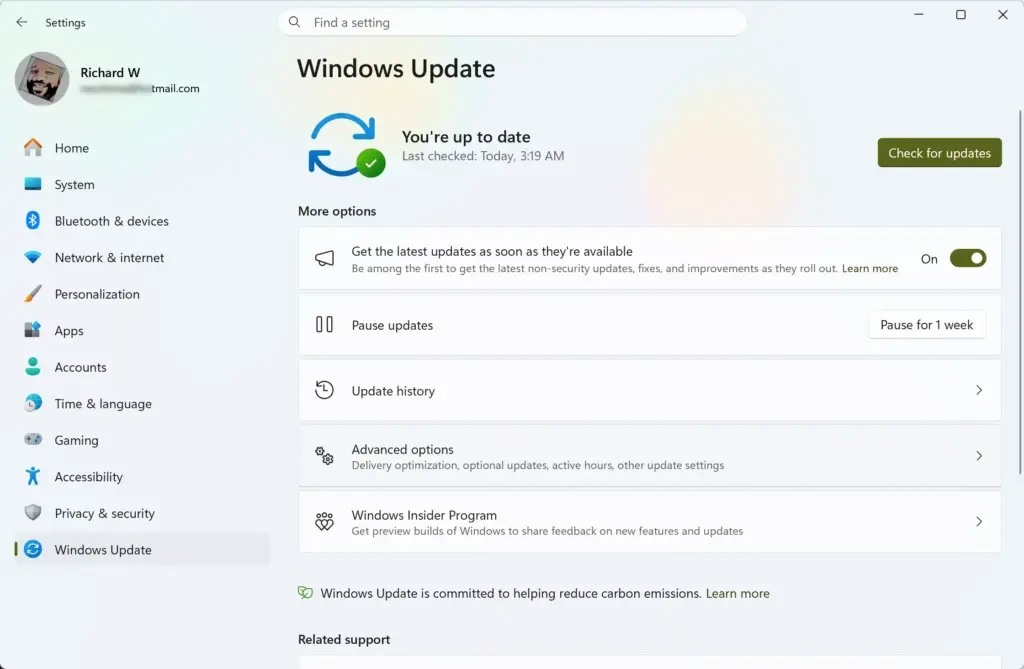
Settings › Windows Update - Select Windows Insider Program. It is a tile further down the page. A page opens with a Get started button.
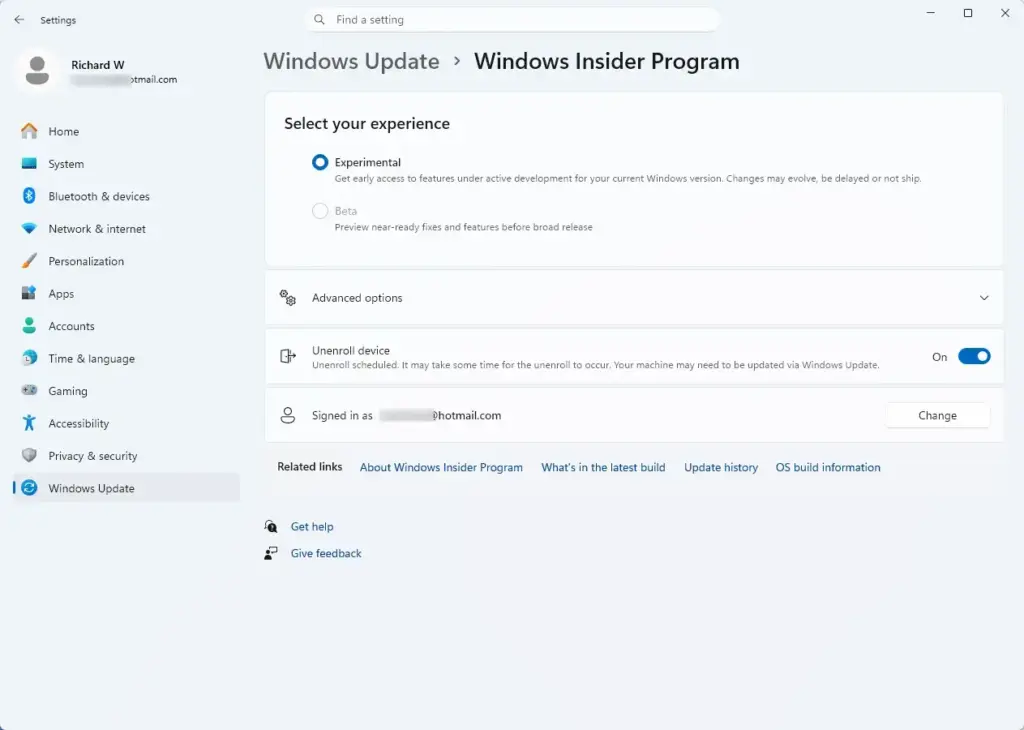
Settings › Windows Update › Windows Insider Program - Click Get started. If the button is greyed out, see the troubleshooting section below. A window asks you to link an account.
- Click Link an account. Choose the Microsoft account you want to use, then select Continue. Sign in if Windows asks. Your account name now appears in the window.
- Choose a channel. Select Canary Channel, Dev Channel, Beta Channel or Release Preview. Windows shows a short description under each option.
- Click Continue. A window with the Microsoft privacy statement and program terms opens.
- Click Continue again. This accepts the terms. A final prompt tells you that a restart is needed.
- Click Restart now. Save your work first. The PC restarts and signs you back in as normal. Enrolment is complete, but no preview build has installed yet.
- Open Settings again. Press Win+I and select Windows Update.
- Click Check for updates. Windows contacts Microsoft and finds the newest build for your channel. Within a few minutes, an entry such as “Windows 11 Insider Preview” followed by a build number appears and starts downloading.
- Wait for the download and install to finish. Progress shows as a percentage. The PC stays usable during the download, but the install phase is slow on older drives.
- Click Restart now. Windows finishes installing during the restart and may restart more than once. The screen can show “Working on updates” for a long time. Do not turn off the PC.
- Check the build number. Press Win+R, type
winver, and press Enter. The dialog shows the version and build you are now running.
If You Are Already in the Windows Insider Program
If your PC is already enrolled, skip to Windows Update and select Check for updates. New builds arrive on a schedule that Microsoft sets, and some builds reach only part of a channel at first, so check again later if nothing appears.
Windows 11 also has a toggle named Get the latest updates as soon as they’re available on the same page. It brings regular updates forward but does not change your channel. Our guide to enabling or disabling Get the latest Windows updates soon covers it in detail.
Check Which Build You Have
A build number identifies the exact release on your PC. Insider builds use a different numbering from the public releases, so a quick check shows whether the update installed. The winver dialog in the final step above is the fastest way to see it.
Settings shows more detail. Go to Settings System About and look under Windows specifications. The OS build line lists the full build number. Our walkthrough on finding your Windows 11 build number shows every method.
Troubleshooting
Most failures come from three places: the diagnostic data setting, a managed PC, or the update itself. Work through the one that matches what you see.
Get Started Is Greyed Out or Missing
The most common cause is that optional diagnostic data is off. Go back to Settings Privacy & security Diagnostics & feedback and turn on Send optional diagnostic data. Close Settings, reopen it, and check the Windows Insider Program page again. Windows also shows a message at the top of the page when this setting is the cause.
A work or school PC may block enrolment. If Settings shows the text “Some settings are managed by your organization”, the administrator controls the program, and you need to ask them to allow it. Also check that you are signed in with an administrator account and not a standard one.
No Preview Build Appears After Enrolling
Select Check for updates a second time, then restart the PC and try again. Microsoft does not release a build every day, and a new build can take hours to reach every device in a channel. If you enrolled and your PC already runs the newest build, Windows Update correctly reports that you are up to date.
Confirm your channel too. Open Settings Windows Update Windows Insider Program and check which channel is selected. A build released to Dev will not appear for a PC on Release Preview.
The Download or Install Fails
Installs often fail when the C: drive is nearly full, so free up space before you retry. Preview builds are large, and a nearly full drive is a common reason an install fails or rolls back. Restart the PC, then select Check for updates or Retry.
If the install keeps failing, you can bypass Windows Update. Our guide on downloading the latest Windows 11 ISO with UUP Dump, which uses UUP Dump (a third-party tool), shows how to build an installation file for the newest build, in the form of an ISO (a disc image file). Microsoft also publishes Insider Preview ISO files on its Windows Insider site for people who are signed in.
Know the Limits of Preview Builds
Preview builds are temporary. Many have an expiration date, after which the PC warns you and eventually forces you to update or reinstall. Check yours with the steps in how to check the Windows 11 Insider build expiration date.
Microsoft tests some features on only part of the Insider audience. You may read about a feature that your PC does not show, even on the newest build. This is normal and does not mean the update failed.
Programs that use drivers running in kernel mode (the core part of Windows), such as some anti-cheat tools, security software and virtualization products, can break on early builds. Test the apps you depend on before you commit your main PC.
What to Do Next
The steps, and the clean-install option for returning to a stable release, are in our guide to stopping Insider Preview builds on a Windows 11 PC. Make a backup before you leave, because moving off a newer build can require a reinstall.
If the install fails repeatedly, the UUP Dump route above is the next thing to try.
Have a question about this guide?
Answered by AI from this guide. Good questions may be added to this page — please don't include personal details.
Did this guide fix your problem?

About the Author
Richard
Tech Writer, IT Professional
Richard is a writer at Geek Rewind who turns complex IT tasks into clear, step-by-step guides. He draws on years of hands-on experience in system administration and enterprise IT operations, focusing on Windows, Linux and WordPress: the problems people actually run into, and the fixes that work. His server and WordPress guides come from systems he runs himself. Richard builds and maintains the platform behind Geek Rewind, from its Ubuntu servers and Nginx configuration to its custom WordPress plugins. Many new tutorials start with readers' questions, and he's always glad to answer them in the comments.
No comments yet — be the first to share your thoughts!