What Breaks When You Turn Off Full Diagnostic Data in Windows 11

- 17 steps
- Needs administrator rights
- Includes a restart or sign-out
Diagnostic data in Windows 11 is information your PC sends back to Microsoft to help fix bugs and improve performance. Lowering the setting from Full to Basic stops Windows from collecting deep troubleshooting logs. It also turns off some helpful features.
Switching to Basic limits specific features: tailored experiences and tips, and some feedback-driven fixes. Driver and security updates still arrive through Windows Update. Microsoft limits what it collects to protect your privacy, but the system then has less data to spot hardware problems early.
A note on names: the Settings app in current Windows 11 calls these levels Required diagnostic data (what this article calls Basic) and Optional diagnostic data (what this article calls Full). This article uses Full and Basic to match the original wording, and the steps give the exact on-screen names.
Switching diagnostic data from Full to Basic in Windows 11 turns off tailored experiences and personalized tips, weakens automated crash-based fixes, and reduces personalized Start menu and search suggestions. Windows Update still delivers driver and security updates. To change it, open Settings, go to Privacy & security, then Diagnostics & feedback, and set Send optional diagnostic data to Off. Nothing is deleted.
Understanding 🪟 Windows 11 Diagnostic Data Levels
The diagnostic data level controls what your computer sends to Microsoft about how you use your system. There are two choices. Full shares detailed reports on app usage and system crashes. Basic sends only minimal device health information and basic error reports.
- FullThis level sends basic device information, website browsing data, how you use apps and features, and detailed reports when your system crashes. Microsoft uses this information to improve products and fix problems for everyone. In Settings it appears as Send optional diagnostic data.
- BasicThis level sends only the minimum data needed to keep your device secure and up to date. It includes basic device info, settings, and whether updates succeeded or failed. It cannot be switched off entirely. In Settings this is Required diagnostic data.
When you switch from Full to Basic, your computer stops sending Microsoft information about how you use apps and websites. That is good for privacy, but it also stops some smart features from working properly. Windows 11 relies on that data to offer personalized help and advanced troubleshooting when something goes wrong.
What Breaks When You Switch to Basic Diagnostic Data
Lowering the setting to Basic affects several parts of Windows 11. The list below shows the main things that stop working or change. The sections after it explain each one.
1Tailored Experiences and Personalized Tips
Tailored experiences and personalized tips stop working properly once you turn off full diagnostic data. Microsoft uses your app usage habits to show hints in Settings and on your lock screen. Without that data, Windows cannot learn your habits and shows only generic suggestions.
On the Diagnostics & feedback page, the Tailored experiences option depends on optional diagnostic data. While you are on Basic, it may be switched off or greyed out. Turning optional data back on makes it available again.
2Advanced Problem Solving and Automated Fixes
Advanced problem solving and automated fixes become less effective on Basic. Complete crash reports help Microsoft spot bugs and push out fixes. With Basic, your PC has less to share, so you may have to search for solutions yourself when something breaks.
3Feature Suggestions in the Start Menu and Search
Suggestions in the Start menu and search bar lose their ability to learn your habits when you restrict diagnostic data. These recommendations normally improve over time based on what you click. On Basic, app and file suggestions in your search results may become less accurate and stop adapting to your daily work.
Nothing is deleted. Search and Start still work and still find your apps and files. The only loss is a smaller set of personalized extras.
4Insider Program Participation Issues
Windows Insider Program participation is the clearest casualty. Microsoft requires the Full setting for most preview channels so it can gather feedback on unreleased features. On Basic, your computer may not receive new preview builds, and you cannot help test upcoming software.
If you are already enrolled and see a warning in the Windows Insider Program page of Settings, restore the setting like this:
- Open Settings Privacy & security Diagnostics & feedback. The diagnostic data options appear.
- Turn Send optional diagnostic data back on. The switch changes state straight away.
- Open Settings Windows Update Windows Insider Program. The warning should no longer appear.
That’s it. Your PC now meets the diagnostic data requirement, so preview builds can reach it again.
If you no longer want preview builds, leaving the program is a cleaner fix than staying enrolled on Basic. Use the options on the Windows Insider Program page to stop receiving them.
How to Change Your Diagnostic Data Settings in 🪟 Windows 11
You change diagnostic data in the Settings app, under the privacy options. Sign in with an administrator account first. If the option is greyed out, you are probably using a standard account, or your organization manages the setting.
Group Policy, a Windows tool that lets administrators enforce settings, can lock this option on Pro and Enterprise editions. Windows 11 Home users on a personal PC will not normally see that restriction.
Follow these steps to change your diagnostic data level:
- Click the Start button and open Settings (the gear icon). The Settings window opens.

Windows 11 Start menu with Settings gear icon highlighted. - Click Privacy & security on the left side of the window. The privacy options appear on the right.

- Scroll down and click Diagnostics & feedback in the list. The diagnostic and feedback options open.
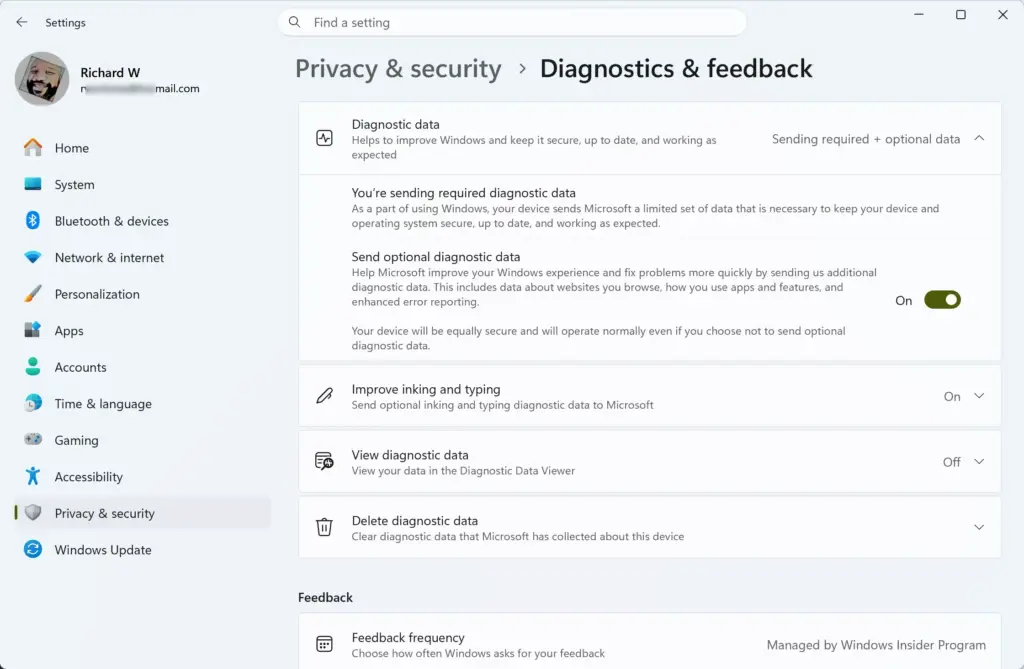
Settings › Privacy & security › Diagnostics & feedback - Find the Diagnostic data section and expand it if it is collapsed.
- Turn Send optional diagnostic data on if you want Full. Turn it off to limit Windows to Basic, which is Required diagnostic data only. The switch changes state straight away.
That’s it. Your change takes effect immediately, and you do not need to restart your computer. To undo it, return to the same page and flip the switch back.
The same page also lets you see what Windows sends and clear what Microsoft has already collected. To check it, follow these steps:
- Open Settings Privacy & security Diagnostics & feedback.
- Expand View diagnostic data and turn on the Diagnostic Data Viewer switch.
- Select the button to open the Diagnostic Data Viewer. If the app is not installed, Windows sends you to its free Microsoft Store page. Once it opens, it lists the data your PC sends.
- To clear data already collected, go back to the Diagnostics & feedback page, expand Delete diagnostic data, and click the Delete button.
You should now be able to review what your PC sends and remove the diagnostic data Microsoft holds for this device. Deleting does not change your level, so Windows keeps sending data at whatever setting you chose. Exact wording on this page can differ slightly between Windows 11 builds.
Step-by-Step Guide: Managing Feedback Frequency
Feedback frequency controls how often Microsoft asks you to rate features and share your opinion. You change it in the Privacy & security section of Settings. Use an administrator account, as with the diagnostic data setting. The setting helps stop feedback pop-ups from appearing too often.
- Open Settings from the Start menu.
- Go to Privacy & security.
- Click Diagnostics & feedback.
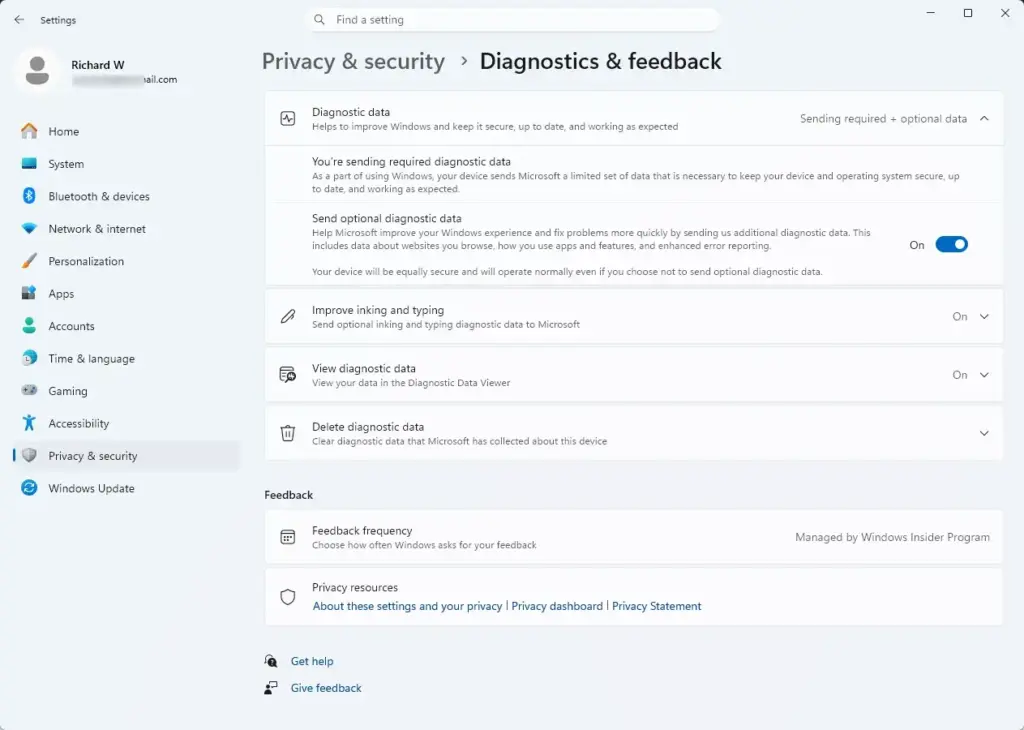
Settings › Privacy › Diagnostics - Scroll down to the Feedback frequency section.
- Click the drop-down menu and choose how often Windows should ask for feedback. The choices are Automatically, Always, Once a day, Once a week, and Never. Exact wording can differ slightly between Windows 11 builds.
That’s it. The new choice applies right away and needs no restart. To undo it, pick your previous option from the same list. Never is the quietest choice if the pop-ups bother you.
Summary
Turning off full diagnostic data protects your privacy by stopping Microsoft from collecting your app usage and browsing habits. The trade-off is that you lose tailored tips, automated troubleshooting help, smarter Start menu suggestions, and access to preview builds in the Windows Insider Program.
Normal security updates still work. You can switch Full back on in Diagnostics & feedback whenever you need those features. On the same page, the Diagnostic Data Viewer shows what is sent, and Delete diagnostic data clears what Microsoft has already collected.
Have a question about this guide?
Answered by AI from this guide. Good questions may be added to this page — please don't include personal details.
Did this guide fix your problem?

About the Author
Richard
Tech Writer, IT Professional
Richard is a writer at Geek Rewind who turns complex IT tasks into clear, step-by-step guides. He draws on years of hands-on experience in system administration and enterprise IT operations, focusing on Windows, Linux and WordPress: the problems people actually run into, and the fixes that work. His server and WordPress guides come from systems he runs himself. Richard builds and maintains the platform behind Geek Rewind, from its Ubuntu servers and Nginx configuration to its custom WordPress plugins. Many new tutorials start with readers' questions, and he's always glad to answer them in the comments.
No comments yet — be the first to share your thoughts!