What Windows 11 Diagnostic Data Collection Actually Transmits to Microsoft

Windows 11 diagnostic data collection sends crash reports, device performance details, and app usage stats back to Microsoft to help fix bugs and improve system stability. When a program freezes or your PC crashes, Windows bundles a small report with up to 150 different telemetry parameters (technical data sent over a network) to help engineers track down the problem.
Microsoft splits this telemetry into two main levels. Required data keeps your PC secure and updated. Optional data is the fuller set, and it includes website browsing history and app activity. You can check or change these privacy settings anytime in the Windows Settings app, so you decide how much leaves your computer. The settings work the same way on Windows 11 Home and Pro, and nothing here requires a restart.
Windows 11 diagnostic data collection transmits crash reports, device performance details, app usage statistics, and up to 150 telemetry parameters to Microsoft. Required diagnostic data sends only basic hardware and security information to keep your PC secure and updated. Optional diagnostic data includes additional details about how you use apps, website browsing history, and advanced error reports.
The Different Tiers of Diagnostic Data Collection
Windows 11 gives everyday users two diagnostic data levels. Required data sends only basic hardware and security info to keep your computer safe and working. Optional data shares extra details about how you use apps and websites, which helps Microsoft fix bugs and improve future updates. Required data is always on for Home and Pro editions. The only thing you can switch off is the optional part.
- Required Diagnostic DataThis is the bare minimum Windows needs to keep your device secure, up to date, and performing properly. It covers basic information about your device setup, its capabilities, and whether features are working correctly.
- Optional Diagnostic DataThis level includes everything in the required tier, plus extra details about how you use your apps, website browsing history, and advanced error reports. Microsoft uses this extra information to fix rare bugs and improve overall product quality.
What Data Is Actually Collected and Transmitted?
The next sections go through the specific categories of information that Windows 11 sends to Microsoft servers during daily use. Each one lists what is collected and why.
Device, Connectivity, and Configuration Data
Device, connectivity, and configuration data covers your computer’s hardware specs, display settings, and network setup. Windows collects it to work out whether your system can handle an update. It also checks that your hardware devices work properly with your computer without crashing. This helps Microsoft track compatibility issues across many different machines.
- The processor type and memory size of your computer.
- Basic settings like your screen resolution and regional preferences.
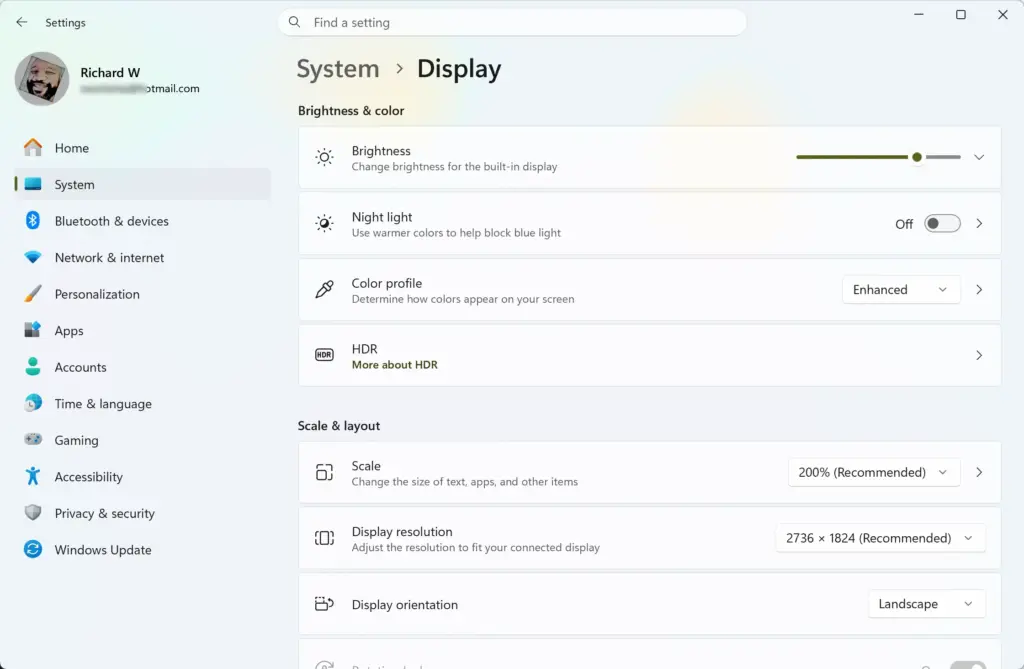
Settings › System › Display - Network connection type, such as whether you use a home Wi-Fi network or a wired Ethernet cable.
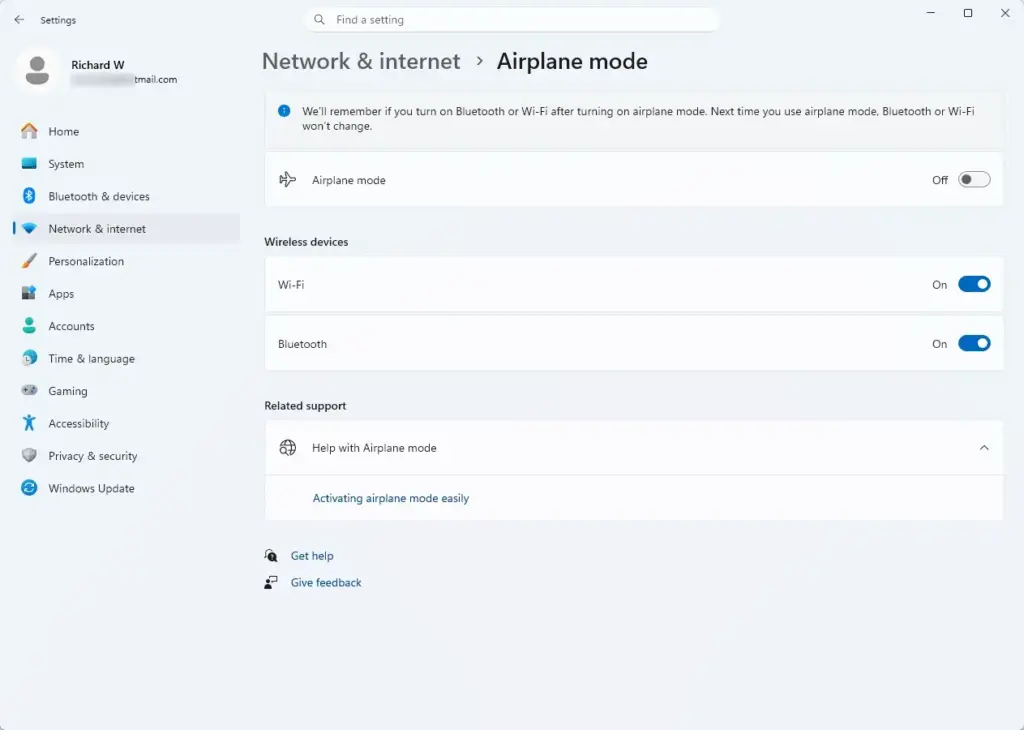
Settings › Network & internet › Airplane mode - Connected peripheral devices, like printers, keyboards, and external monitors.
Product and Service Usage Data
Product and service usage data describes how you interact with Windows apps and built-in features. Microsoft collects up to 100 different types of data on these habits to fix bugs and improve your experience. It tracks specific actions, such as how often you open an application and which buttons you click.
- How often you open specific apps and how long you use them.
- Whether features load successfully or freeze.
- How you navigate through the Start menu and system settings.

Start Menu
Product and Service Performance Data
Performance data helps Microsoft understand how well your operating system runs. When something goes wrong, this is the data engineers lean on most. It includes:
- System response times when you open programs.
- Memory and processor usage peaks.
- Details about system crashes, error codes, and the state of your computer right before a problem occurred.
Software Setup and Inventory Data
This data tracks what software is installed on your machine. Microsoft uses it to spot driver and app conflicts before they block an update on your PC. It includes:
- A list of programs installed through the Microsoft Store and traditional desktop apps.
- Version numbers for installed security updates and device drivers.
- Compatibility status for installed software.
Browsing History and Inking, Typing, and Speech Data
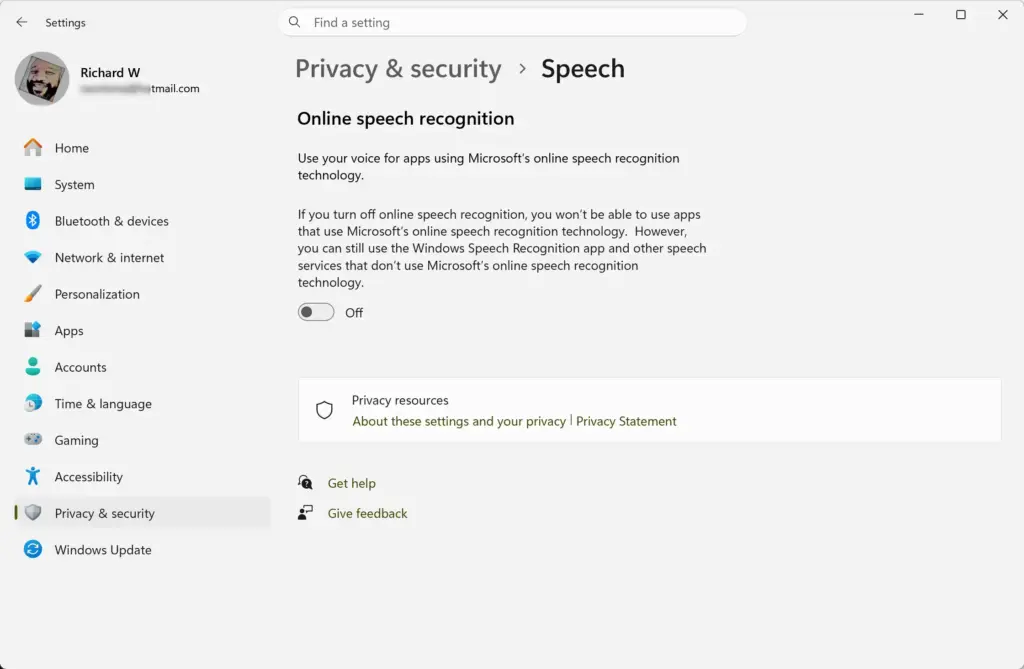
It may also collect samples of your handwriting, typing, and voice commands. Microsoft uses this data to improve features like text prediction, dictation accuracy, and search suggestions. If that sounds like more than you want to share, leave the optional setting off. The steps for that come further down.
How Microsoft Protects Your Privacy
Microsoft says it strips personal details like your name, email address, and open files from diagnostic logs before they leave your computer. Windows swaps these identifiers for a random ID number. That way the technical data sent back to Microsoft cannot be easily linked back to you.
Microsoft also applies strict security controls to the storage centers that hold Windows 11 diagnostic logs. Access is restricted to authorized personnel who need the logs for software development and system troubleshooting.
How to Control Your Diagnostic Data Settings
To limit what your computer sends, switch your sharing level from optional down to required. Your system still receives important security updates. The change takes effect right away, and you do not need to restart. To undo it, follow the same steps and set the option back.
Here is how to change the setting:
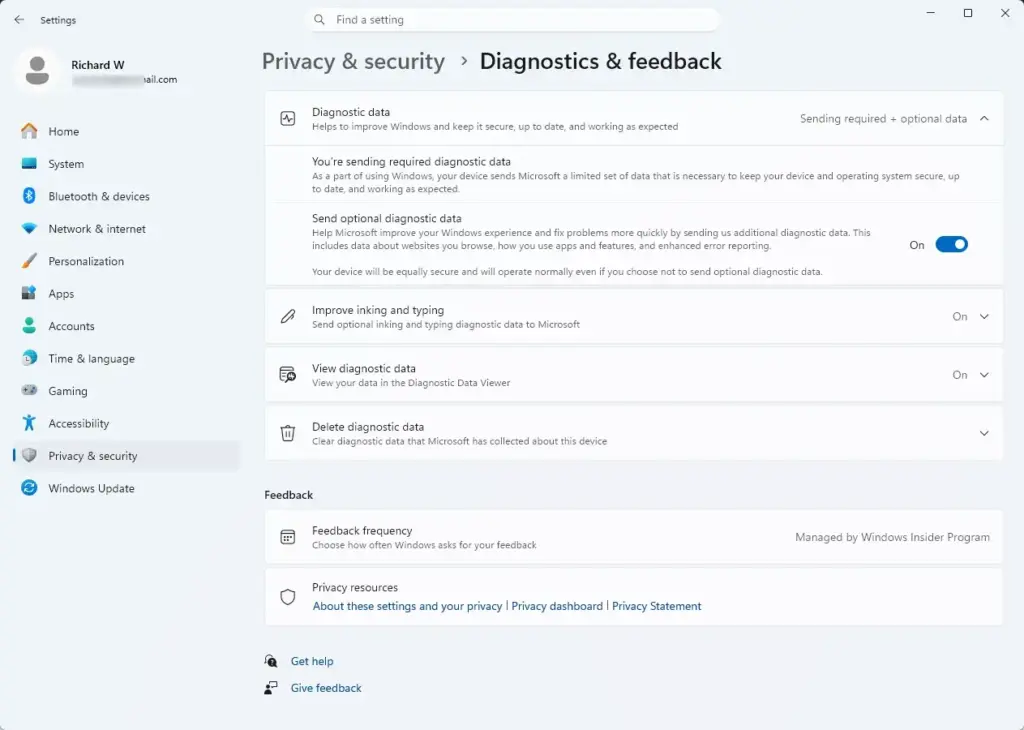
- Click the Start button and open the Settings app (the gear icon). The Settings window opens.

Settings - Select Privacy & security from the left-hand menu.
- Click Diagnostics & feedback. The page lists several diagnostic and feedback options.
- Find the section labeled Diagnostic data. You may need to expand it.
- Set Send optional diagnostic data to the position you want. Turn it On to share optional data, or Off to send only required diagnostic data.
How to View the Diagnostic Data Your PC Sent
You can see the exact diagnostic data your PC sends to Microsoft with the built-in Diagnostic Data Viewer. This free tool lets you search through the actual technical logs, crash reports, and hardware info leaving your computer, so you can see everything being shared.
- Open the Settings app from your Start menu.
- Go to Privacy & security Diagnostics & feedback.
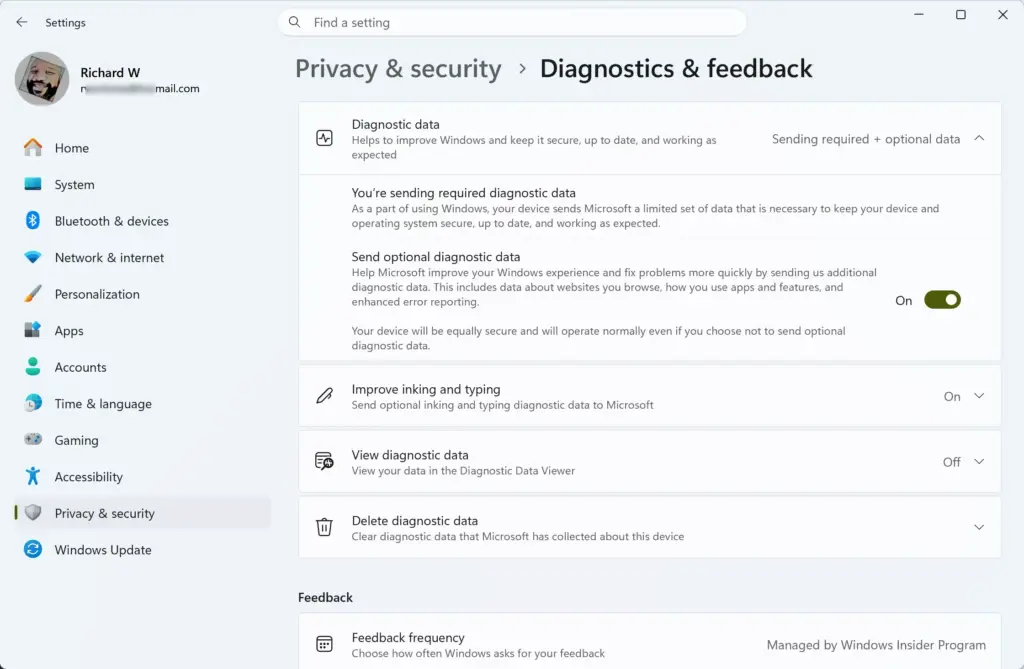
Settings › Privacy & security › Diagnostics & feedback - Click the Diagnostic data viewer option. If it has a switch, turn it on first.
- If you do not have the viewer installed, Windows prompts you to download the free Microsoft Diagnostic Data Viewer app from the Microsoft Store. Follow the prompt and let the install finish.
- Once installed, open the app. You can then search through and read the exact logs sent from your computer.
Summary
Windows 11 diagnostic data collection sends technical logs about your hardware and app performance to Microsoft to keep your computer secure and stable. Required data is always sent. The optional data is your choice. You can change the setting at any time under Privacy & security Diagnostics & feedback to share less. The Diagnostic Data Viewer lets you review everything your PC sends.
Frequently asked questions
Should I send diagnostic data to Microsoft?
It depends on your comfort level. Required diagnostic data keeps Windows secure and updated—Microsoft needs it. Optional data helps them fix bugs faster. You can disable Optional data if you want less information leaving your PC, but Required data stays on for security updates.
Does the Windows memory diagnostic tool actually work?
Yes. The Windows Memory Diagnostic tool checks your RAM for errors that cause crashes and freezes. Run it by typing 'Memory Diagnostic' in the Start menu. It reboots your PC and scans memory—takes a few minutes. If it finds problems, your RAM likely needs replacing.
Should I disable Microsoft telemetry?
You can disable Optional telemetry without breaking Windows. Go to Settings Privacy & security General and toggle off Optional diagnostic data. Required data stays on for security patches. Some people turn it off for privacy; others leave it on so Microsoft can fix bugs faster.
What are some useless Microsoft apps I should uninstall immediately?
Apps like Candy Crush, Dolby Atmos, and Clipchamp come pre-installed but most people don't use them. Right-click any app in Start menu and select Uninstall. Removing them frees storage and cleans up your menu. Don't delete Settings, File Explorer, or Defender—Windows needs those.
Still have a question?
Answered by AI from this guide. Good questions may be added to this page — please don't include personal details.
Did this guide fix your problem?

About the Author
Richard
Tech Writer, IT Professional
Richard is a writer at Geek Rewind who turns complex IT tasks into clear, step-by-step guides. He draws on years of hands-on experience in system administration and enterprise IT operations, focusing on Windows, Linux and WordPress: the problems people actually run into, and the fixes that work. His server and WordPress guides come from systems he runs himself. Richard builds and maintains the platform behind Geek Rewind, from its Ubuntu servers and Nginx configuration to its custom WordPress plugins. Many new tutorials start with readers' questions, and he's always glad to answer them in the comments.
Isso é o que vc acredita que sabe.