What Windows 11 Recommendations and Offers Actually Collects and Sends to Microsoft

Recommendations and offers in Windows 11 use data about your apps, hardware, and browsing to show tips and promotions in the Start menu and the Settings app. That data reaches Microsoft as telemetry, which means information sent about how you use your computer.
Telemetry comes in two kinds. Required diagnostic data keeps the system secure and up to date. Optional diagnostic data is extra, and you can turn it off under Settings Privacy & security Diagnostics & feedback, then change it again at any time.
Every toggle in this guide lives in the Settings app, and none of them needs a restart. Changes take effect as soon as you flip the switch. To undo any of them, go back to the same page and switch the toggle on again.
Recommendations and offers in Windows 11 send data about your apps, hardware, and browsing to Microsoft as telemetry. Required diagnostic data cannot be turned off on a Home or Pro PC. Optional diagnostic data can be turned off in Settings Privacy & security Diagnostics & feedback by setting Send optional diagnostic data to Off. The change takes effect immediately, with no restart.
Required Data Collected by 🪟 Windows 11
Required diagnostic data is the basic hardware and system information Microsoft gathers to keep your computer running, up to date, and protected against threats. The normal Settings interface gives you no way to opt out of it. It sends essential details about your device model and internal components directly to Microsoft servers.
This data includes basic hardware and system details:
- The model of the device running Windows and its internal hardware components.
- Diagnostic data recorded when catastrophic system failures or crashes occur.
- Basic error reporting data, such as whether a Windows update applied successfully and whether core operating system components function as intended.
- The specific version and build of Windows you are running, alongside any optional installations or system packages applied.
- An inventory of all installed applications, drivers (the small programs that let Windows talk to your hardware), and active services.
Home and Pro editions both send this required data. Only managed Enterprise and Education devices can be configured to send less, and an administrator does that through policy rather than a toggle. On a Home or Pro PC, the lowest setting you can reach is required diagnostic data only.
Optional Data Collected
Certain Windows 11 apps and services need specific data to work, but you can disable those apps and services themselves. The sections below cover each optional data point Windows 11 collects and how to opt out of it.
Most of them use the same page: Settings Privacy & security Diagnostics & feedback. Some toggles sit inside sections that you have to expand first. If a switch looks greyed out, it often depends on another switch, or your device is managed by an organization.
Browsing History
Windows 11 tracks your web browsing activity, including the websites you visit and the search terms you type into Microsoft Edge. It uses this to influence search relevance and targeted advertising. Changing the privacy settings below stops Microsoft from storing this browser data.
To disable this tracking:
- Open Settings. The Settings window appears.
- Click Privacy & security in the left menu.

- Select Diagnostics & feedback. A list of diagnostic options appears, each with its own toggle.
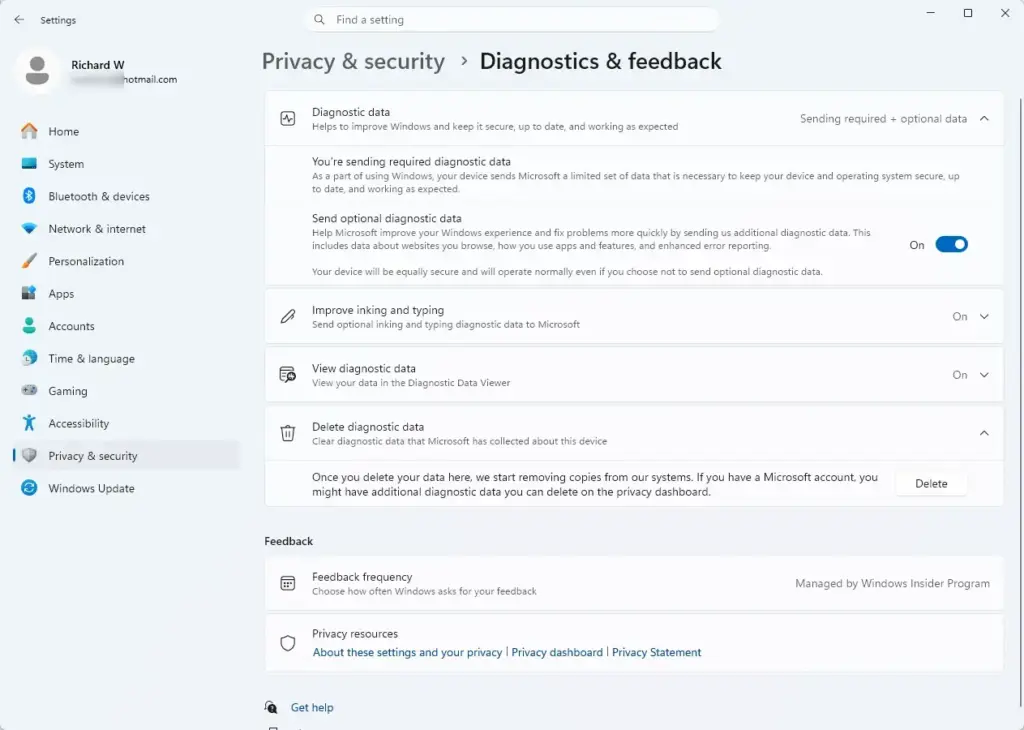
- Toggle Send optional diagnostic data to Off. The switch should now read Off.
That’s it. Windows no longer sends optional diagnostic data, which includes the extra browsing detail described above. The change applies on both Home and Pro.
Edge also keeps its own privacy settings inside the browser, under its Privacy, search, and services page. Review those too if you want to limit what Edge itself stores.
Connected Devices
Connected devices data collection lets Microsoft gather detailed information about your computer hardware and the peripherals plugged into it, such as webcams, printers, and storage drives. Windows captures device names and driver versions alongside your error reporting data to track hardware compatibility.
Windows 11 can capture device names, driver versions, driver states, Wi-Fi details, available local networks, and configuration profiles. It can also gather information on the way you use Windows 11, including your default application choices.
To turn off connected device tracking:
- Open Settings.
- Click Privacy & security.
- Select Diagnostics & feedback. The list of diagnostic toggles appears.
- Toggle Send optional diagnostic data to Off. The switch should now read Off.
That’s it. Optional device and usage details stay on your PC. This is the same switch used in the previous section, so if you already turned it off, nothing more is needed. The required data about your hardware and drivers still goes to Microsoft.
Inking and Typing
Inking and typing data collection means Windows 11 gathers anonymized samples of your typed words, voice dictation, and handwritten notes. This is meant to improve speech and handwriting recognition accuracy. The operating system records input from your physical keyboard, virtual keyboard, and touch screen to train its transcription features.
Microsoft uses this data to improve voice recognition and handwriting accuracy. To disable it:
- Open Settings.
- Click Privacy & security.
- Select Diagnostics & feedback. The list of diagnostic toggles appears.
- Toggle Improve inking and typing to Off. The switch should now read Off.
That’s it. Windows stops sending samples of what you type, dictate, or write by hand. Dictation and handwriting still work with this off. Recognition simply won’t be tuned with samples from your input.
Product and Service Performance
Product and service performance telemetry measures the health and speed of your device, operating system, applications, and drivers through automated data collection. Microsoft strips direct personal identifiers from this information, but the system still records metrics such as feature response times and hardware reliability.
This data includes metrics such as how quickly system features respond to your voice commands, or how long facial recognition takes to start up and finish its security calculations. It is also used for tailored experiences, including recommending settings changes to optimize battery life or suggesting a cloud storage provider if your device runs low on storage space.
To turn this telemetry off:
- Open Settings.
- Click Privacy & security.
- Select Diagnostics & feedback. The list of diagnostic toggles appears.
- Toggle both Send optional diagnostic data and Tailored experiences to Off. Both switches should now read Off.
That’s it. Windows no longer sends optional performance data, and it stops using that data to suggest settings or services.
On some builds, Tailored experiences is greyed out or switches itself off once optional diagnostic data is off, because it depends on that data. If that happens, you are already covered.
Product and Service Usage
Product and service usage tracking records which applications you open, which programs are running when errors happen, and whether you turn off specific help features. Microsoft uses this partially anonymized telemetry to measure feature adoption and build tailored experiences that suggest new settings.
This data is mainly used for tailored experiences, where Windows suggests that you enable settings you might have disabled. It is also used to suggest alternative Microsoft and third-party applications based on your most frequently used programs.
To turn off product and service usage tracking:
- Open Settings.
- Click Privacy & security.
- Select Diagnostics & feedback.
- Toggle both Send optional diagnostic data and Tailored experiences to Off. Both switches should now read Off.
That’s it. Windows no longer uses your app activity to build tailored suggestions.
Some generic tips will keep appearing in Windows. Turning these switches off stops them from being based on your usage. The settings in the recommendations section further down hide the tips themselves.
Software Setup and Inventory
Software setup and inventory collection gathers details about the applications running on your PC, active anti-malware programs, driver updates, and your installed Microsoft Store apps. Windows uses this inventory to track update schedules and to recommend comparable apps based on the programs you use most.
The tailored experiences feature uses this inventory data to recommend comparable apps to the ones you use most often. To disable this data collection:
- Open Settings.
- Click Privacy & security.
- Select Diagnostics & feedback.
- Toggle both Send optional diagnostic data and Tailored experiences to Off. Both switches should now read Off.
That’s it. Windows stops using your app inventory to recommend similar apps.
A basic inventory of installed apps and drivers is part of the required data listed earlier. Windows Update needs it to decide which updates apply to your PC, so it keeps being sent.
Location Tracking
Location tracking lets Windows 11 work out where you physically are. It is used for the Find My Device feature, localized weather forecasts, and more relevant search results. Third-party applications can also read your geographic coordinates if you grant them permission in the system privacy settings.
To turn off location tracking completely:
- Open Settings.
- Click Privacy & security.
- Select Location. You should see the master switch and a list of apps that have asked for your location.
- Toggle Location services to Off. Alternatively, disable location for individual apps using the app list on that same page.
That’s it. With the master switch off, Windows and your apps can no longer read where you are.
If you only want to block certain apps, leave Location services on and switch off the apps you don’t trust. Weather and maps will be less accurate without location, and apps that rely on it may ask you to turn it back on.
How to View What Data 🪟 Windows 11 Is Collecting on You
To see what Windows 11 is collecting, turn on diagnostic data viewing in Settings and install the free Diagnostic Data Viewer app from the Microsoft Store. The app gives you an itemized report of the diagnostic data your computer sends to Microsoft.
To inspect your tracked telemetry:
- Open Settings.
- Click Privacy & security.
- Select Diagnostics & feedback.
- Toggle View diagnostic data to On. The section should expand with an option to open the viewer.
When prompted, go to the Microsoft Store and install the Diagnostic Data Viewer app. Its storage use depends on the data collected, and the app lets you set a maximum data size, with a default of about 1GB. Once installed, you can browse the telemetry Windows 11 has recently collected on your device and see which applications are sending the most data back to Microsoft servers.
That’s it. You now have an itemized view of what your PC sends. The viewer only holds data while this toggle is on, so if you no longer need it, switch View diagnostic data back to Off and the disk space is released.
Turning off optional collection only stops future data. Anything Windows already sent stays with Microsoft until you delete it. To clear it:
- Open Settings and click Privacy & security.
- Select Diagnostics & feedback.
- Expand the Delete diagnostic data section. A Delete button appears.
- Click Delete. Windows asks Microsoft to remove the diagnostic data it has collected from this device.
Microsoft also keeps data tied to your Microsoft account, such as browsing, search, and location activity. Sign in to the Microsoft privacy dashboard in a web browser to view that data and delete it there.
Advanced Privacy Opt-Outs for Recommendations and Offers
The recommendations and offers opt-outs are separate switches in Windows 11. They control the marketing notifications and third-party suggestions that appear in the Start menu, File Explorer, and the Settings app. Turning them off stops Microsoft from analyzing your behavior to deliver targeted promotional content.
To disable personalized offers and system recommendations:
- Open Settings.
- Click Privacy & security.
- Select General. You should see a short list of toggles.
- Toggle off Let apps show me personalized ads by using my advertising ID and Show me suggested content in the Settings app.
- Also turn off Get tips, suggestions, and ways to get the most out of Windows. On many current builds this switch is not on the General page. Look under System Notifications Additional settings instead.
That’s it. Windows stops tailoring ads and suggested content in Settings to your behavior. Exact wording and placement can differ slightly between Windows 11 versions, so match by meaning if a label is a little different.
To clear out unwanted promotions from the Start menu:
- Open Settings.
- Click Personalization.

- Select Start. The Start settings page opens with a list of toggles.
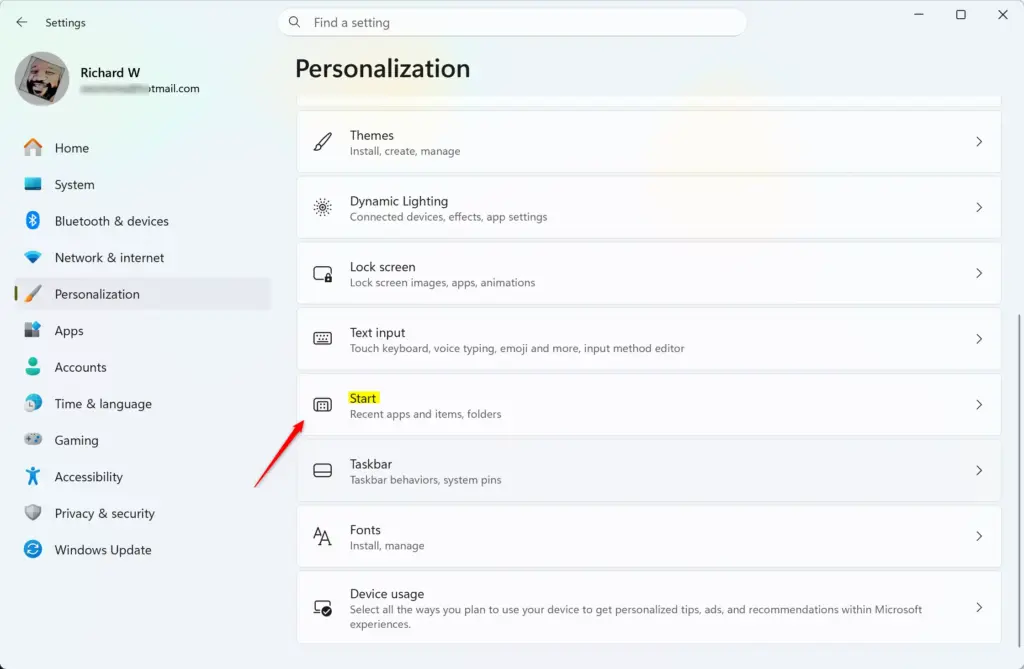
- Toggle off Show recommendations for tips, shortcuts, new apps, and more. The Recommended area of the Start menu should lose the promotional entries.
- Toggle Show recently added apps to Off if you also want newly installed apps kept out of Start.
- Toggle Show recommended files in Start, recent files in File Explorer to Off. This limits the file suggestions in Start. Newer builds may word this label a little differently, so match by meaning.
You should now see far fewer suggestions in Start. The Recommended section itself stays in the Start menu. Only the tips, app suggestions, and the items you switched off go away.
Checking Advertising ID and Behavioral Tracking
Your advertising ID is a unique alphanumeric code that Microsoft and app developers use to monitor your app usage across different programs. Advertisers rely on it to build a behavioral profile and serve targeted promotional offers to your account. Checking and switching it off is worth doing on any new install.
To block apps from accessing your advertising ID:
- Open Settings.
- Click Privacy & security.
- Select General.
- Toggle Let apps use my advertising ID for experiences across apps to Off. On newer builds this switch is labeled Let apps show me personalized ads by using my advertising ID.
That’s it. Apps can no longer read your advertising ID to personalize ads.
Disabling this does not stop ads from appearing inside free apps downloaded from the Microsoft Store. It does stop those ad networks from personalizing ads based on your hardware usage history and app interactions. You will still see ads, but they will be less targeted. Switching the toggle back on later creates a new advertising ID rather than restoring the old one.
Have a question about this guide?
Answered by AI from this guide. Good questions may be added to this page — please don't include personal details.
Did this guide fix your problem?

About the Author
Richard
Tech Writer, IT Professional
Richard is a writer at Geek Rewind who turns complex IT tasks into clear, step-by-step guides. He draws on years of hands-on experience in system administration and enterprise IT operations, focusing on Windows, Linux and WordPress: the problems people actually run into, and the fixes that work. His server and WordPress guides come from systems he runs himself. Richard builds and maintains the platform behind Geek Rewind, from its Ubuntu servers and Nginx configuration to its custom WordPress plugins. Many new tutorials start with readers' questions, and he's always glad to answer them in the comments.
No comments yet — be the first to share your thoughts!