Should You Enable Suggestions and Tips in Windows 11 Recommendations and Offers Settings

Recommendations and offers in Windows 11 are built-in tips and promotions. They suggest Microsoft apps, cloud services and settings, and they show up in the Start menu , the Settings app and the notification area .
Turning them off stops the promotional pop-ups and tips while you work. Whether to keep them comes down to a simple question: do you want occasional reminders about features, or a quiet screen? This tutorial covers both sides and shows how to switch them off, or back on, in a few minutes.
No, you should not enable suggestions and tips in Windows 11 Recommendations and Offers settings unless you want promotional pop-ups and feature reminders. Turning them off in Settings Personalization Start and Settings System Notifications removes distracting banners for Microsoft 365, OneDrive and Xbox Game Pass, giving you a cleaner interface. Nothing in Windows requires them to function.
What Are 🪟 Windows 11 Recommendations and Offers?
These recommendations and offers are pop-ups, banners and suggested items that promote Microsoft apps, cloud storage and system settings. Microsoft places them in the Start menu and the Settings app to help you find new features. Many people see them as ads, especially on a PC they paid for.
Whether you should enable suggestions and tips in Windows 11 recommendations and offers settings depends on whether you want to keep seeing these reminders. Nothing in Windows needs them to work properly.
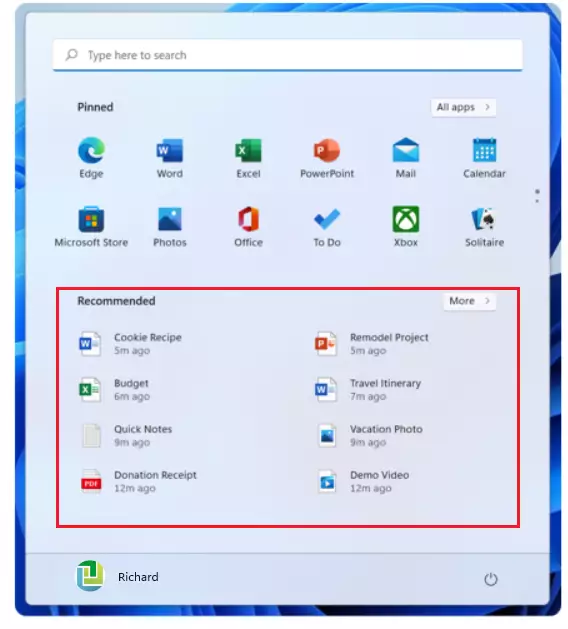
You will run into these recommendations in a few places:
- The Start menu , where you might see suggestions for apps you do not own.
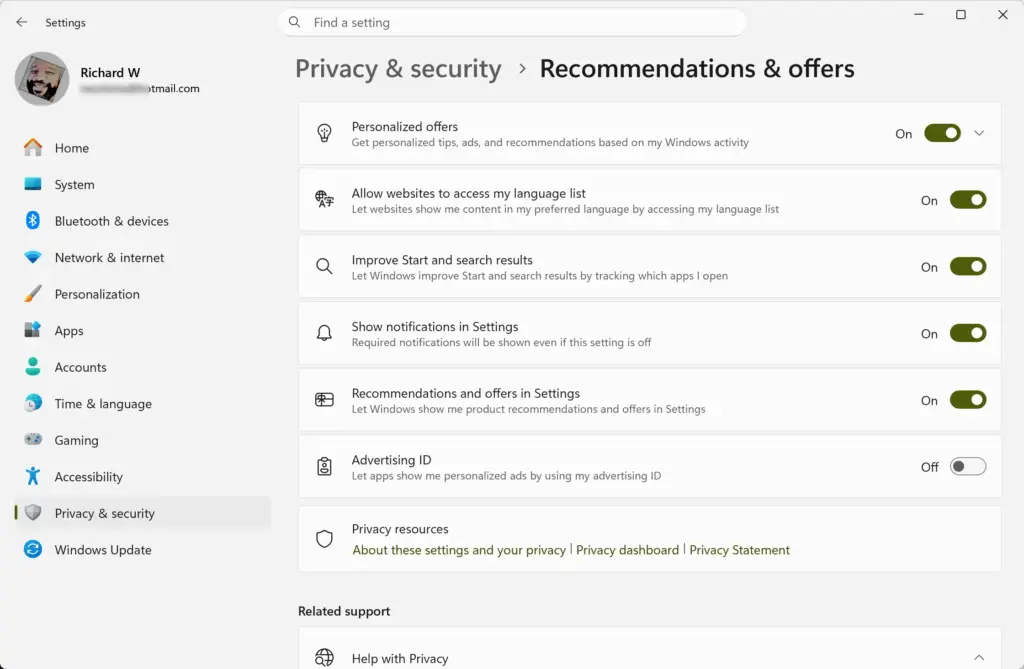
- The Settings app , which often shows banners that encourage you to finish setting up your account or try cloud storage.
- Pop-up notifications in the bottom-right corner of the screen that promote various services.
The prompts mostly introduce Microsoft 365, OneDrive, Xbox Game Pass and Microsoft Edge. Some people like the quick access. Others find the prompts cluttered, because they interrupt your work and make the PC feel less like your own.
How Suggestions Affect Your Computer Experience
Before you change anything, look at how the suggestions affect your daily use. Weigh the pros and cons below against your own workflow. Nothing here is permanent, because every setting can be switched back later.
The Benefits of Leaving Suggestions On
Leaving suggestions on can help you discover features, security tools and shortcuts you might otherwise miss. For a new user, the tips can point to useful things like cloud backup or productivity tools that save time.
If you are still learning Windows 11, or you set up PCs for family members who are, keeping the tips on for a while is reasonable.
The Drawbacks of Leaving Suggestions On
Leaving suggestions on can mean distracting pop-ups while you work or play games. Many people also dislike seeing promotions for commercial products and cloud services on a computer they already paid for.
If you are comfortable finding settings on your own, the tips add little. Turning them off is the better choice for most experienced users.
Where to Find Recommendations and Offers Settings in 🪟 Windows 11
You will find these options in two places in the Settings app: Personalization (under Start) and System (under Notifications). Changing them takes only a few clicks. Knowing where to look lets you decide quickly whether to enable suggestions and tips in Windows 11 recommendations and offers settings or turn them off for a cleaner screen.
In short, you open Settings , turn off the recommendations toggle under Start, then clear the suggestion checkboxes under Notifications. Together these cut down the promotional pop-ups and the “finish setting up your device” prompts.
Step-by-Step Guide: How to Turn Off Suggestions and Offers
The steps below turn off suggestions and offers by changing a few switches in the Personalization and Notifications sections. The result is a cleaner desktop with fewer promotional tips. If you later decide you want them back, repeat the same steps and turn each setting on again.
- Click the Start button on the taskbar and select Settings, the small gear icon. You can also press Win+I to open Settings directly. The Settings window should now be open.

- In the Settings window, click Personalization in the left-hand menu. The personalization options appear on the right.

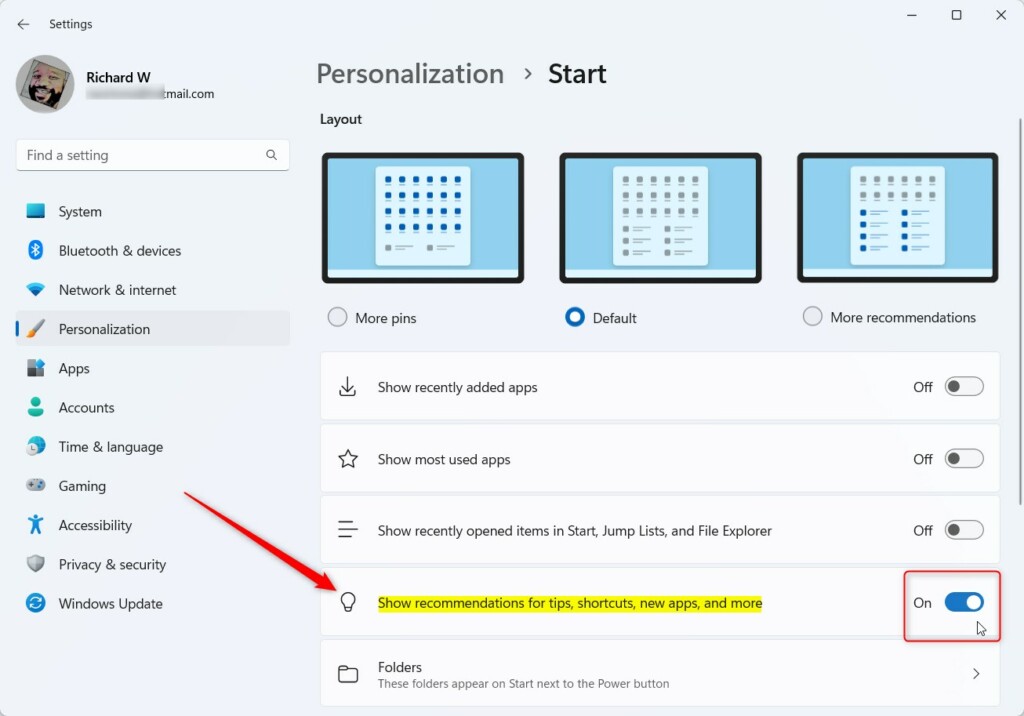
- Scroll down the list on the right and click Start.
- Find the toggle labeled Show recommendations for tips, shortcut apps, new apps, and more. The exact wording changes slightly between Windows 11 versions, so look for the one about recommendations and tips. Click the switch so it reads Off.
- Go back to the main Settings menu with the back arrow, or click System in the left sidebar.
- Click Notifications.
- Scroll to the bottom of the Notifications page and click Additional settings to expand it.
- Uncheck the boxes for options like Show me the welcome experience after updates… and Suggest ways to get the most out of Windows and finish setting up this device. Some builds word these options a little differently, so uncheck any that mention the welcome experience, tips or suggestions.
On a work or school computer, your IT administrator may control some of these options through policy. If a toggle is greyed out, or you see a message that some settings are managed by your organization, you cannot change it yourself and will need to ask your IT team. To undo any change, return to the same page and turn the setting back on. No restart is needed.
Common Misconceptions About Windows Recommendations
It will not. Disabling them only removes promotional messages and does not touch core system functions. So you do not need to enable suggestions and tips in Windows 11 recommendations and offers settings to keep the PC running properly. Turning them off is safe.
- Myth 1: Turning off suggestions will break my computer. This is false. Disabling tips and offers only stops promotional messages and app recommendations. Windows, its security updates and your software keep running normally.
- Myth 2: You cannot use the Microsoft Store if you turn off suggestions. Disabling offers in Start and Settings does not block the Microsoft Store. You can still open it yourself whenever you want to download a game or utility.
- Myth 3: These settings turn off all notifications. Turning off promotional recommendations only stops marketing and setup tips. You will still get important system alerts, security warnings and notifications from apps like email and chat.
Summary
Windows 11 recommendations and offers are built-in prompts that introduce Microsoft apps and services. If you find them distracting, you can turn them off in the Settings app without harming your system. The result is a quieter screen.
The switches are under Personalization Start and System Notifications. Turning them off keeps promotional prompts out of your way and gives you more control over what appears on your screen. Whether to enable suggestions and tips is a personal call: keep them if you find the reminders useful, and switch them off if you do not.
Have a question about this guide?
Answered by AI from this guide. Good questions may be added to this page — please don't include personal details.
Did this guide fix your problem?

About the Author
Richard
Tech Writer, IT Professional
Richard is a writer at Geek Rewind who turns complex IT tasks into clear, step-by-step guides. He draws on years of hands-on experience in system administration and enterprise IT operations, focusing on Windows, Linux and WordPress: the problems people actually run into, and the fixes that work. His server and WordPress guides come from systems he runs himself. Richard builds and maintains the platform behind Geek Rewind, from its Ubuntu servers and Nginx configuration to its custom WordPress plugins. Many new tutorials start with readers' questions, and he's always glad to answer them in the comments.
No comments yet — be the first to share your thoughts!