Every Privacy Toggle in Windows 11 Recommendations and Offers Settings

- 49 steps
- Needs administrator rights
- Group Policy needs Windows 11 Pro, Enterprise or Education
- Includes a restart or sign-out
Windows 11 recommendations and offers settings control the tips, Start menu suggestions and pop-up ads that Microsoft shows across your desktop. Some of these toggles also decide whether Microsoft uses your app usage and diagnostic data (background information about how your PC performs) to personalize promotions for services like OneDrive and Microsoft 365.
On current versions (24H2 and 25H2), nearly all of these switches are in the Settings app, and each one takes a few clicks to turn off. Doing so cuts down on prompts that interrupt your work and limits how much of your usage feeds marketing.
None of the changes below need a restart unless the text says so. Each one can be undone by flipping the same switch back on. The registry and Group Policy sections near the end are optional, and they need an administrator account.
Open Settings, go to Privacy & security, then General, and switch off the toggles that control personalized ads and tracking.
Where to Find Your General Privacy Settings
The general privacy settings are in the Settings app under Privacy & security. From there you can manage your advertising ID, language list access, app launch tracking and suggested content in one place. The wording on the switches can differ a little between builds, so match on the meaning if a label is not word for word the same as in this guide.
To open the general privacy options:
- Click the Start button on your taskbar.
- Select the Settings app, the small gear icon. You can also press the Win plus I to open it directly. The Settings window should now be on screen.

- Click Privacy & security in the left-hand menu. The privacy categories appear on the right.
- Click General in the main panel. A list of switches appears.
You should now be on the General page. The switches here control how apps and Windows itself track your activity in order to show you content.
Breaking Down the Core Privacy Toggles in the General Menu
The General page has four main switches. Each one controls a different way Windows collects or uses your data for tracking and suggestions. They are covered one at a time below, and the order does not matter.
If a switch is already off, leave it alone. If one of the four is missing on your build, skip it and move to the next.
1Let apps show me personalized ads by using my advertising ID
The advertising ID is a unique number Windows assigns to your account. Apps can use it to build a profile of your habits and show you targeted ads. Turning it off stops apps from using that number for targeting.
To keep your habits private and reduce targeted marketing:
- Open Settings.
- Go to Settings Privacy & security General.
- Find the switch labeled Let apps show me personalized ads by using my advertising ID.
- Click the toggle so it reads Off.
That’s it. Apps can no longer use your advertising ID to aim ads at you.
This does not remove ads. Apps that show ads will still show them, but they will be generic ones. To undo the change, turn the switch back on.
2Let websites show me locally relevant content by accessing my language list
The language list setting lets websites see your preferred languages, so they can show text in your own language. That is usually helpful. Some privacy-conscious users turn it off because language preferences can be combined with other data points to build a unique identifier for your browser session.
To turn this off:
- Open Settings.
- Go to Settings Privacy & security General.
- Find the switch labeled Let websites show me locally relevant content by accessing my language list.
- Click the toggle so it reads Off.
You should now have language list sharing turned off for websites.
Some sites may then show their default language instead of your preferred one. If that is a nuisance, turn the switch back on.
3Let Windows track app launches to improve Start and search results
App launch tracking records which programs you open and how often. Windows uses that to fill your Start menu and improve search results. Turning it off stops Windows from logging that activity, though your most-used list in Start may become less useful.
If you do not want Windows logging your application launches:
- Open Settings.
- Go to Settings Privacy & security General.
- Find the switch labeled Let Windows track app launches to improve Start and search results. On some builds the wording is slightly different, but it still mentions tracking app launches.
- Click the toggle so it reads Off.
That’s it. Windows stops logging which apps you open. To undo this, turn the switch back on.
4Show me suggested content in the Settings app
Suggested content in the Settings app means the promotional banners, feature tips and cloud storage ads that Microsoft shows in empty spaces on the Settings pages. Turning this switch off keeps those pages clean.
If you want a Settings app free of ads and unsolicited tips:
- Open Settings.
- Go to Settings Privacy & security General.
- Find the switch labeled Show me suggested content in the Settings app.
- Click the toggle so it reads Off.
You should now see a Settings app without promotional banners. Open a few Settings pages to check. If a banner still appears, close and reopen Settings, then look again.
Managing Recommendations, Tips, and Offers Outside the General Menu
The General page covers a lot, but Windows 11 also puts recommendations, tips and promotional offers in other places. To silence them fully, check each of the areas below as well.
Turning Off Start Menu Recommendations and Promotions
Start menu recommendations include promotional suggestions, recently installed programs and cloud feature tips shown in the Start menu. Most of them can be turned off under Settings Personalization Start.

To clean up your Start menu:
- Open Settings.
- Click Personalization in the left-hand menu. The personalization options appear on the right.

- Click Start in the main panel.
- Turn off the switches for the features you do not want, such as Show recommendations for tips, shortcuts, new apps, and more. The list may also include switches for recently added apps, most used apps, and recommended files. Open the Start menu afterward and the Recommended area should be shorter or empty.
- Optionally, click Folders on the same page to choose which folder shortcuts appear next to the power button, and switch off the ones you do not use.
That’s it. Your Start menu now shows only the items you chose to keep.
The exact list of switches can vary a little by edition and build, so some of these may be missing on your system. To undo any of this, turn the switch back on.
Silencing Notifications and Promotional Tips
Promotional tips and setup notifications are pop-up alerts that push you to finish configuring your device or try new features. You can switch them off in the notification settings.
To stop these promotional alerts:
- Open Settings.
- Go to Settings System Notifications.
- Scroll to the bottom of the page and click to expand Additional settings. A short list of checkboxes appears.
- Uncheck Show me the welcome experience after updates and occasionally when I sign in to highlight what’s new and suggested.
- Uncheck Suggest ways to get the most out of Windows and finish setting up this device.
You should now be free of these promotional pop-ups after updates and sign-ins.
The checkboxes apply immediately. There is no Save button and no restart needed. To undo, tick the boxes again.
Advanced Privacy: Controlling Tailored Experiences and Diagnostic Data
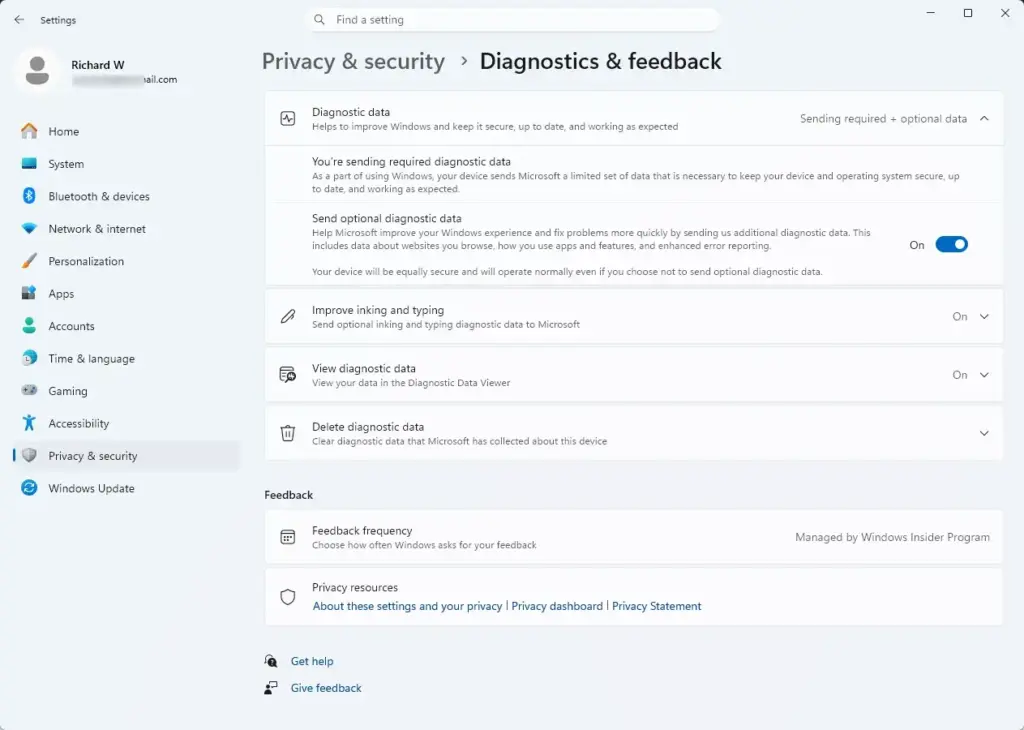
To cover every privacy toggle related to recommendations and offers, you also have to look at how Windows uses diagnostic information. Microsoft collects background data about how your device performs and shares it with engineers to fix bugs. That same data pipeline also feeds your personalized recommendations.
Adjusting Tailored Experiences
Tailored experiences use your diagnostic data to serve customized tips, personalized ads and software recommendations. You can turn this off under Diagnostics & feedback.
- Open Settings.
- Go to Settings Privacy & security Diagnostics & feedback.
- Scroll down to the section labeled Tailor your experiences. It may be collapsed, so click it to expand it if needed.
- Turn the toggle to Off for Let Microsoft use your diagnostic data—excluding device info—to enhance your product experiences with personalized tips, ads, and recommendations.
That’s it. Microsoft no longer uses your diagnostic data to tailor tips, ads and recommendations for you.
If the switch is already off, you may have already limited the diagnostic data your PC sends. Nothing more is needed in that case. Turn the switch back on at any time to undo it.
Limiting Diagnostic Data Collection
Diagnostic data collection sends background information about your computer to Microsoft to help fix bugs and keep the system secure. You cannot turn off all of it, but you can limit it to the required minimum.
- Open Settings.
- Go to Settings Privacy & security Diagnostics & feedback.
- Find the switch called Send optional diagnostic data. If the Diagnostic data section is collapsed, expand it first.
- Set the switch to Off. If your build shows a choice between required and optional data instead, pick Required diagnostic data.
You should now be sending only the minimum information needed to keep the system secure and up to date.
Your settings are saved as soon as you change them. You can switch optional diagnostic data back on at any time.
Unique Expert Angle: Hidden Registry Tweaks for Stubborn Offers
Some promotional offers and feature suggestions keep appearing even after you turn off the normal toggles. For those, a registry change is one option. The registry is a database of low-level Windows settings, so this is an advanced step. Treat it as a last resort.
Changing the wrong value can cause unexpected behavior. Before you start, create a restore point or export the key you are about to change. In Registry Editor, select the key, then choose File and Export. Create only the value named in these steps. Do not guess at other value names. For most people the Group Policy method later in this guide is the cleaner option.
The value below is the registry setting behind the Group Policy named Turn off Microsoft consumer experiences. To make the change using the graphical Registry Editor:
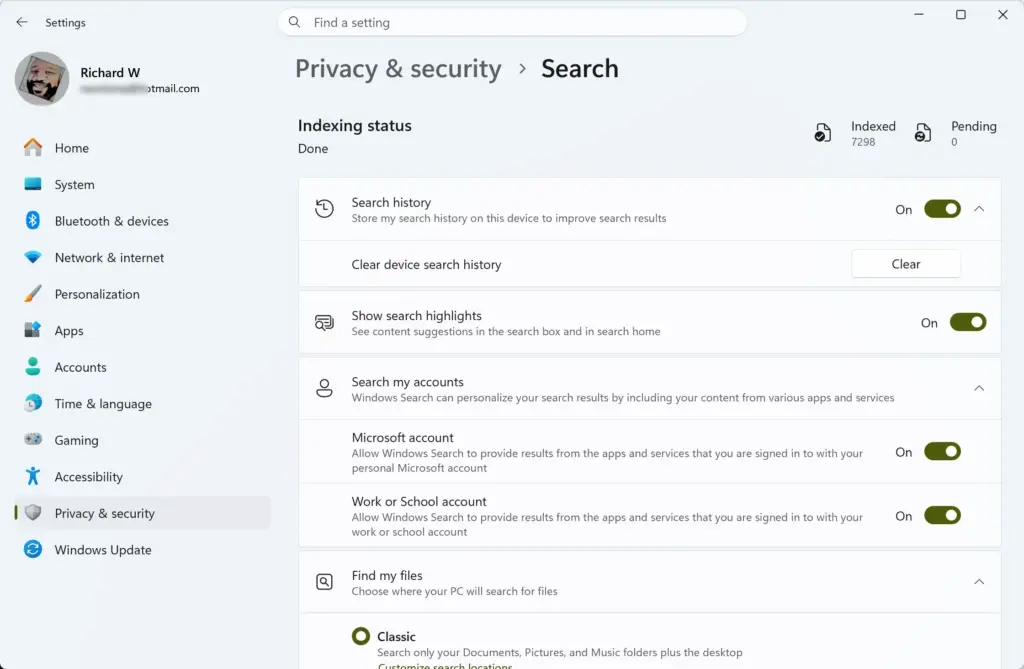
- Press the Win, type regedit, then click Registry Editor in the results.
- Click Yes if a User Account Control window asks whether to let the app make changes to your device. Registry Editor opens.
- Use the left-hand sidebar to expand the folders and go to the key 🗝️HKEY_LOCAL_MACHINE\
SOFTWARE\ . If there is no folder named CloudContent under Windows, right-click Windows, select New, click Key, and name it CloudContent.Policies\ Microsoft\ Windows\ CloudContent - Select the CloudContent folder. In the large empty space on the right, right-click, select New, and choose DWORD (32-bit) Value. This is the type of data entry Windows uses for on/off settings. A new item appears with its name highlighted for editing.
- Name the new item exactly DisableWindowsConsumerFeatures and press Enter.
- Double-click the new item, change the number in the Value data box from 0 to 1, and click OK.
- Close Registry Editor and restart your computer so the change takes effect.
That’s it. Windows now has the consumer experiences policy set at the registry level, and the promotional suggestions it covers should stop after the restart.
To undo the change, set the value back to 0, or delete the item you created, and restart again.
Unique Expert Angle: Automated Privacy Scripts and Group Policy Controls
Group Policy lets administrators and power users lock down privacy settings on one or many computers without clicking through every menu. The Local Group Policy Editor is available on Windows 11 Pro, Enterprise and Education. It is not included in Windows 11 Home, so Home users should stay with the Settings toggles above.
Requirement: you must be signed in with an administrator account to open and change policies. Be aware that some consumer-experience policies are honored only on Enterprise and Education editions. A policy may appear in the list on Pro but have little visible effect there.
To use Group Policy for privacy settings:
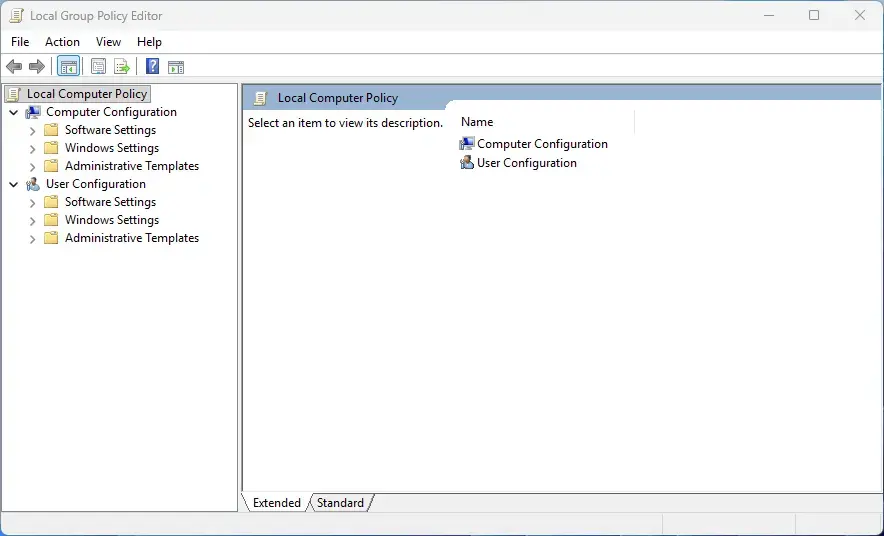
- Press the Win, type gpedit.msc, then press Enter. The Local Group Policy Editor window opens.
- In the left folder tree, go to Computer Configuration Administrative Templates Windows Components Cloud Content. The policies appear on the right.
- Look through the list for policies such as Turn off Microsoft consumer experiences or Do not show suggested content in Windows Settings.
- Double-click a policy, select Enabled, then click Apply and OK.
You should now have the chosen policy enabled. Enabling the consumer experiences policy blocks the silent app installations and promotional suggestions that Microsoft often pushes to new user accounts.
You may need to sign out and back in, or restart, before it takes full effect. To undo a policy, open it again and select Not Configured.
Summary
Windows 11 has many privacy toggles that control how Microsoft collects your data and shows you tips, recommendations and promotional offers. Start with Privacy & security and turn off the advertising ID, language list access, app launch tracking and suggested content. Then check the Start menu, notification and diagnostic settings, and use the registry or Group Policy only if suggestions still get through.
Have a question about this guide?
Answered by AI from this guide. Good questions may be added to this page — please don't include personal details.
Did this guide fix your problem?

About the Author
Richard
Tech Writer, IT Professional
Richard is a writer at Geek Rewind who turns complex IT tasks into clear, step-by-step guides. He draws on years of hands-on experience in system administration and enterprise IT operations, focusing on Windows, Linux and WordPress: the problems people actually run into, and the fixes that work. His server and WordPress guides come from systems he runs himself. Richard builds and maintains the platform behind Geek Rewind, from its Ubuntu servers and Nginx configuration to its custom WordPress plugins. Many new tutorials start with readers' questions, and he's always glad to answer them in the comments.
No comments yet — be the first to share your thoughts!