Check Which Programs Are Running on My Computer in Windows 11

- 4 ways to do it
- Needs administrator rights
- Includes a restart or sign-out
The question “what programs are running on my computer” has a quick answer in Windows 11: press Ctrl+Shift+Esc to open Task Manager and read the Processes page. It lists every open app, background process, and Windows process, with the CPU, memory, disk, and network each one uses.
Task Manager is the built-in tool that shows what Windows is running right now. Windows 11 version 22H2 and later use a redesigned Task Manager with a navigation menu on the left. The first release of Windows 11 uses tabs across the top instead, and the steps below note where the two differ.
This post also covers the taskbar, Windows Terminal, and Resource Monitor, plus how to identify a process you do not recognize and close one safely.
Press Ctrl+Shift+Esc to open Task Manager, then select Processes to see every program running on your computer. The Apps group lists programs with open windows, and the Background processes and Windows processes groups list everything else. Each entry shows its CPU, Memory, Disk, and Network use. Windows 11 22H2 and later show this list in a left-hand menu.
What counts as a running program in 🪟 Windows 11
Windows separates running items into three groups, and knowing them saves confusion later. Each group answers a slightly different question.
- Appsprograms with a window you can see, such as a browser, File Explorer, or Notepad.
- Background processesprograms that run without a window, such as a cloud sync client, a printer helper, or a chat app minimized to the system tray.
- Windows processesparts of Windows itself, such as the Desktop Window Manager (the part that draws windows on screen) and Service Host entries. Services (programs that run in the background without a sign-in, often starting with Windows) usually appear in the Windows processes group.
A single app can create several processes. A browser, for example, often runs one process per tab or extension. For more detail on process names and IDs, read How to View Running Processes in Windows 11.
Method 1Check running programs with Task Manager
Task Manager gives the most complete answer and needs no extra software. It also lets you sort by resource use, so you can spot what is slowing the PC down.
Open Task Manager
- Press Ctrl+Shift+Esc. Task Manager opens in its own window.

Task Manager - If that shortcut does nothing, right-click the Start button and choose Task Manager.
- If you see a small window that lists only app names, select More details at the bottom. This happens on older builds of Windows 11, and the full view appears.
On Windows 11 22H2 and later, the left side shows a menu with Processes, Performance, App history, Startup apps, Users, Details, and Services. Select the three-line icon at the top left to collapse or expand that menu.
Read the Processes page
The Processes page opens first and lists everything running under your account, grouped as described earlier.
- Select Processes in the left menu (or the Processes tab on older builds).
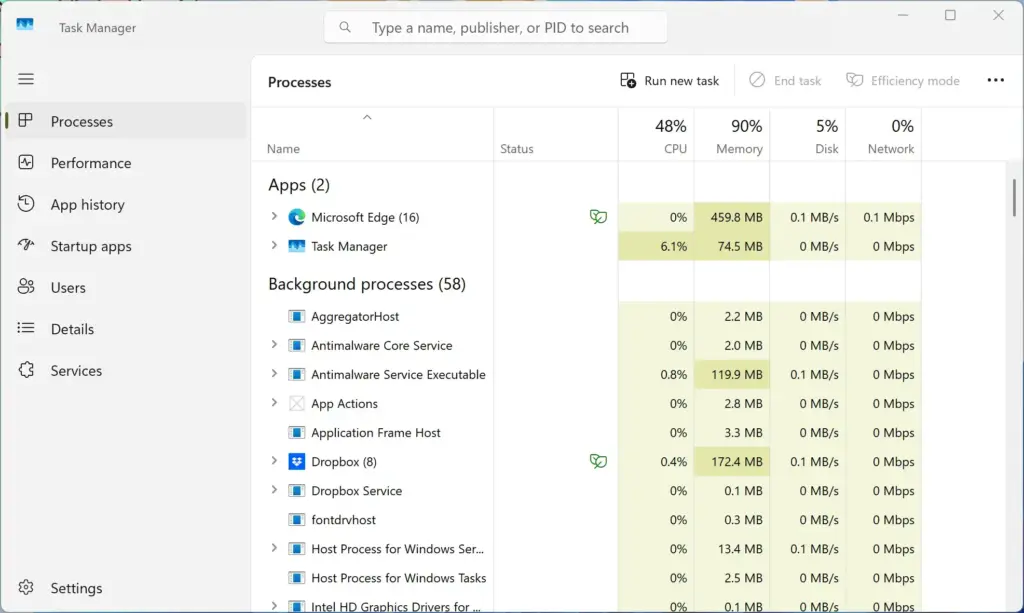
Task Manager › Processes - Find the Apps group at the top. These are the programs with open windows.
- Scroll down to Background processes and Windows processes to see everything else.
- Select the arrow next to any entry with a small arrow to expand it. Apps such as Microsoft Edge and Chrome list each window or process underneath.
The columns show CPU, Memory, Disk, and Network use. Select a column heading to sort by it. Select Memory once to put the biggest memory users at the top, and select it again to reverse the order.
The Status column may show Suspended for some apps. That means Windows has paused the app to save power. It is still open but uses almost no resources.
Search for a specific program
Windows 11 22H2 and later include a search box at the top of Task Manager. Type a name, a publisher, or a process ID (PID, the number Windows gives each running process). The list narrows as you type, which is faster than scrolling when you want to know if one program is running.
See every process in the Details page
The Details page lists processes by their file names, such as explorer.exe, which helps when you need the exact executable (the program file) behind an entry.
- Select Details in the left menu (or the Details tab).
- Select the Name heading to sort alphabetically.
- Right-click any column heading and choose Select columns.
- Tick Command line and select OK. A new column appears that shows the full file location and options each process started with.
The command line column is the quickest way to tell where an unfamiliar program lives on the drive.
Check which programs start with Windows
Some programs run all the time because they start at sign-in. The Startup apps page (named Startup on older builds) lists them with a status of Enabled or Disabled and a startup impact rating.
- Select Startup apps in the left menu.
- Click the Status heading to group enabled items together.
- To stop one from launching at sign-in, right-click it and choose Disable.
To turn an entry back on, right-click it and choose Enable. To turn it off, right-click it and choose Disable. If you want the opposite, to add a program to this list, read How to Add Programs to Startup in Windows 11. For a different way to set this up, read How to Automatically Start Programs When You Turn On Windows 11.
Check how long everything has been running
Many odd slowdowns come from a PC that has not restarted in weeks. Select Performance in the left menu, then select CPU. The Up time figure near the bottom shows how long Windows has run since the last full start. A separate post explains how to check how long Windows 11 has been running by other methods.
Method 2Check the taskbar and system tray
The taskbar gives a quick view of the apps with windows open. It does not show background processes, so use it for a fast check only.
- Look at the icons on the taskbar. A short line under an icon means that app is running. Icons with no line are pinned shortcuts that are not open.
- Select the up arrow (Show hidden icons) at the right end of the taskbar. The overflow area shows programs that run in the system tray, such as cloud storage clients and VPN tools.
- Press Alt+Tab to cycle through open windows, or press Win+Tab to open Task view (a screen that shows all open windows as thumbnails).
If a program you expect is missing here but appears in Task Manager, it runs without a window. Many update helpers and sync tools work this way.
Method 3List running programs with Windows Terminal
The command line (a window where you type commands) prints a plain-text list that you can copy, filter, or save. This helps when you need to send the list to a support technician.
Use tasklist in Command Prompt or Terminal
- Right-click the Start button and choose Terminal. On the first release of Windows 11, the entry may read Windows Terminal.
- Type tasklist and press Enter to list the running processes:Code
tasklistThe window fills with columns for Image Name, PID, Session Name, Session# (the user session number), and Mem Usage.
- To see which services each process hosts, run:Code
tasklist /svc - To add status, user name, CPU time, and window title columns, run:Code
tasklist /v
The output scrolls past quickly. To save the list as a text file, run tasklist > running-processes.txt in the folder Terminal is using, then open the file in Notepad.
Use Get-Process in PowerShell
PowerShell is the more flexible command-line tool in Windows 11. Terminal opens PowerShell by default on most systems.
- In Terminal, type Get-Process and press Enter to list every process:PowerShell
Get-Process - To list only programs that have a visible window, run:PowerShell
Get-Process | Where-Object { $_.MainWindowTitle } | Select-Object ProcessName, MainWindowTitleThe output shows a short table of open apps and their window titles.
If Terminal opens Command Prompt instead, the command Get-Process returns an error saying it is not recognized. Type powershell and press Enter to switch, then run the command again.
Method 4Use Resource Monitor for network and disk detail
Resource Monitor is an older Windows tool that shows which programs are using the network and disk right now. It is useful when a PC feels slow but CPU use looks normal.
- Press Win+R, type
resmon, and press Enter. Resource Monitor opens. - Select the Network tab. The Processes with Network Activity section lists every program sending or receiving data.
- Select the Disk tab to see which programs are reading or writing files.
Select the Image heading to sort by program name. Select Total (B/sec) to put the busiest programs first.
Identify a program you do not recognize
Windows runs dozens of processes with unfamiliar names. Most are normal. Check before you close anything.
- In Task Manager, right-click the unfamiliar entry and choose Search online. Your browser opens a search for the process name and the program.
- Right-click the entry again and choose Open file location. File Explorer opens the folder that holds the program. Files in
C:\Windows\System32are normally part of Windows, while files in a folder named after a company are usually that company’s software. - Right-click the entry and choose Properties. The Details tab shows the file description and the company name.
If the file location looks wrong or the name copies a Windows process with a slightly different spelling, scan the PC. Open Windows Security, select Virus & threat protection, and then select Quick scan.
If you find a program you no longer want, see How to Uninstall Programs in Windows 11. You can also remove it from Settings Apps Installed apps.
Close a program that is running
- In Task Manager, select the program on the Processes page.
- Select End task in the toolbar at the top, or right-click the program and choose End task. The entry disappears from the list.
If an entry reappears a few seconds later, a service or a startup setting is relaunching it. Ending a Windows process can also close your session or restart the PC, so leave those alone unless you know what they do.
Restart the taskbar if it disappears
If you end Windows Explorer, the taskbar and desktop icons vanish. Task Manager stays open, so you can bring them back.
- In Task Manager, select Run new task in the toolbar.
- Type
explorer.exeand select OK. The taskbar and desktop return.
The next time, select Windows Explorer in the Processes list and choose Restart instead. That ends and relaunches it in one step.
Stop or start a service (administrator required)
- Select Services in the left menu.
- Right-click the service and choose Start, Stop, or Restart. Approve the User Account Control prompt if it appears (administrator required).
The Status column changes between Running and Stopped. Starting the service again reverses the change.
If Task Manager does not open or the list looks wrong
Task Manager can fail to open on work or school PCs. A message that reads “Task Manager has been disabled by your administrator” means an organization policy blocks it. Only your IT department can lift that, so ask them rather than trying to bypass it.
If the shortcut does nothing on a home PC, try right-clicking Start and choosing Task Manager, or press Ctrl+Alt+Del and select Task Manager. Both routes work even when another program has taken over the shortcut.
If Task Manager shows far more processes than you expect, expand the groups before you count. Browsers and chat apps often show a single line that hides a dozen processes underneath.
If the list lacks a program you know is open, it may run under another user account. Switch to the Users page to see which accounts are signed in and what each one uses.
What to do next
Once you know what is running, you can cut down what runs without being asked. How to Stop an App from Running in the Background in Windows 11 shows how to limit apps that keep working after you close their windows. Check the Startup apps page again after your next restart to confirm that the programs you disabled stay off. If an app keeps returning, uninstalling it removes the cause.
Have a question about this guide?
Answered by AI from this guide. Good questions may be added to this page — please don't include personal details.
Did this guide fix your problem?

About the Author
Richard
Tech Writer, IT Professional
Richard is a writer at Geek Rewind who turns complex IT tasks into clear, step-by-step guides. He draws on years of hands-on experience in system administration and enterprise IT operations, focusing on Windows, Linux and WordPress: the problems people actually run into, and the fixes that work. His server and WordPress guides come from systems he runs himself. Richard builds and maintains the platform behind Geek Rewind, from its Ubuntu servers and Nginx configuration to its custom WordPress plugins. Many new tutorials start with readers' questions, and he's always glad to answer them in the comments.
No comments yet — be the first to share your thoughts!