Check How Long Windows 11 Has Been Running

Checking how long Windows 11 has been running takes a few seconds in Task Manager , which shows a live Up time counter on its Performance tab. This number is called uptime: the time since the last full start of Windows, shown as days, hours, minutes and seconds.
Uptime helps when a PC feels sluggish, when an update asks for a restart, or when you need to know whether a machine rebooted overnight. The Task Manager value can mislead on a PC with Fast Startup turned on. This post also covers how to get a trustworthy number using Command Prompt, PowerShell and Event Viewer.
Check how long Windows 11 has been running by opening Task Manager with Ctrl+Shift+Esc, clicking Performance, then clicking CPU. The Up time value below the graph shows days:hours:minutes:seconds since the last full start. If Fast Startup is on, Shut down does not reset it, so use Restart instead.
Check How Long 🪟 Windows 11 Has Been Running in Task Manager
Task Manager (the built-in tool that shows what your PC is doing right now) gives you the fastest answer. Viewing it changes nothing on your PC, and you do not need administrator rights.
To check how long Windows 11 has been running with Task Manager :
- Press Ctrl+Shift+Esc. Task Manager opens. You can also right-click the Start button and choose Task Manager .

Task Manager - Click Performance in the left sidebar. In Windows 11 version 22H2 and later, the sidebar shows icons down the left edge, and Performance is the one that looks like a pulse line. If you see only a short list of running apps, click More details at the bottom first.
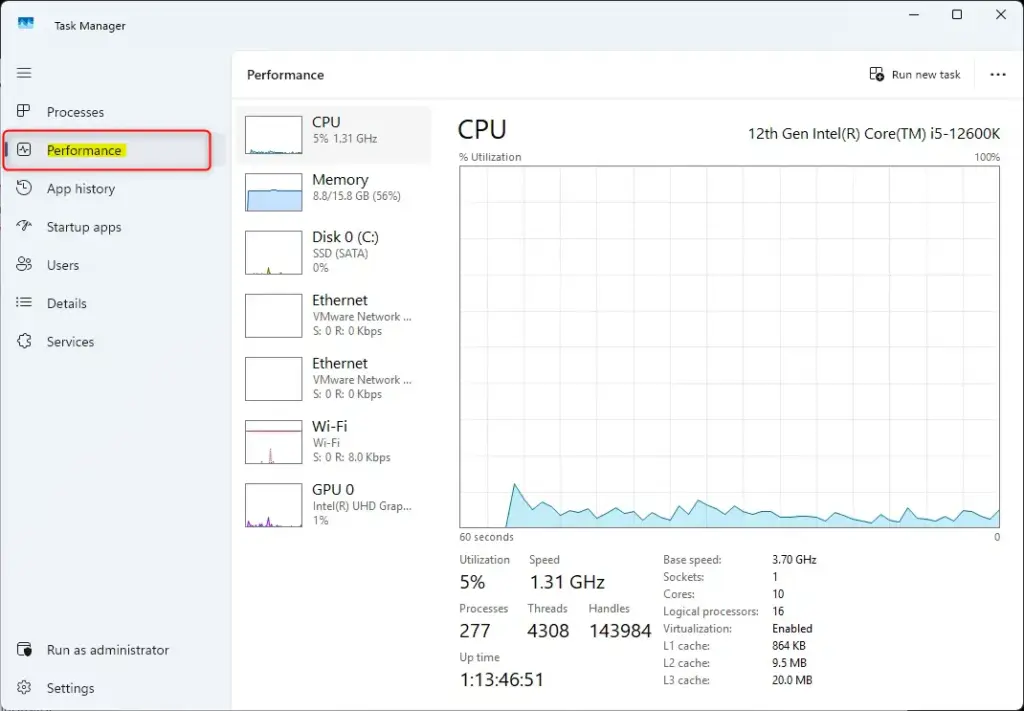
Performance tab selected in Windows 11 Task Manager. - Click CPU in the list of hardware. A graph of processor activity appears on the right.
- Find Up time below the graph. It sits in the block of figures with Processes, Threads and Handles.
The value reads in the format days:hours:minutes:seconds. For example, 3:07:42:15 means the PC has run for 3 days, 7 hours, 42 minutes and 15 seconds. The counter updates every second while Task Manager stays open.
If Up time is missing from the CPU page
A narrow Task Manager window can hide part of the figures. Drag the window edge to make it larger, or maximize it. If you still see no Up time label, confirm you clicked CPU and not Memory or Disk, because only the CPU page shows it.
If you see no left sidebar and the tabs run across the top, you are on an older build of Windows 11. The Performance tab works the same way there. Click it, then click CPU.
Why Up Time Does Not Reset After You Shut Down
Fast Startup (a feature that saves part of Windows to disk at shutdown so the next start is quicker) is the usual reason Up time looks too high. With Fast Startup on, Shut down does not fully stop Windows. It closes your apps and signs you out, then saves the system core to a file so it can reload quickly.
The result is odd. You shut down every night, yet Task Manager shows an Up time of 12 days. The counter kept going because Windows never did a full boot.
Restart behaves differently. Choosing Restart from the Start menu always performs a full shutdown and boot, and it resets Up time to zero. This also explains why a restart fixes problems that a shutdown does not.
Confirm how your PC behaves
Restart your PC from Start Power Restart, sign in, and open Task Manager again. Up time should read a few minutes at most. If it does, your PC resets uptime on restart as expected, and Fast Startup is the only reason shutdowns do not count.
Turn off Fast Startup so Shut down resets Up time
Turning Fast Startup off makes your PC start a little slower. You can turn it back on at any time by following the same steps and ticking the box again.
- Open Control Panel . Press the Win, type Control Panel , and press Enter.
- Click Hardware and Sound, then click Power Options.
- Click Choose what the power buttons do in the left pane.
- Click Change settings that are currently unavailable. Approve the User Account Control prompt if it appears. The options at the bottom of the window become available.
- Clear the Turn on fast startup (recommended) check box.
- Click Save changes.
If Turn on fast startup (recommended) is missing from the list, hibernation (a power state that saves your session to disk) is probably turned off on your PC. Fast Startup needs hibernation (a power state that saves your session to disk) to work. If hibernation is off, Windows hides the option. In that case Fast Startup is already inactive, and shutdowns reset Up time normally.
If the check box stays grey after you click Change settings that are currently unavailable, contact your IT department.
Check the Last Boot Time with Command Prompt
Command Prompt (a text window where you type commands) shows the exact date and time Windows last started, instead of a running counter. This suits you when you need a timestamp, for example to compare against a patch window. It needs no administrator rights.
- Press the Win, type Command Prompt, and press Enter. A black window opens.
- Type the command below and press Enter.Code
systeminfo | find "System Boot Time" - Wait a few seconds. The first run can take 5 to 10 seconds, because the command gathers a full system report before it filters the output.
You see one line with the boot time, such as System Boot Time: 1/5/2025, 8:12:44 AM. The date format follows your regional settings. Subtract that time from the current time to get your uptime.
If your Windows uses a language other than English, the label in the report changes, so the find filter returns nothing. If the command prints no output, run systeminfo without the filter, and look for the boot time line in the full report.
Use net statistics as a quicker alternative
The next command gives an answer right away. It shows when the Workstation service (the Windows component that handles network connections) started, which happens within moments of boot.
- Open Command Prompt as described above.
- Type the command below and press Enter.Code
net statistics workstation - Read the line that begins Statistics since. The date and time after it show when the service started.
Treat this as a close estimate, not an exact boot time. The Workstation service can also restart without the PC restarting, although that is rare.
Check Uptime with PowerShell
PowerShell (a more capable command-line tool included with Windows) calculates uptime for you and prints it in plain days, hours and minutes. This method is useful if you plan to run the same check on several PCs or save the result in a script.
- Right-click the Start button and choose Terminal. Windows Terminal opens with a PowerShell tab by default.
- Type the command below and press Enter.Code
(Get-Date) - (Get-CimInstance Win32_OperatingSystem).LastBootUpTime - Read the output. PowerShell lists Days, Hours, Minutes and Seconds as separate lines, along with some extra totals.
The command subtracts the last boot time from the current time. It does not change anything on your PC, and it works without administrator rights.
Use Get-Uptime in PowerShell 7
PowerShell 7 includes a dedicated command called Get-Uptime. Windows 11 does not include PowerShell 7 by default, and Windows PowerShell 5.1 (the older version that ships with Windows 11) does not recognize the command. If you type it and see a message that the term is not recognized, use the longer command above instead.
When it is available, type Get-Uptime to see the time span, or type Get-Uptime -Since to see the date and time of the last boot.
Find Past Restarts in Event Viewer
Event Viewer (a built-in log reader that records what Windows does) keeps a longer record. It lists every start-up and shutdown, so you can see how often a PC restarted over the past weeks. This helps when you suspect unexpected reboots.
- Press the Windows key, type Event Viewer, and press Enter. The Event Viewer window opens.
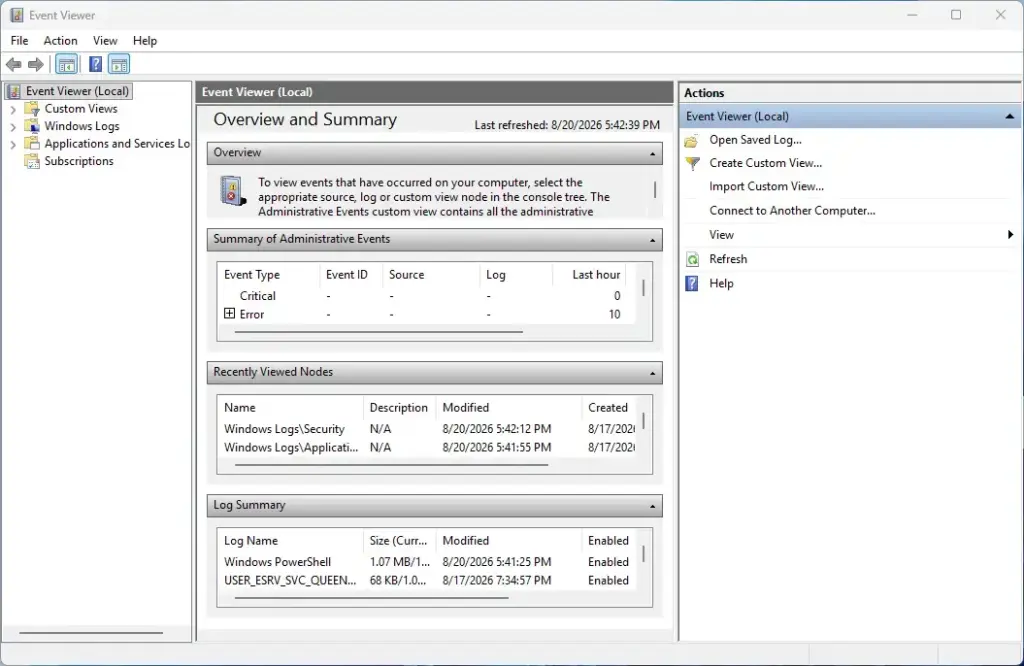
Event Viewer - Expand Windows Logs in the left pane.
- Click System. A long list of events appears in the middle.
- Click Filter Current Log in the right pane under Actions.
- Type 6005, 6006, 6008 in the box labeled <All Event IDs>.
- Click OK. The list now shows only start-up and shutdown events.
Event ID 6005 means the Event Log service started, which marks a start-up. Event ID 6006 means it stopped cleanly, which marks a shutdown. Event ID 6008 means the previous shutdown was unexpected, such as a power cut or a crash. The newest 6005 entry is your most recent start, and its date and time sit in the Date and Time column.
With Fast Startup on, the Event Log service (the Windows service that writes the event history) starts again after a shutdown. So a 6005 entry can appear even when Task Manager shows a high Up time. Compare both sources if the numbers disagree.
To find out why a restart happened, filter for Event ID 1074 instead. It records which program or user asked Windows to shut down or restart, which is useful after a surprise update reboot.
Which Method Should You Use?
Each tool answers a slightly different question. Pick the one that matches what you need to know:
- Task Manager gives a live counter and takes the least effort. Use it for a quick look.
- Command Prompt gives an exact boot date and time. Use it when you need a timestamp.
- PowerShell gives a calculated duration and works well in scripts.
- Event Viewer gives a history of starts and shutdowns. Use it to investigate crashes or unexpected restarts.
The Settings app has no page that shows uptime, and the network adapter status window shows how long a connection has been up, which is a different figure. Neither answers the question reliably.
What a High Up Time Means
A long uptime is not a fault in itself. A PC that runs for weeks can be perfectly healthy. A few signs do point to a restart being worthwhile, though:
- Windows Update has asked for a restart to finish installing, and you have postponed it.
- Apps freeze or lag more than usual, and memory use stays high even when you close programs.
- A driver, printer or network connection has stopped responding.
Before restarting, look at what is using your resources. The post on how to view running processes in Windows 11 shows how to spot a program that has grown out of control. If a single app is the cause, stopping apps from running in the background may help more than a reboot.
A slow browser is another common reason people look at uptime. If only Microsoft Edge feels slow while the rest of Windows is fine, restarting the whole PC may not help. Try the fixes in how to fix Microsoft Edge running slow on Windows 11 first.
When the Numbers Look Wrong
Most mismatches have a simple cause. Work through these checks in order:
- Up time is much higher than expected. Fast Startup is almost certainly on. Use Restart instead of Shut down, or turn off Fast Startup as described above.
- Up time is lower than expected. Windows may have restarted on its own after an update, or crashed. Check Event Viewer for Event IDs 1074 and 6008 to see which.
- Task Manager and the systeminfo command disagree. systeminfo is a Command Prompt command that shows system details, including the boot time. Compare its boot time with the Up time in Task Manager yourself. A gap of a few seconds is normal. A gap of hours points to a clock change, such as a time zone or daylight saving adjustment.
- Command Prompt prints nothing. The
findfilter depends on English labels. Runsysteminfowithout the filter. - PowerShell reports that Get-Uptime is not recognized. You are on Windows PowerShell 5.1. Use the
Get-CimInstancecommand instead.
What to Do Next
If Up time shows a number you did not expect, restart from Start Power Restart and check Task Manager again to confirm the counter resets. Feature updates and some power setting changes can switch Fast Startup back on, so recheck it if Up time starts climbing after nightly shutdowns again. To find out what is using your PC's resources between restarts, read the post on viewing running processes in Windows 11.
Have a question about this guide?
Answered by AI from this guide. Good questions may be added to this page — please don't include personal details.
Did this guide fix your problem?

About the Author
Richard
Tech Writer, IT Professional
Richard is a writer at Geek Rewind who turns complex IT tasks into clear, step-by-step guides. He draws on years of hands-on experience in system administration and enterprise IT operations, focusing on Windows, Linux and WordPress: the problems people actually run into, and the fixes that work. His server and WordPress guides come from systems he runs himself. Richard builds and maintains the platform behind Geek Rewind, from its Ubuntu servers and Nginx configuration to its custom WordPress plugins. Many new tutorials start with readers' questions, and he's always glad to answer them in the comments.
No comments yet — be the first to share your thoughts!