Check Windows Update History in Event Viewer in Windows 11

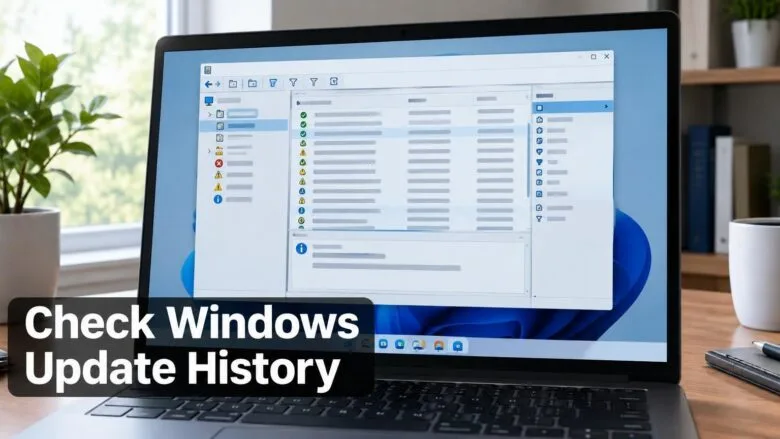
Event Viewer records Windows Update activity in one log: Applications and Services Logs Microsoft Windows WindowsUpdateClient Operational. Open Event Viewer (the built-in tool that stores system and app event logs), go to that log, and filter for event IDs 19 and 20 (the numbers that tag each type of event) to see successful and failed installs.
The Operational log shows the exact time Windows downloaded, installed or failed an update, along with the KB number and any error code. This is more detail than the list in Settings gives you. It works on Windows 11 Home and Pro.
The steps below take about two minutes. Start with the Run dialog box, which opens Event Viewer in one step. Later sections explain how to read each event, save a reusable view and fix an empty log.
To check Windows 11 event viewer updates, press Win+R, type eventvwr.msc and press Enter. Then go to Applications and Services Logs Microsoft Windows WindowsUpdateClient Operational. Click Filter Current Log, enter 19,20 in the Event IDs box, and select OK to see successful installs and failures.
What Event Viewer Shows About Windows Updates
Every time the Windows Update service acts on an update, it writes an event. An event is a single log entry with a date, a source, an ID number and a text description. The WindowsUpdateClient log keeps those entries in order, so you can follow an update from download to install to restart.
The log gives more technical detail than Settings. Settings lists updates by name and date, while Event Viewer shows the stages and errors behind each one.
Event Viewer adds when each stage began, which update failed and the error code behind the failure. The code is a hexadecimal number, which is a number written with the digits 0 to 9 and the letters A to F. Support staff ask for these codes when an update refuses to install.
The log also records more than monthly cumulative updates. Microsoft Defender Antivirus definition updates, .NET updates and driver updates delivered through Windows Update all appear. Expect a long list, which is why filtering matters.
Reading the log changes nothing on your PC. If you only need a quick list of recent updates, the update history page in Settings is faster.
Check Windows Update History in Event Viewer
These steps open the log that holds your Windows 11 event viewer updates and filter it down to installs and failures.
- Press Windows + R. The Run dialog box opens.

Run dialog - Type
eventvwr.mscand press Enter. Event Viewer opens with a folder tree on the left, a list in the middle and an Actions pane on the right. You can also right-click Start and choose Event Viewer. If a User Account Control prompt appears, select Yes.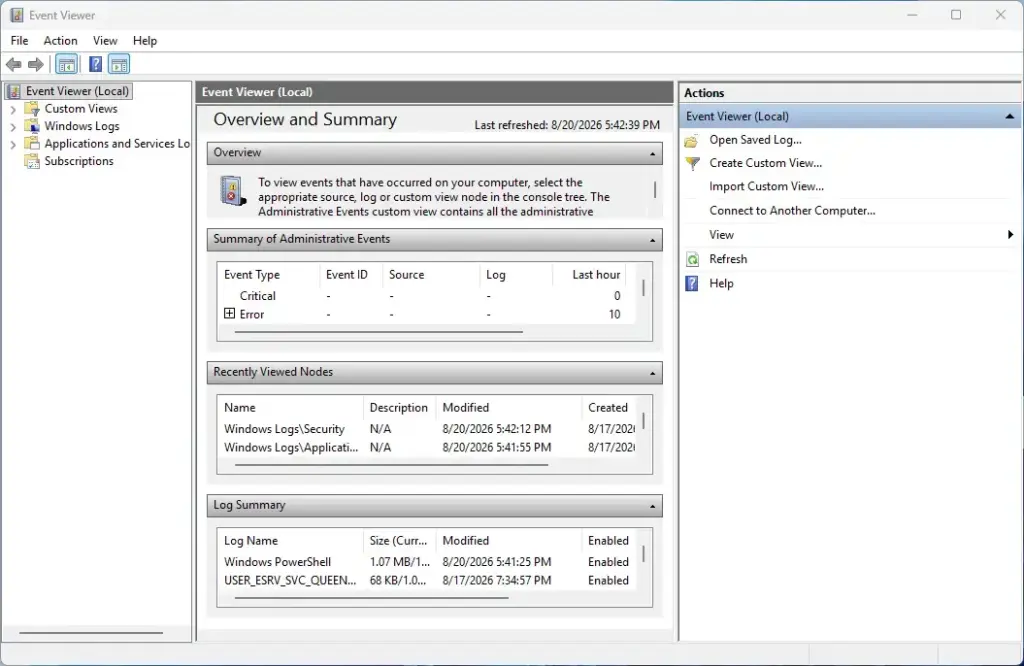
Event Viewer - Expand Applications and Services Logs in the left pane. Click the small arrow next to it. A list of folders appears below it.
- Expand Microsoft, then expand Windows. The Windows folder contains well over a hundred subfolders, so the list is long.
- Scroll to WindowsUpdateClient and expand it. Folders are in alphabetical order, so look near the bottom of the list, close to the entries starting with W. Two logs sit inside, named Operational and Reliability on some builds.
- Select Operational. The middle pane fills with events. Each row shows a Level, Date and Time, Source, Event ID and Task Category.
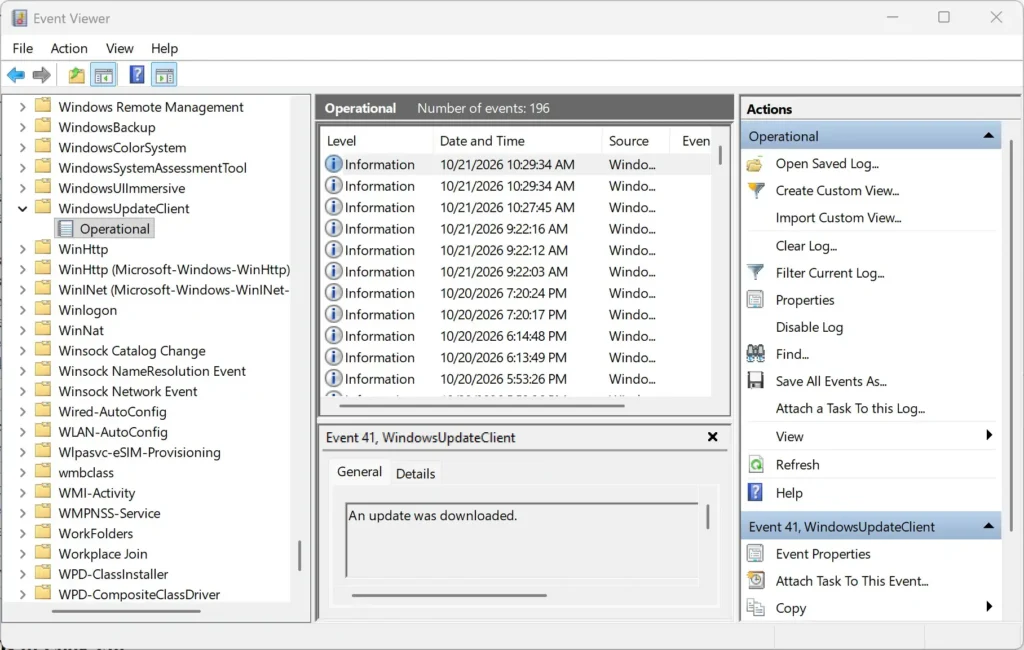
- Click Filter Current Log in the Actions pane. A dialog box with a Filter Current Log title opens.
- Click the box that reads <All Event IDs> and type
19,20. Separate IDs with a comma and no extra text. Event 19 is a successful install and event 20 is a failed one. - Select OK. The list now shows only installs and failures. If the list is empty, see the troubleshooting section below.
- Click the Date and Time column header. This sorts the list so the newest events appear first or last. Click it again to reverse the order.
- Select an event in the list. Its description appears in the General tab at the bottom of the middle pane. The text names the update and its KB number, the identifier Microsoft gives each update.
- Double-click an event to open it in its own window. This is easier to read when the description is long. Use the up and down arrows in that window to step through neighbouring events.
- Click Clear Filter in the Actions pane when you finish. The full log returns, including downloads and restarts.
Event IDs to Look For
Each stage of an update has its own event ID. These are the ones that matter most for checking history. Wording can differ slightly between Windows 11 builds, so rely on the text in the General tab if it disagrees with this table.
| Event ID | What it means |
|---|---|
| 44 | Windows Update started downloading an update. |
| 43 | Windows started installing an update. |
| 19 | Installation successful. Windows installed the update. |
| 20 | Installation failure. The description includes an error code. |
| 21 | Restart required to finish the installation. |
To follow one update from start to finish, type 44,43,19,20,21 in the filter box. The events then read as a timeline for each update.
Read an Update Event
An event is only useful if you know which parts of it to read. The General tab holds a plain-text description. The Details tab shows the same event information in a different layout.
Find the KB Number and Error Code
In a successful install, the description names the update, usually with a KB number in brackets. Cumulative updates carry a title such as the month and year, followed by the KB number. Copy that number into a search engine to read Microsoft's release notes.
A failed install shows an error code starting with 0x, followed by eight characters. This code points to the cause of the failure. Search for the code together with the KB number to find fixes that match your case.
Check the Level column as well. Successful events show Information. Failures show Error. Click the Level column header to bring failed updates to the top without a filter. If they land at the bottom, click the header again to reverse the order.
The date and time in each event use your PC's local time zone. If you changed the time zone recently, older entries still display in the current zone.
Save a Custom View for Repeat Checks
A custom view is a saved filter. It keeps your event ID selection so you do not need to rebuild the filter each time. Use these steps to create one for installs and failures.
- Open Event Viewer. Press Windows + R, type
eventvwr.mscand press Enter. - Click Action in the menu bar. A drop-down menu opens.
- Select Create Custom View.... The Create Custom View dialog box opens.
- Click the Event logs drop-down. A tree of logs appears.
- Expand Applications and Services Logs, then Microsoft, then Windows, then WindowsUpdateClient.
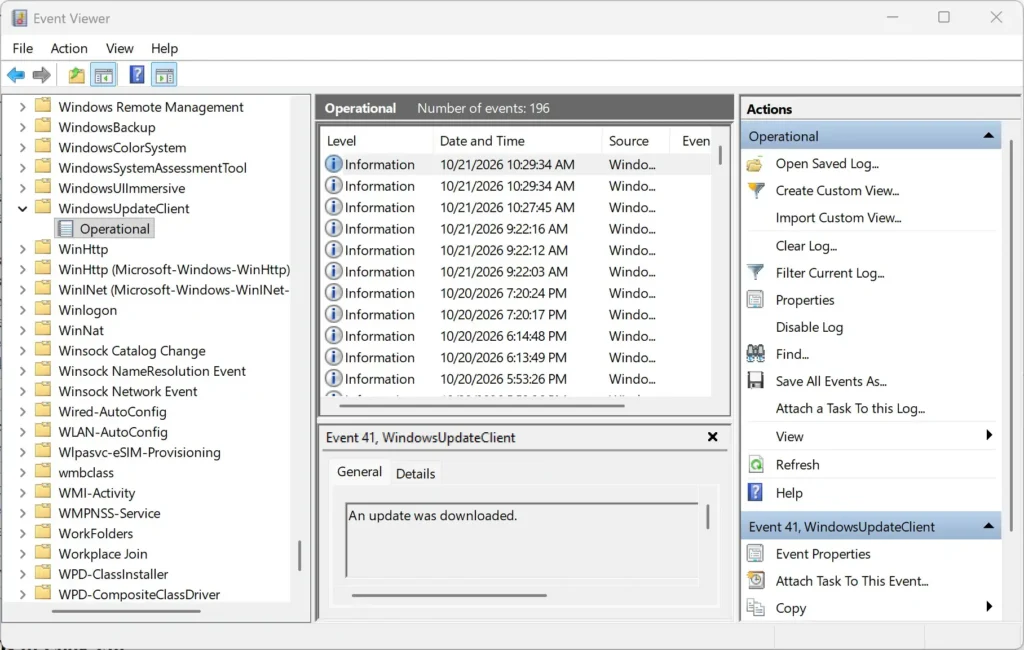
- Tick the box next to Operational. Click anywhere outside the drop-down to close it.
- Type
19,20in the <All Event IDs> box. - Select OK. A Save Filter to Custom View dialog box opens.
- Type a name in the Name box, for example
Update installs and failures. - Select OK. The view appears under Custom Views in the left pane and opens straight away.
To remove the view later, right-click it under Custom Views and choose Delete. This removes only the saved filter. The events stay in the log.
Check the Same Log Using PowerShell
PowerShell can read the same log if you want to copy results into a file or a support ticket. Right-click Start, choose Terminal, and run the PowerShell command in the code block below. It lists successful installs with their time and description.
Get-WinEvent -FilterHashtable @{LogName='Microsoft-Windows-WindowsUpdateClient/Operational'; Id=19} | Select-Object TimeCreated, MessageChange Id=19 to Id=20 to list failures instead. This command only reads the log. It does not need administrator rights on most PCs.
Why the Log Is Empty or Incomplete
Several causes explain an empty list or missing events. Work through them in this order.
The Filter Is Too Narrow
An empty list after you apply a filter usually means no events match it. Event 20 appears only when an install failed. A healthy PC may show none. Select Clear Filter and check that events still exist in the log.
The Log Was Cleared or Overwritten
When the log fills up, Windows overwrites the oldest events. Older update history can therefore disappear from Event Viewer while Settings still lists it. Someone may also have cleared the log by hand.
To check the size limit, right-click Operational and choose Properties. The Maximum log size box shows the limit. Raising it keeps more history, but only for future events.
You Cannot Open the Log
If Event Viewer shows an access error, close it and open it again with administrator rights. Search for Event Viewer in the Start menu, right-click the result and choose Run as administrator. Sign in with an administrator account if prompted.
The Update Appears in Settings but Not Here
Event Viewer does not log some updates, such as Microsoft Store app updates, in this location. The guide to checking for app updates in Windows 11 covers those.
Export or Clear the Log
You can save the events you filtered to a file before you share them or change the log. With a filter applied, click Save Filtered Log File As... in the Actions pane. Choose a name and location, then select Save. The file uses the .evtx format, which opens in Event Viewer on any Windows PC.
This step requires administrator rights. Right-click Operational, choose Clear Log..., then select Save and Clear or Clear.
Clearing the event log is a separate task from clearing the list you see in Settings. For the Settings list, see how to clear Windows Update history in Windows 11.
Event Viewer or Settings: Which to Use
Use Settings when you want a quick list of what installed recently. Open Settings Windows Update Update history It groups updates by type and lets you uninstall one.
Use Event Viewer when you need timestamps for each stage, an error code or a record of an update that failed. It also helps when you need to confirm a reboot happened after an install. For a full walkthrough of the Settings route, read how to check for Windows 11 updates.
If an update shows as failed in the log and the PC behaves badly afterwards, you can remove it. The article on uninstalling updates in Windows 11 explains how.
What to Do Next
If the log shows a failed update, note the KB number and the error code, then search for them together to find a fix. Event Viewer works the same way for sign-in activity, and viewing login history in Windows 11 with Event Viewer uses the same steps with a different log. For driver installs that appear in your update history, see the guide to updating Windows 11 drivers.
Frequently asked questions
How to install optional 🪟 Windows 11 updates?
Open Settings, go to Windows Update, then select Advanced options and Optional updates. Tick the updates you want, select Download & install, and restart if Windows asks. Optional updates include driver and non-security fixes, so install only what you need.
How to schedule updates in 🪟 Windows 11?
Windows 11 has no setting to pick an exact install time. Instead, open Settings, go to Windows Update, and select Active hours to set the hours you use your PC. Windows avoids restarting during that window. To delay updates for a while, use Pause updates and choose up to five weeks.
How to disable automatic updates in 🪟 Windows 11?
Windows 11 Home and Pro do not offer a full off switch for updates in Settings. Open Settings, go to Windows Update, and select Pause updates to stop them for up to five weeks. Repeat the pause when it ends. Turning off the Windows Update service is possible but risky, since your PC will miss security fixes.
How to schedule automatic updates in 🪟 Windows 11?
Windows 11 does not let you pick a fixed time for automatic updates. Set Active hours instead. Open Settings, go to Windows Update, and find Active hours in its options. Enter the start and end times you use your PC, and Windows will not restart during that window.
How to update to the latest build of 🪟 Windows 11 preview?
Preview builds can be unstable, so back up your files first. Then join the Windows Insider Program. Open Settings, go to Windows Update, select Windows Insider Program, and choose Get started. Sign in with your Microsoft account, pick a channel such as Beta or Dev, then check for updates.
Still have a question?
Answered by AI from this guide. Good questions may be added to this page — please don't include personal details.
Did this guide fix your problem?

About the Author
Richard
Tech Writer, IT Professional
Richard is a writer at Geek Rewind who turns complex IT tasks into clear, step-by-step guides. He draws on years of hands-on experience in system administration and enterprise IT operations, focusing on Windows, Linux and WordPress: the problems people actually run into, and the fixes that work. His server and WordPress guides come from systems he runs himself. Richard builds and maintains the platform behind Geek Rewind, from its Ubuntu servers and Nginx configuration to its custom WordPress plugins. Many new tutorials start with readers' questions, and he's always glad to answer them in the comments.
No comments yet — be the first to share your thoughts!