View Login History in Windows 11 with Event Viewer

Windows 11 keeps a record of every sign-in on your PC, both successful and failed. You can read it in the Security log in Event Viewer. To see it, open Event Viewer as an administrator, go to Windows Logs Security, and filter the log for Event ID 4624, which marks a successful sign-in.
Event Viewer is the built-in tool that reads Windows’ event logs. It works on Windows 11 Home, Pro, Enterprise and Education. The Security log shows who signed in, when, and how: at the keyboard, over the network, or through Remote Desktop (a feature that lets someone sign in to your PC from another computer).
The steps below cover successful sign-ins, failed attempts, filtering by user, and saving the results.
To view login history in Windows 11, open Event Viewer as an administrator, go to Windows Logs Security, and filter the log for Event ID 4624, which records each successful sign-in. Windows also logs failed attempts as 4625. Event Viewer works on Windows 11 Home, Pro, Enterprise and Education, and each event’s Logon Type shows whether the sign-in happened at the keyboard, over the network, or through Remote Desktop.
What Event Viewer Records About Login History
Windows writes a security event each time an account signs in, signs out, or fails to sign in. Each event type has an Event ID, a number that identifies what happened. These are the IDs you need for login history:
| Event ID | What it means |
|---|---|
| 4624 | An account signed in successfully. |
| 4625 | A sign-in attempt failed. |
| 4634 | A sign-in session ended. |
| 4647 | The user chose to sign out. |
Windows 11 also records signing back in at the lock screen as a 4624 event, with a different logon type. The logon type tells you how the sign-in happened. A later section explains each one.
Before You Start
If you sign in with a standard account, Windows asks for administrator credentials, or Event Viewer shows an access denied message when you open the Security log.
Windows records successful and failed sign-ins by default on a typical Windows 11 PC. Auditing means Windows writes an event for an action. If your PC is managed by an employer or school, an administrator may have changed those settings, and the log can look different from what this article describes.
The Security log has a size limit. When it fills, Windows overwrites the oldest events by default. A PC that is on every day may keep only a few weeks of history, and a busy one keeps less.
View Login History in Event Viewer
These steps open the Security log and filter it so the list shows only successful sign-ins, which is your login history for this PC.
- Click Start and type Event Viewer. The Event Viewer app appears at the top of the results.
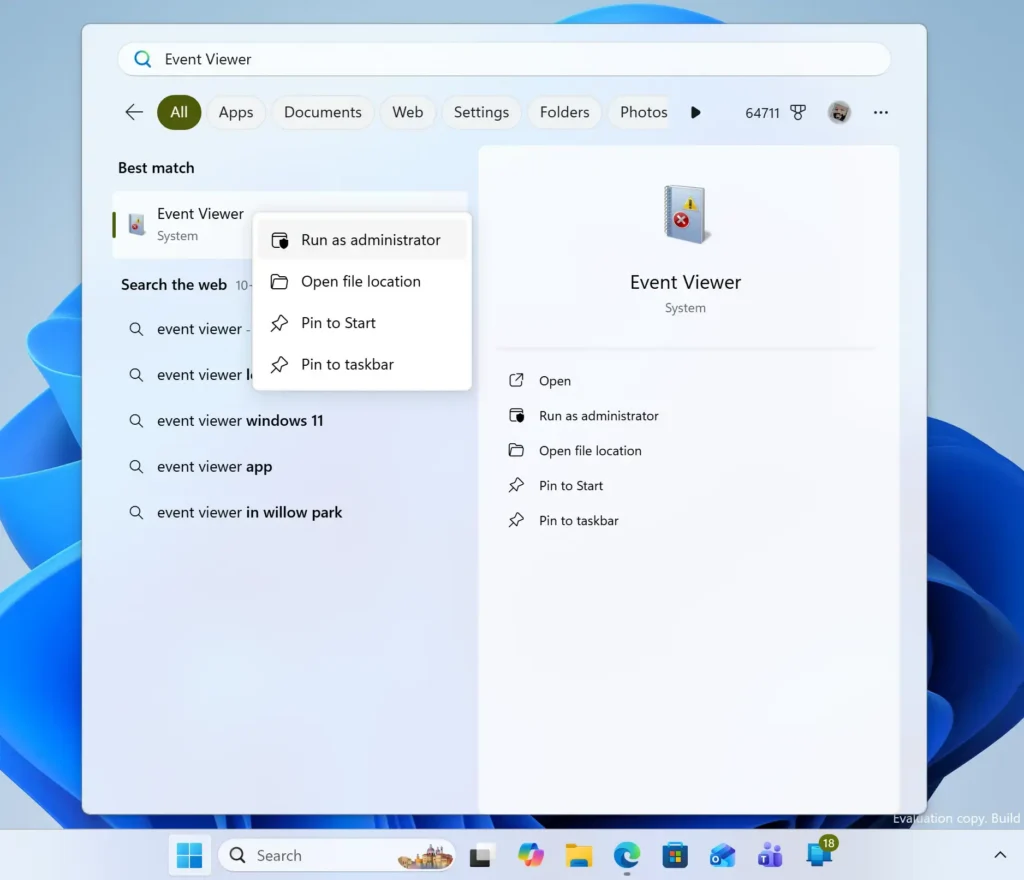
- Right-click Event Viewer and choose Run as administrator. This step requires administrator privileges. Select Yes on the User Account Control prompt, or enter administrator credentials if you are asked. The Event Viewer window opens with three panes.
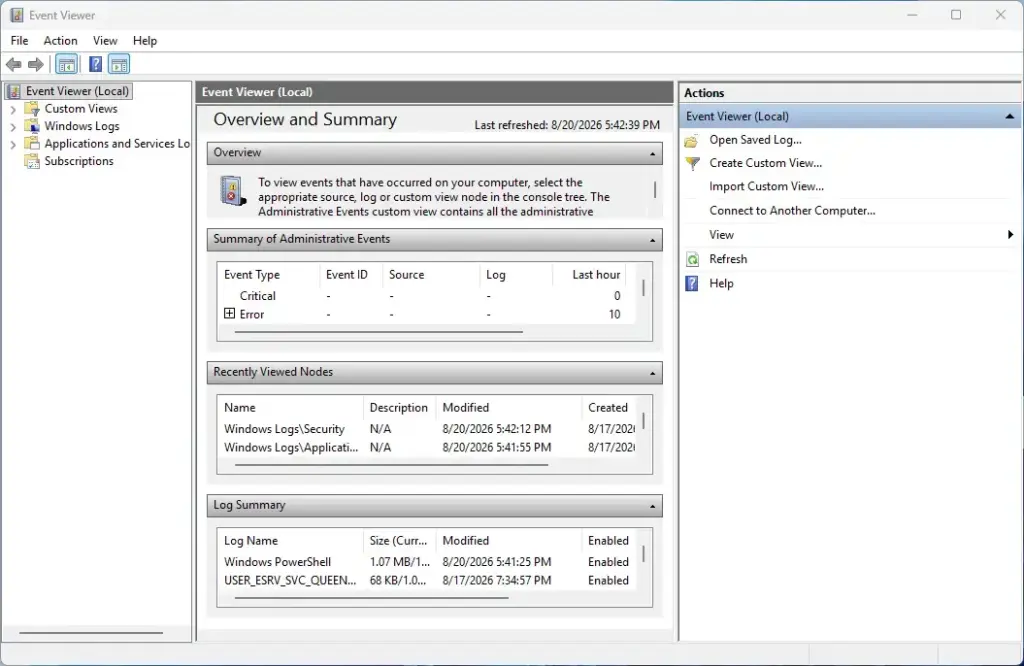
Event Viewer - Expand Windows Logs in the left pane. Click the arrow beside it. Five logs appear beneath it: Application, Security, Setup, System and Forwarded Events.
- Click Security. The middle pane fills with events. The Keywords column shows Audit Success or Audit Failure for each one.
- Click Filter Current Log in the right pane, under Actions. A dialog opens. If you do not see the Actions pane, select View Customize and tick it, or right-click the Security log in the left pane to find the same command.
- Open the Logged drop-down and choose a time range. Options run from Last hour to Last 30 days, plus Custom range. Pick Last 7 days if you are unsure.
- Click the box that reads <All Event IDs> and type 4624. This limits the list to successful sign-ins.
- Click OK. The middle pane now lists only 4624 events from your chosen period. The title bar of the log shows how many events match.
- Click the newest event in the list. Its details appear in the pane below the list, on the General tab.
- Find the New Logon section in the details. Read the Account Name to see who signed in. The time shown in the Date and Time column is when it happened.
- Check the Logon Type number near the top of the details. It tells you how the sign-in happened. The table in the next section explains each number.
- Click each event in turn and repeat steps 10 and 11. Use the Up and Down arrow keys to move through the list quickly.
If the list is empty after you apply the filter, widen the time range in step 6. If it is still empty, see the troubleshooting section further down.
How to Read a Login Event
The Subject and New Logon Sections
A 4624 event has two account sections, and people often read the wrong one. The Subject section names the process (a running program or service) that asked Windows to create the session. For a normal sign-in at the keyboard, this is usually the computer itself, shown as COMPUTER-NAME$ with a dollar sign.
The New Logon section holds the account that actually signed in. Read this one. The Account Name there is the account, for example USERNAME.
If you use a Microsoft account, Event Viewer may show a local account name instead of your email address. Windows creates that name from your account.
Logon Types
The Logon Type field is a number. These are the logon types you are most likely to see on a Windows 11 PC. [Verification Required: the logon type list is missing from the source. Add the list here before publishing.]
| Logon Type | Meaning |
|---|---|
| 2 | Interactive. Someone signed in at the keyboard or screen. |
| 3 | Network. Another device reached a shared folder or printer on this PC. |
| 5 | Service. A Windows service started under an account. |
| 7 | Unlock. Someone unlocked a locked screen. |
| 10 | Remote interactive. Someone signed in with Remote Desktop. |
| 11 | Cached interactive. Someone signed in with saved credentials, without contact with a domain controller. |
Why the List Is So Long
A single day produces hundreds of 4624 events, and most are not people. Windows creates sessions for itself and its services.
Look for account names such as SYSTEM, LOCAL SERVICE and NETWORK SERVICE, and names beginning with DWM- or UMFD-. DWM is the Desktop Window Manager, and UMFD is the User Mode Font Driver Host. These are system entries, so you can skip them.
To cut the noise, filter by logon type 2 and 7. The custom view in a later section does this.
Find Failed Sign-In Attempts
Failed attempts matter if you suspect someone is guessing a password. To find failed attempts, use the same Security log but filter for Event ID 4625 instead of 4624.
- Open Event Viewer as an administrator, as in the earlier steps. This step requires administrator privileges.
- Select Windows Logs Security in the left pane.
- Click Filter Current Log in the Actions pane.
- Type 4625 in the Event IDs box. Choose a time range in the Logged drop-down.
- Click OK. The list shows failed sign-ins only.
- Click an event and read the Account For Which Logon Failed section. The Account Name there is the account someone tried to use.
- Read the Failure Information section. The Failure Reason line states why the attempt failed, and Sub Status gives a code.
Two Sub Status codes (the reason Windows gives for the failure) cover most cases. 0xC000006A means the user name exists but the password was wrong. 0xC0000064 means the user name does not exist on the PC. Many entries with the second code in a short time suggest someone trying a list of names.
A single failure is normal. Mistyped passwords and PINs create 4625 events like any other attempt.
Show Only One User or Only Sign-Ins at the Keyboard
The Filter Current Log dialog cannot filter on logon type or account name. For that, create a custom view with an XML query. XML is a structured text format. Event Viewer uses it to describe exactly which events to show.
- Select Windows Logs Security in the left pane of Event Viewer, opened as an administrator. This step requires administrator privileges.
- Click Create Custom View in the Actions pane. The Create Custom View dialog opens.
- Select the XML tab.
- Tick Edit query manually. A warning says you cannot return to the Filter tab afterwards. Click Yes.
- Delete everything in the box and paste in the query below. [Verification Required: the XML query text is missing from the source. Add it here before publishing.] It shows successful sign-ins of logon type 2, which are sign-ins at the keyboard or screen.Code
<QueryList>
  <Query Id="0" Path="Security">
    <Select Path="Security">*[System[(EventID=4624)]] and *[EventData[Data[@Name='LogonType']='2']]</Select>
  </Query>
</QueryList> - Click OK. The Save Filter to Custom View dialog opens.
- Type a name in the Name box, such as Keyboard sign-ins, and click OK. The new view opens and lists matching events.
To see sign-ins for one account only, add a second condition to the same line. Change the Select line to this:
*[System[(EventID=4624)]] and *[EventData[Data[@Name='TargetUserName']='USERNAME']]Replace USERNAME with the account name as it appears in the New Logon section. If the view shows no events, check that the name matches exactly. To include unlocks, add a second logon type to the query, or create a separate view for type 7.
Your saved view stays under Custom Views in the left pane, and it keeps working the next time you open Event Viewer. To remove it, right-click it and choose Delete. This deletes only the view, not the events.
Save or Export the Results
Saving a copy keeps your findings after Windows overwrites old events. It also lets you hand the data to someone else.
- Apply your filter or open your custom view, so the list shows the events you want.
- Click Save Filtered Log File As in the Actions pane. For a custom view, the command reads Save All Events in Custom View As.
- Choose a folder and type a file name. Leave the file type as Event Files (*.evtx) to open it later in Event Viewer. Click Save.
- Choose Display information for these languages if a prompt appears, then click OK.
To open the saved file later, double-click the .evtx file. For a spreadsheet-friendly copy, choose Text (Tab delimited) (*.txt) or CSV (Comma Separated) (*.csv) as the type in step 3.
Why Your Login History Is Empty or Incomplete
These are the usual causes, in the order worth checking.
Event Viewer Was Not Run as Administrator
Without administrator rights, the Security log fails to open or shows no events. Close Event Viewer and reopen it with Run as administrator.
The Log Overwrote Old Events
When the Security log reaches its maximum size, Windows overwrites the oldest events. The default maximum is 20 MB. To check or change it, right-click Security under Windows Logs and choose Properties.
Look at Maximum log size (KB). Raise the number to keep more history. Make sure Overwrite events as needed (oldest events first) is still selected unless you want the log to stop recording when it fills.
Clearing removes the entire history and cannot be undone. Windows records the clearing itself as a separate event.
Auditing Was Turned Off
If you see no 4624 or 4625 events at all, even for today, auditing for sign-ins may be off. To check the current setting, open Windows Terminal or Command Prompt as an administrator. Type the command below and press Enter: auditpol /get /category:"Logon/Logoff". [Verification Required: the command is missing from the source. Add it here before publishing.]
The Logon line should read Success and Failure. If it does not, a policy or another administrator changed it. [Registry method: to be verified]
The Account Signed In on Another Device
Event Viewer records sign-ins to this PC only. It does not show when your Microsoft account signed in on another device or on the web. For that, check the recent activity page of your Microsoft account at account.microsoft.com.
The Time Looks Wrong
Event Viewer shows times in your PC's local time zone. If the clock or time zone on the PC is wrong, the event times are wrong too. Check Settings Time & language Date & time before you rely on a timestamp.
What to Do Next
Save your custom view and open it from Custom Views whenever you want to check recent sign-ins. If failed attempts from unknown account names keep appearing, change the passwords on your accounts and make sure Remote Desktop is off if you do not use it. Raise the Security log's maximum size now if you want more than a few weeks of history in future.
Have a question about this guide?
Answered by AI from this guide. Good questions may be added to this page — please don't include personal details.
Did this guide fix your problem?

About the Author
Richard
Tech Writer, IT Professional
Richard is a writer at Geek Rewind who turns complex IT tasks into clear, step-by-step guides. He draws on years of hands-on experience in system administration and enterprise IT operations, focusing on Windows, Linux and WordPress: the problems people actually run into, and the fixes that work. His server and WordPress guides come from systems he runs himself. Richard builds and maintains the platform behind Geek Rewind, from its Ubuntu servers and Nginx configuration to its custom WordPress plugins. Many new tutorials start with readers' questions, and he's always glad to answer them in the comments.
No comments yet — be the first to share your thoughts!