How to Turn On or off the Warning When Closing Multiple Tabs in Windows Terminal

The close tab warning in Windows Terminal is a safety prompt. When you try to exit the app with more than one tab open, it asks “Do you want to close all tabs?” It helps you avoid losing open sessions in tools like Command Prompt, PowerShell, or WSL by accident.
You can turn this warning on or off from the Settings page or by editing the settings file. Both methods change the same setting. The change takes effect right away, so you don’t need to restart the app. By default the warning is on.
Open Windows Terminal settings, navigate to the Interaction tab, and toggle the “Warn when closing more than one tab” option. This setting controls whether a confirmation prompt appears when you attempt to close multiple tabs.
What is Windows Terminal?
Windows Terminal is a modern app that lets you use command-line tools like Command Prompt, PowerShell, and Linux Bash on Windows 11. It supports multiple tabs, split views, custom colors, and more. On current Windows 11 builds it is installed by default. If it is missing on your PC, you can get it from the Microsoft Store.
Why is the Warning Useful?
When you have many tabs open and try to close the terminal, this warning helps you avoid closing everything and losing your work. This matters most if you have long-running commands, SSH or WSL sessions, or unsaved output in some tabs. If you open and close lots of throwaway tabs, the prompt can get in the way, and turning it off makes sense.
How to Turn the Warning On or Off Using Windows Terminal Settings
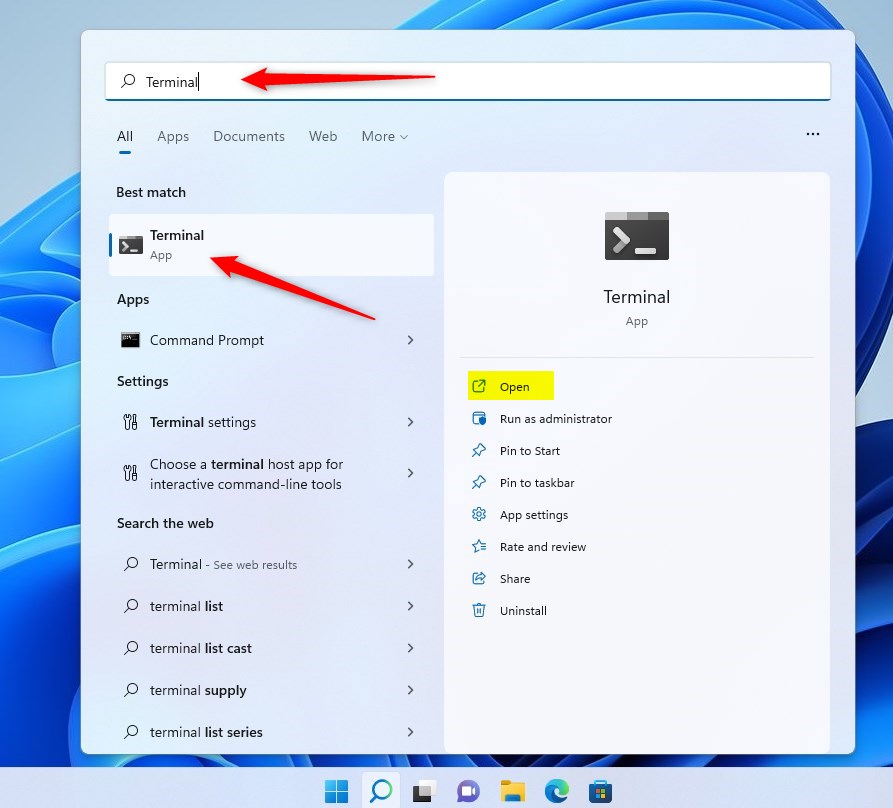
- Open Windows Terminal. Click the Start button, type Terminal, and click the Windows Terminal app in the results. The terminal opens with your default profile.
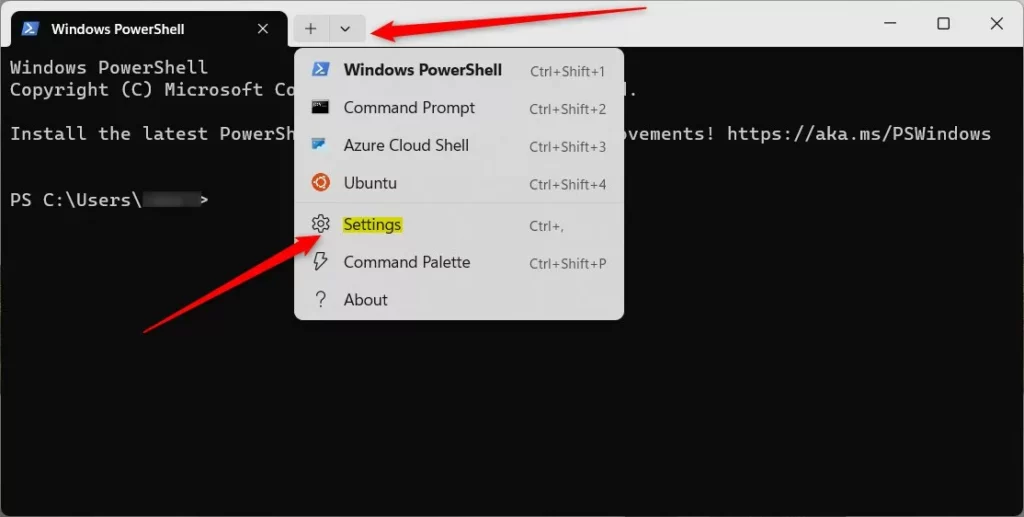
- Open Settings . Click the down arrow next to the tabs at the top, then click Settings. You can also press Ctrl + ,. A Settings tab opens with a list of pages on the left.
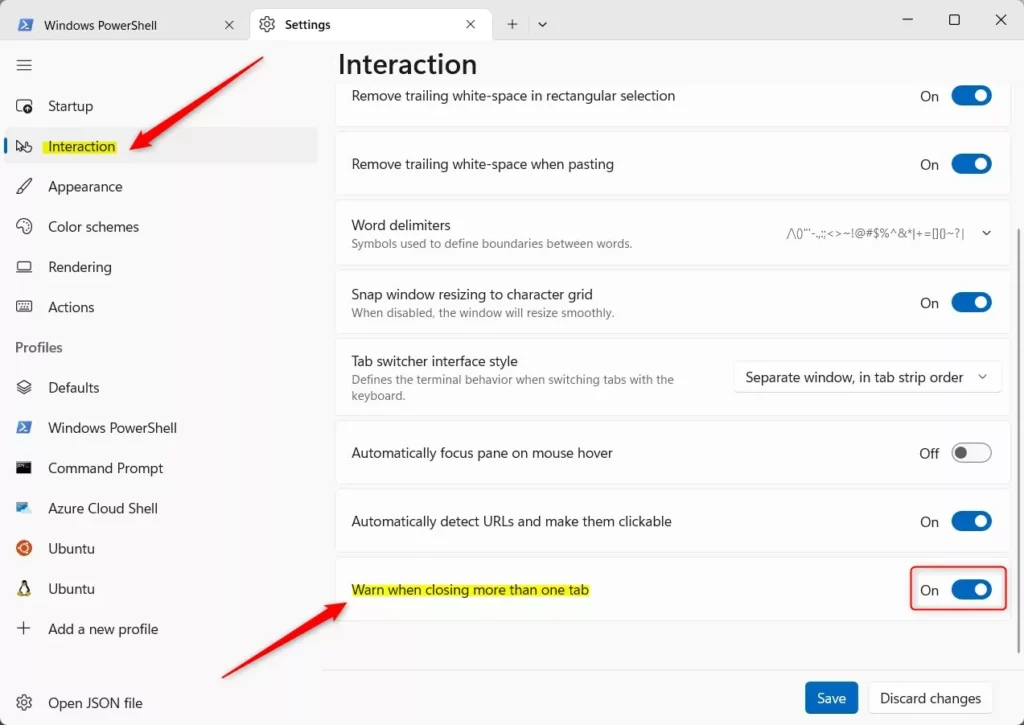
- Select the Interaction page. In the list on the left, click Interaction. The options for mouse, copy and paste, and window behavior appear on the right.
- Change the warning. Find the option “Warn when closing more than one tab”. Switch it On to get the warning, or Off to stop it appearing.
- Save the change. Click Save at the bottom of the page. The new setting applies right away.
To undo the change later, come back to the same toggle, flip it, and click Save again. If the toggle looks stuck or the Save button stays greyed out, nothing has changed yet, so make sure you actually flipped the switch.
You can manage the Windows Terminal close warning through the app settings to stop accidental closures. Open Windows Terminal and go to Settings by pressing Ctrl + ,. Select the Interaction tab on the left side, then turn the warning on or off depending on your preference.
You can manage the Windows Terminal close warning through the app settings to stop accidental closures. Open Windows Terminal and go to Settings by pressing Ctrl + ,. Select the Interaction tab on the left side, then turn the warning on or off depending on your preference. Remember to click Save afterward.
You can manage the Windows Terminal close warning through the app settings to stop accidental closures. Open Windows Terminal and go to Settings by pressing Ctrl + ,. Select the Interaction tab on the left side, then turn the warning on or off depending on your preference. The same steps work in both directions, so you can switch the warning back on at any time.
How to Turn the Warning On or Off Using the JSON File
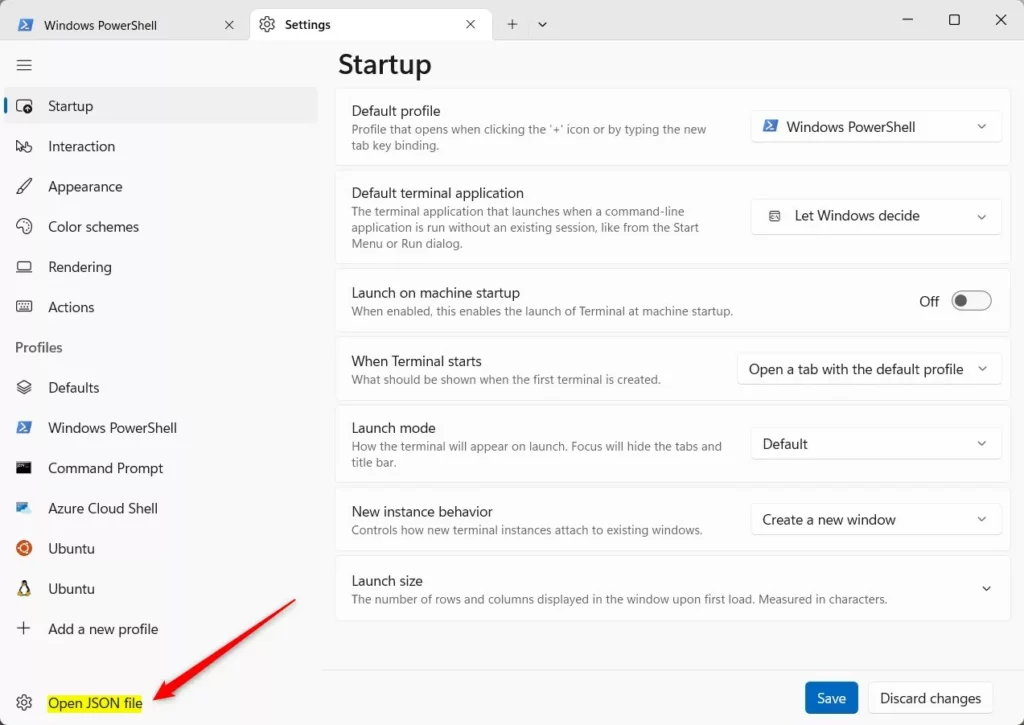
You can also adjust the close warning by editing the configuration file directly. This is handy if you already manage your Terminal settings in JSON or want to copy them to another PC. Open Settings, click Open JSON file at the bottom left, and find the confirmCloseAllTabs setting. Switch it between true and false.
- Open Windows Terminal.
- Go to Settings as explained above.
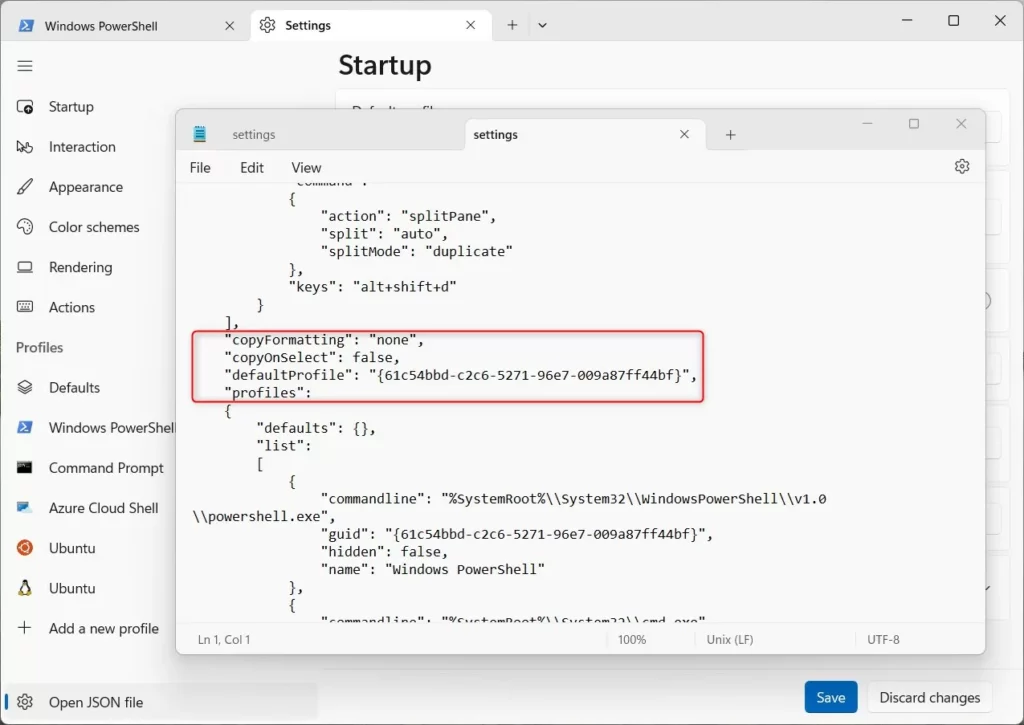
- At the bottom left of the Settings window, click Open JSON file. The settings file opens in your default text editor. If Windows asks which app to use, pick a text editor such as Notepad.
- Look for the line that says
"confirmCloseAllTabs":trueor"confirmCloseAllTabs":false. If you can't find it, the setting is not in your file, and Terminal uses its default, which is warning on. In that case, use the Settings page method above. - To enable the warning, make sure it says:Code
"confirmCloseAllTabs": true, - To disable the warning, change it to:Code
"confirmCloseAllTabs": false, - Save the file and close it. Terminal picks up the change automatically.
Be careful not to delete the comma at the end of the line or any quotation marks. A broken settings file makes Terminal show an error and fall back to its defaults until you fix it.
What the Warning Looks Like
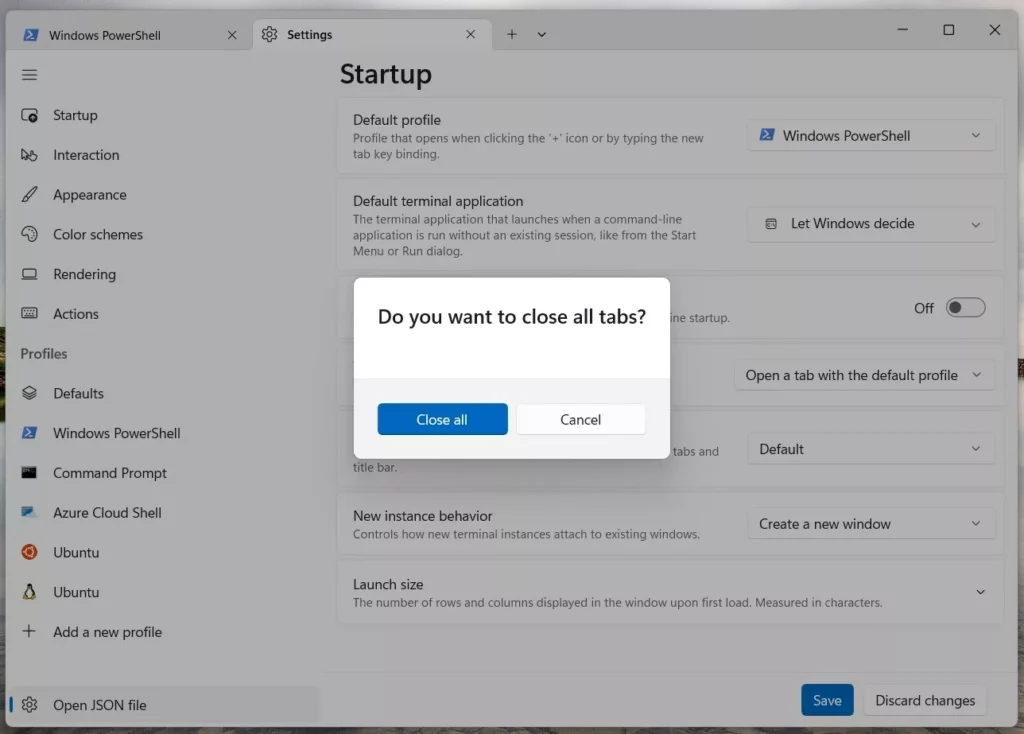
When the warning is enabled and you try to close Windows Terminal with multiple tabs open, you will see a prompt like this:
Summary
- Windows Terminal lets you run multiple command-line tabs at once.
- You can turn on or off a warning message that appears when closing the app with many tabs open.
- You can change this setting through the app's Settings page (Interaction) or by editing the JSON file.
- The warning helps prevent accidentally closing all your tabs and losing your work.
The Windows Terminal close warning protects your active work sessions by asking for confirmation before shutting down multiple tabs. You can turn this safety prompt on or off using either the built-in settings page or the configuration file, and you can reverse the change at any time.
That's it! Now you know how to control the close warning in Windows Terminal.
Have a question about this guide?
Answered by AI from this guide. Good questions may be added to this page — please don't include personal details.
Did this guide fix your problem?

About the Author
Richard
Tech Writer, IT Professional
Richard is a writer at Geek Rewind who turns complex IT tasks into clear, step-by-step guides. He draws on years of hands-on experience in system administration and enterprise IT operations, focusing on Windows, Linux and WordPress: the problems people actually run into, and the fixes that work. His server and WordPress guides come from systems he runs himself. Richard builds and maintains the platform behind Geek Rewind, from its Ubuntu servers and Nginx configuration to its custom WordPress plugins. Many new tutorials start with readers' questions, and he's always glad to answer them in the comments.
No comments yet — be the first to share your thoughts!