How to Check Update History Logs in Windows 11 Update & Security

- 26 steps
- Needs administrator rights
Checking update history logs in Windows 11 starts at Settings Windows Update Update history. That page lists each recent install and whether it succeeded or failed. Event Viewer and a log file built with PowerShell hold the deeper detail.
Update history logs record every system patch, driver installation, and security fix applied to the PC, with success and failure codes. When an update fails, the records give you the exact hexadecimal error code, a long code beginning with 0x. That code helps you track down stubborn driver conflicts and pending patches that keep the PC from updating.
Open Settings Windows Update Update history to see every recent install and whether it succeeded or failed, with the error code for any failure. For deeper detail, open Event Viewer and go to Applications and Services Logs Microsoft Windows WindowsUpdateClient Operational, or run Get-WindowsUpdateLog in an administrator PowerShell window to create a WindowsUpdate.log file on your desktop.
How to access Windows Update logs in 🪟 Windows 11 and 🪟 Windows 10
These steps show the update history in Settings and work the same on Home and Pro editions.
- Open Settings. Use the Start menu or the pinned Settings icon.
- Select Windows Update in the left-hand list. The page shows the current update status and any pending updates.
- Select Update history. It is in the More options section further down the page. The page lists recent installs, grouped by type, with a status of Successfully installed or Failed to install beside each one.
That summary is handy for a quick check. The raw log files go further. They give you minute-by-minute debugging data when you need to work out why something failed.
Viewing Windows Update logs using the Event Manager
Event Viewer records background actions the operating system takes, including update attempts. It shows a detailed history of past installations without any extra software. To open it from search, type event viewer in the Start menu search bar and press Enter. The steps below use the Start button instead.
Follow these steps to read the Windows Update events in Event Viewer.
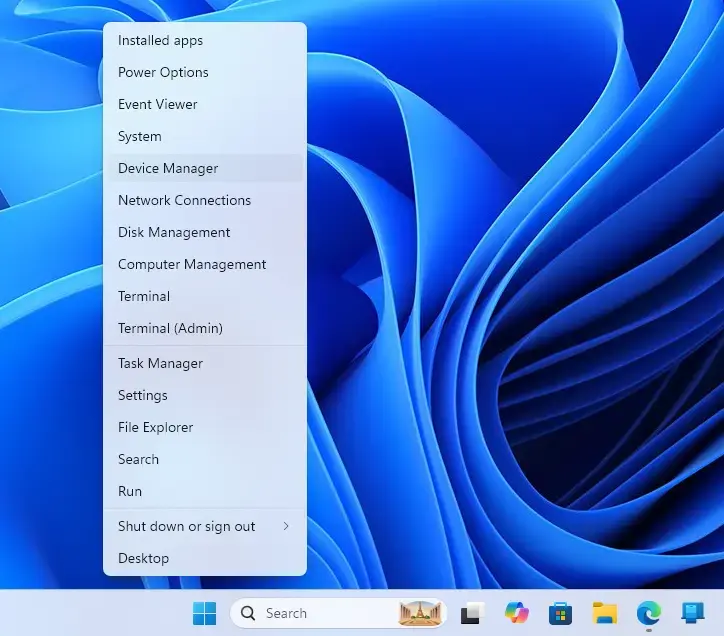
- Right-click the Start button on your taskbar. A menu of system tools appears.
- Select Event Viewer. The Event Viewer window opens with a folder tree on the left.
- Expand Applications and Services Logs in the left-hand pane.
- Click the arrow next to Microsoft. The folder expands.
- Click the arrow next to Windows. Its subfolders appear. The list is long, so expect a lot of entries.
- Scroll down and select WindowsUpdateClient. Two items appear beneath it.
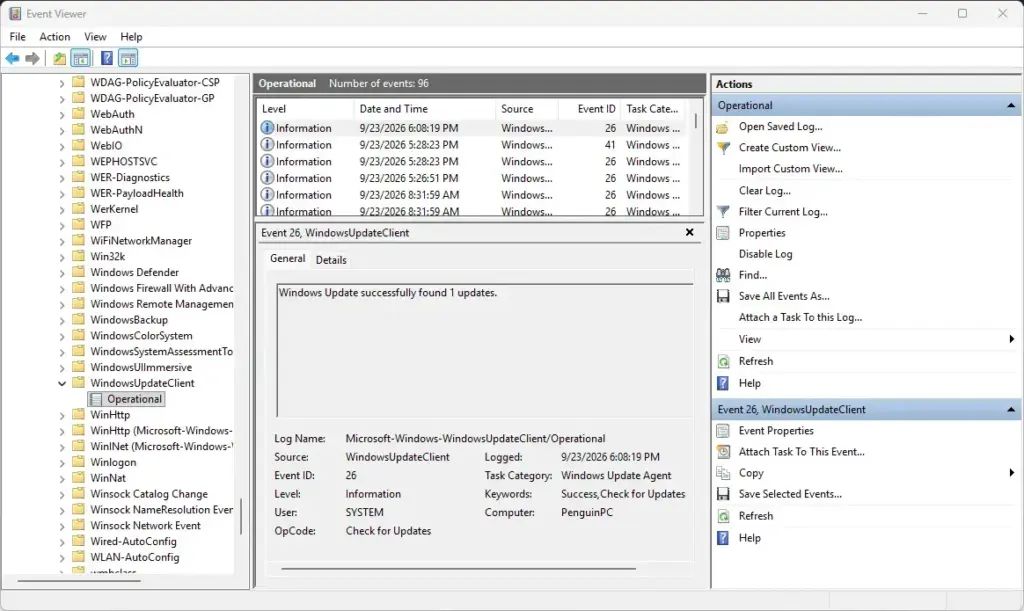
- Click Operational. The central pane now lists update events and errors, newest first.
Click any entry to read its details in the lower pane. Event ID 19 normally marks a successful install and Event ID 20 a failed one.
To narrow a long list, use Filter Current Log in the right-hand Actions pane. Then tick Error and Warning. Clear the filter from the same pane when you want the full list back.
Exporting Windows Update log files using Get-WindowsUpdateLog (PowerShell)
Windows stores raw update data as ETW (Event Tracing for Windows) traces, a binary format you cannot open in Notepad. To read them, convert the traces into a plain text file with PowerShell. The command below gathers the trace data and writes it out as a readable log.
These steps create the log file on your desktop. You need an administrator account, and no restart is required.
- Right-click the Start button. The same tools menu appears.
- Select Terminal (Admin). Windows 11 opens this in PowerShell by default. If you use Command Prompt instead, type powershell first, because the command is a PowerShell cmdlet.
- Click Yes if User Account Control asks for permission. The terminal window then opens with administrator rights.
- Type
Get-WindowsUpdateLogand press Enter. PowerShell starts reading the trace files. - Wait while PowerShell processes the tracing files and assembles the document. This can take a minute or more, and a progress message may appear.
- Open File Explorer and go to your desktop. The new WindowsUpdate.log file should be there.
The file is a snapshot. Run the command again after a new update attempt to get a fresh copy. You can delete the file whenever you like, because the source traces are not affected.
Filtering Get-WindowsUpdateLog output
The generated file often holds thousands of lines, so reading it top to bottom is not practical. The search function in your text editor takes you straight to the problem entries.
Use these steps to find the failed updates in the log.
- Open WindowsUpdate.log in a text editor such as Notepad.
- Press Ctrl+F. The Find box opens.
- Type
FaultorErrorand press Enter. The editor jumps to the first failed installation event. - Press Enter again. The editor moves to the next match.
- Look for hexadecimal status codes, such as
0x80240fff. The code points to the exact failure reason.
Copy the full code and search for it on Microsoft’s support site. Read a few lines above and below each hit, since the cause is often logged just before the failure.
Generating WindowsUpdate.log
Windows continuously writes tracing data to binary event trace log files deep inside system directories. The conversion command reads those files and translates them into an ASCII text file you can open and search. ASCII is a plain character format that any text editor understands.
Windows Update log components
The text output is split into distinct parts that separate processes, time zones, and individual components. Knowing what each part means lets you read the log without being overwhelmed by raw data.
Windows Update log structure
Every line in a processed update log follows the same layout: metadata tags first, then the event message. Once you recognize that pattern, you can skip routine background maintenance lines. You can then focus on the updates you actually installed or tried to install.
Time stamps
The time stamp comes first on each entry. It shows the date, hour, minute, second, and fraction of a second, and it relates to Coordinated Universal Time (UTC), the world’s standard reference time.
Compare these time stamps with your system clock so you can line up update events with things like crashes or network drops. If the log times look off, check your time zone’s offset from UTC.
Process ID and thread ID
Process IDs and thread IDs appear as numbers right after the time stamp. A process ID identifies a running service. A thread ID identifies one worker inside it. Together they show which part performed each action.
Searching for one thread ID lets you follow a single installation from start to finish, even when other entries are mixed in.
Component name
The component name labels the sub-system handling the task, such as the downloader, the installation orchestrator, or the cryptographic validation service. Use it to filter out routine telemetry and focus on the installation engine itself.
Update identifiers
Microsoft gives every piece of software it distributes through Windows Update a unique tracking number. These identifiers appear throughout the logs. They let you tell feature upgrades, cumulative security patches, and minor driver updates apart.
Update ID and revision number
The Update ID is a unique string assigned to one software package. It is paired with a revision number that counts how many times Microsoft has reissued that package. The logs use these numbers to show whether your PC pulled the latest corrected version.
Revision ID
The Revision ID is an internal catalog number the update agent uses to verify package integrity. It also helps keep superseded or vulnerable builds from being installed.
Local ID
The Local ID identifies the installation package instance on your own machine. It separates multi-user session states from background deployment queues, so you can tell which request an entry belongs to.
Inconsistent terminology
Log files often use internal engineering terms that differ from the names shown in Settings. A patch listed as a security update in the graphical interface may appear in the raw log under a project codename or registry identifier.
When a name does not match, search by the update’s KB number or its ID instead. The KB number is the “KB” code followed by digits that Microsoft gives each update.
Windows Setup log files analysis using SetupDiag tool
When a major feature update fails and Windows rolls back to the previous version, the standard update logs often do not explain why. SetupDiag is a Microsoft diagnostic tool that examines the setup log files and works out the reason for the failed upgrade. It scans the setup folders automatically and writes a clear error summary.
These steps run SetupDiag and read its report.
- Download the official SetupDiag utility from the Microsoft website.
- Create a new folder on your desktop. Move the downloaded executable file into it.
- Right-click the SetupDiag executable and select Run as administrator. Click Yes if User Account Control asks.
- Let the tool scan the hidden system directories for setup logs. A console window stays open while it works.
- Open the generated summary text file in the same folder. It is usually named SetupDiagResults.log. It shows the exact error code and the offending driver or application.
Advanced Log Parsing and Automated Batch Auditing
If you manage several local user accounts or run scheduled audits, reading text files by hand gets slow. You can pipe PowerShell log queries into text filtering tools and have the warning flags pulled out for you. This also avoids opening heavy graphical applications.
Command-line filtering works well on remote or resource-constrained machines where a graphical session is awkward. Combining PowerShell filters with string matching lets you build a custom diagnostic report in seconds.
Troubleshooting common issues using update logs
When an update stalls at a specific percentage or throws a generic error, the logs point to the component that is blocking it. Reading them lets you pinpoint software conflicts and resolve the failure without guessing.
Match the error codes from your logs against Microsoft’s support documentation. That lets you apply a targeted fix, such as resetting the update data store or clearing the software distribution cache, rather than reinstalling Windows.
Troubleshooting fleets of Windows devices with centralized logging
Enterprise environments collect update logs from many machines into a single administrative dashboard. Network administrators use forwarded event subscriptions and management tools to check update history across hundreds of endpoints at once.
This approach saves administrators from running PowerShell commands or opening Event Viewer on every workstation on the network.
What to do next
You should now be able to find, export, and read your system update records to diagnose installation errors. As a next step, learn how to clear corrupted update caches or manually reset the Windows Update components to clear stuck patch queues.
Frequently asked questions
How can I check my Windows update logs?
Open Settings, select Windows Update, then select Update history. The page lists each recent install and whether it succeeded or failed, with an error code for any failure. Windows 11 keeps this under Windows Update, not Update & Security. For more detail, open Event Viewer or export a log file with PowerShell.
How do I check my search history with the new update?
Windows Update history does not record searches, so it will not show them. To view or clear the searches Windows saves on this PC, open Settings, select Privacy & security, then select Search permissions. Find the History section there to view or clear device search history.
How to view 🪟 Windows 10 activity history?
Open Settings, select Privacy, then select Activity history. Check "Let Windows collect my activities from this PC" if you want Windows to save them. To browse past activity, press Win+Tab to open Task View and scroll through the timeline.
Still have a question?
Answered by AI from this guide. Good questions may be added to this page — please don't include personal details.
Did this guide fix your problem?

About the Author
Richard
Tech Writer, IT Professional
Richard is a writer at Geek Rewind who turns complex IT tasks into clear, step-by-step guides. He draws on years of hands-on experience in system administration and enterprise IT operations, focusing on Windows, Linux and WordPress: the problems people actually run into, and the fixes that work. His server and WordPress guides come from systems he runs himself. Richard builds and maintains the platform behind Geek Rewind, from its Ubuntu servers and Nginx configuration to its custom WordPress plugins. Many new tutorials start with readers' questions, and he's always glad to answer them in the comments.
No comments yet — be the first to share your thoughts!