How to Use the New Windows Search Experience in Windows 11

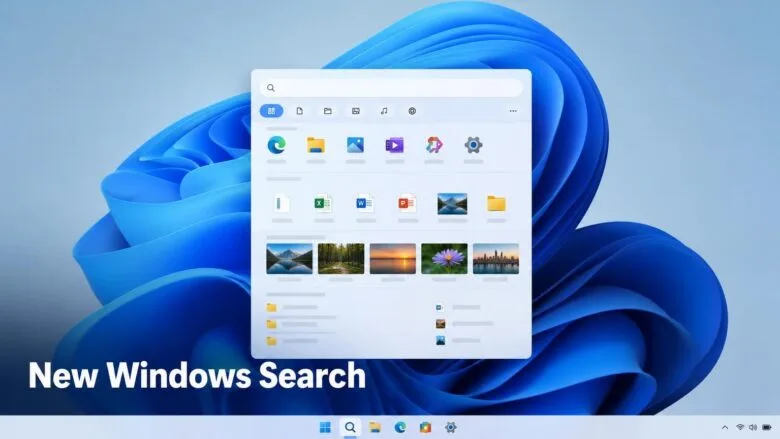
The new Windows Search experience in Windows 11 is a rebuilt search window that Microsoft announced on 7 October 2026. It uses WinUI 3 (Microsoft’s current toolkit for building the visual interface of Windows apps) and is designed to be faster, more efficient and easier to scan.
It is available only in Windows Insider preview builds so far, in the Experimental and Experimental (26H1) channels. To use it, join one of those channels, install the latest build, and open search with Win+S. It is a preview, so Microsoft may change it before a public release.
To use the new Windows Search experience in Windows 11, join the Experimental or Experimental (26H1) channel in Settings Windows Update Windows Insider Program, then install the latest build and press Win+S. Microsoft has not added an on/off switch, so the new search only appears after you are on a preview build that includes it.
What the new Windows Search experience is
Windows Search is the search window that opens from the taskbar or with Win+S. It finds apps, files, settings and, depending on your configuration, web results. Microsoft’s Windows Insider announcement for 7 October 2026 describes a new version of this window with three stated goals:
- Faster: the search window is rebuilt on WinUI 3.
- More efficient: it is designed to do its work with fewer resources.
- Streamlined design: the layout is meant to make results easier to scan.
Microsoft’s announcement does not describe a setting that turns the new search on. You get it by being on a build that includes it, not by changing an option in Settings. That shapes everything below.
Check whether you already have it
Before you change anything, check your current build and Insider status. If you are already in one of the two channels, the new search may be on your PC or arriving soon.
Open Settings System About and look under Windows specifications for the Version and OS build lines. Then open Settings Windows Update Windows Insider Program If the page shows a channel, you are already enrolled. If it only shows a Get started button, you are on a regular stable release and the new search is not available to you yet.
A channel is a release track. It decides which preview builds your PC receives, and the new search is limited to the Experimental and Experimental (26H1) tracks for now.
Before you join the Windows Insider Program
Moving a PC to a preview build is hard to undo, and returning to a stable release can require a clean install of Windows. Use a test PC or a virtual machine if you can, and back up your files before you start.
Joining the Windows Insider Program (Microsoft’s early access program for Windows) also requires a few things:
- A Microsoft account. The program does not accept local accounts.
- An administrator account on the PC. Enrolling changes system-wide update settings.
- Optional diagnostic data turned on. If the Insider page tells you to change this, go to Settings Privacy & security Diagnostics & feedback and turn on Send optional diagnostic data.
How to get and use the new Windows Search experience
Follow these steps for the Windows 11 new search experience, from joining a channel to running your first search. Step 3 requires administrator privileges.
- Open Settings . Press Win+I, or right-click Start and choose Settings. The Settings window opens on the System page.

- Go to Windows Update Windows Insider Program Select Windows Update in the left pane, then select Windows Insider Program. You see either your current channel or a Get started button.
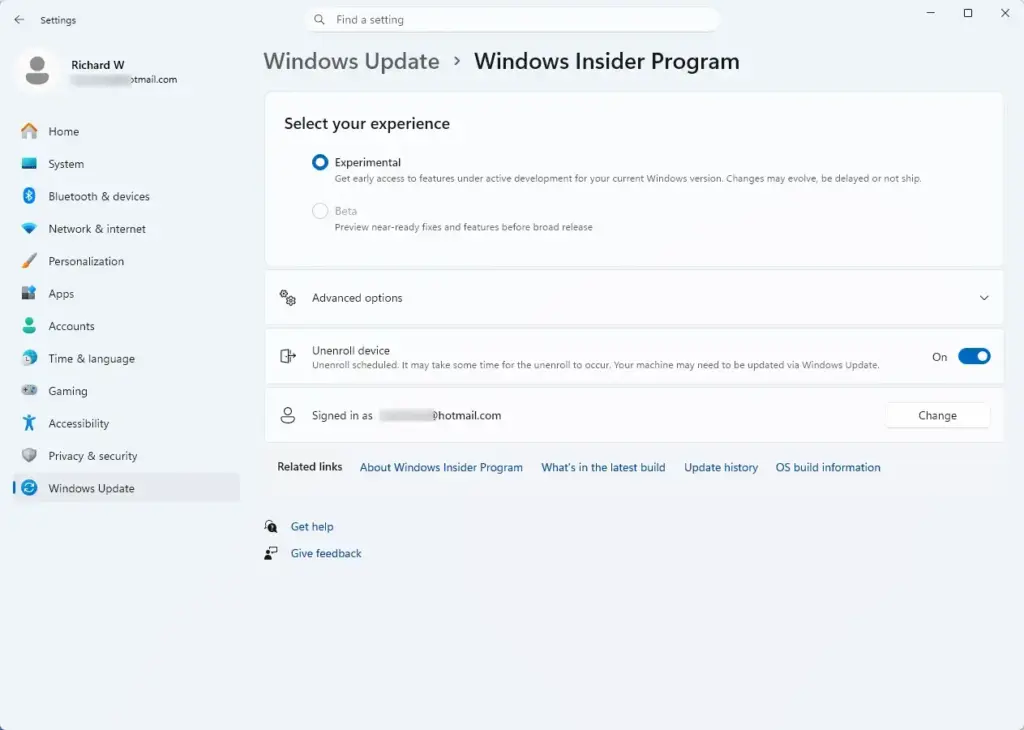
Settings › Windows Update › Windows Insider Program - Select Get started. This step requires administrator privileges. Sign in with your Microsoft account if asked. If Get started is greyed out or an error appears, check the optional diagnostic data setting described above, then try again.
- Choose the Experimental channel or Experimental (26H1). Microsoft lists both as receiving the new search. If neither appears for your device, the new search is not available to that PC yet. See the troubleshooting section below.
- Confirm the program terms. Read the screens that follow, then select Continue or the equivalent button on each one. The page now shows the channel you picked.
- Restart the PC. Select Restart now when Windows asks. Enrollment does not finish until you restart.
- Install the latest preview build. Open Settings Windows Update and select Check for updates . Download and install the newest Insider build. The download can take a while, and the PC restarts at least once.
- Sign in again after the restart. Wait for the desktop to finish loading. The first sign-in after a build upgrade is slower than normal.
- Open Windows Search. Press Win+S, or select the Search box or icon on the taskbar . A search window opens with a text box ready for typing. If it looks identical to the old one, the new version has not reached your PC yet.
- Type what you want to find. Start with an app name, a file name or a settings page such as Bluetooth . Results appear as you type.
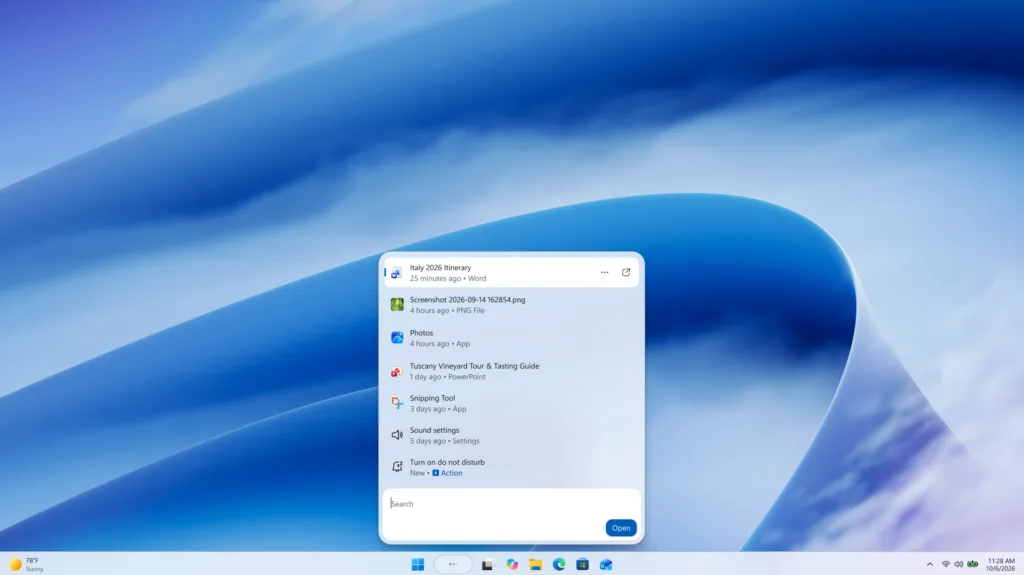
- Scan the results list. The redesign targets how easily you can pick the right item from the list. Look at the top result first, because it is the best match.
- Press Enter to open the top result. To open a different result, select it with the mouse or press the Down arrow until it is highlighted, then press Enter.
- Open Feedback Hub to report problems. Press Win+F. Describe what you saw and send it. Insider builds depend on this feedback, and Microsoft may change the design before release.
Why you may not see the new search
Being on the right channel does not guarantee the new window appears. Microsoft describes the new search as rolling out, which means features reach devices in stages. Work through these causes in order.
You are on a stable build
The new search exists only in preview builds. If Settings Windows Update Windows Insider Program shows Get started, you are not enrolled. Windows Update on a regular stable build will not deliver it.
You are on a different Insider channel
Microsoft’s announcement names the Experimental and Experimental (26H1) channels. If you are on another Insider channel, the new search may not be included. Open the Windows Insider Program page and check which channel is selected.
The build is not the latest one
Open Settings Windows Update and select Check for updates . Install every pending update and restart. Then compare your OS build in Settings System About against the build number in the latest Windows Insider announcement.
The feature has not reached your device yet
A staged rollout means some PCs on the correct build still show the old window for a while. Check for updates again over the next days. Microsoft’s announcement does not give a way to force it on, so there is no setting to hunt for.
Settings that still affect your search results
A new window does not change what Windows indexes. Indexing is the background process that catalogs your files so searches return quickly. If results are missing, the cause is usually the index, not the interface.
In current Windows 11 releases, you manage this at Settings Privacy & security Searching Windows. Preview builds change layouts, so the page may look different on your PC. The page covers these options:
- Find my files: chooses between Classic, which covers your libraries and desktop, and Enhanced, which covers the whole PC.
- Excluded folders: lists folders that search skips.
- Indexing status: shows how many items are indexed.
Settings Privacy & security Search permissions holds controls such as search history and cloud content search. If you want search limited to your PC, read how to turn off cloud content search in Windows 11.
Fix missing or slow results in the new search
Preview builds can have bugs. Before you blame the new design, rule out ordinary search problems. Try these in order, from least to most disruptive:
- Restart the PC. A restart clears stuck search processes and finishes pending updates.
- Check the indexing state. Open Settings Privacy & security Searching Windows If indexing shows as still running, give it time. The guide on Windows 11 search indexing explains how the index works.
- Work through the general fixes. How to fix Windows 11 search and indexing covers the common causes of empty or wrong results.
- Reset Windows Search. Follow how to reset Windows Search in Windows 11 if the search window will not open or stays blank.
- Rebuild the index. This makes Windows catalog your files again from scratch and can take hours on a large drive. The steps are in how to rebuild the Windows Search index in Windows 11.
If a problem appears only after the new search arrives, report it through Feedback Hub as described in the main steps.
How to go back to the standard search
There is no switch inside search to return to the old design. The new search is part of the preview build, so going back means leaving the preview builds.
If a Stop getting preview builds option is available for your channel, turn it on. That stops future preview builds but does not remove the one you already have. Moving to a stable release can require a clean install of Windows, and Microsoft's Insider documentation covers the options for your channel. Back up your files first.
What to do next
Watch the Windows Insider Blog for new build announcements, because the new search is a preview and its design may change before release. If you do not see it after installing the latest build, check again after the next update. When search results are wrong on any build, start with the Windows Search indexing guides.
Have a question about this guide?
Answered by AI from this guide. Good questions may be added to this page — please don't include personal details.
Did this guide fix your problem?

About the Author
Richard
Tech Writer, IT Professional
Richard is a writer at Geek Rewind who turns complex IT tasks into clear, step-by-step guides. He draws on years of hands-on experience in system administration and enterprise IT operations, focusing on Windows, Linux and WordPress: the problems people actually run into, and the fixes that work. His server and WordPress guides come from systems he runs himself. Richard builds and maintains the platform behind Geek Rewind, from its Ubuntu servers and Nginx configuration to its custom WordPress plugins. Many new tutorials start with readers' questions, and he's always glad to answer them in the comments.
No comments yet — be the first to share your thoughts!